
Nuvoic TechAbility Ian Karten Charitable Trust
Skip to Content
login
karten Network Logo

Supporting organisations working with disabled people

  • Home
  • About Us
    • Introduction
    • Trustees
    • Support Team
    • Minutes of Board Meetings
    • Karten Centre DVD
  • Research
  • Centres
    • Karten Centre Search
    • All Centres
    • Eire
    • England
      • East Midlands
      • East of England
      • London
      • North East
      • North West
      • South East
      • South West
      • West Midlands
      • Yorkshire and The Humber
    • Israel
    • Northern Ireland
    • Scotland
    • Wales
    • Success Stories
    • Equipment Donation
    • Apply for support
  • News
    • Newsletters
  • Resources
    • Mobile Technology Resource
    • eSafety
    • Useful links
    • Webinars
    • Talent and Technology Report
    • Audio Books
    • Event Handouts
  • Job Vacancies
  • Events
  • Contact Us
  • Home
  • About Us
    • Introduction
    • Trustees
    • Support Team
    • Minutes of Board Meetings
    • Karten Centre DVD
  • Research
  • Centres
    • Karten Centre Search
    • All Centres
    • Eire
    • England
      • East Midlands
      • East of England
      • London
      • North East
      • North West
      • South East
      • South West
      • West Midlands
      • Yorkshire and The Humber
    • Israel
    • Northern Ireland
    • Scotland
    • Wales
    • Success Stories
    • Equipment Donation
    • Apply for support
  • News
    • Newsletters
  • Resources
    • Mobile Technology Resource
    • eSafety
    • Useful links
    • Webinars
    • Talent and Technology Report
    • Audio Books
    • Event Handouts
  • Job Vacancies
  • Events
  • Contact Us

Technology Advisor Update – Winter 2023

Tech Tips

Keyboard with a finger pressing on a green tips and tricks key

With the festive season upon us, I thought to provide a sprinkling of stocking filler tips to bring some cheer while using the technology you use on a regular basis.

Microsoft Teams

Laptop computer displaying logo of Microsoft Teams

Muting

Anyone who has used Microsoft Teams will be all too familiar with “You’re on mute”. What you may not know is you can help them out, by unmuting them. You will however need to either be the meeting organiser or have been assigned as presenter. If you have either of these roles, you will be able to unmute a fellow participant by clicking on their name and selecting the Unmute Participant. Similarly, you can choose to mute them too.

Note: Microsoft Teams will by default mute anyone joining a meeting in progress when there are 5 or more participants. This is aimed at reducing distraction.

Rich-text Messages   

There may be times when it would help to add format and structure to messages. To do this, simply click on the ‘A’ icon/button on the bottom left of the text entry window. This will expand the text window and provide you with options to add format and structure to the text, before sending it.  
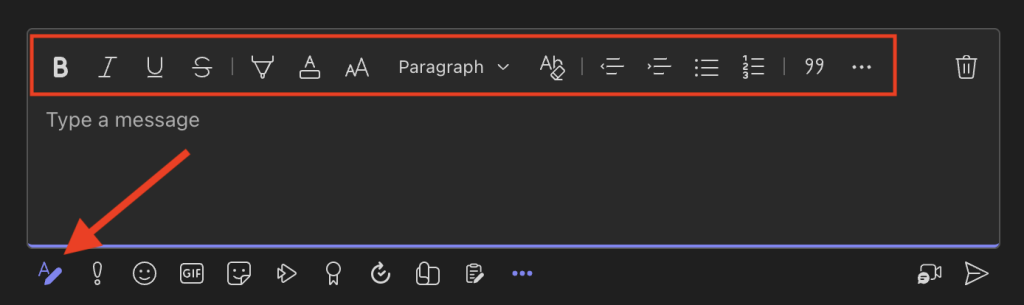
Screenshot of Microsoft Teams text chat area show the rich text editor

Keyboard Shortcuts

Keyboard shortcuts can be a quick and easy way to use an application. They can also be used to setup assistive technology (e.g. The Grid) to perform various actions. Three common ones are:

  • Ctrl + Shift + M – To mute/unmute yourself
  • Ctrl + Shift + O – To turn on/off your camera
  • Ctrl + N – To start a new chat

For a complete list of  shortcuts for Teams, for both Windows and macOS, please visit the  Microsoft Teams Support Portal.

Immersive Reader Mode

Microsoft Immersive Reader enables you to adjust how the text is displayed, removing distractions as well as being able to have the text spoken aloud. You can launch the Immersive Reader option by hovering over a message with your cursor and clicking the ellipsis. Note that Immersive Reader may be found under the “More actions” the first time you use it.
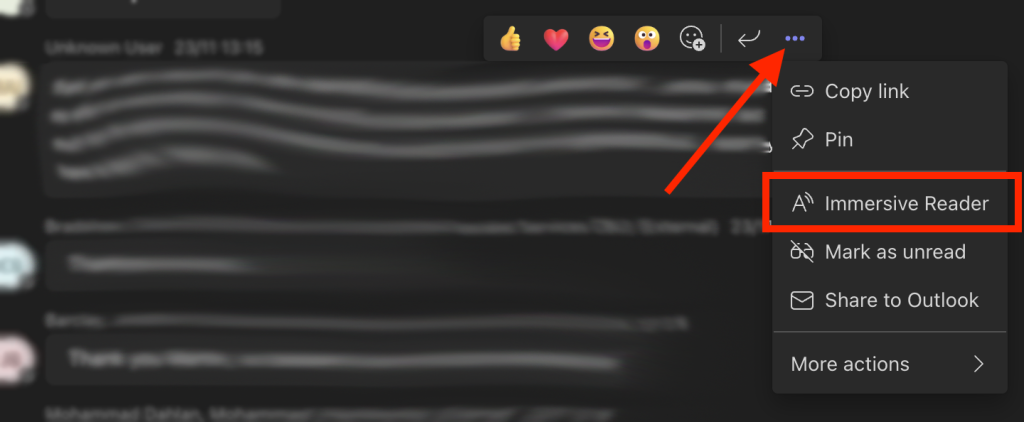
Screenshot of Microsoft Teams  showing how to launch Immersive Reader

For more information about Immersive Reader in Teams please see the Microsoft Immersive Reader help page.

Live Transcriptions

The live transcriptions feature, as the name suggests, generates a transcription of everything said during a meeting/call. This could make the meeting more accessible and help others who missed part of the meeting.  It will also make captions available in the post-meeting recording.

This feature, however, can only be activated from the desktop (i.e. not in a browser) version of Teams. It also typically needs to be enabled from within your Microsoft 365 Teams Admin section. This may require asking IT or the person who administers your Microsoft 365 tenancy to do so.  

To start Live Transcriptions:

  1. Go to the meeting controls and select “More actions” 
  2. Choose  “Record and transcribe”, and select  “Start transcription”.
  3. All the participants will see a notification that the meeting is being transcribed. The transcript appears on the right side of the screen.
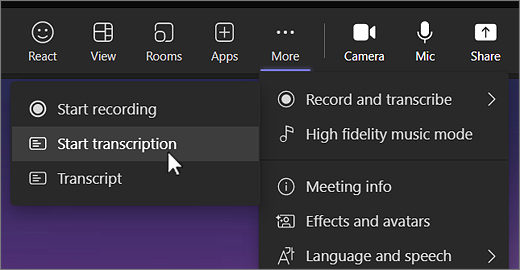
Screenshot of Microsoft Teams showing starting transcriptions

Note: If you also want to record the meeting, select More options again and this time choose Start recording.

Live Captions

Live captions will display all the words spoken as text on the screen. The font size and position can be customised to suit.

To start Live Captions:

  1. During a meeting. Go to the meeting controls and select “More actions” 
  2. Select “Language and speech”, and then  “turn on live captions”.
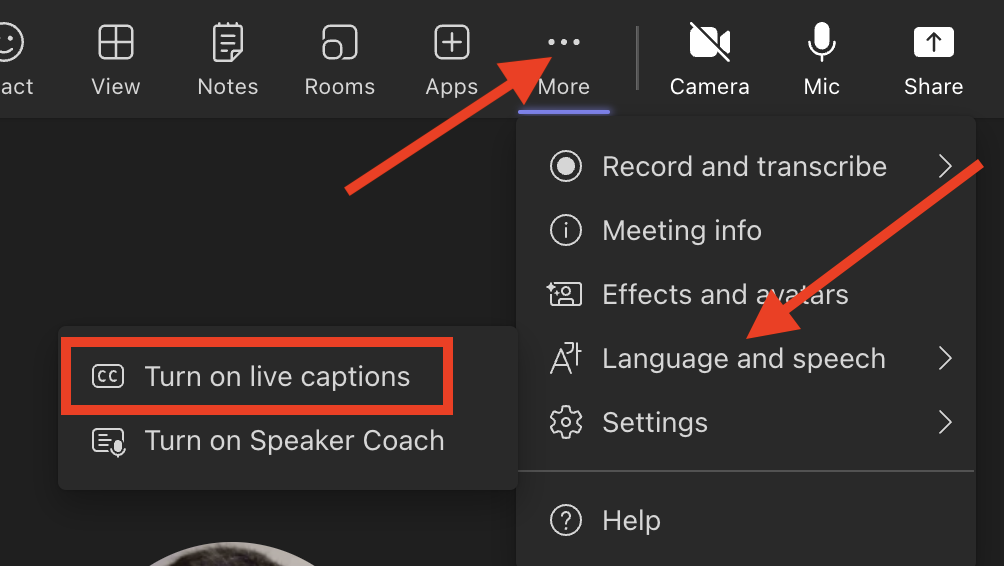
Screenshot of Microsoft Teams  showing launching live captions

Live captions can be toggled off at any time during the meeting by repeating the process.

Set status duration
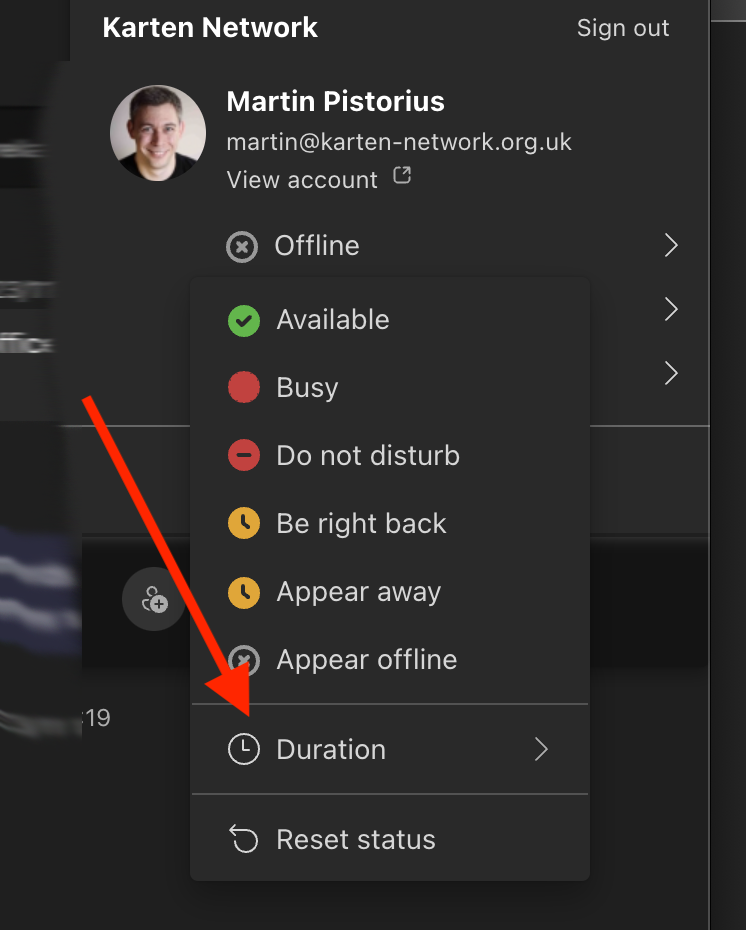
Screenshot of Microsoft Teams  showing status options

By defaults Teams changes your status after 5 minutes (e.g. from Busy to Away.) You can however set a status duration that suits your needs.

To do this click on your name and set your status. From within the status options, select “Duration”; set your desired status and for how long that status should remain active.

iPad

Scan documents

An iPad or or iPhone can be used to scan documents, through the Apple Notes.

A person holding an iPad above a document on a table and using the iPad to scan the document

 To Scan a document

  1. Open the Notes app and select a note or create a new one.
  2. Tap the Camera button, and then tap “Scan Documents” .
  3. Place your document in view of the camera.
  4. If your device is in Auto mode, your document will automatically scan. If you need to manually capture a scan, tap the Shutter button or press one of the Volume buttons. Then drag the corners to adjust the scan to fit the page and tap Keep Scan.
  5. Tap Save or add additional scans to the document.

Virtual trackpad

Image of an on-screen keyboard on an ipad showing the Virtual trackpad

It can sometimes be useful to be able to move the cursor within a section of text, for example when writing an e-mail. By touching your two fingers on the on-screen keyboard and moving them across the keyboard, the cursor will move as you move them. Note: this does not work if you are using a different keyboard app to Apple’s default one.  

Voice assistants

An Amazon echo device on a desk

In the festive season here are some fun things to try with your voice assistant.

  • Ask Siri “I see a little silhouetto of a man”
  • Playing a game, can’t find or use a dice, simply ask, “Alexa, roll a dice.”
  • Say, “Alexa, Beatbox for me”
  • Say, “Alexa, We don’t talk about Bruno”
  • Say, “Alexa, drum roll, please.”
  • Say, “Alexa, rap for me.”
  • Say, “Alexa, meow.”
  • Ask, “Alexa, how many sleeps until Christmas?”

Wishing you a very happy peaceful festive season and may 2024 be a good year for you. As always I am available to provide to support and help where I can, whether that be on using Microsoft Teams, Microsoft 365 in general, mobile technology, Smart Home technology or something else .

Martin Pistorius

Karten Network Technology Advisor

Article meta data

Clicking on any of the links in this section will take you to other articles that have been tagged in the same category.

  • Featured in the Karten December 2023 Newsletter
  • This article is listed in the following subject areas: Technology, Update from Technology Advisor

Post navigation

TechAbility Update – Winter 2023
Sensory room at QEF is a great success!
  • Website Feedback
  • Site Map
  • Cookies
  • Accessibility
  • Privacy
  • Data Protection Policy
  • Disclaimer

© 2026. Karten Network

We use cookies on our website to give you the most relevant experience by remembering your preferences and repeat visits. By clicking “Accept All”, you consent to the use of ALL the cookies. However, you may visit "Cookie Settings" to provide a controlled consent.
Cookie SettingsAccept All
Manage consent

Privacy Overview

This website uses cookies to improve your experience while you navigate through the website. Out of these, the cookies that are categorized as necessary are stored on your browser as they are essential for the working of basic functionalities of the website. We also use third-party cookies that help us analyze and understand how you use this website. These cookies will be stored in your browser only with your consent. You also have the option to opt-out of these cookies. But opting out of some of these cookies may affect your browsing experience.
Necessary
Always Enabled
Necessary cookies are absolutely essential for the website to function properly. These cookies ensure basic functionalities and security features of the website, anonymously.
CookieDurationDescription
cookielawinfo-checkbox-analytics11 monthsThis cookie is set by GDPR Cookie Consent plugin. The cookie is used to store the user consent for the cookies in the category "Analytics".
cookielawinfo-checkbox-functional11 monthsThe cookie is set by GDPR cookie consent to record the user consent for the cookies in the category "Functional".
cookielawinfo-checkbox-necessary11 monthsThis cookie is set by GDPR Cookie Consent plugin. The cookies is used to store the user consent for the cookies in the category "Necessary".
cookielawinfo-checkbox-others11 monthsThis cookie is set by GDPR Cookie Consent plugin. The cookie is used to store the user consent for the cookies in the category "Other.
cookielawinfo-checkbox-performance11 monthsThis cookie is set by GDPR Cookie Consent plugin. The cookie is used to store the user consent for the cookies in the category "Performance".
viewed_cookie_policy11 monthsThe cookie is set by the GDPR Cookie Consent plugin and is used to store whether or not user has consented to the use of cookies. It does not store any personal data.
Functional
Functional cookies help to perform certain functionalities like sharing the content of the website on social media platforms, collect feedbacks, and other third-party features.
Performance
Performance cookies are used to understand and analyze the key performance indexes of the website which helps in delivering a better user experience for the visitors.
Analytics
Analytical cookies are used to understand how visitors interact with the website. These cookies help provide information on metrics the number of visitors, bounce rate, traffic source, etc.
Advertisement
Advertisement cookies are used to provide visitors with relevant ads and marketing campaigns. These cookies track visitors across websites and collect information to provide customized ads.
Others
Other uncategorized cookies are those that are being analyzed and have not been classified into a category as yet.
SAVE & ACCEPT