Nuvoic TechAbility Ian Karten Charitable Trust
Skip to Content
login
karten Network Logo

Supporting organisations working with disabled people

  • Home
  • About Us
    • Introduction
    • Trustees
    • Support Team
    • Minutes of Board Meetings
    • Karten Centre DVD
  • Research
  • Centres
    • Karten Centre Search
    • All Centres
    • Eire
    • England
      • East Midlands
      • East of England
      • London
      • North East
      • North West
      • South East
      • South West
      • West Midlands
      • Yorkshire and The Humber
    • Israel
    • Northern Ireland
    • Scotland
    • Wales
    • Success Stories
    • Equipment Donation
    • Apply for support
  • News
    • Newsletters
  • Resources
    • Mobile Technology Resource
    • eSafety
    • Useful links
    • Webinars
    • Talent and Technology Report
    • Audio Books
    • Event Handouts
  • Job Vacancies
  • Events
  • Contact Us
  • Home
  • About Us
    • Introduction
    • Trustees
    • Support Team
    • Minutes of Board Meetings
    • Karten Centre DVD
  • Research
  • Centres
    • Karten Centre Search
    • All Centres
    • Eire
    • England
      • East Midlands
      • East of England
      • London
      • North East
      • North West
      • South East
      • South West
      • West Midlands
      • Yorkshire and The Humber
    • Israel
    • Northern Ireland
    • Scotland
    • Wales
    • Success Stories
    • Equipment Donation
    • Apply for support
  • News
    • Newsletters
  • Resources
    • Mobile Technology Resource
    • eSafety
    • Useful links
    • Webinars
    • Talent and Technology Report
    • Audio Books
    • Event Handouts
  • Job Vacancies
  • Events
  • Contact Us

Update from Technology Advisor – Autumn 2021

In my previous newsletter article, I mentioned that Apple announced the latest versions of their mobile operating systems (iOS15 and iPadOS 15), highlighting some of the new features.  With iOS15 and iPadOS 15 now available I thought it would be fitting to provide some tips on how to better use the mobile devices running this operating system.

Manage Home Screen Pages

It is possible to rearrange or delete entire home screens.

To rearrange your Home Screen:

  • Touch and hold an empty space on the ‌Home Screen‌ to enter edit (wiggle) mode.
  • Tap on the row of dots at the bottom of the screen indicating the pages of your ‌Home Screen.
Screenshot of home screen showing icons in edit mode and an arrow indicating home screen pages
  • All the pages of your ‌Home Screen appear in a‌ grid. Touch and drag a page to rearrange it in relation to your other pages. The other pages will move in response to your drag action.
  • Tap “Done” in the top-right corner of the screen when you have finished editing.  
Screen shot showing the home screen pages grid and a page being moved to a new location. The "done" button is circled to draw the viewers attention to it.

To delete a Home Screen page:

  • Touch and hold an empty space on the ‌Home Screen‌ to enter edit (wiggle) mode.
  • Tap on the row of dots at the bottom of the screen indicating the pages of your ‌Home Screen.
Screenshot of home screen showing icons in edit mode and an arrow indicating home screen pages
  • All the pages of your ‌Home Screen appear in a‌ grid. Tap on the tick under the page that you want to delete.
  • Tap the minus (-) icon in the top-left corner of the screen to delete it.
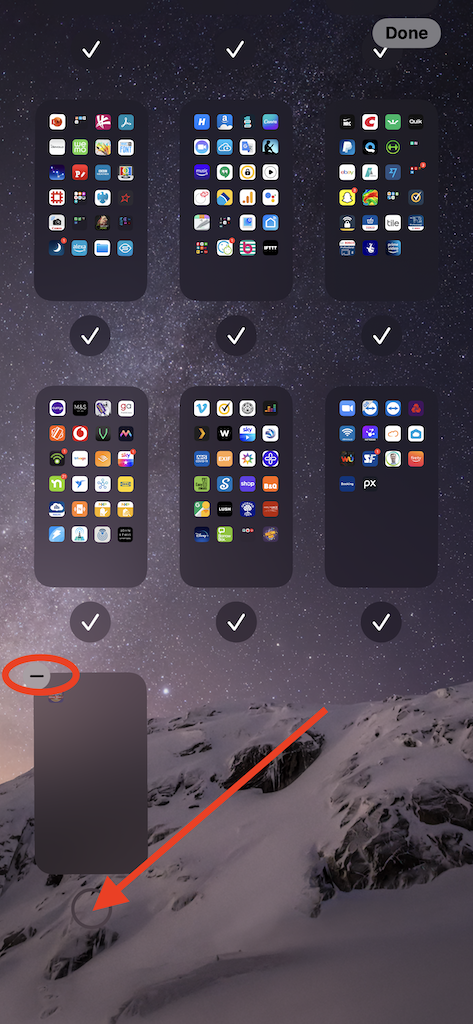
Screen shot showing the home screen pages. A page has been unchecked and a circle highlights where to tap to delete the page
  • A message will be displayed asking you to confirm, tap “Remove”.
  • Tap “Done” in the top-right corner of the screen when you have finished editing.  
a screenshot showing the "Remove This Page" confirmation message. An arrow is pointing to the "Remove" option and a circle has been added to the "done" button.

When you delete a ‌Home Screen‌ page, the apps remain in the App Library. If you want to add an app back to a Home screen you will need to drag them from the App Library onto the ‌Home Screen‌.

Use the camera to scan any text

This is a very useful feature; it can be accessed directly through the camera app or from with another app. For me personally, I find this very handy as I can scan text from within my AAC app (Proloquo4Text) and then “speak” the text.

I do find it can take a moment for the device to process the text though. The text recognition while not perfect, is extremely good!

To access this feature from the camera app:

  • Open the Camera app.
  • Point the camera at the text you would like to scan.
  • When the device is ready, an icon will appear on the right-hand-side of the display, and a yellow bounding box is shown around the text being scanned.
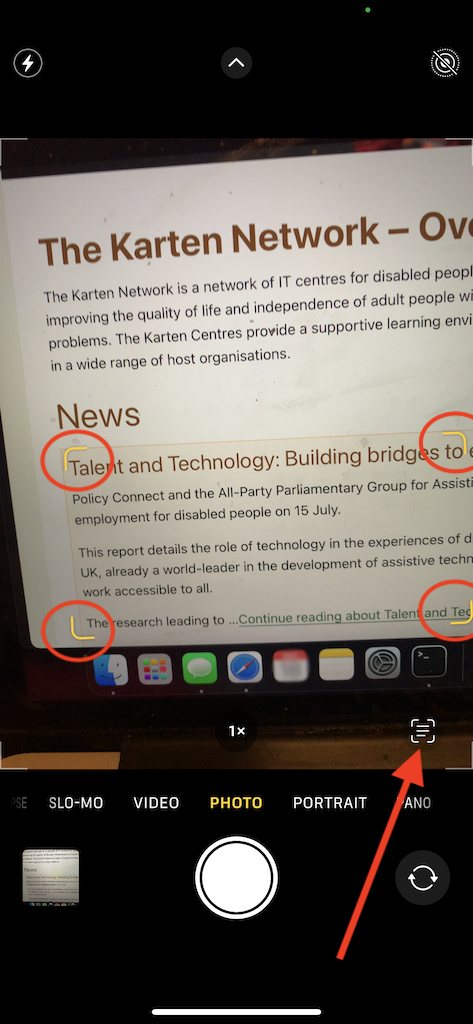
A screen shot showing the camera app's scan text feature. An arrow has been added to highlight the scan text icon.
  • Tap on that icon.
  • Once the text has been scanned you can choose how you want to use that text.
A screen shot showing the text that has been scanned and a context menu with options to copy, select all, look up, translate or share the text.

To access the text scan feature from within an app:

  • Open your app, it will need to be an app that supports text input.
  • Double tap, to bring up the context menu.
A screen shot showing the Proloquo4Text app with the context menu active. The menu show the "paste" or "scan" text options
  • Tap the scan text icon. A view of what is visible by the camera is displayed. A yellow bounding box is shown around the text being scanned with an “Insert” button.
  • When you are ready, tap the “Insert” button.

Scan/extract text from any photo     

A screen shot showing the Proloquo4Text app with the scan text camera active and an arrow indicating where the "insert" button is to insert the text into the app.

Using the same underlining technology, you can copy any text in a photo. Similar to the real-time text scanning, it takes a moment for the text to be analysed.

To extract text from a photo:

  • Open the photos app.
  • Open the photo containing text.
A screen shot showing a photo of a sign, logs for sale. The text has been scanned automatically and can now be used.
  • Tripple tap, or long press on the text to bring up a menu with options. From here you can use the text as you wish. If the photo contains a phone number, you will have the option to make a call to the number.  
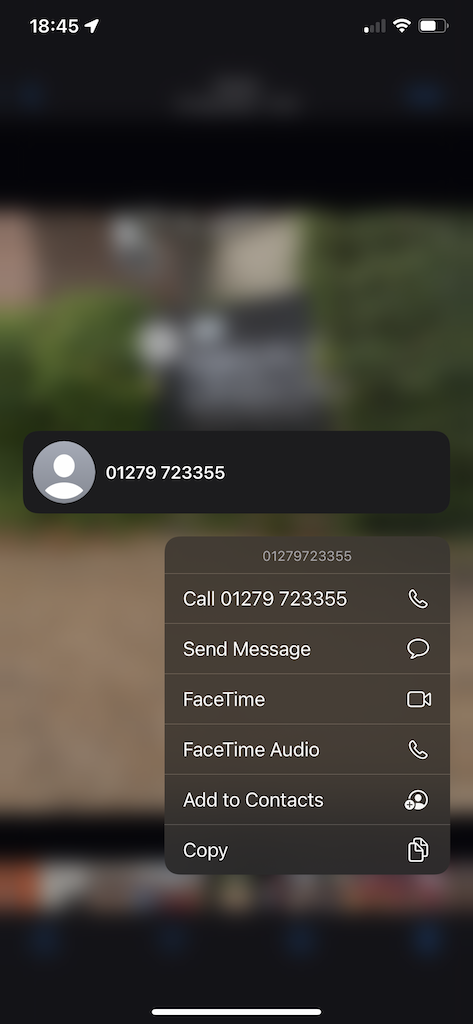
A screen shot showing a photo of a sign, logs for sale. A long press was performed on the phone number and a context menu with the options to call, or send a message to that number is now being shown.

Safari tweaks

The Safari browser received a major update. For those who like using a lot of browser tabs (such as myself) it is now possible to create tab groups. This way your tabs can be organised into categories of your choosing.

To organise your tabs into groups:

  • Tap the tab button at the bottom right of the screen.
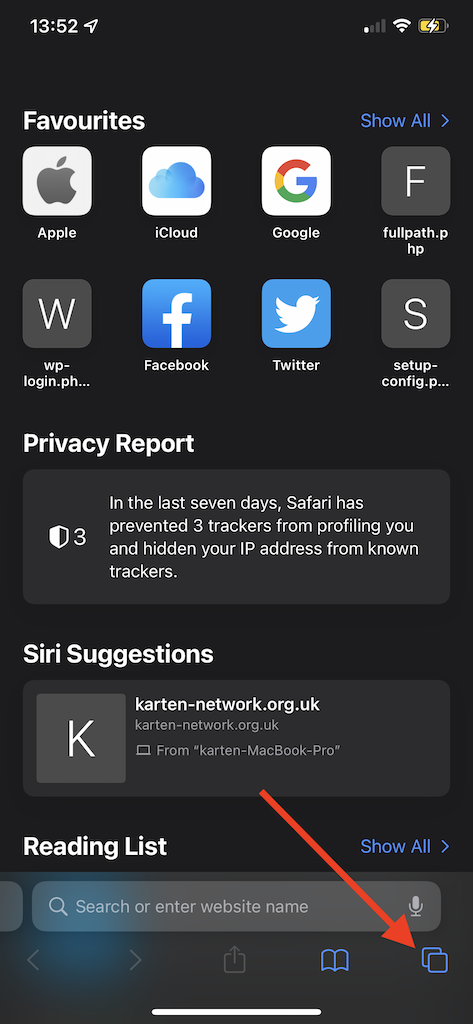
A screen shot showing the Safari browser. An arrow is pointing to the tab button at the bottom right of the screen.
  • A grid of tabs you already have open is displayed.
  • Hold down the tab number at the bottom of the screen to create a group with the current tabs, or you can create a completely new group of empty tabs to start browsing a particular topic.
A screen shot showing the Safari browser. A long press has been performed and a context menu with the option to close or open tabs, or group them is being displayed.
  • Alternatively, long press on the URL/address bar. This will open a menu with an option to “Move to Tab Group” – this includes an option to create a new tab group.
A screen shot showing the Safari browser. A long press has been performed within the address bar of the tab. The context menu is now being shown with the options to do a voice search or move the tab into a group.

In the new version of Safari the URL/address bar has been moved to the bottom of the screen. If you prefer having it at the top of the screen that can be changed.

To move the URL/address bar to top of the screen:

  • Tap on “Settings”.
  • Scroll down to locate and tap on “Safari”. Top tip, pulling down on the setting screen will display a “Search” box at the top of the setting. Typing in there will enable you to quickly find an app or setting you are looking for.
  • Scroll down to the “Tabs” section and tap “Single Tab”.
A screen shot showing the Safari browser settings. An arrow is pointing to the "single tab" setting. When this is active the address bar will be displayed at the top of the screen

While you are in Safari’s settings you may enable “Hide IP Address” (although it is likely to be enabled by default). This is yet one more feature in Apple’s efforts to improve your privacy.

To enable “Hide IP Address” :

  • Tap on “Settings”.
  • Scroll down to locate and tap on “Safari”.
  • Scroll down to the “Privacy & Security” section and tap “Hide IP Address”.
  • Tap “From Trackers”.
A screen shot showing the Safari browser settings. A circle has been added around the "Hide IP Address" setting.

iCloud Private Relay

For those concerned about privacy, Apple now offers a Private Relay option to paid iCloud subscribers – soon to be called iCloud+. Private Relay is a stripped-down virtual private network (VPN) – in effect this means your IP address and browsing activity is hidden from other parties, including Apple.  

To enable iCloud Private Relay:

  • Tap on “Settings”.
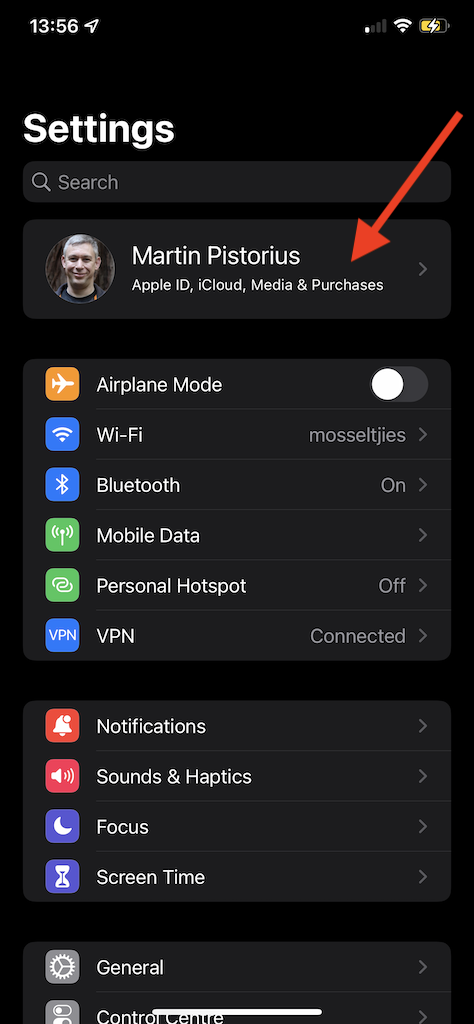
  • Tap on your account name.
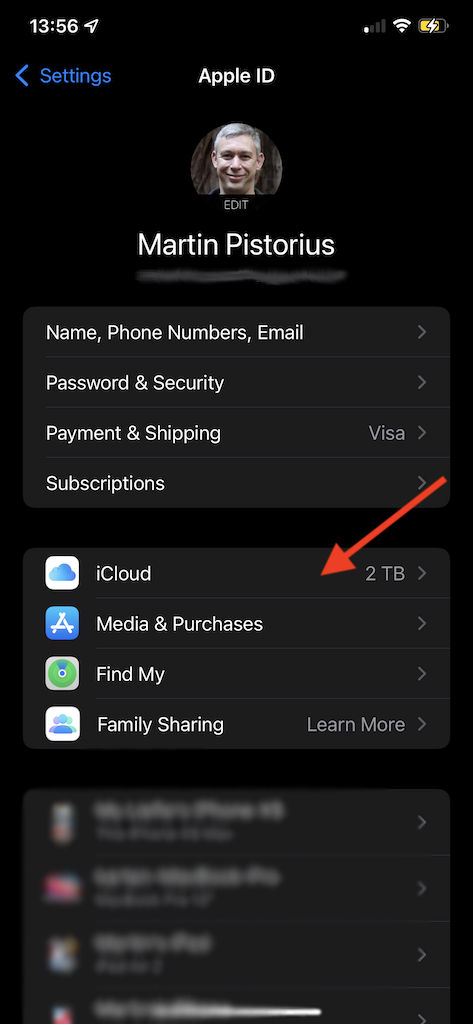
  • Tap on “iCloud”.
Screen shot showing Apple ID settings with an arrow pointing to iCloud
  • Tap on “Private Reply”.
  • Tap on the Private Replay switch to enable.
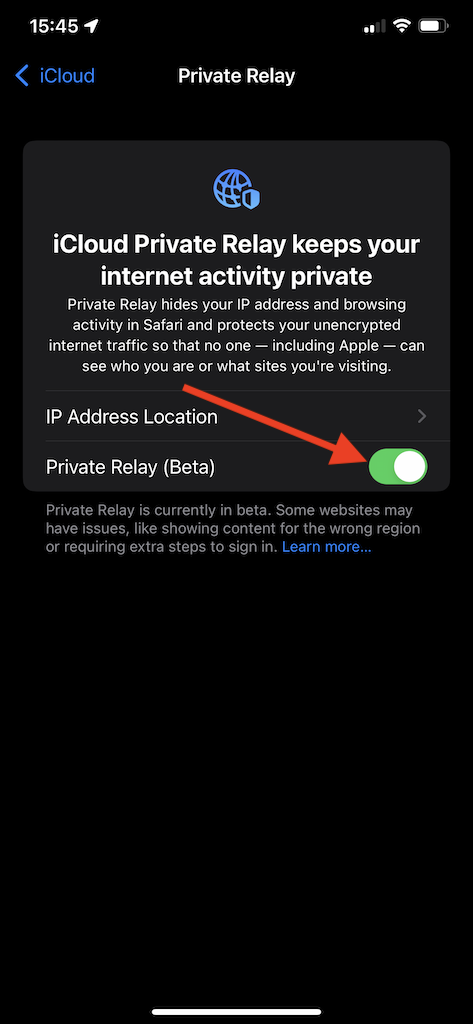
A screen shot showing the iCloud Private Relay settings. An arrow is pointing to the fact that this option has been enabled.

Recovery contacts

Were you to lose or be locked out of your device, Recovery Contacts may prove to be a great help. A Recovery contact enables you to select a person you trust as your “phone a friend for help”. They will then be able to provide you with a recovery key to access your and recover your data. They will not be able to access your data, merely verify your identity. They will need a device running iOS15 or iPadOS 15 or later. Apple also requires the person to be 13 years or older.  

To enable Recovery Contacts:

  • Tap on “Settings”.
  • Tap on your account name.
Screen shot showing the settings app with an arrow pointing to the Apple ID settings.
  • Tap on “Password & Security”.
  • Tap on “Account Recovery”.
Screen shot showing the Password & Security settings within the Apple ID. An arrow is pointing to the "Account Recovery" settings.
  • Tap on “Add Recovery Contact”.
  • Tap “Add Recovery Contact” you will be asked to authenticate with Face ID or Touch ID.
Screenshot of the Account Recovery setting. An arrow is pointing to the "Add Recovery Contact" option.
  • If you’re using “Family Sharing” one of these group members is recommended. Alternatively, you can choose one of your contacts. A message will be sent to your contact asking them to accept or decline your request. Note, if a family member is selected, they’re added automatically. After they’ve accepted your request, you will see a message that they have been added as your account recovery contact. Should they decline or remove themselves as your recovery contact you will receive a notification.
The Account Recovery Contact screen.

Now, should you ever be unable to access your Apple account/device for whatever reason, your recovery contact will be able to provide you with a 6-digit code that you enter on your device to log back in.

Set Background Sounds

Amongst the raft of accessibility features you will find background sounds. The six sounds to choose from are similar to third-party noise generating apps, and are aimed at masking unwanted environmental noise.  

To enable Background Sounds:

  • Tap on “Settings”.
  • Scroll down and tap on “Accessibility”.
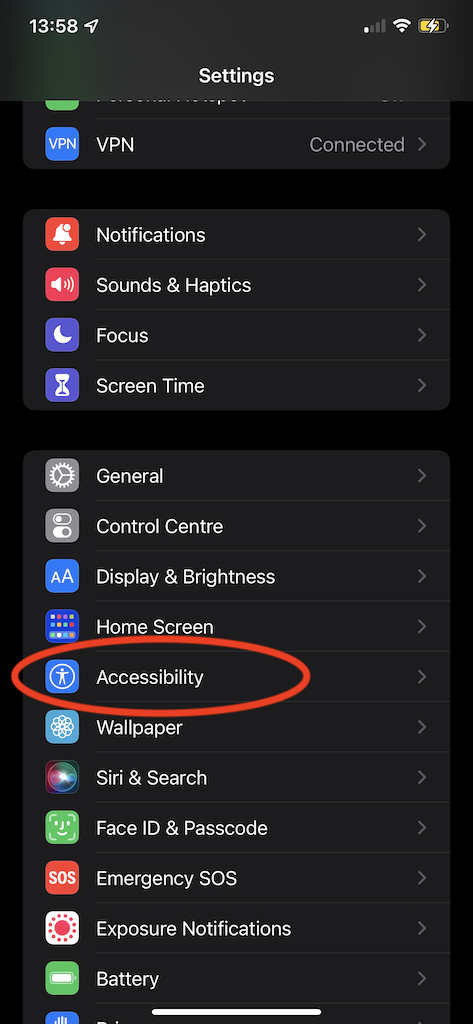
Screen shot of the settings app with the "Accessibility" settings being highlighted.
  • Scroll down and tap on “Audio/Visual”.
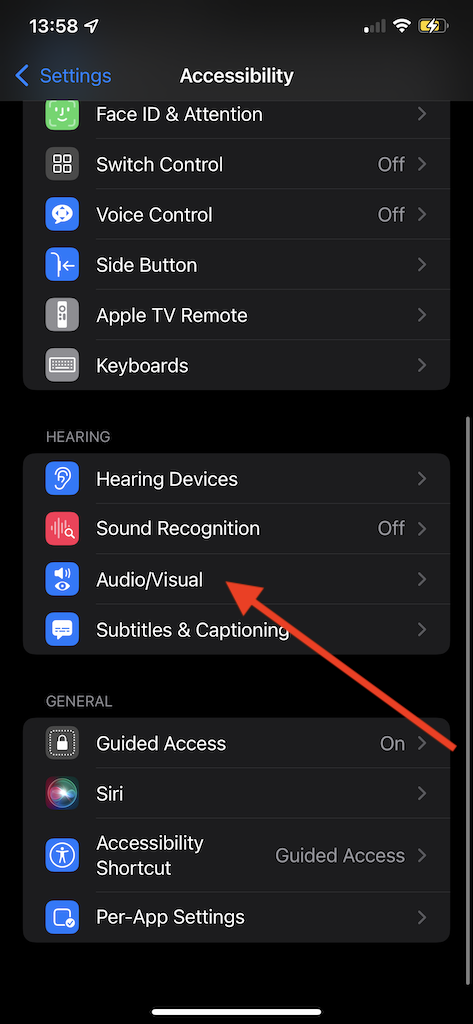
Screen shot of the Accessibility settings. An arrow is pointing to the "Audio/Visual" option.
  • Tap on “Background Sounds”.
Screen shot of the "Audio/Visual" 
 settings An arrow is pointing to the "Background Sounds" option.
  • Tap the Background Sounds switch to enable and set your preferences.
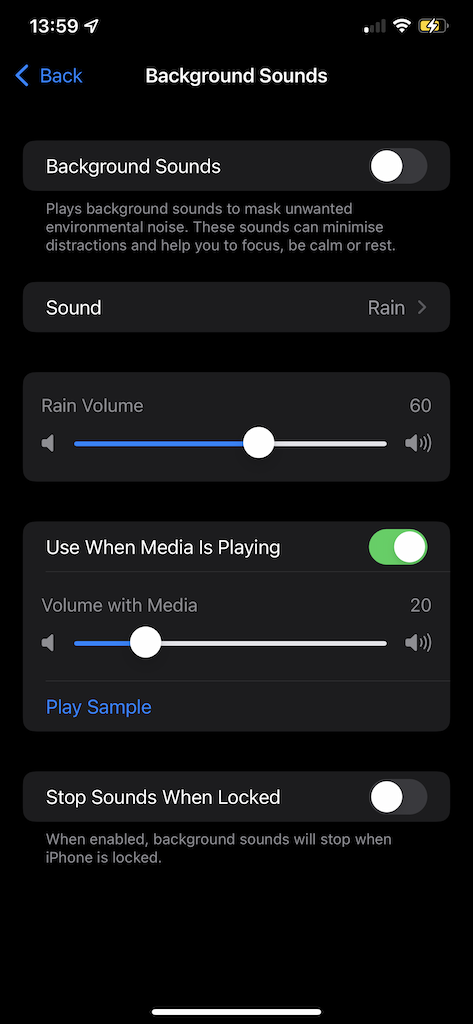
Screen shot of the "Background Sounds" settings.

Customise accessibility settings per app

iOS15 and iPadOS 15 also introduced the ability to customise the accessibility setting to individual apps. This means if there is one particular app that needs some adjustments, these can be applied on to that app, rather than the entire system.

To set per app accessibility settings:

  • Tap on “Settings”.
  • Scroll down and tap on “Accessibility”.
  • Scroll down and tap on “Per-App Settings”.
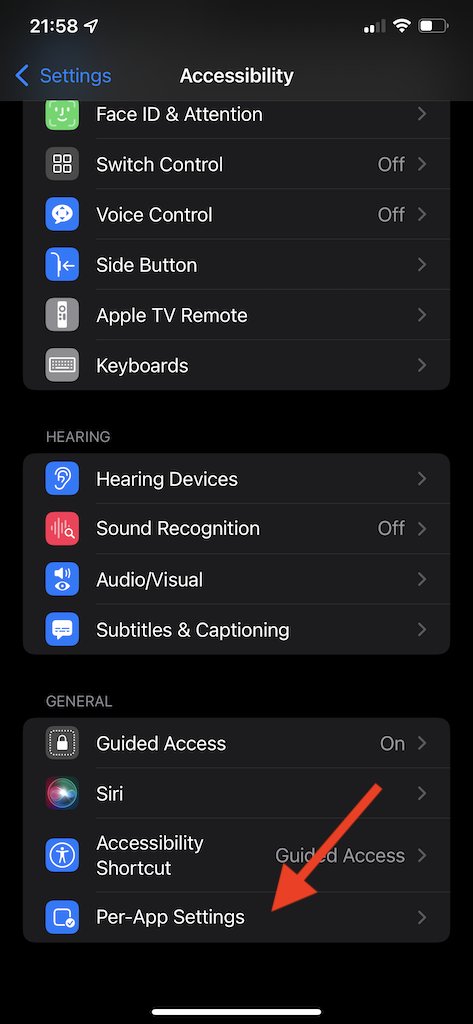
Screen shot of the Accessibility settings. An arrow is pointing to the "Per-App Settings" option.
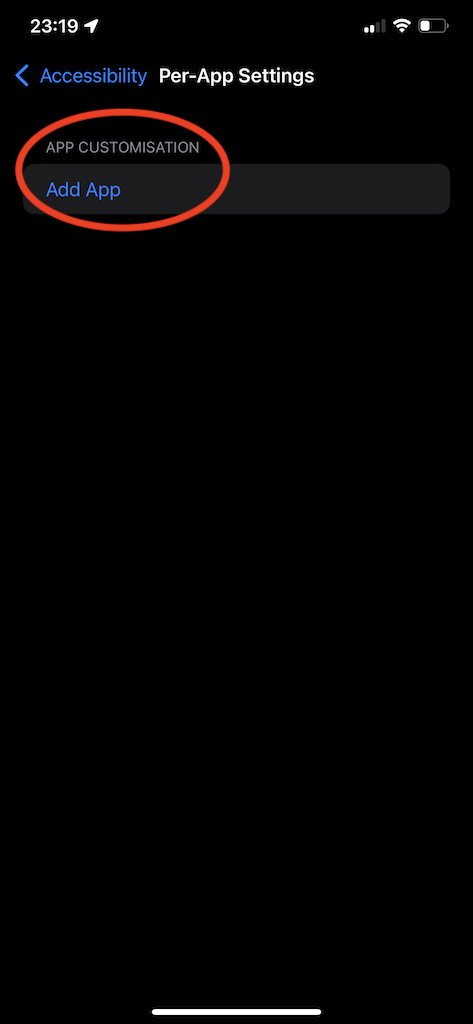
  • Tap “Add App”.
Screen shot of the "Per-App Settings" settings. A circle is highlighting the "Add App" option.
  • Browse through the list of apps and select the app you wish to apply the settings too.
Screen shot of the "Per-App Settings" settings. An arrow is pointing to the Calculator app that has been added.
  • From the list of added app, tap the app, and apply the required settings.
Screen shot of the "Per-App Settings" settings for the calculator app.

There are many more features and tips to enable you to use your iPhone or iPad more effectively. Should you require support or have a question please feel free to contact me.

Lastly, if you would like to have a particular topic covered in the next newsletter, please let me know.

Article meta data

Clicking on any of the links in this section will take you to other articles that have been tagged in the same category.

  • Featured in the Karten Autumn 2021 Newsletter
  • This article is listed in the following subject areas: Technology, Update from Technology Advisor

Post navigation

Ageing hands
Langdon College Prints on the ‘Etsy’ marketplace
  • Website Feedback
  • Site Map
  • Cookies
  • Accessibility
  • Privacy
  • Data Protection Policy
  • Disclaimer

© 2026. Karten Network

We use cookies on our website to give you the most relevant experience by remembering your preferences and repeat visits. By clicking “Accept All”, you consent to the use of ALL the cookies. However, you may visit "Cookie Settings" to provide a controlled consent.
Cookie SettingsAccept All
Manage consent

Privacy Overview

This website uses cookies to improve your experience while you navigate through the website. Out of these, the cookies that are categorized as necessary are stored on your browser as they are essential for the working of basic functionalities of the website. We also use third-party cookies that help us analyze and understand how you use this website. These cookies will be stored in your browser only with your consent. You also have the option to opt-out of these cookies. But opting out of some of these cookies may affect your browsing experience.
Necessary
Always Enabled
Necessary cookies are absolutely essential for the website to function properly. These cookies ensure basic functionalities and security features of the website, anonymously.
CookieDurationDescription
cookielawinfo-checkbox-analytics11 monthsThis cookie is set by GDPR Cookie Consent plugin. The cookie is used to store the user consent for the cookies in the category "Analytics".
cookielawinfo-checkbox-functional11 monthsThe cookie is set by GDPR cookie consent to record the user consent for the cookies in the category "Functional".
cookielawinfo-checkbox-necessary11 monthsThis cookie is set by GDPR Cookie Consent plugin. The cookies is used to store the user consent for the cookies in the category "Necessary".
cookielawinfo-checkbox-others11 monthsThis cookie is set by GDPR Cookie Consent plugin. The cookie is used to store the user consent for the cookies in the category "Other.
cookielawinfo-checkbox-performance11 monthsThis cookie is set by GDPR Cookie Consent plugin. The cookie is used to store the user consent for the cookies in the category "Performance".
viewed_cookie_policy11 monthsThe cookie is set by the GDPR Cookie Consent plugin and is used to store whether or not user has consented to the use of cookies. It does not store any personal data.
Functional
Functional cookies help to perform certain functionalities like sharing the content of the website on social media platforms, collect feedbacks, and other third-party features.
Performance
Performance cookies are used to understand and analyze the key performance indexes of the website which helps in delivering a better user experience for the visitors.
Analytics
Analytical cookies are used to understand how visitors interact with the website. These cookies help provide information on metrics the number of visitors, bounce rate, traffic source, etc.
Advertisement
Advertisement cookies are used to provide visitors with relevant ads and marketing campaigns. These cookies track visitors across websites and collect information to provide customized ads.
Others
Other uncategorized cookies are those that are being analyzed and have not been classified into a category as yet.
SAVE & ACCEPT