

Files and Mobile Devices
With the release of each new mobile device or operating system the line between a tablet, (or mobile phone) and a traditional laptop computer is increasingly becoming blurred. Similar to traditional computers it is possible to do many of the same things with files on mobile devices.
What are files anyway?
A computer file, like the traditional paper-based files where the name is derived from, is a collection of information, data. This data contains information about the file itself, as well as the content. File data is then deciphered by an application and displayed as an image, audio, video, text, or a combination thereof.
Working with files on Mobile devices
Most of us work with files without thinking about them, e.g., sending someone a photo. Many of the mobile apps make use of Cloud based storage making accessing files on multiple devices or transferring between devices easy.
However, it is possible to use external storage devices with mobile devices allowing you to move or copy files, either to free-up storage space on the mobile device, create a backup, or move files to another device.
External Storage devices
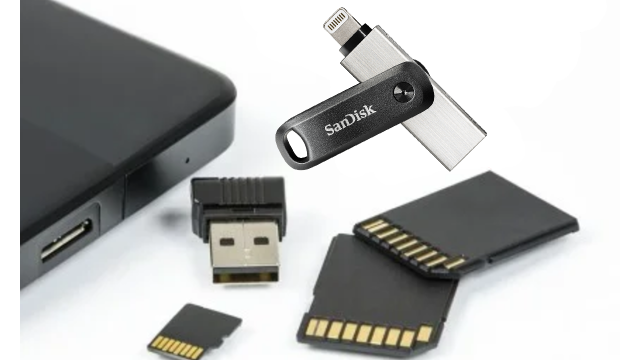
External storage devices are typically either a flash drive (a.k.a. memory stick, thumb drive) or external hard drive. These can be connected either directly to the mobile device or using an adapter. Not all external storage devices will work though as they may require more power than the mobile device is able to provide, or the file system may not be supported by the mobile device.
Tip: As you have a USB connection to the mobile device, a USB SD card reader could be used to download photos taken on a digital camera onto the mobile device.
Android devices
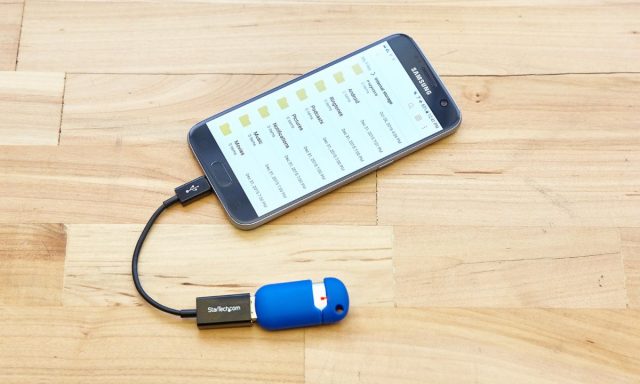
To use an external storage device, the mobile device must be running Android 7.0 (Nougat) or later.
Most modern Android devices have a USB-C port and a USB-A to USB-C adapter is often included with the device. If you do not have an adapter, an OTG USB adapter (sometimes called an OTG cable, or OTG connector) are inexpensive and easily purchased online. This makes it relatively easy to connect a flash drive directly to the device. Some external hard drives may require too much power to work directly with the device – it is possible to power the hard drive separately though.
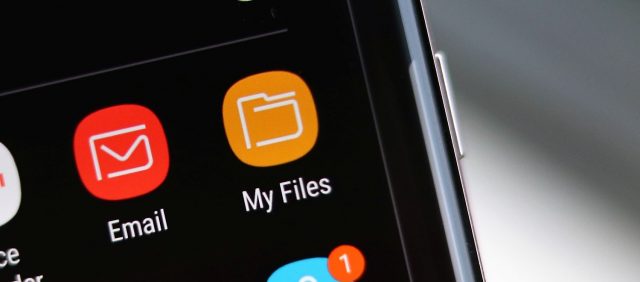
Once the external device is connected, locate the file explorer app (often called “My Files”) tapping on it will show you the storage options available, one of these should be the external storage device (other locations are likely to be “Internal storage” and “SD Card”). From here you can select to either move or copy files from various locations.
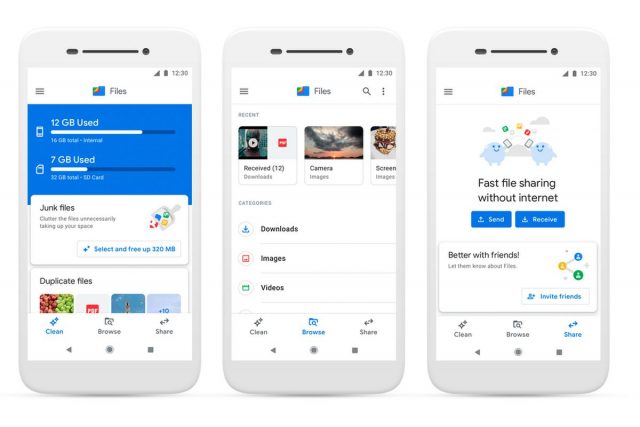
Google also offer a free “Files by Google” app (https://play.google.com/store/apps/details?id=com.google.android.apps.nbu.files) this app helps you to manage the files on your mobile devices with various options, including moving files between the device and external storage. Read Google’s instructions on using the Files by Google app.
iOS and iPadOS devices
Despite Apple’s involvement in the development of USB-C, most iOS and iPadOS devices use Apple’s Lightning connector which means that you will either require a Lightning to USB adaptor or a device, for example the SanDisk® iXpand® Flash Drive that is fitted with a Lightning connector.
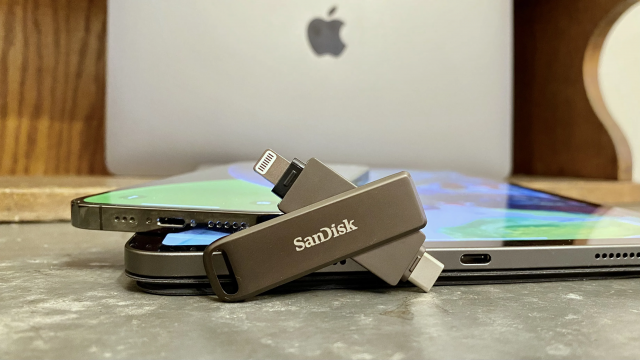
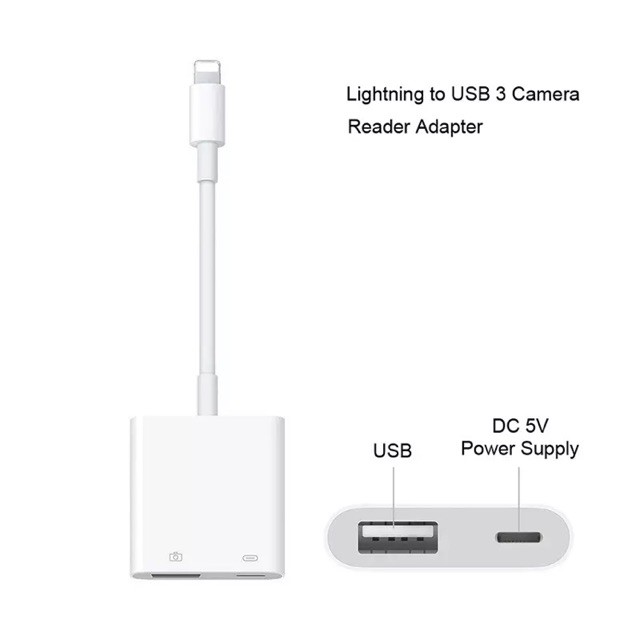
If you are going to use an adaptor, I do recommend opting for Apple’s Lightning to USB 3 Camera Adapter. While often more expensive than third party adapters it has more reliable power support enabling you to plug a Lightning cable into the adapter to supplement the power needs of some USB devices.
On a sidenote, in September 2021, the European Commission released a proposal that would require smartphone manufacturers to standardized USB-C as charging port on all devices. It remains to be seen what the outcome of this proposal will be for future devices.
To connect an external storage device to an iPhone or iPad the device will need to be running iOS 13 or iPadOS 13 or later. The external storage device will also need to use one of the following file systems, either macOS Extended journaled, FAT32, exFAT (FAT64) or APFS. Support for Windows default NTFS file system was only added to the current versions (version 15) of iOS and iPadOS. However, currently you can only read from devices formatted as NTFS. This means that if you want to copy or move files your external storage device will need to be using one of the other file systems.
Once the external storage device is connected you can import photos and videos to your iPad or iPhone directly through the Photo App. You can’t however view or watch video files directly from the external device through the Photo app. For detail instructions on how to import photos and videos please follow one of the links below:
Tip: Once photos and/or videos are imported you will be promoted to “keep or delete” the files from the external device, always select “keep” unless you are absolutely sure you want to permanently delete them from the external device.
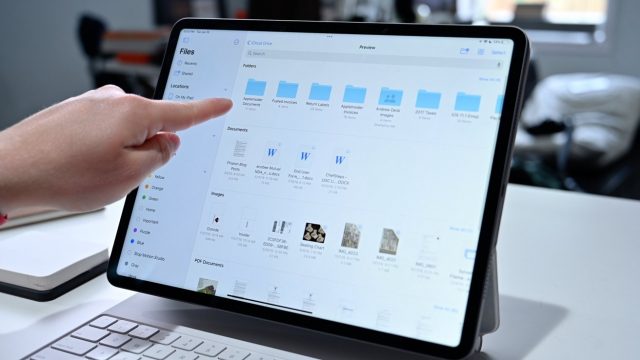
To view or watch video files directly from an external device you will either need a third-party app or you will need to use the Files app included in iOS/iPadOS. The File app will also enable you to access other files as well as move or copy files between you iPhone/iPad and the external device.
Other ways of moving files
Files can be moved or copied between devices in other ways too. mobile devices can be directly connected to a computer and accessed through the computer. However, depending on the security settings on the mobile device this may be limited.
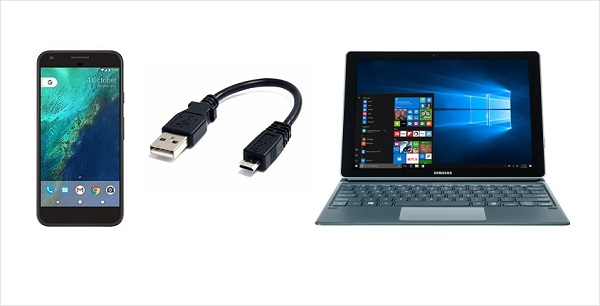
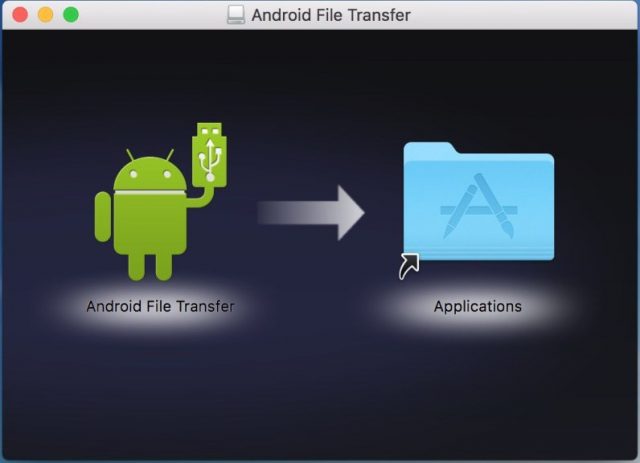
Apple Mac computers will require additional software though to be able to access the files on Android devices. Basic software (Android File Transfer) to enable you to this can be downloaded free or more advanced software (e.g. Dr.Fone) can be purchased – free trials are available.
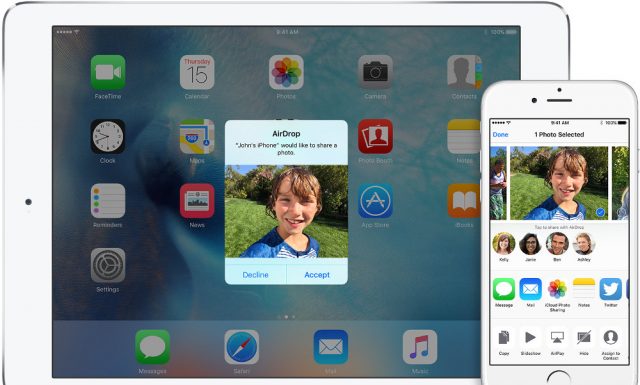
Apple devices also offer wireless transfer of files between Apple devices using AirDrop. AirDrop needs to be enabled and the devices need to be within Bluetooth and Wi-Fi range of each other. Please follow this link for more details on how to use AirDrop.
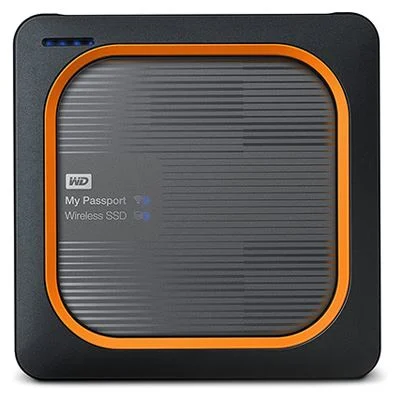
The Western Digital My Passport Wireless SSD is an external hard drive that allows wireless transfer of files between devices and the hard drive. This, (in theory) will work with all devices, eliminating the complexity of cable connections.
There are various cloud-based solutions too, however, this will not be covered in this article.
Due diligence
Transferring files between devices can offer a viable solution for creating backups, making more space on mobile devices and moving files for use on other devices. However, care needs to be taken to ensure that data protection and privacy policies are adhered to.
In this article I have highlighted some of the ways to work with files on mobile devices, should you have questions, or need support with anything mentioned please contact me. Please also let me know if there is a particular topic that you would like me to cover in a future newsletter.
As always, I am available to provide support, advice and help Karten Centres where I can.
Martin Pistorius
Karten Network Technology Advisor
Article meta data
Clicking on any of the links in this section will take you to other articles that have been tagged in the same category.
- Featured in the Karten Spring 2022 Newsletter
- This article is listed in the following subject areas: Technology, Update from Technology Advisor