Hello to our readers and a very warm welcome to our Autumn Newsletter.
It’s been a really busy few months across the network with so much going on. Thank you to the Karten Centres who have been really well engaged, it is fabulous to be visiting organisations again to see the excellent work you are doing first hand and to have the opportunity to discuss your projects and ideas for the future.
On 3rd November at 10.00 we will be holding a remote Smart Home Forum for anyone interested in smart home technologies. Technologists from the Nuvoic project will present aspects of their work, before we provide an opportunity for attendees to “show and tell”. Invites will go to colleagues with an interest in this field, but I will also send the joining link via the Karten Jiscmail group. Or if you prefer, please contact me by email dawn@karten-network.org.uk to express an interest in attending.
We are in the very early stages of planning a Karten Centre beneficiary event for Spring 2023. The idea is to bring Karten Centre service users and staff together to share some of the excellence across organisations. The event will be held in London and hosted by a Karten Centre, if it’s successful and there is a demand we will be very happy to repeat in other locations. In addition to being a good opportunity to bring people together, there could be some work-related learning opportunities for service users who could take on organisational roles for the events. I would really value your thoughts on this idea, please contact me to discuss further.
In this newsletter we welcome a new Karten Board Director, David Webster, from St Helen’s Buzz Hub. Buzz Hub is one of our newest centres and I am delighted to include them in a new newsletter feature this time In The Spotlight. If you would like to feature as the In The Spotlight organisation in our next Newsletter, please drop me an email dawn@karten-network.org.uk.
Many of our Karten Centres now have TechAbility Champions appointed in the organisation and this initiative is impacting positively on Assistive Technology experience and practice, it’s a great source of additional support and networking. You don’t need to have a high level of technology know-how, TechAbility can help you to develop this. New members are welcomed with a passion to make a difference in learners’/service users’ lives. The aim is to empower you as professionals to provide better support and make use of this exciting opportunity. To find out more, contact techability@natspec.org.uk and they will arrange a conversation to see how they can best support you. There is more information later in the newsletter from TechAbility. Remember to register for the TechAbility Conference if you have not already done so, it’s a little over a month away now and we can guarantee it’s the best value CPD for Assistive Technology in the UK.
As the Nuvoic project enters the final months there are some really exciting developments, particularly the progress towards real time speech recognition and live transcription achieved by Voiceitt integration with platforms such as Zoom. The Nuvoic article in this newsletter includes further information, a live transcription demo clip and details of how you can get involved. We still need more participants to donate recordings to help develop this technology more quickly and test the results. We want to include as many non-standard voices as possible so please get in touch if you or people you support would like to get involved. We can offer equipment on loan, technical support, gift cards of up to £100 for participants and funding for organisations and individuals supporting someone to take part. If you or your organisation would like to be involved in this exciting development work, please see our web pages or contact our project co-ordinator: liz@karten-network.org.uk for more information.
As I write there are just 72 days until Christmas, the year will be over before we know it! You can expect something fun from us before we break for the holidays, but our next typical newsletter will be in January 2023. I warmly invite contributions for that newsletter, including for the In The Spotlight feature.
Take care, keep up the good work and I look forward to catching up with you very soon!
The TechAbility Champions had their first meeting back after the summer, welcoming four new champions from Karten Centres and Natspec Colleges. Kellie Mote as special guest outlined the support that JISC offered, for member and non-members, key updates were given by TechAbility and excitingly Director of Policy Connect’s ATech Policy Lab: Robert McClaren will be special guest at the November meeting, date to be confirmed.
All Karten members have the opportunity to nominate a champion at their centre to receive peer support, TechAbility support, to offer opportunities for free software and special guests. Interested? Get in touch with Neil Harrod-Beck
Windows 11 updates
Microsoft has updated Windows 11. It includes live captions to generate captions on any content that has audio which will be helpful for those with hearing impairments and concentration issues. Voice access can let anyone control a PC with just their voice and is much improved from the previous Windows versions. The updates also includes some improvements to the focus and “do not disturb” modes.
There’s a new do not disturb button in the notification panel that can silence notifications if you want to focus on work, and you can even go one step further by creating a 30-minute focus session here that will remove the badge icons you see on the taskbar. In busy work or study environments this could be really helpful. You can read more on this article from Tom Warren, at the Verge: “Windows 11’s 2022 Update has something new for everyone”
Focus on apps
It’s a great time to share the Envision AI App as it has become free for all! It is a free smartphone app that articulates everyday visual information into speech and is available on both Android and iOS.
You can use it to read text in the world around you, scan documents to turn them into digital text, describe surroundings and objects, and even tell you who’s nearby. It’s available in 60 languages and is useful for people with visual impairments but also learning disabilities or any other print disabilities for that matter.
Zoë has a wealth of in-depth experience from her 20 years work within Electronic Assistive Technology (EAT) in the NHS. She will not only inspire, but give practical take-aways to further develop your Assistive Technology provision.
Zoë will discuss how simply having a good piece of technology, although useful, is not the only component of success. Even before assessment for technology a teacher, carer or family member needs to think about the potential of technology and the benefits it could have. At the assessment stage again everyone plays a part, the person being assessed, an assessor with relevant skills, family members and staff who know the person. Without the motivation of the person success will be limited, without the information and commitment from carers or family success will be limited and without a skilled assessor success will be limited. The work doesn’t end there, ongoing the person themselves and the people supporting them need to facilitate technology use.
Ensuring equipment is set up appropriately and that it does what the person wants are essential to success and involve everyone. Zoë will also highlight the importance of the ongoing support and the responsibility of others in that. This includes a robust system of maintenance for equipment and a route for reassessment or updating as the person requires, potentially as they get older or as their condition changes. Zoë will also highlight that even though everyone does not need technology, there is great importance in everyone having the opportunities to explore technology use.
Join us to learn from Zoë’s extensive knowledge and experience in the field of Assistive Technology, challenge your current thinking and develop your practice.
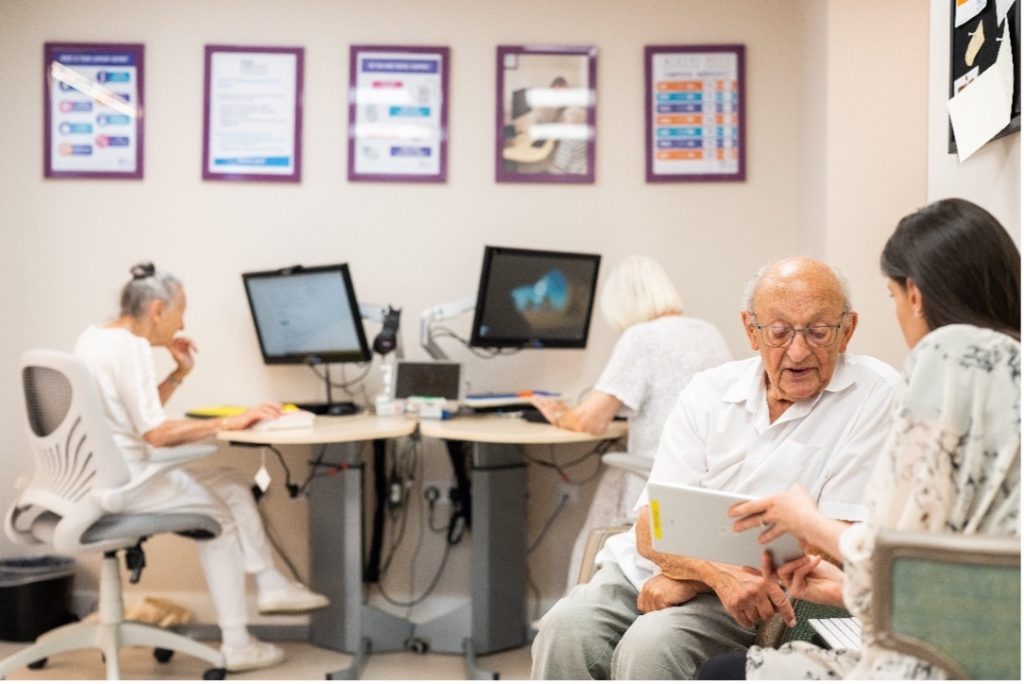
Jewish Care Explore – Jewish Care’s centre that supports our clients with everything associated with the world of technology – has expanded. Just over a year ago, we were delighted to open our doors at The Ronson Family Community Centre on the new Jewish Care Sandringham campus in Bushey, Hertfordshire.
Resembling Jewish Care Explore based at the Michael Sobell Centre in Golders Green, our new centre is equipped with a variety of hardware including iPads, iPhones and Android smartphones and tablets. These are freely available on a drop-in basis for anyone to use whether they are a total beginner or someone who is adept with their device, but wishes to gain more knowledge about specific capabilities, such as the accessibility functions for visual impairment. In addition, the Centre has a range of specialist accessories for people with visual or physical impairments. On the software side, we regularly find new apps to demonstrate to our clients, such as iPad’s GRID, designed especially for those for whom talking has become a challenge. For a more structured experience, and by pre-arrangement, we offer courses ranging from PC and iPad basics to learning how to use Zoom, Facebook and Skype, shop online and how to send and receive email.
Since lockdown, when we all needed to adapt to life online and where the use of technology became key, we are delighted to now be able to meet face to face and to be able to keep our clients feeling supported in all ways with their devices. We call it “minding the gap” and we like to think that we are fulfilling our brief in ensuring that everyone who feels like they need tech support receives it from our friendly, empathetic and patient team, which includes our valued volunteers.
Now into our third and final year of the Nuvoic Project, we’re seeing exciting progress in Voiceitt’s work on automatic speech recognition for atypical speech, and significant developments on their new dictation and captioning tool. Results are at an early stage, but they look promising!
Continuous recognition of atypical speech
Voiceitt’s app already supports people with atypical speech to communicate and control Smart Home technologies more easily, but users currently have to train each phrase in advance. In the next release, Voiceitt aims to offer real-time recognition, allowing people with non-standard speech to have their words transcribed or interpreted, without the need to pre-train every phrase.
To achieve this Voiceitt have launched Project Ensemble, a website where volunteers can donate recordings of atypical speech patterns as training data for Voiceitt’s recognition models. Through Nuvoic, we’ve been recruiting participants, offering support to take part and gift cards as a thank you for all contributions. So far we’ve supported 28 people to join Ensemble, who have uploaded an amazing 15,000 phrases in total – congratulations and thank you to everyone who’s contributed so far! 🤩🎉
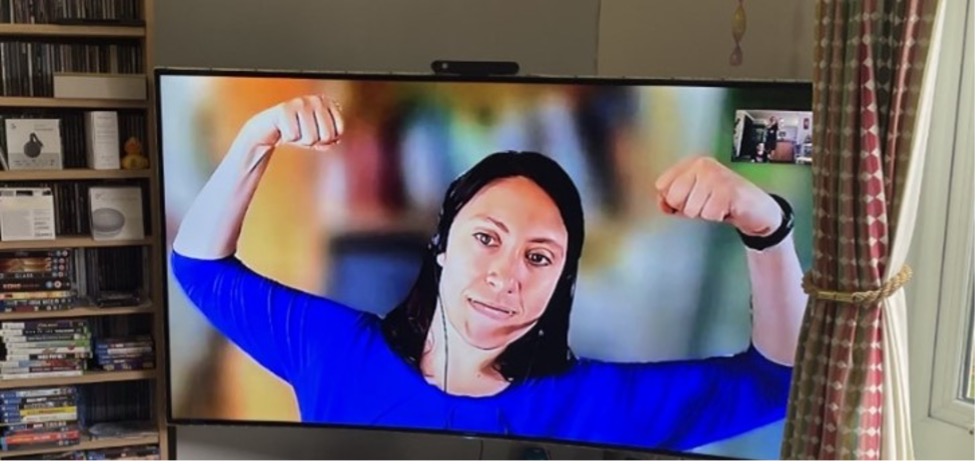
Voiceitt are already using these and recordings from other participants around the world to develop a new dictation and captioning tool. In the video below, Michael demonstrates his personal speech model providing live captions through Zoom (Zoom’s built-in captioning doesn’t work for Michael’s speech). Users can also dictate text for use in messages or documents, or to share onscreen with a conversation partner. While this technology is still at an early stage it’s a significant improvement on what’s currently available, and with more recordings will become more accurate over time.
https://youtu.be/9By9qEH0BvI
Live Transcription Demo – Voiceitt integration with Zoom
However, we still need more participants to donate recordings to help develop this technology more quickly and test the results. We want to include as many non-standard voices as possible so please get in touch if you or people you support would like to get involved. We can offer equipment on loan, technical support, gift cards of up to £100 for participants and funding for organisations and individuals supporting someone to take part. If you or your organisation would like to be involved in this exciting development work, please see our web pages or contact our project co-ordinator: liz@karten-network.org.uk for more information.
Feedback from users
As well as their work on continuous recognition, Voiceitt have continued to use feedback from our participants to improve their app. Recent additions include: a button to flag misrecognitions, helping to improve accuracy; the option to repeat spoken output; and more options to use Bluetooth accessories in combination with the internal mic and speaker, to support the use of Voiceitt ‘out and about’ or in noisy environments. All of these features have been requested by users and it’s great to see them now available!
Other Updates
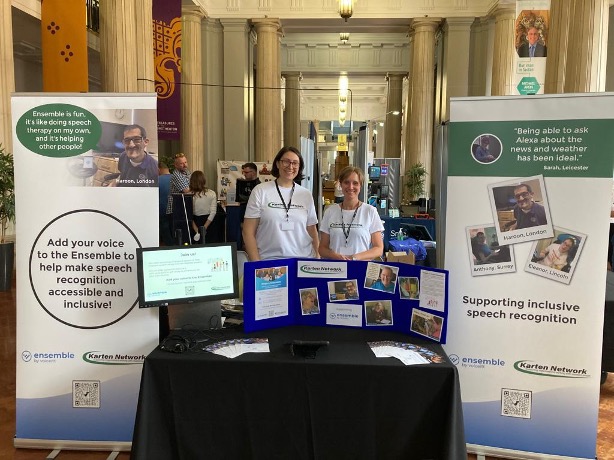
In September we took Ensemble on the road, exhibiting at the Communication Matters conference in Leeds. We had a lot of interest in the project, which we hope will generate some new recruits!
We would love to hear from you if you, or someone you know may be interested in taking part in donating speech samples or testing Voiceitt’s technology. Please email our project co-ordinator: liz@karten-network.org.uk, or you can find more information and get in touch via our project web pages.
David Webster has a wealth of professional experience in supporting adults with learning difficulties in a number of roles. David has a social work qualification and has supported children and adults in both residential and day service provision. David is motivated by working alongside other professionals in a multidisciplinary capacity to provide a more holistic service and improve outcomes for the individuals concerned. David developed a looked after children advocacy service and helped to create a Children in Care Council, giving children the opportunity to meet on a regular basis with service managers and decision makers. Advocacy remains close to David’s heart and is integral to the services he now leads.
David is currently the Services Development Manager at St Helens CDP, with his team he created Buzz Hub. Despite the challenges of the last few years Buzz Hub has gone from strength-to-strength. David is proud to lead a service where the team strives to allow members to reach their goals, fulfil their potential and to meet their aspirations.
In July of this year, we were invited to participate in the World Reimagined project. The projects aim was to transform how UK society understands the Transatlantic Trade of Enslaved Africans and its impact through a mass participation art education project. Large Globes were designed and decorated.
A trail of large globes can be found across Liverpool and the City region. All unique to bring to life a powerful journey of discovery that explores our shared history. The trails are a catalyst for a broader learning and engagement programme with schools, community groups and cultural institutions from across the Liverpool City Region. This project was replicated in several cities across the UK. Our Globe is housed in a local library. The Project ends on the 31st of October. Our Globe will be taken and exhibited at the World of Glass here in St Helens.
Best Friends Forever
Hello everybody, my name is Snake. My book ‘Best Friends Forever’ will be launching on the 18th of October at St Helens library – the world of glass. It is a fictional story based upon a dream, now made into reality, thanks to everybody at Buzz Hub. I hope to inspire others to get creative and make stories of their own.
Rock your socks
Our art group created designs that were put onto socks to celebrate world down syndrome day. “Rock your socks” was exhibited in the town centre. Our members and a group from go active queens park also completed a sponsored walk as part of the ‘Rock your socks’ campaign. The group walked from Queens park to St Helens town hall. Everyone worked so hard to raise £158.
Upcycling
Our unit 3 groups have been hard at work, upcycling items of furniture to sell, to raise money for future projects. So far, we have raised £230 from our upcycling project. A big thank you for your support.
Buzz Football
We had the best time in May at our football tournament at Ruskin Drive St Helens. We would like to thank all teams involved for coming down. Everyone played amazing and it was a fantastic day. We would also like to say a big thank you to Phil Ashton from Ashton Electrical Solutions who was our team’s sponsor, Mark Hayes who sponsored the medals and trophies, and Jim from Pilkington fc for enabling us to use the pitch and facilities.
Buzz TV
Our members had the pleasure of interviewing Liam Bairstow who plays Alex on coronation street.
Watch the interview with Liam Bairstow
Buzz radio
Our radio presenters have been hard at work, providing buzz hub with music and fun-filled shows to listen to during activities.
Thursday cooking
A huge well done to our Thursday cooking group, who have been running a very successful enterprise this year, to raise funds to go towards trips and fun activities. This cooking group have been making delicious treats from scratch and selling them to staff, so far raising a whopping total of £120!
Hearty Bee Pizza
Our Hearty Bee Pizza Project is being run by our members, for our members. Lewis designed the amazing logo, and was joined by our Thursday group, making all of the pizzas by hand. This enterprise has made £35 profit on the first go!
Our new plot
We have been working hard to get our new plot up and running, we have a bit more work to do but it’s really coming along!
Technology has permeated almost every aspect of our lives. Access to that technology and being able to use it enables us, especially those of us with additional needs, to participate in society to a greater extent. Over the past decade an enormous effort has gone into providing built-in accessibility features in many of the devices, applications and operating systems we use every day.
While there are far too many features to cover in just one article, I have highlighted some of the accessibility features that you may find useful.
Microsoft 365
Microsoft underwent a dramatic shift when Satya Nadella became CEO in 2014, placing accessibility on the top of Microsoft’s agenda. There are now many built-in accessibility features across their suite of products. Two features worth noting within Microsoft 365 (previously called Office 365) are Dictation and Immersive Reader.
Dictation
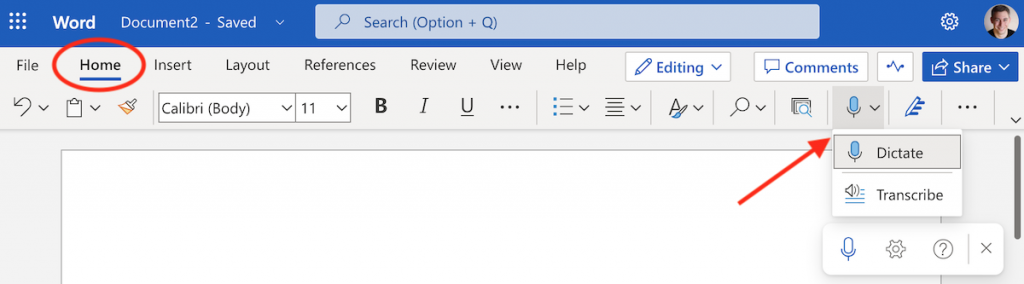
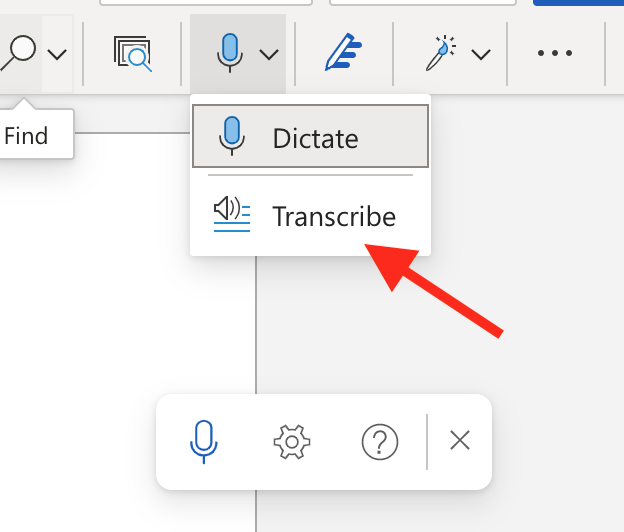
Dictation is available in all versions (web, desktop and mobile) of the Microsoft 365 edition of Word. To access Dictation in the web (online) version of Microsoft Word, log into your Microsoft 365 account, and open a new Word Document. Select “Home” then the “Dictate” icon.
Note: Depending on which web browser you are using, and the security settings you may need to enable access to the microphone for this to work.
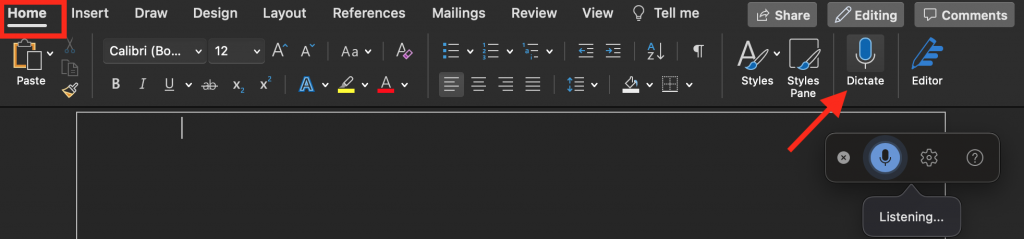
Dictate works on the desktop version too. Simply, launch Microsoft Word, open a Document, click on “Home” and then the “Dictate” icon.
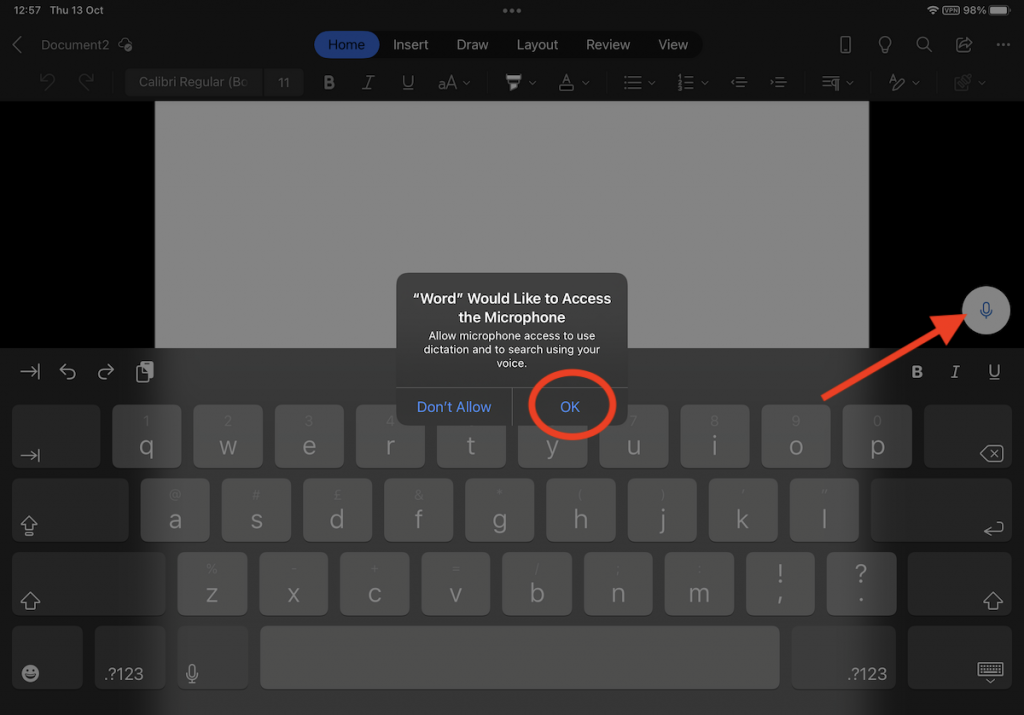
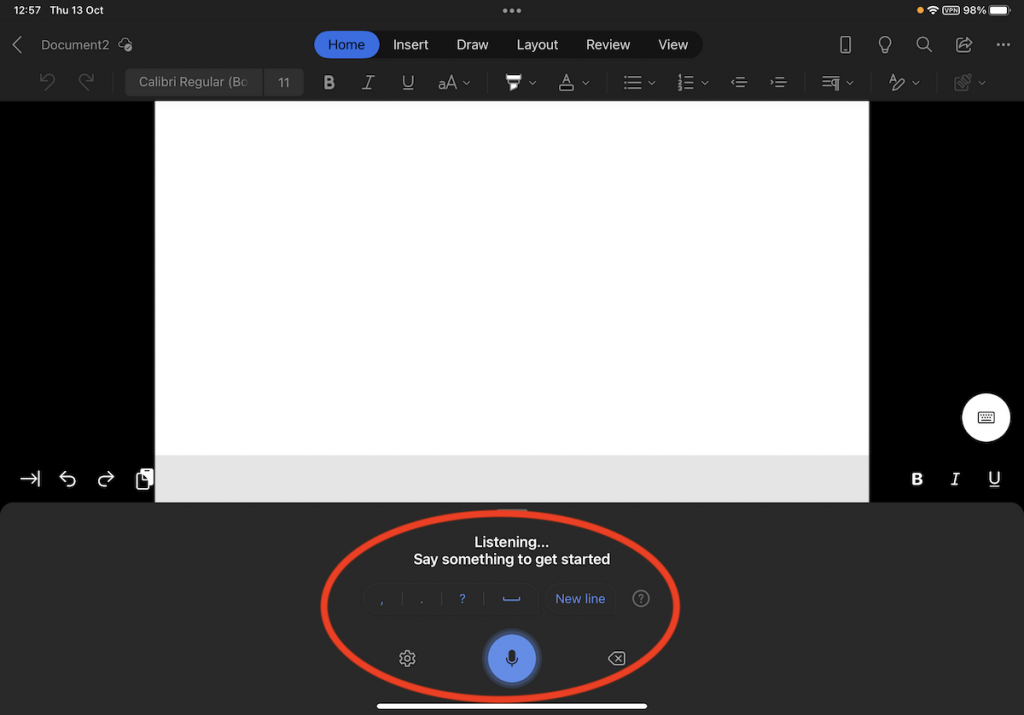
Dictate is also available on mobile devices. Tap on the Microsoft Word app, open a Document and you will notice a microphone icon in the bottom right of the screen, just above the keyboard. Tapping on the icon starts dictation.
Note: There can sometimes be a short delay before the microphone becomes active. You may also need to grant access to the microphone.
You can now speak what you want to have typed into the document.
As with all speech-to-text systems, it isn’t 100% accurate. However, it does provide a great way to create a text document with minimal keyboard input. For a full list of Dictation’s features and how to use it, please see the Microsoft Dictation help pages:
Microsoft’s Immersive Reader is a real gem. If you are not aware of it, urge you to have a look at it. In keeping with Microsoft’s “on every device” principle Immersive reader is available on web, iPad and desktop. However, there are some small differences between the exact features available depending on the platform.
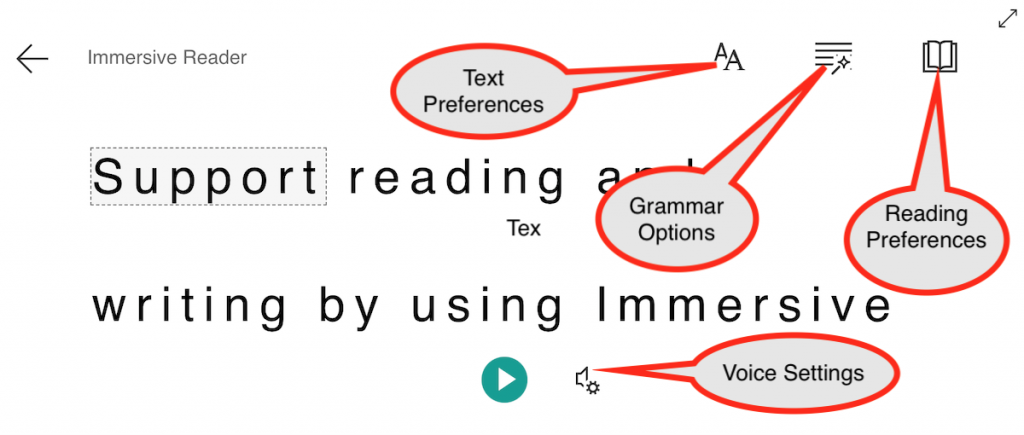
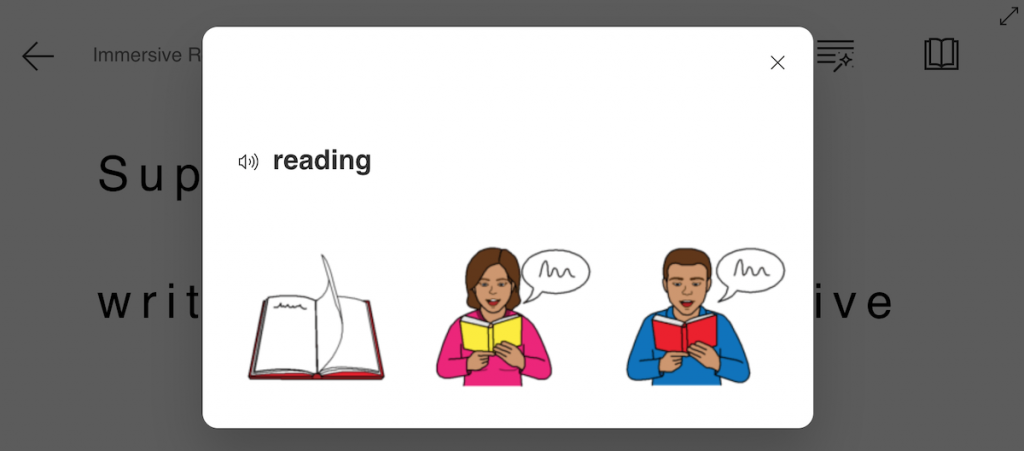
Immersive Reader allows you to make adjustments to the text to best support your needs. These include adjusting the size and spacing of the font, breaking words up into syl·la·bles, highlighting parts of speech, changing the background colour, speaking the text and more. Of particular note is Boardmaker PCS symbol support – unfortunately, this is only available on the web version.
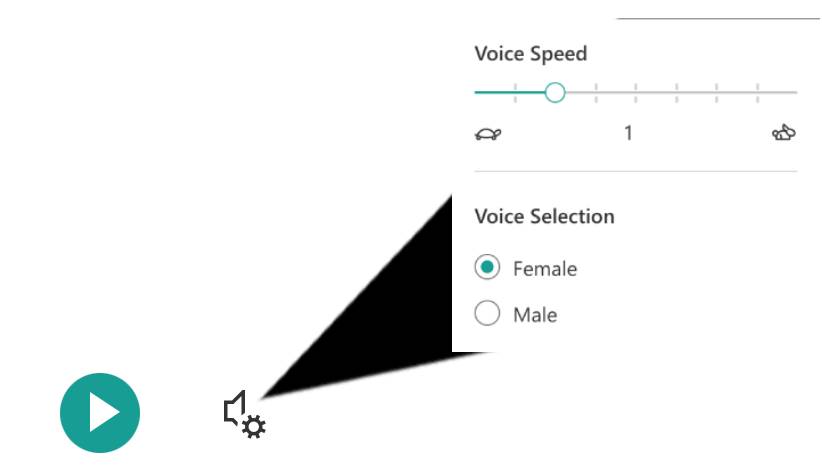
To access Immersive Reader on the web, open a web browser, login to Microsoft 365 and launch Microsoft Word. Click “View” then “Immersive Reader”. This will open the document Immersive Reader view. This view can also be expanded to full screen. The display preferences can be set by clicking on the three icons located in the top right corner of the screen. The text can be spoken by clicking on the “Play” icon on the bottom middle of the screen. Clicking the gears icon next to the play button allows you to adjust the speed and voice used to read the text out loud.
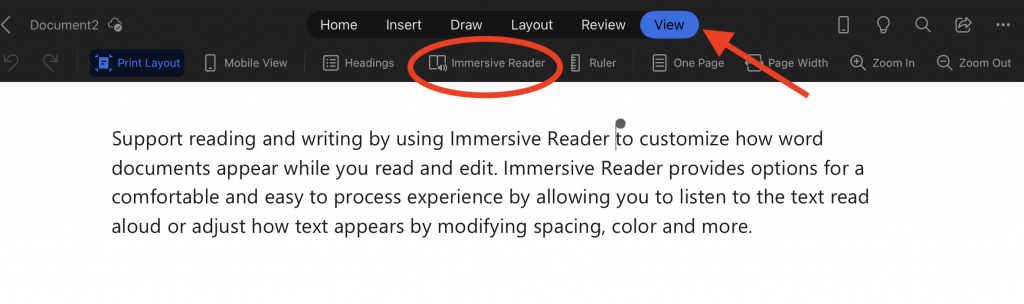
To access Immersive Reader on an iPad, tap on the Microsoft Word app, tap “View” then tap “Immersive Reader”
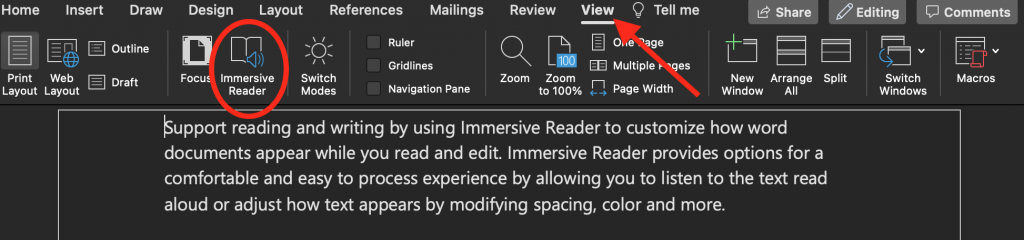
To access Immersive Reader on a desktop, launch the Microsoft Word application click on “View” then “Immersive Reader”.
In the interest of brevity, I will use “iOS” referring to both iOS and iPadOS.
Display & Text Size
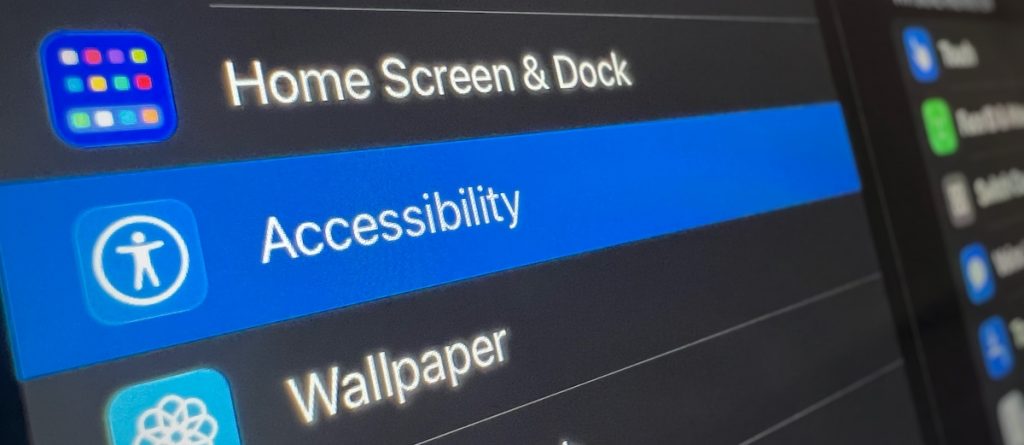
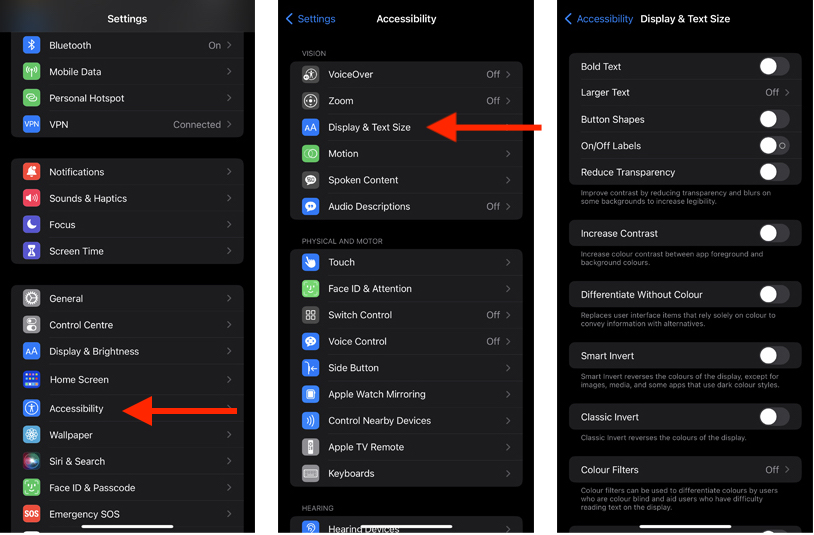
Sometimes, you just need to adjust the size of things. Tapping on “Settings”, then Accessibility, then with in the vision group, tap “Display & Text Size”. From within the Display & Text Size settings you can choose to bold text, increase text size, adjust button shapes, turn labels on or off, and reduce transparency. You can also increase the contrast, differentiate without colour, invert display colours and add colour filters.
Zoom
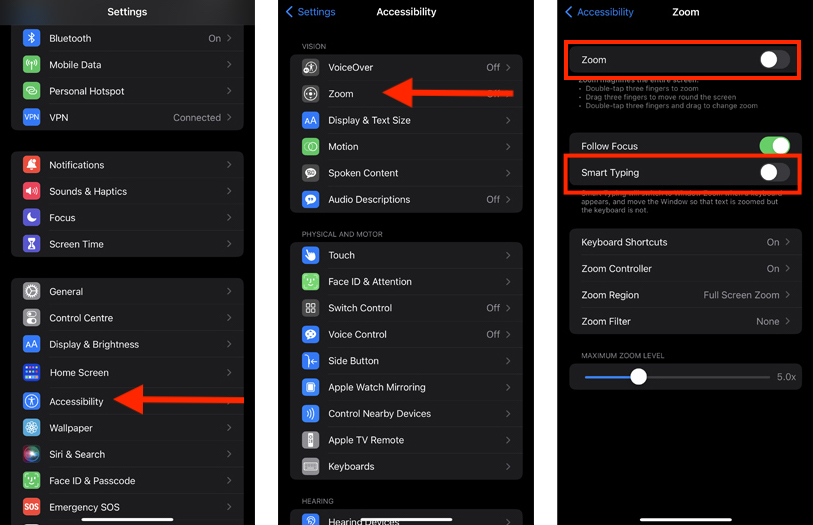
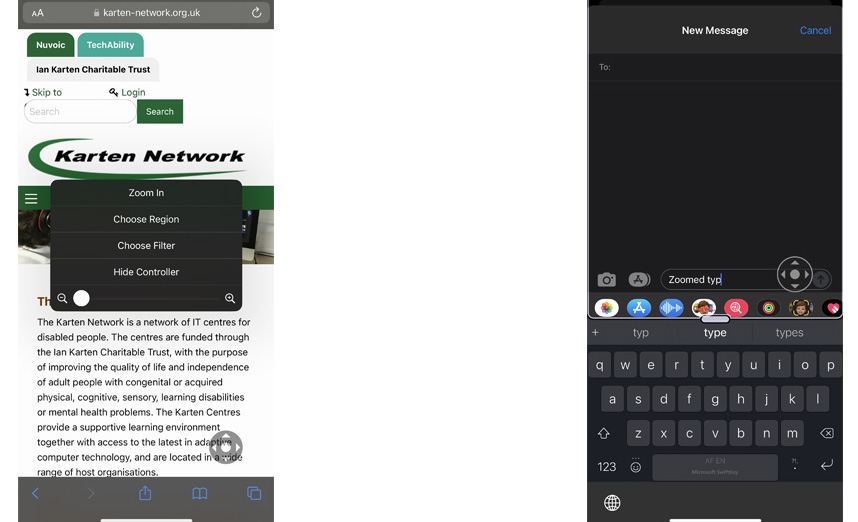
If you find you have a need to enlarge things on the screen, then enabling the Zoom feature may be useful. To do this, tap on “Settings”, then Accessibility, then with in the vision group, tap “Zoom”, and tap to turn it on. Once enabled, double-tapping with three fingers anywhere on the screen will open the magnifier (Zoom). Depending on your version of iOS you will either get a menu with options, or a magnifier window.
If you find Zoom useful, then I suggest also turning on the Smart Typing Function – also found within the Zoom options under Accessibility. This feature automatically magnifies any text you type in an input field, e.g. when you write a message.
Magnifier
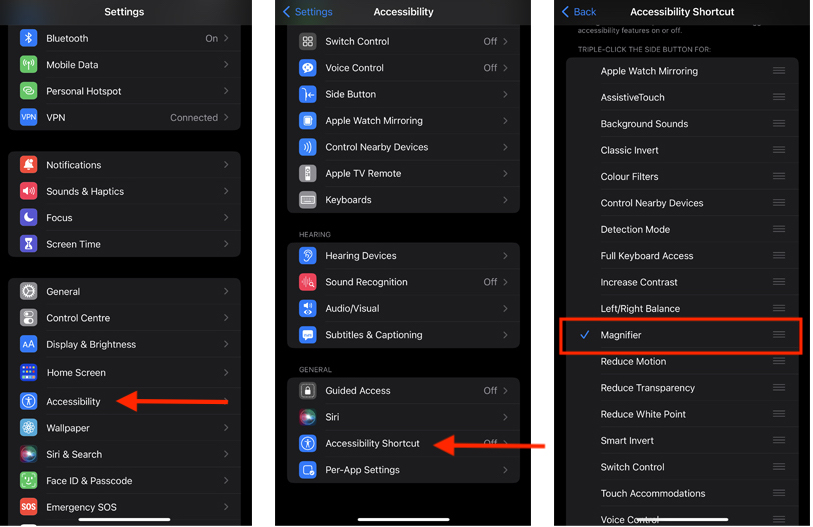
Depending on your version of iOS and device the built-in magnifier app can be a powerful tool to view and identify objects in your environment. If you can’t find the magnifier app either search for it using the spotlight search or in the App Library. Alternatively, you can enable an accessibility shortcut. To do this, tap on “Settings”, then “Accessibility”, then with in the general group, and tap “Accessibility Shortcut”, scroll to “Magnifier” and tap on it – a check (tick) will appear next to it. Now triple clicking the Side button or Home button will open the Magnifier app.
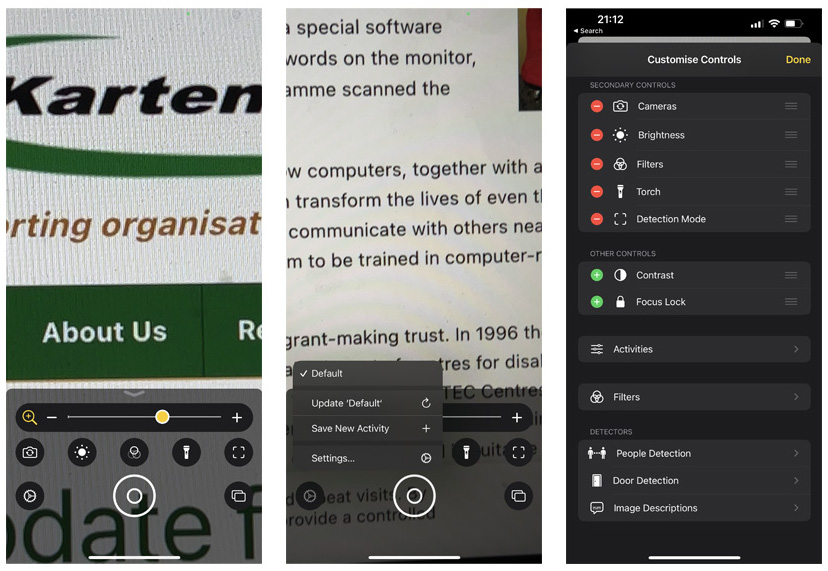
Within the Magnifier app there are a number of settings and features, including filters, torch and detection. Detection can identify objects, people and doors – providing visual, audible and spoken feedback about the object, and in the case of doors and people, how far away they are.
The detection feature as mentioned in the previous newsletter is only supported on the newer Apple devices with the LiDAR Scanner. While it may not be as good as dedicated assitive devices (e.g. OrCam) and other apps (e.g. Seeing AI) from my experimenting with it I found it to do a decent job.
Sound Recognition
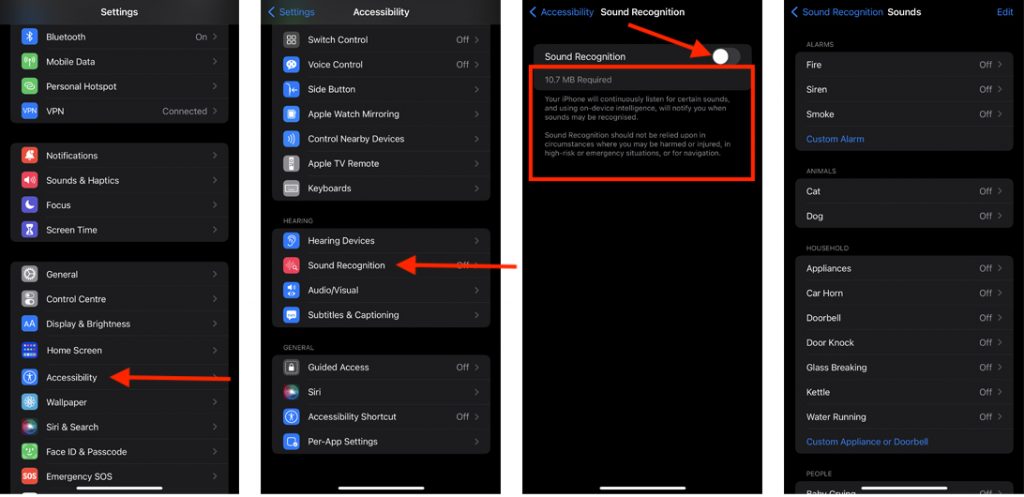
Apple devices have fairly decent microphones, these can be used to help alert you to specific sounds such as a doorbell, kettle boiling, running water etc. With the option to add custom sounds too. To enable this feature, tap on “Settings”, then Accessibility, then with in the hearing group, tap “Sound Recognition”, and tap to turn it on. If this feature has not been turned on your device, it will download some additional files before enabling it.
Background Sounds
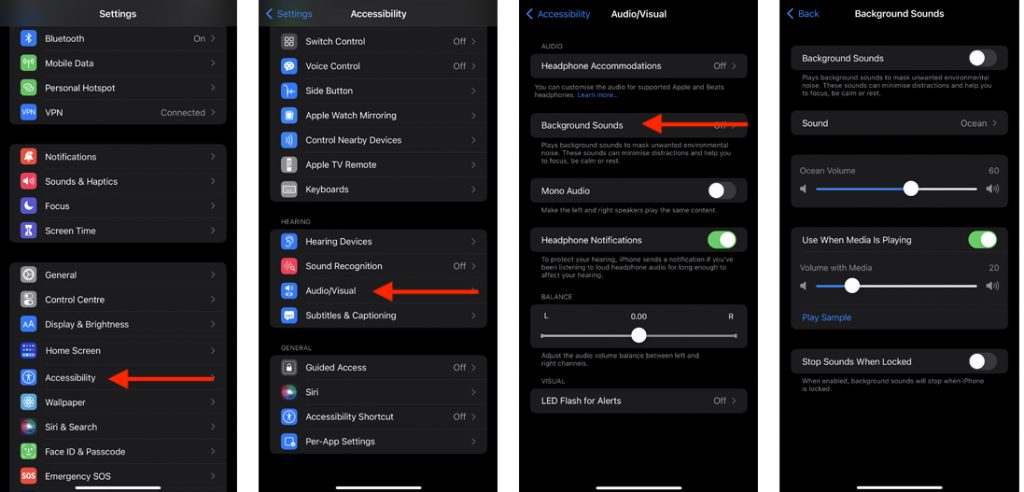
Background sounds is one of those lesser-known features that can be very useful. This feature is designed to play a sound to blockout sounds within your environment, helping you to focus. To enable this feature, tap on “Settings”, then “Accessibility”, then with in the hearing group, tap “Audio/Visual”, and tap ‘Background Sounds” to turn it on. There are currently six sounds to choose from.
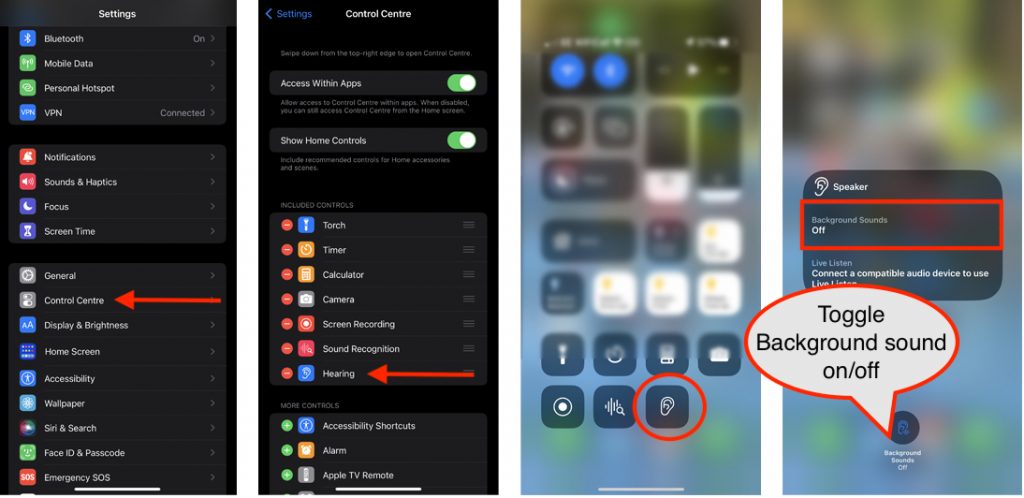
If you do find this useful, I suggest adding “Hearing” to the Control Centre. This can be done by tapping on “Settings”, then scrolling down to “Control Centre” and adding it.
Back Tap
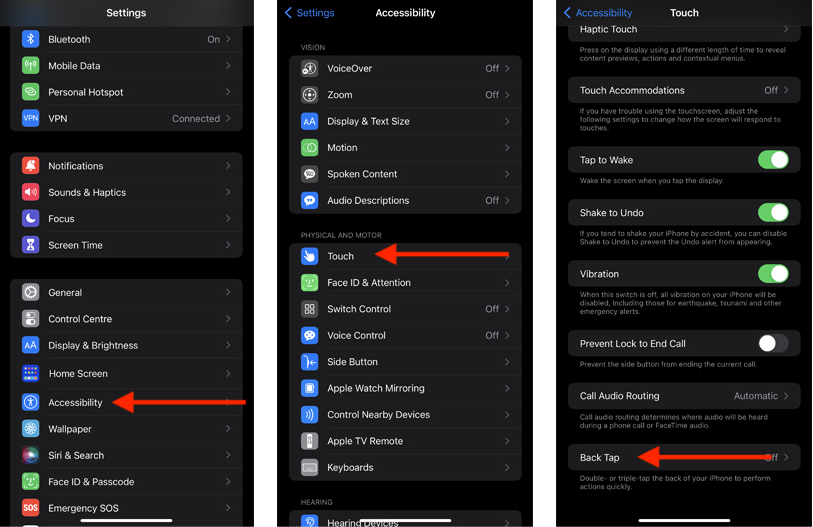
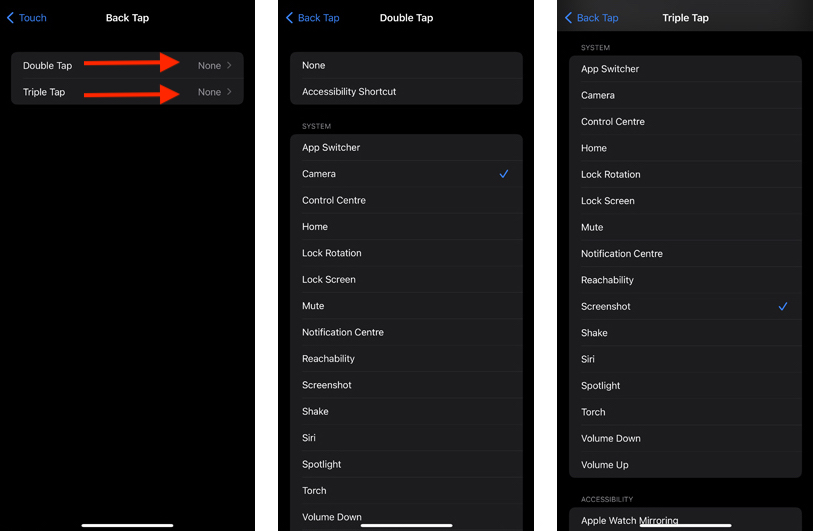
Back Tap is one of those features that has a multitude of possible uses. In short, Back Tap allows you to assign a particular function to either double or triple tapping on the back of your iPhone (not available in iPad) to trigger an action, e.g. launch the camera, take a screenshot, turn on the torch etc. Combining this with Apple Shortcuts makes even more complex actions possible.
To enable this feature tap on “Settings”, then “Accessibility”, then with in the physical and motion group, tap “touch”, scroll down to the bottom and tap ‘Back Tap” to turn it on. You can now assign an action to a double and/or triple tap.
Note: if you have a case on your iPhone this may affect the responsiveness of this feature. Although, personally even with a rugged case, I have not experienced any problems with this.
Guided Access
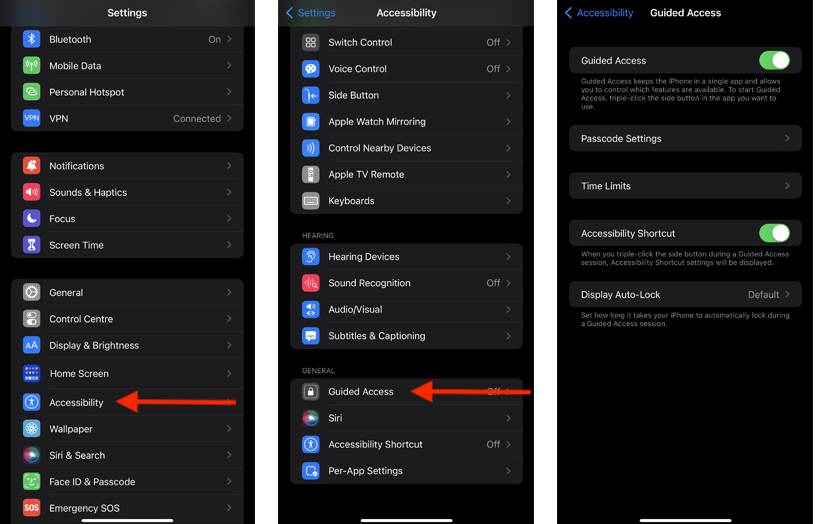
Guided Access restricts the use of an iPhone/iPad to a single app. You can also opt to disable the buttons on the device. This feature can be useful if you want to ensure that someone either accidently or intentionally doesn’t navigate away from a particular app.
To activate Guided Access tap on “Settings”, then “Accessibility”, then with in the general group, and tap “Guided Access” to turn it on.
From within the Guided access settings you can set a passcode, what happens if a time limit is set, and set how long before the device locks, including preventing the device from locking. You can also turn on an Accessibility shortcut – if you are going to use Guided Access I recommend turning this on. When enabled you can triple click the side button to launch Guided Access.
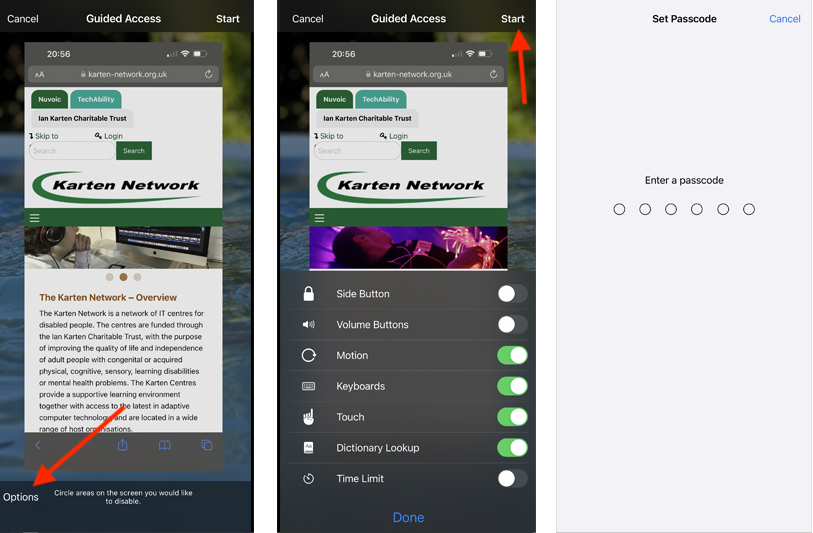
To use Guided Access, navigate to and launch the app you want to restrict use to. Start Guided Access. Triple click the side button if you enabled the shortcut. You now have the option to set more specific restrictions e.g. disabling the volume buttons. Then tap “Start”. You will be prompted to enter a passcode. This passcode is unique to Guided Access and can be different to the passcode used to unlock the device. Use of the device is now restricted to the chosen app.
Assistive Touch
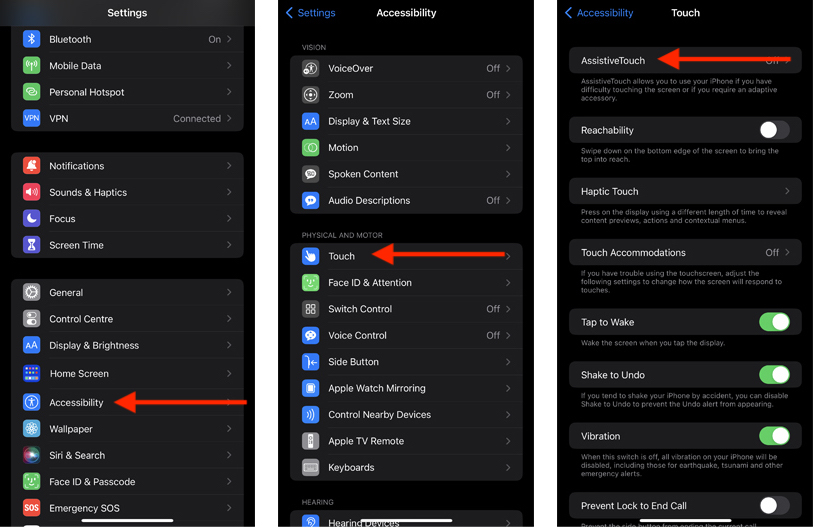
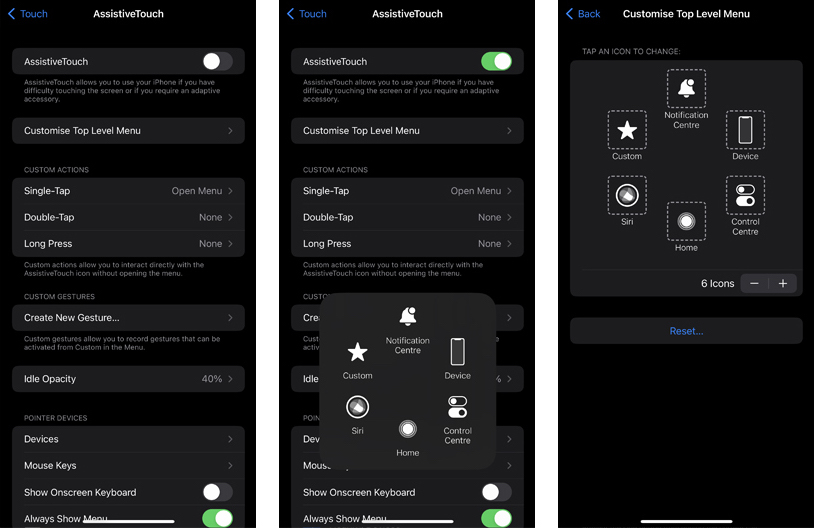
Assistive Touch is designed to help with people who either have difficulty using the touch screen (or part thereof) or require an adaptive accessory. To enable this feature tap on “Settings”, then “Accessibility”, then with in the physical and motion group, tap “Touch”, and tap “Assistive Touch” to turn it on.
Once enabled a floating virtual button will appear on the screen. Selecting it will open a menu with a multitude of options, from controlling the device to viewing notifications and the options can be customized to suit your needs.
Spoken Content
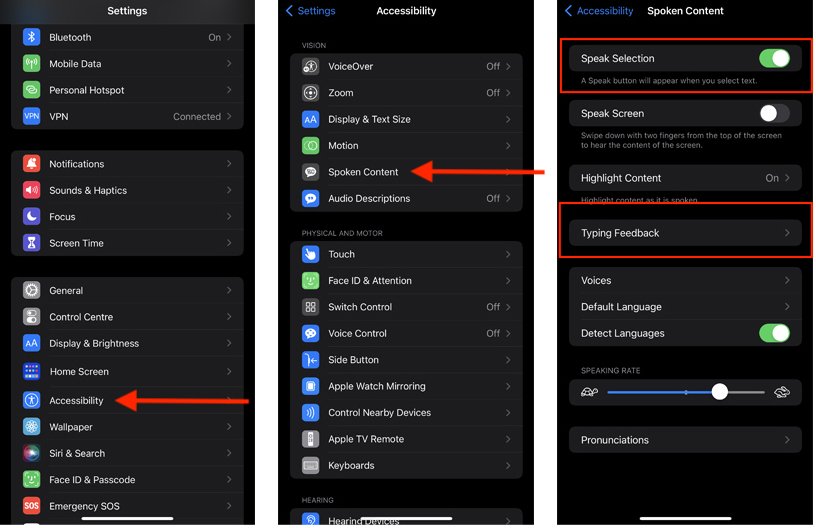
Personally, Spoken Content is one of my favourite features. While it may not have all the features of an app like Speechify it is extremely effective at reading content. To enable this feature, tap on “Settings”, then Accessibility, then with in the vision group, tap “Spoken Content”. Within the Spoken Content settings you have the options to “Speak Selection” or “Speak Screen” – unless you have a particular need for the entire screen to be spoken, I recommend only enabling “Speak Selection”.
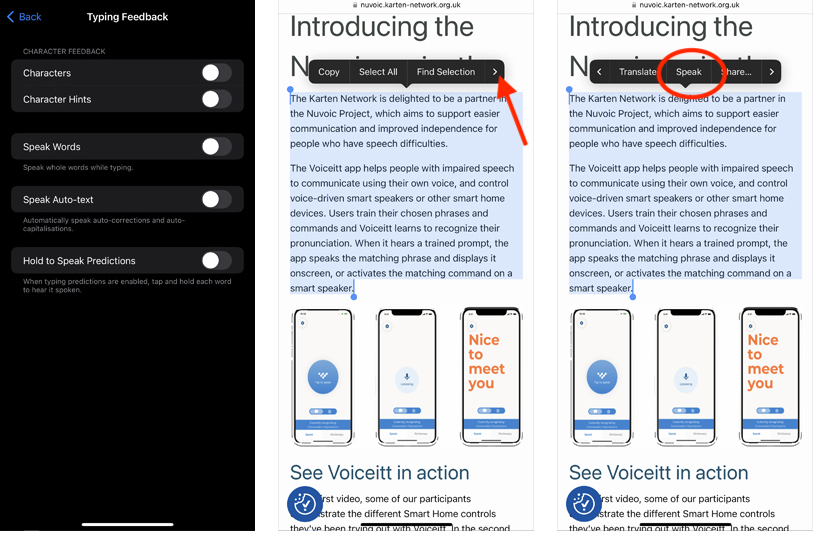
“Typing Feedback” a subsection of the Spoken Content setting allows you to enable spoken feedback to what is being typed and speak predictions.
If you have Spoken Content enabled you can now select any text, and from the context menu select “Speak” to have it read to you. Note: The “Speak” option may be hidden further along the context menu – tap the right arrow to view it.
More Accessibility features
I have only scratched the surface of the accessibility features in Microsoft 365 and iOS. Not to mention the fact that many of the accessibility features are also available for Android based devices.
For more information, please visit the following web pages:
As always, I am keen to hear about how you are using mobile and other smart technology. If you would like to have a particular topic covered in the next newsletter, please let me know. Finally, I am available to provide help, support and advice to any of the Karten Centres.
We use cookies on our website to give you the most relevant experience by remembering your preferences and repeat visits. By clicking “Accept All”, you consent to the use of ALL the cookies. However, you may visit "Cookie Settings" to provide a controlled consent.
This website uses cookies to improve your experience while you navigate through the website. Out of these, the cookies that are categorized as necessary are stored on your browser as they are essential for the working of basic functionalities of the website. We also use third-party cookies that help us analyze and understand how you use this website. These cookies will be stored in your browser only with your consent. You also have the option to opt-out of these cookies. But opting out of some of these cookies may affect your browsing experience.
Necessary cookies are absolutely essential for the website to function properly. These cookies ensure basic functionalities and security features of the website, anonymously.
Cookie
Duration
Description
cookielawinfo-checkbox-analytics
11 months
This cookie is set by GDPR Cookie Consent plugin. The cookie is used to store the user consent for the cookies in the category "Analytics".
cookielawinfo-checkbox-functional
11 months
The cookie is set by GDPR cookie consent to record the user consent for the cookies in the category "Functional".
cookielawinfo-checkbox-necessary
11 months
This cookie is set by GDPR Cookie Consent plugin. The cookies is used to store the user consent for the cookies in the category "Necessary".
cookielawinfo-checkbox-others
11 months
This cookie is set by GDPR Cookie Consent plugin. The cookie is used to store the user consent for the cookies in the category "Other.
cookielawinfo-checkbox-performance
11 months
This cookie is set by GDPR Cookie Consent plugin. The cookie is used to store the user consent for the cookies in the category "Performance".
viewed_cookie_policy
11 months
The cookie is set by the GDPR Cookie Consent plugin and is used to store whether or not user has consented to the use of cookies. It does not store any personal data.
Functional cookies help to perform certain functionalities like sharing the content of the website on social media platforms, collect feedbacks, and other third-party features.
Performance cookies are used to understand and analyze the key performance indexes of the website which helps in delivering a better user experience for the visitors.
Analytical cookies are used to understand how visitors interact with the website. These cookies help provide information on metrics the number of visitors, bounce rate, traffic source, etc.
Advertisement cookies are used to provide visitors with relevant ads and marketing campaigns. These cookies track visitors across websites and collect information to provide customized ads.