Nuvoic TechAbility Ian Karten Charitable Trust
Skip to Content
login
karten Network Logo

Supporting organisations working with disabled people

  • Home
  • About Us
    • Introduction
    • Trustees
    • Support Team
    • Minutes of Board Meetings
    • Karten Centre DVD
  • Research
  • Centres
    • Karten Centre Search
    • All Centres
    • Eire
    • England
      • East Midlands
      • East of England
      • London
      • North East
      • North West
      • South East
      • South West
      • West Midlands
      • Yorkshire and The Humber
    • Israel
    • Northern Ireland
    • Scotland
    • Wales
    • Success Stories
    • Equipment Donation
    • Apply for support
  • News
    • Newsletters
  • Resources
    • Mobile Technology Resource
    • eSafety
    • Useful links
    • Webinars
    • Talent and Technology Report
    • Audio Books
    • Event Handouts
  • Job Vacancies
  • Events
  • Contact Us
  • Home
  • About Us
    • Introduction
    • Trustees
    • Support Team
    • Minutes of Board Meetings
    • Karten Centre DVD
  • Research
  • Centres
    • Karten Centre Search
    • All Centres
    • Eire
    • England
      • East Midlands
      • East of England
      • London
      • North East
      • North West
      • South East
      • South West
      • West Midlands
      • Yorkshire and The Humber
    • Israel
    • Northern Ireland
    • Scotland
    • Wales
    • Success Stories
    • Equipment Donation
    • Apply for support
  • News
    • Newsletters
  • Resources
    • Mobile Technology Resource
    • eSafety
    • Useful links
    • Webinars
    • Talent and Technology Report
    • Audio Books
    • Event Handouts
  • Job Vacancies
  • Events
  • Contact Us

Network Development Coordinator’s Update – Autumn 2024

Posted on November 26, 2024 at 3:17 am.

Written by martin

Welcome to the (late) autumn edition of the Karten Network’s newsletter. We are nearly in December and hurtling towards the end of the calendar year, and if you’re anything like me you could well be questioning how that could possibly have happened. Well, they say time flies when you’re having fun!

I am delighted that we have such super contributions from our Karten Centres in this issue, thank you to everyone who has so kindly made the effort to provide an article. Our winter newsletter will be published in February 2025, hopefully you have been motivated to write something for next time. If you want to discuss any ideas please email me dawn@karten-network.org.uk and we’ll agree a time to have a chat.

Important information about funding for additional equipment

We have currently paused the application process to enable the Karten Network and Ian Karten Charitable Trust to work together on a new model of support for Karten Centres. We will share the detail of the new funding model as soon as we are able to do so. Please note that Karten Centres who have had planning calls with Dawn and are currently working on applications for March 2025 should continue to develop these as discussed.

Welcome to the Karten Network’s newest Trustees

I would like to extend a very warm welcome to three new Trustees who have recently joined the Karten Network Board. We are very fortunate to have secured the expertise and support of Alison, Kayleigh and Miriam, you can read about their backgrounds below. It is appropriate at this point to say a huge thank you to the rest of our board members who do such a fabulous job, generously giving their time and expertise in voluntary board roles.

Alison Keeley

Photo of Alison Keeley

Alison is currently the CEO at The Grange Centre for People with Disabilities in Surrey.  Education and Special Educational Needs have been aspects of Alison’s work throughout her working life.  She started her career in teaching, ascending to managerial positions in primary education.  Early in her teaching career she spent over two years training primary school teachers in Nigeria with Voluntary Services Overseas.  She  made the move to the charity sector in 2013 and has worked in local and national charities.

Outside of work Alison is a supported lodgings carer and volunteers as a driver for her local community fridge as well as sitting on the Boards of two other charities.

Kayleigh Hunt

Photo of Kayleigh Hunt

Kayleigh has been a dedicated member of National Star since 2009, bringing over fifteen years of experience in Education, Health, and Social Care. She is passionate about Assistive Technologies and Sport, with a strong commitment to improving lives through her work. One of Kayleigh’s most notable achievements was completing her Chartered Teacher Status (ATS), reflecting her dedication to professional development and high standards in teaching.

In her role as Technology Innovation Manager at National Star, Kayleigh is responsible for leading the integration of innovative technology in education. She works closely with IT Services and learning programmes departments to ensure classrooms are equipped with Assistive technologies and tools that create an inclusive learning environment, empowering students with disabilities and personalising their learning experiences.

Previously, Kayleigh led National Star’s participation in the Department for Education’s EdTech Demonstrator Programme, an initiative aimed at enhancing the use of digital technology to support better educational outcomes.

A lifelong learner herself, Kayleigh continues to invest in her own development. She is currently pursuing a BA (Hons) degree as a Chartered Manager through an apprenticeship programme, supported by National Star. This commitment to both her personal growth and the advancement of her field underscores her passion for creating lasting, positive impact.

Kayleigh’s work demonstrates her deep commitment to the integration of technology in education, ensuring that National Star continues to lead in providing exceptional, inclusive educational experiences.

Miriam Hendry

Photo of Miriam Hendry

I have 38 years of experience within the Health and Social Care Sector, including over 20 years of management experience. I joined Cantraybridge, as their fundraiser mainly due to my enthusiasm for the organisation, and the success my son achieved, as one of their students with a learning disability.

Cantraybridge supports young adults both within a residential setting, supporting independent living and housing support. We also have a day centre offering skills in horticulture, agriculture, art and crafts, café skills, wood skills, general maintenance and digital skills. Cantraybridge also offers housing support for people in the community. Cantraybridge also hosts a Karten Centre.

In 2019, I became Cantraybridge’s Independent Living Manager and was responsible for the care and support of our residents at Cantray Square. In May 2021, I secured the role of Operations Manager at Cantraybridge. I have introduced a new training programme for all staff, and also a new electronic auditing and data base system. I also manage the HR side of the business, amongst other responsibilities.

I am delighted to be a Karten Network Trustee, I am very conscious of the benefits of the Karten Network for Cantraybridge, and I am excited to play an active part in developing and progressing the Network for the benefit of adults with additional needs across the Network.

In my spare time, I am a keen musician, enjoy playing golf and spending time with my grandchildren. I am also involved in the children’s work in our local Church of Scotland.

MSc Educational Assistive Technology is now recruiting

Posted on November 26, 2024 at 2:19 am.

Written by martin

Would you like to learn about the assessment, provisioning, ongoing support, and review of Assistive Technology?

MSc Educational Assistive Technology is now recruiting its 5th cohort to start in January 2025.

The MSc in Educational Assistive Technology (EduAT) is a globally unique course that aims to train students to work as an Assistive Technologist. This distance learning course is being offered by the University of Dundee. The course is currently the only Assistive Technology (AT) focussed MSc offered from the UK. We are training individuals to assess for, implement and support the use of technology within education and beyond to enable AT users with a broad range of learning difficulties and/or physical disabilities to access the curriculum or be as independent as possible. We are also working to support the professionalisation of the Educational Assistive Technologist role.

The course was founded in 2021 by Professor Annalu Waller OBE, and Mr Rohan Slaughter, who were joined by Dr Tom Griffiths in 2023. The programme team have extensive experience of working with and teaching individuals with a wide range of disabilities, and together we have over 80 years’ experience in AT.

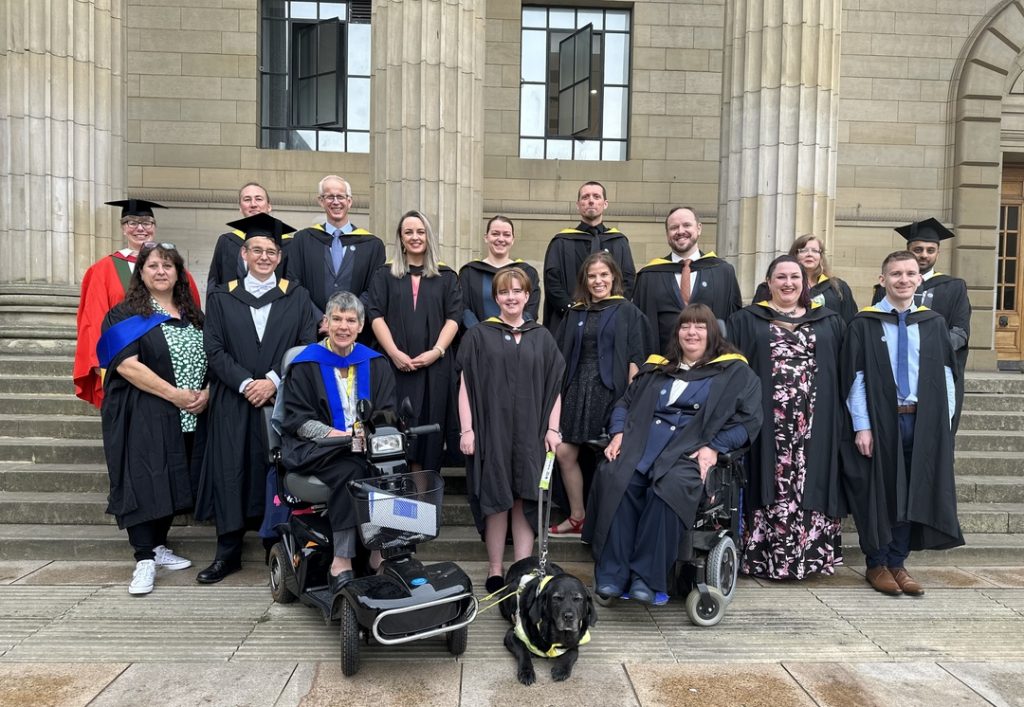
The first cohort of the Educational Assistive Technology course posed in graduation gowns on the Caird Hall steps

The degree differs from previous Assistive Technology MSc programmes due to its focus on the assessment and support of electronic assistive technology within educational, social care, health, and other environments, or in other contexts that embed lifelong learning. It is aimed toward teachers, therapists, technologists and others who are seeking to develop and enhance their ability to support those who require Assistive Technology (AT). Our students work in schools, colleges, universities, social care, and health organisations. We welcome applications from people who have experience of working to support disabled people and students in a variety of contexts, inclusive of those who may not hold higher qualifications, and who do have useful practical experience. The entry requirements for the course have been designed to be as inclusive as possible.  

The degree has been designed as a distance learning part-time course taken over two years. To undertake the two-year part-time programme, students must be employed in a suitable working context in which they can undertake the MSc EduAT coursework. A full-time version is also available, and this would require placement opportunities to be arranged, please contact a member of the programme team if you are interested in this route. Please note that we cannot organise work placements in countries other than the UK, as we cannot quality assure such placements.

  • If you want to know more about the MSc in Educational Assistive Technology (MSc EduAT) the course pages on the University website is the place to start.
  • A recording is available of our 2024 open afternoon, current students and graduates give their views on the course at 1:03 in the recording.
  • You can read about our first cohort who graduated in 2023 in this press release. Our second cohort just graduated in June 2024.
The second cohort of the Educational Assistive Technology course posed in graduation gowns on the Caird Hall steps

To apply for the programme, visit the MSc EduAT websites for part-time / full-time study. You can also contact us directly by email: MScEduAT@dundee.ac.uk   


Exciting Transformation

Posted on November 26, 2024 at 1:47 am.

Written by martin

The new Queen Alexandra charity logo

It’s been a really busy year for the Karten Centre based at the Queen Alexandra College in Birmingham.  The college is part of the Queen Alexandra Charity who support young adults with learning difficulties and disabilities through education, residential services, community services and enterprise.  With the charity going  through a re-brand this year the Karten Centre now proudly displays its new signage on the college campus.  

The new re-branded Karten Centre sign

The inside of the Karten Centre has also undergone a transformation.  Thanks to support from the Karten Network and a grant of just over £20,000 the charity has been able to replace older equipment with brand new computers, laptops, monitors and interactive touch screens.  The new equipment is enabling creative media and IT students to experience the most up to date technologies, which will enable them to be able to transfer to the workplace or further education more easily. 

The new Karten Centre with two people sitting at desks and working with the new computers

The improved speed, functionality and security will also be of benefit.  The new interactive touch screens have replaced existing projector smart board sets which have been in situ since 2004.  Used daily the touch screens are enabling students to be able to print off work from the screens in real time, greatly aiding their learning.  Improved image quality is also hugely benefiting students with visual impairments.

Daniel, sitting at a desk in front of the new Karten Network centre computers

Daniel (pictured) shared how amazing the new computers are. “They’re super-fast, making it so much easier to get work done”.  One of the Tutors, Ken, added “the students are loving the new interactive whiteboard too – it really helps them learn in a fun way. Everyone is so happy with the new equipment; it’s truly making their learning experience much more enjoyable, so thank you Karten”.


Introducing Another Inclusive Printing Business

Posted on November 26, 2024 at 1:11 am.

Written by martin

AI generated image of a person standing in front of a large printer.

Bridge College, well known for its work supporting students with special educational needs, is launching its own online enterprise. To cater to the community and businesses the college has opened its own online print shop selling high quality customized T-shirts, mugs and bags.

This venture is not simply a business, but an active training ground for students, engaging them in design, production and customer service. The Print Room seeks to provide students with experience that harnesses creativity, working within the real world to develop experience and skills so that they can step out confidently into employment.

Printing is embedded in the curriculum of the college. From creative design concepts to running high-tech printing machinery, students are engaged in every step of the process. With guidance from veteran staff, they learn how to process orders and keep quality consistent through production. Students also develop ICT skills managing and updating the online store, sending out email receipts and responding to customer queries.


Fantastic products at Dummer Fair

Posted on November 26, 2024 at 12:47 am.

Written by martin

Ben, a young man sitting at the Treloar stall at at Dummer Fair. On the table in front of him are birthday cards, crackers and many other items for sale.

This year, a highlight for Treloar Enterprise Printing Solutions (TEPS), our Karten Centre at Treloar’s, was selling our student’s fantastic products at Dummer Fair. Dummer Fair has been held around Michaelmas for over 25 years and remains one of the most successful fairs in Hampshire, welcoming over 1,000 visitors, with exhibitors from all over the country. Our students held a stall at the fair and quickly sold out of all of their products.

Ben, a young man sitting at the Treloar stall at at Dummer Fair.

They took many orders for Christmas and into the new year. Here’s what Ben, a TEPS student, had to say: 

“On the 10th October I supported the Dummer Fair to represent Treloar’s and the TEPS Karten Centre and all the items we have made. Business was busy throughout the day with the handmade crackers providing the most popular item. I spoke to lots of people explaining what Treloar’s is and what I do. Although I wasn’t in class, I did lots of work on my targets!! I enjoyed using the card reader to take payments and we took over £400. I love going to this event. I am also in charge of our range of personalised Christmas products. I am creating the advertising materials, taking the orders and making the items. This year we are printing Santa Sacks, and Christmas Decorations to order.”


Jacob’s Train of Thought

Posted on November 25, 2024 at 11:30 pm.

Written by martin

A picture of a train travelling next to a lake at night, with the milky way shining above.

Our Performing Arts students recently visited Curve Theatre in Leicester to watch Dear Evan Hanson. They were then tasked with writing a blog post using WordPress about the performance by their PA tutor Kiah (also our Digital Lead). Jacob, a pathway 3 student at Homefield, excelled at this, writing a wonderful blog post. Jacob is particularly interested in trains, so we thought his blog name was genius!

Dear Evan Hansen – The Curve

What can I say about Dear Evan Hansen, my group took the train into Leicester on Thursday and met up with a few more students from our group before we went in to see the show. We got some seats that are near the back but we could still see the performance.

The show was about a young boy named Evan who was struggling with social anxiety and depression, his therapist encouraged him to write letters to himself as a form of confidence boosting but things soon got out of hands when a student named Connor got his hands on one of them, detailing his crush on Connor’s sister Zoe and commits suicide, thinking Evan was planning on making him look like a fool.

Evan later finds out and due to his signed sling, his family thinks him and Connor were best friends and Evan has to make up lies about Him and Connor in order to help his family, he and another student start a project to replant and orchard in Connor’s honor but Evan is later forced to confess about the lie about him and Connor’s friendship and he vows to be brutally honest about things in future when he sees the replanted orchard in the end.

I think Dear Evan Hanson is a fantastic example of an introverted protagonist story, The sets were full of detail and made you almost feel like you were in the story, especially the scene with the windows in the background which was my favourite by far. I also appreciated how emotional some scenes could get such as my favourite song “Words Fail” when Evan has to confess his lies to the Murphy Family, this scene in particular spoke to me as I’ve been in a similar scenario to Evan before.

I also like (and hate) the character of Jared as I could feel Evan’s pain when Jared tormented him, he’s almost like the little voice in your head that tells you you’re a failure, you’re a loser and you’re worthless over and over again with no way to break the cycle. I personally have had experience with people like Jared before and I commend the creators of this musical for creating a character that’s likable because they’re realistically unlikable.

I really recommend this play to people with anxiety or who are coming of age, this play will really speak to them as it did to me as the main protagonist has not just 1 but 2 mental disabilities and is also portrayed very realistically as well. If’s you’re someone who fall into these two categories and there’s a performance of this at your local theatre, I recommend you give this a watch as it’s an experience to remember!

Jacob’s original blog post can be found at: https://jacobstrainofthought.wordpress.com/2024/10/08/dear-evan-hansen-the-curve-03-10-2024/


Empowering individuals through technology

Posted on November 25, 2024 at 11:06 pm.

Written by martin

Jewish Care Explore is dedicated to empowering individuals through technology, promoting greater independence in day-to-day life. In line with this mission, on Monday, November 4th, we conducted a training session at Hammerson House for volunteers and employees. This session focused on assistive technology and accessibility settings that can make technology more accessible and user-friendly. We also explored effective ways to help people feel confident and comfortable engaging with new technology. Attendees were introduced to accessibility settings to help people with visual, hearing, physical and cognitive impairments, along with some apps and equipment to help people with lived experience of these difficulties. They came away with an increased knowledge on accessibility based technology, and felt more able to assist people with this.

Lady standing in front of a large interactive screen talking about the Jewish Care volunteer Training

In today’s technologically driven world, access to technology and digital skills is essential, yet many individuals – in particular the elderly and people with disabilities – remain disconnected for various reasons. Promoting digital inclusion is paramount for enabling everyone to integrate fully in modern life, and collaboration among organisations is key to achieving this goal.

By working collaboratively, organisations can share resources and expertise, amplifying their impact. Collaborative efforts allow organisations like those within the Karten Network to provide training programs, reaching more individuals than any one organisation could achieve in isolation. Community-based organisations, deeply trusted and needed by the people they serve, are integral to fostering confidence and empowerment in those new to or wary of technology and serve to massively improve digital inclusion within our communities.
When organisations work together to promote digital inclusion, they build a more connected, equitable society and empower more people to thrive in an ever-evolving digital world.


Impactful Art

Posted on November 25, 2024 at 10:37 pm.

Written by martin

80 Candles for 80 Years

“80 Candles for 80 Years” is a project in collaboration with the Holocaust Memorial Day Trust, which we were invited to take part in. This initiative also involves the St. Helens Library Service. The project marks the 80th anniversary of the liberation of AuschwitzBirkenau, and we were tasked with designing and creating a Holocaust Memorial Day candleholder.

The first step in creating our candleholder was to choose a life story. Our candleholder was designed to commemorate the life story of an individual or community that was persecuted and/or murdered by the Nazis. We chose to commemorate the life of Helene Melanie Lebel. Our very talented writer, Callum, wrote a poem inspired by her life story, and the members of our art club all drew the national flower of Vienna, Helene’s birthplace.

Callum, holdering and showing the candle holder he designed and made.

To create this candleholder, we used our Glowforge laser cutter, which cut the plywood and engraved the drawings and Callum’s poem. Our candleholder will be part of a special digital exhibition for HMD 2025 and will be used annually at the St Helens Library Holocaust Memorial Service.

Jigsaw Exhibition

All of our artists at Buzz Hub are signed up for an online gallery with Outside In. Outside In provides a platform for artists who encounter significant barriers to the art world due to health, disability, social circumstance, or isolation.

Outside In is partnering with Jigsaw, the UK clothing company, which regularly displays rotating art in its shops. They saw Bill’s online gallery (one of our members) and are interested in featuring it at their Leeds location alongside another Outside In artist.

Bill, a middle aged man with glasses, holding up his landscape paintings.

The collaboration will kick off with an in-store event at Jigsaw in Leeds on 14 November. This event will welcome friends, family, and customers, offering a unique opportunity for guests to engage directly with the artists and hear about their creative journeys. A recording of the event will also be available for wider audiences.

Three more example of Bill's landscape paintings

Bill creates beautiful watercolour and coffee landscape paintings. Jigsaw has chosen seven of Bill’s paintings to include in the exhibition. His works will be on display from 14th November 2024 – 6th March 2025.


TechAbility Update – Autumn 2024

Posted on November 25, 2024 at 8:15 pm.

Written by martin

Natspec Peer Exchange Week

Natspec Peer Exchange Week returns in January. Over the four days Natspec will be hosting online peer exchange sessions on topical subjects of interest to specialist college staff.

Natspec has ensured that Karten members will be able to access the TechAbility session: Making it fun: The importance of motivation in using Assistive Technology.

We would love to hear from Karten centres about how they work with their centre users to make technology fun and motivational. Please email neil.harrodbeck@natspec.org.uk if you would be interested in contributing. We can help you to prepare and deliver, even if it’s your first time.

Switch Adapted Inclusive MP3 Player

Inclusive technology has begun stocking a switch adapted MP3 player, to help people to listen to music, books or other audio.

This has a standard switch interface for Play/Pause, Forwards/Skip Track Forwards, Back/Skip Track Back meaning that you can connect whatever switches work best for the individual. It has a clear and simple interface making it easier for those who may struggle to find the right buttons. We would be tempted to use switches with stickers showing what each switch does.

Please let us know if you buy one as we’d love to know what you think of it.

Switch Adapted - Inclusive MP3 Player

Computer control coming to AI through Claude 3.5

Anthropic are the owners of the AI system known as “Claude.” In their latest version Claude can use computers the way people do—by looking at a screen, moving a cursor, clicking buttons, and typing text.

At this stage, it is still experimental—at times cumbersome and error-prone but they expect the capability to improve rapidly over time.

A screenshot of a Claude AI tool talking through the steps of taking a screenshot and moving down a page using keyboard and mouse commands

You can watch the video of Claude: Computer use for orchestrating tasks below to get a better idea, or read the press release Introducing computer use.

A demostration of Claude controlling the computer to acomplish the requested task.

For now this is only available for developers, but it is a clear indication of what is to come.

We hope that this will lead to people with disabilities being able to give short commands and for the AI to carry out a number of activities related to these commands. Simplifying the process, expanding what individuals can do and making it easier to carry out activities.


The gift that keeps on giving

Posted on November 25, 2024 at 5:35 pm.

Written by martin

The Sense college logo

We applied for a Karten Grant many years ago and bought a lot of VI Technology, including the OrCam My Eye which is still in use now.  The OrCam My Eye is now on version 3 Pro and there is an OrCam Read 3 also and it is, pretty much, all singing and all dancing.  It advertises itself as the “most advanced vision impairment wearable solution”.  It reads or magnifies text, recognises faces, identifies products and you can ask it questions and get information. 

Our original OrCam My Eye mainly reads text, but at the time it had the real “wow” factor.   The OrCam is a device that attaches by magnet to glasses.  The wearer can then point at text either nearby (book level) or at a poster / train timetable at a distance.  The gadget then takes a photo of the text and reads it to the wearer.   It takes a bit of getting used to because you have to have your head in the right position and your pointer finger in the right place, but once you get the hang of it then you can use it in so many different places and to read a range of text, close up and further away. 

My student (KM) who used the OrCam a lot took it on his Animal Care course to read his handouts and what was on the board.  Most memorably, he took it on a trip to a museum and art gallery to read the small printed information and when he adjusted his headphones he flipped the camera bit onto the floor and didn’t realise.   Some time later he went to use it and realised that it wasn’t attached to his glasses.  A frantic search occurred and, fortunately, he did eventually find it on the floor. 

This is probably the weakest aspect of the OrCam My Eye – the magnet is light, as is the camera part, and it is easy to knock off and not realise, and it’s easy to forget that it is attached to your glasses.  I hope that this is something OrCam have been able to improve, so that the magnet is stronger.

A young man, sitting reading a book. He is wearing the OrCam MyEye device on his glasses

KM has now purchased his own My Eye Pro and this is what he has said:

I attended the College in 2018-19. Whilst I was there, I got introduced to the OrCam My Eye. When I first used the OrCam I was amazed at what it can do and how helpful it can be. I was impressed at how easy it is to use and that you don’t notice that it is there. The best thing about the OrCam is that you can take it anywhere and use it in any situation where reading is necessary. I now have an OrCam MyEye Pro. It is very helpful because it does a lot more than reading such as face recognition and scanning barcodes and telling me what the product is. I will always be grateful to the College for introducing me to this amazing piece of technology.

Another student (AB) has also tried out the OrCam and has since purchased his own.  He uses this in College a lot and his tutor has said:

AB has been successful at using the OrCam in a variety of ways.   This has included using the barcode function to identify which items to give customers when working as a cashier in our café Enterprise.  AB has programmed in a range of faces into the OrCam and used the facial recognition function.    He has also read a range of documents using its reading function and its speech output.    This last way is his preferred way of working out of all the ways that he has tried.   It enables him to access the same documents as his sighted peers and at the same pace.  

The beauty of the OrCam is that it isn’t just for people with sight loss, but can also help people with Dyslexia, Irlens Syndrome and other reading difficulties.  The OrCam Read is different to the My Eye as it is hand held or can be placed on a stand and it will read printed or digital text aloud from screens, books, newspapers, signs etc.  The device also has a magnifier that can be used to upload and capture books, handwritten documents and images.  Apart from that, the OrCam Read has an AI Assistant that you can ask questions about the text and other topics and it is interactive. 

There is also the handheld OrCam Learn which reads text, and when in Reading Pal mode gives live feedback to students practicing reading aloud and can assess understanding by asking relevant questions.  It will also read signs and text when the person is out and about.  The OrCam Learn can be used in exams when in exam mode and with Wi-Fi disabled.  This option is a lot more affordable than the other options. 

So, although we were given the OrCam My Eye many years ago through the Karten Grant the impact continues to this day, with students and former students continuing to use this technology because they learned about it at College.  Definitely a gift that keeps on giving.

Sadly, OrCam have announced that they will no longer be focusing on developing products for people with sight loss but will be concentrating on their OrCam Hear products for people with hearing loss.  I am sure that this product will be as good as their other products for people with sight loss or reading difficulties.  However, even though there will be a change of direction for OrCam, I hope that we will still be able to buy Read 3 or Learn, because we have a number of students who would, definitely, benefit from one or both of these gadgets. 


Technology Advisor Update – Autumn 2024

Posted on November 25, 2024 at 4:27 pm.

Written by martin

Never Miss a Word – A Guide to Teams Transcription and Accessibility

An AI generated image depecting a Microsoft Teams call. It shows  multiple people on a video call on the laptop screen.

These days the use of Microsoft Teams has become quite common. Microsoft Teams has evolved from a simple communication tool to a powerful platform for meetings, collaboration teaching and more.

Microsoft Teams has made significant strides in accessibility and inclusivity by introducing transcription and live captioning features. These features are particularly beneficial for individuals who are deaf or hard of hearing, those with language barriers, or anyone who simply prefers to follow along visually – helping to avoid information shared during the Teams call from being missed.

In this article, I will guide you through how to enable and use transcription and Live Captions in Microsoft Teams, including key technical details, accessibility features, and what to do if you forget to start transcription but have recorded the meeting.

What is Transcription in Microsoft Teams?

Screenshot of Microsoft Teams showing three people on screen having a meeting, to the right of the screen the live transcript window is displayed.

Transcription in Microsoft Teams allows meeting content, especially the audio, to be converted into text in real-time. This is beneficial for people with hearing impairments, those who prefer reading to listening, or those who simply want to refer to meeting details at a later time. Teams can transcribe spoken content and display it alongside the meeting video feed, allowing people to follow the conversation in both audio and text formats. The meeting transcription can also be downloaded or shared after the meeting.   

How to Enable Transcription in Microsoft Teams

For Microsoft 365 Admins

Before users can take advantage of transcription in Microsoft Teams, there are several steps a Microsoft 365 administrator needs to follow to enable this feature.

  • Ensure Microsoft Teams is Up to Date: The transcription feature is available to users with an up-to-date version of Teams. Admins should ensure that all users are on the latest version of Microsoft Teams.
  • Verify Licensing: Transcription in Teams is part of Microsoft 365 enterprise plans (such as Business Standard, Business Premium, or Enterprise E3/E5). Admins need to verify that the organisation has the necessary licenses to access this feature.
  • Enable Cloud Recording: Transcription works with cloud-based recording. Admins should ensure that cloud recording is enabled in the Teams Admin Center:
    • Go to the Teams Admin Center (https://admin.teams.microsoft.com)
    • Navigate to Meetings > Meeting Policies.
    • Under Recording & transcription, ensure that the “Allow transcription” option is turned on.
      Note: Recording & transcription is typically found within the “Global (Org-wide default)” policy.
      Tip: Provided you have sufficient permissions, this can also be enabled in the Teams app under Admin> Settings > Meeting “Allow transcription” toggled to On.
  • Set Up Permissions for Recording and Transcription: Ensure that the appropriate permissions are granted to users who need to record meetings. The “Allow Cloud Recording” setting must be enabled for users to record meetings and access transcription features.
  • Activate Live Captions and Transcription: In the Teams Admin Center, make sure the live captions and transcription setting is enabled globally or for specific user groups.
  • Go to Teams Admin Center > Meetings >Meeting Policies> Live Captions.
  • Set the default language for captions and transcriptions.
  • Ensure “Allow transcription” is toggled to On.
  • Compliance Considerations: If your organisation is subject to legal or privacy regulations or policies, please review and consider the compliance implications of transcription. Transcriptions are stored in the Microsoft 365 cloud, and sensitive information might be captured. Admins should communicate any relevant privacy policies to users.

Please note that exact location and name of setting may differ slightly depending on your Microsoft Tenancy and version of interface being used.

Enable Microsoft Teams Transcription with PowerShell

For those who prefer, transcription in Microsoft Teams, can be enabled using PowerShell commands. For those unfamiliar with PowerShell, see Microsoft’s guide to enabling transcriptions and captions using the PowerShell commands.

Basically, you’ll need to use the parameter “-AllowTranscription”, in the Set-CSTeamsMeetingPolicy section to enable transcription.

You can also find more detailed instructions for configuring Teams options using PowerShell and other options in the Microsoft Teams admin documentation.

For Users: How to Enable and Use Transcription

Once the feature is enabled by your Microsoft 365 administrator, people can easily enable and use transcription during meetings. Similar to recording the meeting, it is good practice at the start of the meeting to inform the meeting participants that a transcription will be automatically generated.  

Starting Transcription in a Meeting

  • Schedule or Join a Meeting: You can either schedule a Teams meeting in advance or join an existing meeting.
  • Start Transcription:
    • Once in the meeting, click the three dots (More options) in the meeting control bar.
    • Select Start transcription. This will immediately begin transcribing the conversation in real-time. The transcription will appear in a side panel (for desktop and web clients) or as captions for mobile devices.
    • Note: You can transcribe the meeting without needing to record it. However, if transcriptions have been enabled by the admin and you start recording your meeting, transcriptions are typically automatically created too.
  • Review Transcription: After the meeting, the transcription will be available in the meeting chat or under the meeting details, and typically accessible to all participants depending on the settings. Users can download the transcript as a text file in either Microsoft Word document (.docx) or a Video Text Tracks (.vtt) format or review it directly in Teams.
    Note: as transcripts are automatically generated, they may not be 100% accurate so you may wish to edit the document before sharing it.
  • Stopping Transcription: To stop the transcription, click the three dots (More options) again and select Stop transcription. The transcript will automatically save once the meeting ends. You can also stop and restart the transcription if you wish not to have a part of the meeting included in the transcription, e.g. discussing a data sensitive topic.
Screenshot of Microsoft Teams showing the chat window containing a recording as well as the meeting transcript available for Download

What if You Forgot to Start Transcription, But Recorded the Meeting?

If you forgot to start transcription during a meeting but recorded the meeting, all is not lost! Microsoft Teams automatically saves a recording of the meeting, and, in some cases, you may be able to generate a transcript post-meeting.

  • For Cloud Recordings: When the meeting is recorded, the video and audio are stored in Microsoft Stream or OneDrive/SharePoint (depending on the organisation’s settings). Once the recording is processed, Teams may automatically generate a transcription of the meeting if the transcription feature was previously enabled.
  • Manually Start Post-Meeting Transcription: If transcription was not enabled during the meeting but the recording is available, the meeting organiser can start transcription manually after the meeting ends by accessing the recording in the meeting chat. From there, the organiser can turn on transcription if the organisation settings allow it.

Note: This feature may take a few minutes to process after the meeting ends, so users should be patient while the transcription is generated.

If you find however that the transcription option is not showing when accessing the recording of the meeting, contact your Microsoft 365 administrator as they may be able to access the recording directly and generate a transcription for you.  

Live Captions in Microsoft Teams

Screenshot of Microsoft Teams showing three people on screen having a meeting. At the bottom of the screen live captions of what is being said is shown.

Live captions in Microsoft Teams is another accessibility feature designed to improve the meeting experience for people who are hard of hearing or in noisy environments. Similar to transcriptions Live captions display real-time transcriptions of spoken content as the participants speak. However, unlike transcriptions, Live Captions are not saved and will disappear after the meeting.  

How to Use Live Captions

  • Enable Live Captions in a Meeting:
    • During a meeting, click the three dots (More options) in the meeting control bar.
    • Select Turn on live captions. This will display captions for all spoken content in the meeting, including the speaker’s name and their dialogue.
  • Language Options: Currently, Microsoft Teams supports live captions in several languages. The meeting organiser can set the preferred language for captions in the Teams settings (see the Teams Admin section for this). Participants can also select a preferred language for captions during the meeting.
  • Editing Captions: In some cases, users may be able to edit captions for accuracy. However, this is typically done at the admin level, and users should follow the compliance guidelines in place for their organisation.
  • Viewing Captions on Different Devices: Live captions are supported across desktop, web, and mobile devices, allowing participants to view captions wherever they are.
  • Customising Captions: You can customise the appearance of the caption bar, including font size, colour, and background

Accessibility Benefits of Transcription and Live Captions

Transcription and live captions in Microsoft Teams are essential tools for ensuring meetings are accessible to everyone, regardless of hearing ability or language proficiency. These features help:

  • Individuals with Hearing Impairments: Transcriptions and captions provide equal access to meeting content for people with hearing loss, allowing them to follow along with the discussion.
  • Non-Native Language Speakers: By enabling captions in multiple languages, Teams helps bridge language barriers during international meetings.
  • Meeting Recording and Reference: Transcriptions can be referenced later, making it easier for participants to recall key points or follow up on action items discussed during the meeting.

Conclusion

Transcription and live captions in Microsoft Teams are transformative features that improve accessibility, productivity, and collaboration for all users. With a few simple steps, both Microsoft 365 admins and individual users can unlock the power of these features to enhance the meeting experience. Whether you’re using it for note-taking, accessibility, or record-keeping, transcription and captions ensure that everyone has the opportunity to fully participate and benefit from the meeting, no matter their hearing abilities or language skills.

By leveraging these tools, organisations can create more inclusive and efficient virtual meeting environments, ensuring no one misses out on important discussions.

As always, I am keen to hear about how you are using mobile, and other technology, and AI too. If you would like to have a particular topic covered in the next newsletter, please let me know. Finally, please feel free to contact me if you have a question or need technical help and support.

Martin Pistorius

Karten Network Technology Advisor


  • Website Feedback
  • Site Map
  • Cookies
  • Accessibility
  • Privacy
  • Data Protection Policy
  • Disclaimer

© 2026. Karten Network

We use cookies on our website to give you the most relevant experience by remembering your preferences and repeat visits. By clicking “Accept All”, you consent to the use of ALL the cookies. However, you may visit "Cookie Settings" to provide a controlled consent.
Cookie SettingsAccept All
Manage consent

Privacy Overview

This website uses cookies to improve your experience while you navigate through the website. Out of these, the cookies that are categorized as necessary are stored on your browser as they are essential for the working of basic functionalities of the website. We also use third-party cookies that help us analyze and understand how you use this website. These cookies will be stored in your browser only with your consent. You also have the option to opt-out of these cookies. But opting out of some of these cookies may affect your browsing experience.
Necessary
Always Enabled
Necessary cookies are absolutely essential for the website to function properly. These cookies ensure basic functionalities and security features of the website, anonymously.
CookieDurationDescription
cookielawinfo-checkbox-analytics11 monthsThis cookie is set by GDPR Cookie Consent plugin. The cookie is used to store the user consent for the cookies in the category "Analytics".
cookielawinfo-checkbox-functional11 monthsThe cookie is set by GDPR cookie consent to record the user consent for the cookies in the category "Functional".
cookielawinfo-checkbox-necessary11 monthsThis cookie is set by GDPR Cookie Consent plugin. The cookies is used to store the user consent for the cookies in the category "Necessary".
cookielawinfo-checkbox-others11 monthsThis cookie is set by GDPR Cookie Consent plugin. The cookie is used to store the user consent for the cookies in the category "Other.
cookielawinfo-checkbox-performance11 monthsThis cookie is set by GDPR Cookie Consent plugin. The cookie is used to store the user consent for the cookies in the category "Performance".
viewed_cookie_policy11 monthsThe cookie is set by the GDPR Cookie Consent plugin and is used to store whether or not user has consented to the use of cookies. It does not store any personal data.
Functional
Functional cookies help to perform certain functionalities like sharing the content of the website on social media platforms, collect feedbacks, and other third-party features.
Performance
Performance cookies are used to understand and analyze the key performance indexes of the website which helps in delivering a better user experience for the visitors.
Analytics
Analytical cookies are used to understand how visitors interact with the website. These cookies help provide information on metrics the number of visitors, bounce rate, traffic source, etc.
Advertisement
Advertisement cookies are used to provide visitors with relevant ads and marketing campaigns. These cookies track visitors across websites and collect information to provide customized ads.
Others
Other uncategorized cookies are those that are being analyzed and have not been classified into a category as yet.
SAVE & ACCEPT