
The power of the Karten Network is its ability to share its wealth of knowledge and expertise. A few years ago, Matt Harrison, then at Portland College, now at Beacon Centre, shared his use of QR codes during the Karten Network Events. More recently TechAbility and National Star’s Neil Beck showed me a project he had done using both QR codes and RIFD tags. This inspired me to write this tutorial on how to use QR codes and RFID tags.
How to use QR codes and RFID tags
QR Codes

A QR (Quick Response) code is a two-dimensional barcode that enables you to quickly access the data associated with a QR code. Most of the time this is a URL (a website address).

As the name suggests, QR codes are ideal for quickly and easily accessing a network linked resource, like a video, photos or other information. An example could be to allow a learner to access a video on how to perform a task. The learner would then simply need to point their device at the QR code and link through to the resource. Or QR codes could be placed on the packaging of a product or printing job, making it easier to tell customers more about your Karten Centre or enable them to place another order. What and how you use QR codes for is really only limited by your imagination.
There are a number of online services, most of them free that allow you to generate QR codes. I would suggest simply doing a Google search for “qr code generator”. Fill in your information e.g. the URL and generate the code. You will typically get an image file containing the QR code to download. This can then be printed and placed wherever needed.
To read (scan) a QR code used to require an app however any iOS device running iOS 11 or later has a QR reader built into the native camera app. Android 9 and later also have the feature included with the camera app courtesy of Google Lens.
To scan a code, open your camera app, and point it at the code. Typically, a window will pop up asking you if you want to open the link. Tapping OK/Allow will take you to wherever the QR code is set to go.
If your device doesn’t support reading QR codes through the camera, then you will need to download and install an app such as QR Reader for iPhone and QR Droid for Android.
RFID tags
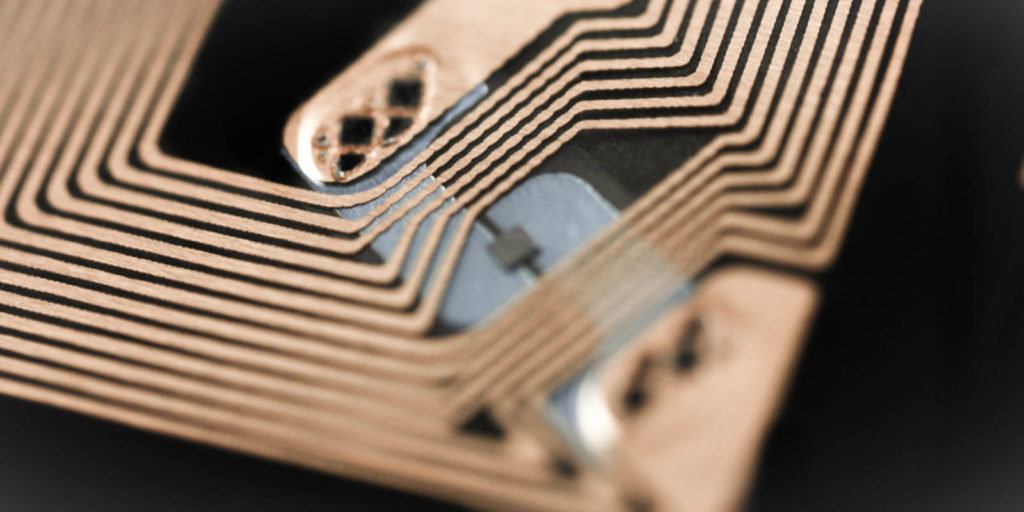
RFID (Radio-frequency identification) tags are tiny radio devices that can store data. A lot of us use them all the time as they are what make contactless payments and hotel card keys possible.
There are generally speaking two kinds of RIFD tags – passive and active. The main difference is passive tags get their power from the reader and active tags have their own power source.
You may have also either heard of or seen NFC on your device. NFC (Near-Field communication) is technically a sub-set of RFID and is based on the RFID protocols. The main difference between RFID is that an NFC device can also emulate a tag. It is also possible to use NFC in a peer-to-peer mode, to transfer information between two NFC devices.
While I have provided this basic overview of the technology, in reality you don’t really need to worry about the underlying details to use the RFID/NFC tags. For the sake of simplicity, I will use the term “NFC tags” for the rest of this tutorial.
NFC tags usually come either embedded in a plastic card or fob, or as a sticker. They are cheap. For the purposes of this tutorial, I purchased 10 blank cards for £3.57 and 10 blank stickers for £2.93 including postage on eBay.

Similar to QR codes blank NFC tags allow you to store data on them. In most cases more than you could using a QR code. However, the major advantage to NFC tags is you don’t need to open an app and simply need to be close enough for your device to read the tag.
Dedicated NFC tags writers and readers are available, however, for the purpose of this tutorial I have only used a mobile phone and an App.
You will need:
- An Android or iOS device (Please see the “devices” section for details on supported iPhone models)
- A NFC app – for this tutorial I used the NFC Tools app, available for both Android and iOS.
Another good option are the, NFC TagInfo and NFC TagWriter apps by NXP. These are available for both Android and iOS. (See the links section for more details) - Blank NFC tags. I recommend tags with the NTAG213 chip. These can be purchased online. I used eBay but they are available elsewhere. If you prefer a reputable UK supplier, try Seritag
Devices
While both Android and iOS can read and write Apple have, until recently been far more restrictive. In fact, creating (writing) NFC tags is easier to do on an Android phone.
Android
Most Android phones can read NFC tags without the need for an app. You may however need to enable the NFC on the device. To do so go to settings, or swipe down from the top of the screen and tap the NFC icon to toggle it to “on/enabled”.

You will however need an app to write to NFC tags.
iOS
Apple devices have NFC enabled natively within iOS, so you don’t need to turn it on. However, until the iPhone 7 Apple didn’t allow the use of NFC other than for payments.
To read a NFC tag you will need an iPhone 7, 8 or X running iOS 11 or later as well as an NFC reader app. The app doesn’t need to be open but must be installed on the phone.
The newer iPhone XR, XS, XS Max, 11, 11 Pro and 11 Pro models can all read NFC tags natively without requiring an additional app.
iPhone will also not read blank tags. The tag must be encoded with NDEF data otherwise it is ignored.
To write/encode an NFC tag you will need an iPhone 7 or newer and be running iOS13 or later.
Writing/Encoding NFC Tags
There is no real difference between Android and iOS when it comes to encoding NFC tags using the NFC Tools app. Although the apps interface is slightly different between Android and iOS.

While either an Android or iOS device can be used, I would recommend using an Android device to create the NFC tags.
- Begin by installing the NFC Tools app (See the links section)
- Tap the NFC Tools app
- Tap “write”
- Tap “Add a record”
- Select the type of record you want to add. In most cases this will be a URL
- Enter the data e.g. the URL
- Tap “OK”
You can add additional records by repeating the steps above.
Once you are happy with the record. Tap “write”. You will now be prompted to touch the NFC tag to the device.
Your NFC tag should now be ready to be used.
Please note that the records you have entered remain “loaded” in the app allowing you to encode multiple tags with the same data. To write new data first remove the existing records by:


- Tap the NFC Tools app
- Tap “write”
- Tap “More options”
- Tap “Clear record list”
- Tap “Yes” when asked if you are sure

Reading NFC tags.
As mentioned above Android devices read NFC tags without the need for any additional apps, provided NFC is turned on. Simply either tap your device to the tag or bring the tag to the device.
Only iPhone 7 or newer running iOS11 or later will read NFC tags. If you have an iPhone 7, 8 or X you will need to install an NFC reader app such as TagInfo or NFC Launch apps by NXP (See the links section). The TagInfo app has more features whereas NFC Launch is a lightweight app designed for reading a URL from an NFC tag.
Using NFC tags

Now that you have the tags, where and how you use them is limited only by your imagination.
If you have an iPhone running iOS 13, using Apple’s short cuts app you can do all sorts of fun things, e.g. turn off smart lights, take a photo, play music etc. From my testing this also appears to. be an exception where iOS will read a blank NFC tag.
To do this:
- Tap the Shortcuts app
- At the bottom of the app, tap “Automation”
- Tap the + in the top right corner
- Tap “Create Personal Automation”
- Scroll down to “NFC”
- Tap NFC
- Tap scan and scan the NFC tag
- Scan the tag
- You will be prompted to “Name This Tag” – Enter a name, and tap “OK”
- Tap “Add Action”. From here you have a vast number of options such as playing music for example:
- Continuing on from the instructions above, tap “Apps”, then “Music” then “Play Music”
- This will now add on the text “Music” text, this will take you into the music library where you can select what exactly gets played.
- Finally, you have the option to be prompted to confirm before running the action, or to simply run the action.


Now whenever you tap on that tag, the automation will be performed.
While both QR codes and RFID/NFC tags are reasonably safe, please excise a degree of caution and common sense when scanning unknown codes and tags.
Links
- NFC Tools for Android
- NFC Tools for iOS
- NFC TagInfo by NXP for Android
- NFC TagInfo by NXP for iOS
- NFC TagWriter by NXP for Android
- NFC TagWriter by NXP for iOS
- NFC Launch by NXP for iOS
- QR Reader for iPhone
- QR Droid for Android
- Seritag a reputable UK NFC tag supplier
As always, I am interested to hear about how you are using mobile and other smart technology. I am also available to support and help where I can, even more so during these exceptional times.
Martin Pistorius, Karten Network Mobile Technology Advisor
Article meta data
Clicking on any of the links in this section will take you to other articles that have been tagged in the same category.
- Featured in the Karten Spring 2020 Newsletter
- This article is listed in the following subject areas: Technology, Update from Technology Advisor