
It’s all routine
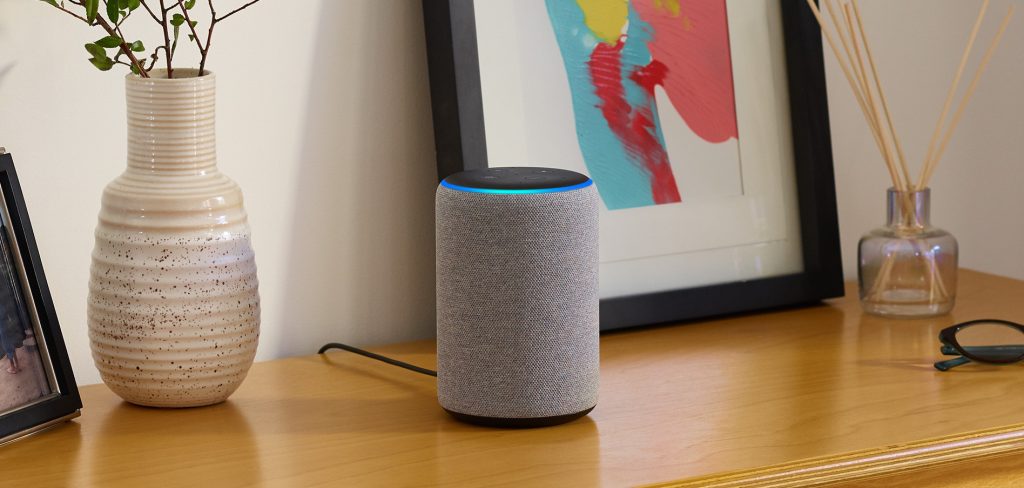
Amazon’s Echo devices have become increasingly common in our lives. They are primarily known for Amazon’s artificial intelligence voice assistant, Alexa. However, the power of these relatively cheap devices extends far beyond asking Alexa what the weather is like outside. Apart from some of the earlier versions of the Echo dots, they can be used as a hub to connect, control, and manage smart devices – although some smart devices will require an additional hub.
With the list of “Works with Alexa” devices increasing, I will not go into details of the devices available. But these include smart plugs, smart switches, smart lights, cameras, smart blinds, small appliances etc.
Many of the newer versions of the Echo dot include ultra-sonic and temperature sensors too. Some of the Echo show devices allow you to use the built-in camera as a sensor. There are also a multitude of third-party motion, temperature, and other sensors available.
To harness the power of these you can create a “Routine”. In simple terms a routine is a set of instructions that get triggered by something e.g. time of day, movement, a voice command etc.
Creating a routine
To create a routine, you will need the Alexa app (available for both iOS and Android) and the Amazon account associated with the Echo device/s.
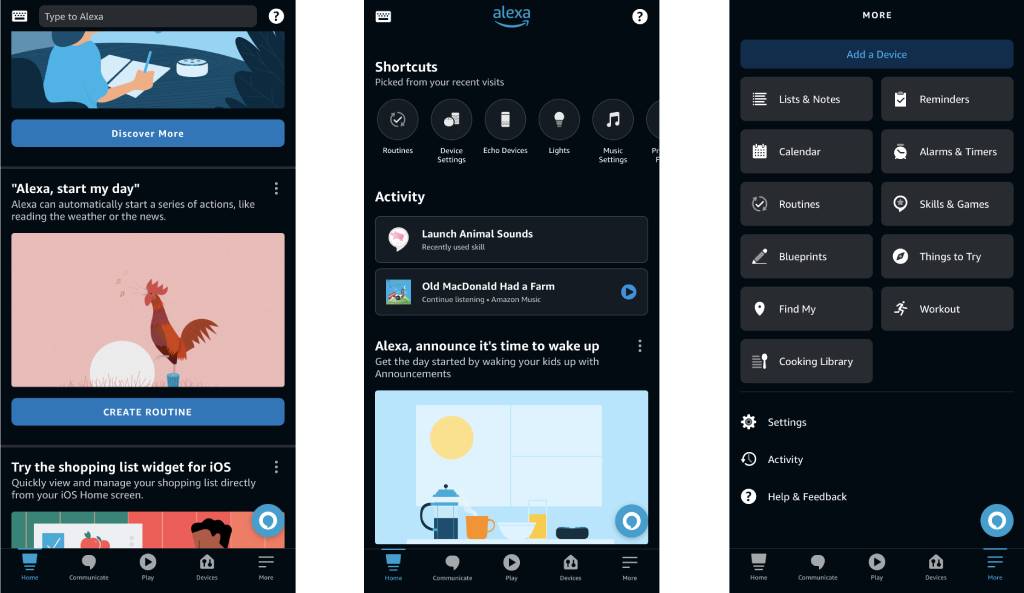
First, ensure that the Alexa app is installed and you have signed in.
To create a routine from scratch, in the Alexa app:
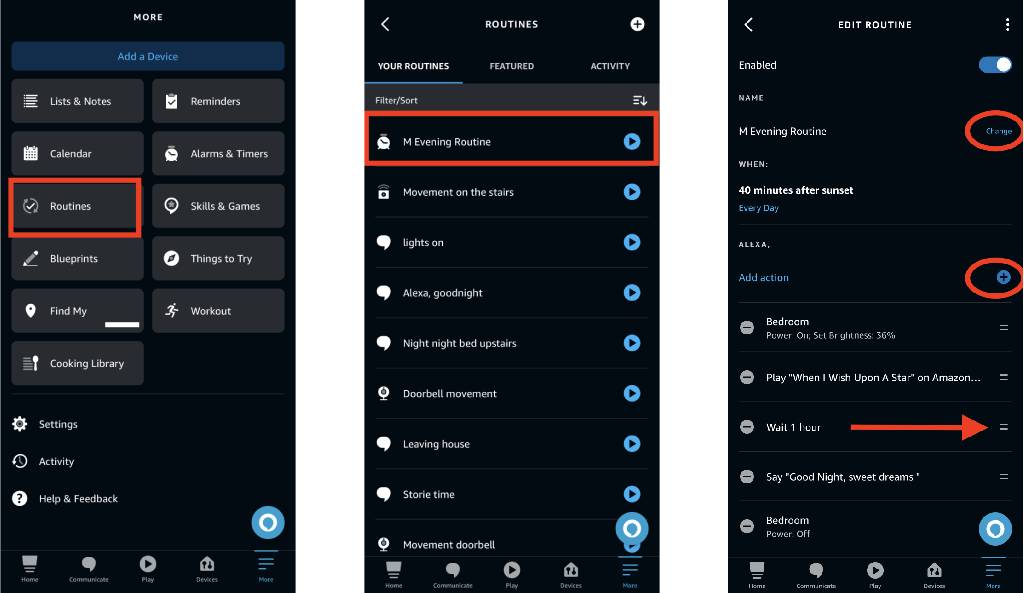
1. From the Alexa app home screen, tap on “More”
2. Tap on “Routines”
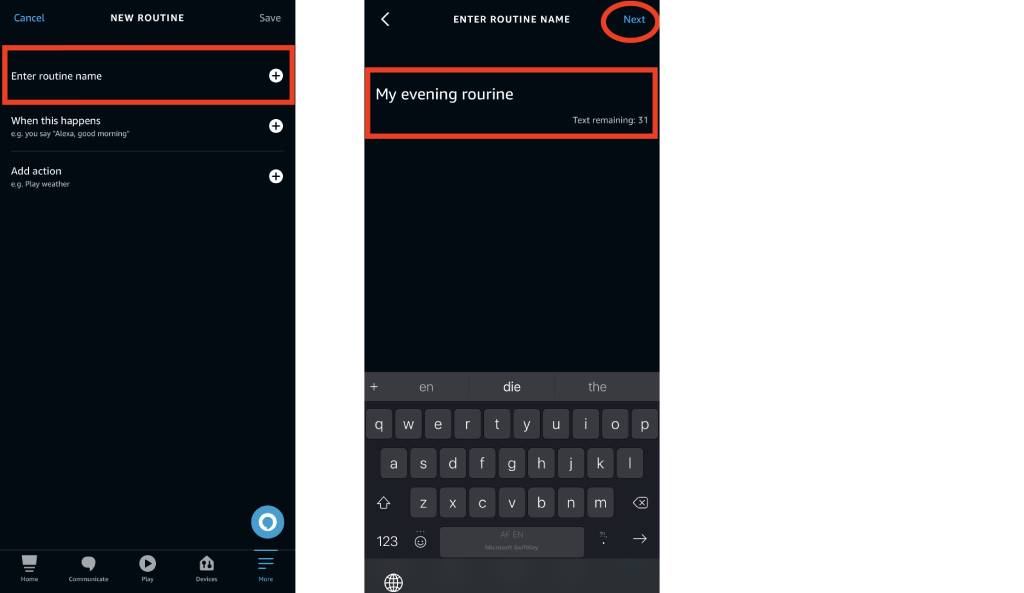
3. Tap the plus sign

4. Tap the plus sign next to “Enter routine name”.
5. Type a name for your routine. You can currently have up to 200 routines per Amazon account, so I do recommend choosing a name that is quite descriptive.
6. Tap “Next”
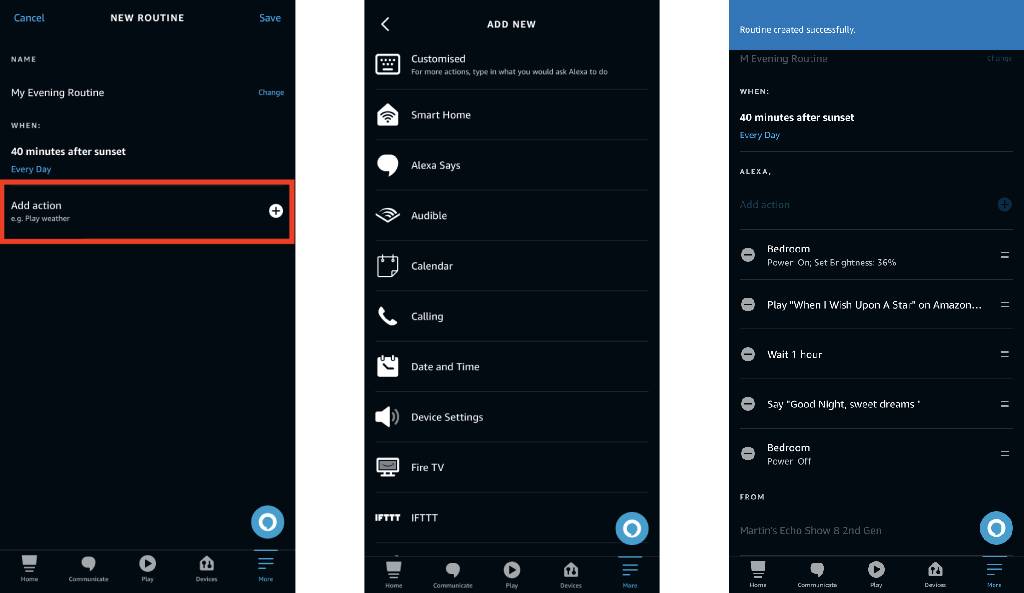
7. Tap the plus sign next to “When this happens”. This is what triggers the routine. If it’s a voice command, you can add up to 7 variations of the phrase. In the example below I have chosen to have the routine trigger by time, specifically 40 minutes after sunset.

8. Tap the plus sign next to “Add action”. These can range from a simple spoken response to, playing music and controlling devices. You can also launch a Skill. This step can be repeated multiple times to build up complex routines. One nice feature is the option to add a delay in the routine. This allows you to for example, turn on a light, wait an hour, then play some music and then turn the light off.
9. If you have multiple devices you can set the “From” to control which Echo device responds to the routine – either “The device you speak to” or a specific Echo device. Unfortunately, routine names and phrases used to trigger them must be unique. Routines are also global, associated with the Alexa Amazon account, and not specific to a particular device. This means you can for example, only set up a routine to turn on the lights in a specific room when you say “Alexa turn on the lights” once. If you want to set up the same function you will need to choose a different routine name and phrase.
10. Tap “Save” to save your routine. Wait for a few moments for the devices to update.
Pre-made templates
You can choose to use one of the pre-made templates such as “Begin my day”. These are shown on the Alexa home screen when you first start using the app. They can also be found by:
- From the Alexa app home screen, tap on “More”
- Tap on “Routines”
- Tap on the “Featured” tab

These templates can be edited to suit your needs.
Editing a routine
To edit a routine that you have created:
- From the Alexa app home screen, tap on “More”
- Tap on “Routines”
- Tap on the routine you want to edit
- Tap on either “Change”, “View/Edit” the plus or minus. The order of multiple actions can also be changed.
Copy Actions to New Routine
If you have a routine that performs a particular action for example turning lights on, and you want to create another routine to turn lights off, you can copy and edit that routine. To do this:
- From the Alexa app home screen, tap on “More”
- Tap on “Routines”
- Tap on the routine you want to edit
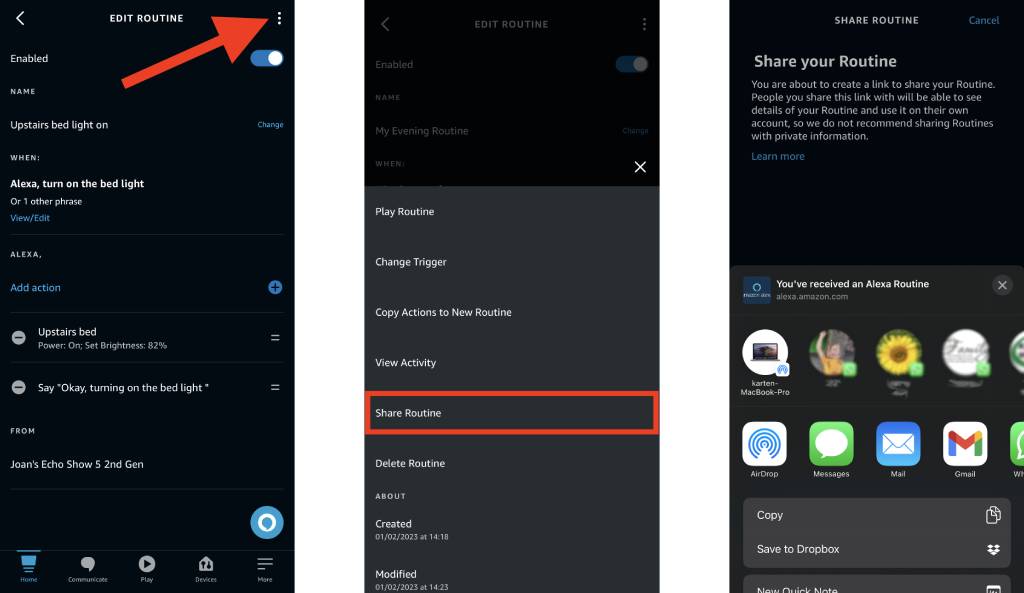
- Tap the 3 dots at the top right of the screen
- Tap “Copy Actions to New Routine”
- Enter a name for the routine and make the changes
- Tap “Save”

Sharing a routine
Routines can also be shared. To do this:
- From the Alexa app home screen, tap on “More”
- Tap on “Routines”
- Tap on the routine you want to share
- Tap the 3 dots at the top right of the screen
- Tap “Share Routine”
- You will be prompted to with a warning informing you that you will be sharing information. While it’s important to always be responsible when sharing information, you can rest easy knowing that all network and account details will be removed. Device name will be anonymised e.g. “Hallway Motion Sensor” will be changed to “motion sensor,”. If you are still happy to share your routine, tap “Continue”.
- You will now be presented with various ways to share the routine. Select the one that best suits your needs. Effectively, a URL is created.
Once the person receives the link, they will need to open it on a device that has the Alexa app installed. A screen will appear asking to either reject (“No, Thanks”) the Routine or “View Routine”. If you are not expecting a routine to be shared with you always tap “No, Thanks”.
Tap “View Routine” and edit or remove the fields highlighted by orange text and tap “Save.
There are countless possibilities that can be created using routines and I hope you enjoy experimenting with them.
Microsoft365 Support Survey
The Karten Network, in association with TechAbility intend offering free support for Microsoft365 (previously called Office365) to Karten Network member organisations. To help us plan for this we kindly request that you complete this short online survey: https://survey.karten-network.org.uk
As always, I am keen to hear about how you are using mobile and other smart technology. If you would like to have a particular topic covered in the next newsletter, please let me know. Finally, I am available to provide help, support and advice to any of the Karten Centres.
Martin Pistorius
Karten Network Technology Advisor
Article meta data
Clicking on any of the links in this section will take you to other articles that have been tagged in the same category.
- Featured in the Karten Winter 2023 Newsletter
- This article is listed in the following subject areas: Technology, Update from Technology Advisor