Hello Everyone and welcome to our Autumn newsletter!
The Karten team has had a wonderful few weeks at the beginning of the new academic year. It really feels as though life is starting to get closer to normal. Recently we have enjoyed visits to a number of Karten Centres for different reasons: to see equipment that was funded by the Ian Karten Charitable Trust either just before or during the pandemic; to visit new Karten Centres for the very first time; the Nuvoic team have been supporting participants to use Voiceitt within their own environments (either living or education). The input of our team has been well received and we are here to help, so if you would welcome support please get in touch. All our contact details are at the end of the newsletter.
Remote working and support has been invaluable during the pandemic, and has many benefits, but in some circumstances you just can’t beat being in the same room as the people you are working with. There are certainly efficiencies and flexibility associated with remote practices and the significant acquisition of digital skills by staff over the last 18 months must be good news. As we move out of the pandemic it is important that these developments and improvements in digital capability are consolidated and sustained. We are keen to know your plans for the people you support, your workforce and your digital infrastructure. How have things changed for your organisation moving forwards? What aspects of remote practice will you retain? What will you be pleased to see go? What implications does this have for your organisation longer term? Are there unanticipated benefits and business opportunities that can now be harnessed? I would value the opportunity to discuss these and other things with Karten Centre leads. Importantly, emerging themes will help me to prioritise and appropriately focus Karten support so that we are maximising impact across the sectors we support. If you have the capacity for a 15 minute conversation please drop me an email.
Enjoy reading the newsletter and if you are about to have a half-term Autumn break I hope you have a truly fabulous time.
Policy Connect and the All-Party Parliamentary Group for Assistive Technology (APPGAT) launched their report Talent and Technology: building bridges to employment for disabled people on 15 July. This report details the role of technology in the experiences of disabled people transitioning into the workforce and makes recommendations for how the UK, already a world-leader in the development of assistive technologies, can harness the power of these tools and inclusive practices to make the world of work accessible to all. The research leading to this report was conducted by Policy Connect on behalf of the APPGAT, and its author Geena Vabulas is a Karten Network Nuvoic Project Technologist and a member of Policy Connect’s Health and Accessibility Team. The inquiry was sponsored by City Bridge Trust and the Ian Karten Charitable Trust.
In the Summer Nash College’s AV-technologist (Alexander), and Livability Victoria School’s radio producer (Tony) in Poole have joined forces to create a couple of college radio programmes.
In the two produced pilot programmes some of Nash’s communication devices are integrated to present the work, these VOCAs (Voice Output Computer Aids) assist our non-verbal students to express themselves and join communication. The two produced podcasts (of about 30 minutes each) feature music and showcase not only our students’ talents and the advanced technology that we use at Nash, but these also document some of our work, and allow the listener to eavesdrop in on some of the sessions at our college.
A Day in the life at Nash College.
VIBE* presents A Day in the life at Nash College first streamed on 25th June 2021 Eavesdropping on some class sessions and a lunchtime selection of music by Samuel and Khelan.
A fly on the wall radio show, featuring a day in the life of staff and students at Nash College in Kent. Featuring their favourite tunes!
Nash DJs Request Show
Kehlan and Samuel present the Nash DJs Request Show first streamed on 25th June 2021
The N2 class use an interactive touchscreen equipped with a choice-grid as part of their lunch time break. This grid announces and plays the music, and gives everyone a little bit of DJ-powers. Students have great fun to choose music.
Memories of Covid
“Memories of Covid” – a co-production with Nash College by VIBE* Radio at Victoria School first streamed on 30th June 2020 Meet the students of Nash College. This Victoria/ Nash co production for vibe, documents how the students are dealing with disability and Covid while still finding time to play music to keep us cheerful. This podcast acts as an audio time capsule that can be visited at a later date to install memories of the pandemic, thoughts and feelings and how we coped.
This webcast includes music by Bob Marley & The Wailers, High School Musical Cast, Pharrell Williams, Panic! At The Disco, Mungo Jerry and more.
*VIBE is the Victoria Inclusive Broadcasting Enterprise, a radio production facility at Victoria School and the productions can be listened to on Mixcloud.
Please contact me (Tony Rudd) at Vibe Radio if you need further information.
ESPA College opened in 1995 and has four college sites across the North East, providing day and residential education for young autistic people between the ages of 16 and 25 years. The majority of students have additional and complex needs including learning disabilities, ADHD, mental health conditions, behaviours that challenge and sensory issues.
Their South Hill site, located in Sunderland, provides personalised learning programmes to autistic and neurodiverse individuals, some with moderate to profound learning disabilities.
Over the summer of 2021, ESPA College South Hill was granted funding and official Karten Centre status and saw the successful installation of a brand-new Sensory Room.
Sensory needs of students can be a barrier to their education, and as everyone deserves access to education, the installation of this state-of-the-art sensory room supports students to manage their sensory needs, making it easier to focus and participate in lessons and community activities.
The space was created in collaboration with Mike Ayres Design and college staff. The team chose a suitable space in their building, and selected the very best equipment, to meet the complex sensory needs of their students.
The Sensory Room features:
Large bubble tube
Rainbow light bar
Tactile cause and effect wall panel
Sound and light wall panel
Interactive fibreoptic unit
Sensory projector
Sparkle cloud
Integrated audio and visual system
The Sensory Room has been constructed to give the users direct control of the equipment via an iPad or the nine-switch keyboard, and can be used as an interactive learning environment, or a quiet relaxation area.
Students and Social Hub Members have returned to college for the Autumn term and have already provided some positive feedback on their new sensory room. ESPA College look forward to sharing this fantastic resource with all ESPA services.
Quotes from students:
Jirapat says “I like the bubble tube, it makes me feel relaxed”
Charlie says “I like the lights and relaxing music”
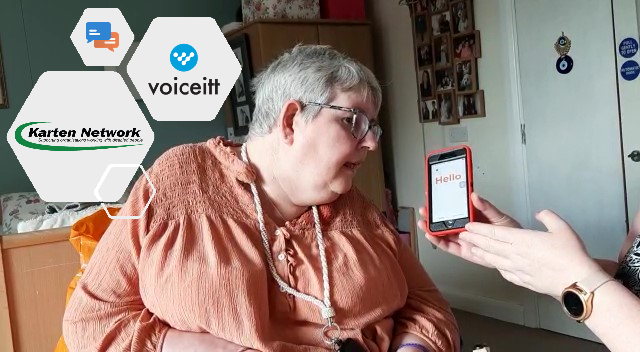
Now almost 18 months into the Nuvoic Project we’re starting to see some great outcomes, both in terms of participants using the Voiceitt app to do more things more independently, and also some new developments in the user interface and app performance, in response to participants’ feedback.
The project is led by developers Voiceitt and aims to improve access to voice recognition technologies for people who have dysarthric speech. The Karten Network team leads on user testing, supporting people with non-standard speech to try the app for support with communication or Smart Home control, and give feedback on what works well and what could be improved.
Updates
Ashley from The Grange has been using Voiceitt to control lights and listen to Magic Radio
We now have over 60 participants enrolled in the project, and we’re delighted to welcome new participants from Leonard Cheshire, Leuchie House in Scotland and Linkage College who join those already involved from Beaumont College, Caritas St. Joseph’s, Cedar Foundation, Enable Ireland, FitzRoy, The Grange Centre, Homefield College, National Star, New Bridge Horizons, The Oaks College, Portland College, SeeAbility, St John’s College and Young Epilepsy.
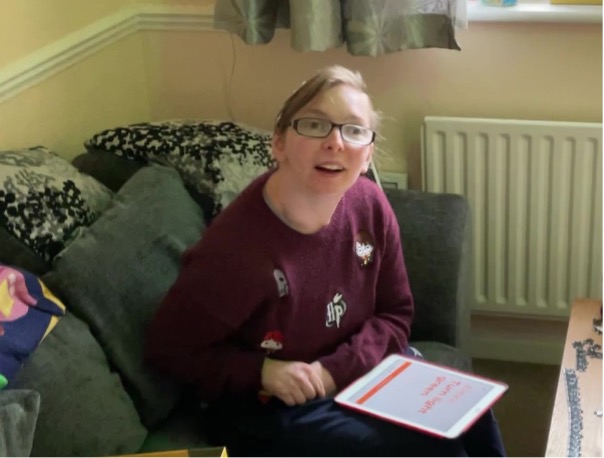
As Covid-19 restrictions have eased, more participants have been using Voiceitt to support communication out-and-about: to socialise, order food and drink in a café or to use public transport, for example. (Our team has also been able to get out and visit participants in person, which has been great!) We also have participants trying out a range of different Smart Home controls. Some use voice control to play music, radio or audiobooks via a smart speaker, ask about the news, weather or sports results, or tell jokes. Others are using Voiceitt to control other devices like smart bulbs, plugs, windows, blinds and TVs. Check out our participant videos to see some examples for yourself!
Eleanor from Linkage College uses Voiceitt to control her coloured smart bulb and listen to music on her Echo smart speaker
We keep in touch with participants throughout their testing and pass all feedback on to the developers. We’ve already seen improvements in response to user feedback: it’s now quicker and easier to train new commands, and changes to the user interface to make the app easier to navigate and more fun to use, for example. Switch access and predictive text have also been implemented. Thanks so much to everyone involved for all your fantastic feedback so far, please keep it coming!
Over the next few months, as well as continuing with testing and feedback, we’ll also be starting to recruit participants to donate voice samples through Voiceitt’s ‘Ensemble’ scheme. Voiceitt want to move from ‘discrete recognition’, where users train the app in advance to recognise how they say each phrase or command, to ‘continuous recognition’ of spontaneous speech, and need to collect a lot of new voice data to support this work. While this won’t benefit participants immediately, we can offer vouchers or equipment to participants and support teams who take part. Details to follow soon – watch this space!
Get in touch!
We would love to hear from you if you, or someone you know may be interested in taking part in testing and/or voice sampling. Please email our project co-ordinator: liz@karten-network.org.uk, or you can find more information and get in touch via our project web pages.
The team at Treloar’s has been celebrating the 20th Anniversary of TreloarPrint, the in-house printing enterprise at the College!
TreloarPrint, the original Ian Karten Centre at Treloar College was set up in September 2001 thanks to generous funding from the Ian Karten Charitable Trust, to provide a real working environment for students. Since then, the enterprise has gone from strength to strength delivering 2,000 jobs per year, employing former students and supporting many others into work outside Treloar’s.
TreloarPrint can provide all manner of printed products, support with mail shots where appropriate and design artwork. Over the last 20 years the enterprise has amassed a strong supporter base and a great reputation with many clients working with them since the beginning.
“I have enjoyed using Treloar Print for many years as they are absolutely first class in not only the quality of print but in service from both the print technicians and the students that work there. Everyone is incredibly helpful and friendly.” Kate Davis
As well as providing a high quality print and design service, TreloarPrint allows students to gain work experience in a safe environment to enhance their work-based understanding, team working and problem solving. This supports students to go on to other work experience opportunities with confidence. Where TreloarPrint continues to employ ex-students of Treloar School and College these staff act as key role models for current students.
Whether acting as the receptionist for TreloarPrint, taking incoming calls from customers, preparing quotes and seeing a print job through to completion and delivery, students are actively engaged in a spectrum of job roles. During their time at TreloarPrint students develop communication and independence skills, literacy, ICT, numeracy, and other employability, practical and social skills.
These work experience opportunities both prepare them for life beyond Treloar’s at the same time as building their confidence and self-esteem as they put the skills they have learnt at Treloar’s into practice.
Aaron Dyer, former TreloarPrint work experience student, went on to gain employment in the local area. Since then his career has blossomed and he’s now back at Treloar’s in our Administration team. He said; “As a former student it’s wonderful to see TreloarPrint still thriving 20 years later providing a wide range of services to the local community.
The ‘real world’ work experience I gained as part of the initial group of students to access the equipment provided by the Ian Karten Network prepared me to access the workplace after leaving Treloar College in 2003.
I believe I would not have been able to return to work at Treloar’s as an Office Administrator if the IKC hadn’t been introduced in 2001.”
The TreloarPrint team can’t wait to see what the next 20 years bring, and would like to thank the Karten Network for so generously supporting the Centre in this time.
Happy 20 years to everyone involved in TreloarPrint!
The TechAbility Conference is always focussed on assistive technology practice which makes a difference for people with disabilities. This year the conference is online and Karten members receive a significant discount on the attendance fee. What’s more, one fee will cover multiple attendees from your organisation.
You can expect to hear first-hand experience of assistive technology use, alongside a real “back to basics” focus on how it can overcome barriers. You will leave with a greater focus and understanding, led by the best practitioners in the field and carefully curated to keep sessions lively and relevant.
The interactive keynote will be especially interesting to Karten Centres, focussing on the role of technology for disabled people in care settings. Julie Eshleman from Leonard Cheshire is researching meaningful technology use and would like the people you support in Karten Centres to come along to her keynote session and share their opinions.
Other highlight sessions include:
How disabled people and carers/PAs use virtual assistants
The difference the right AT can make
Developing your own apps
The right technology supporting the learning journey
About MSc Educational Assistive Technology (EduAT)
The MSc EduAT at the University of Dundee is now accepting applications for the January 2022 intake.
The closing date for applications for the January 2022 start, part time route of MSc EduAT is 17 December 2021 at 23:59 (UK time).
This course is primarily for teachers, therapists and technologists who are seeking to develop and enhance their ability to support learners who require AT. It will equip you with the skills, knowledge and working methodology needed to practise as an educational assistive technologist. Assistive Technology (AT) supports students with a broad range of learning difficulties, physical disabilities and/or sensory impairments. These range from high incidence, lower impact disabilities (for example, dyslexia, dyspraxia) through to low incidence, higher impact disabilities (for example, cerebral palsy, autism). This course has been developed to address a global need for the professionalisation of the ‘Assistive Technologist’ role within all levels of education provision.
The Assistive Technologist, diagram by Slaughter, R (2014).
You will learn about: The role tasks and responsibilities of the Educational Assistive Technologist, Assistive Technology (AT) solutions, Assessment for AT, AT in educational programmes, Specialist and mainstream AT solutions, AT partner relationships, Models of disability and Therapeutic considerations of disability and the learning environment.
UoD Computing, User Centre at Queen Mother Building.
The University of Dundee has an international reputation for accessibility and the development of digital assistive technology. You will interact with expert users of AT within our unique User Centre. We also have links with learning environments across the UK.
There is a recording available of our recent MSc EduAT open afternoon, note the section where our current students give their views at around 1:07 in this recording: MSc Educational Assistive Technology Open Day – YouTube There is a recording of Senior Lecturer Rohan Slaughter describing the core modules towards the start of the video.
If you would like to ask any questions about MSc EduAT, please email the programme team: msceduat@dundee.ac.uk and a member of the team will get back to you.
Queen Mother Building, home of computing at the University of Dundee.
About the MSc EduAT Scholarship
The School of Science and Engineering have created a dedicated MSc EduAT scholarship. This is a full fee scholarship for the two-year, part-time programme only. The programme team have worked with a small number of volunteers from the independent MSc EduAT advisory group to develop the eligibility criteria and selection method for the scholarship. The University are now able to offer a small number of full fee scholarships through this programme. The scholarship may be applied for by those considering the January 2022 intake.
The scholarship application closing date for the Jan 22 intake, is Friday 3rd Dec 2021,12:00 midday (UK time).
If you have already applied and you hold an offer for MSc EduAT, you may apply for the MSc EduAT scholarship.
Please be aware that as well as meeting the other criteria for the scholarship, you must be an MSc EduAT offer holder to apply for the MSc scholarship.
This means you need to apply for the MSc EduAT first, and then if you are made an offer, you can apply for the scholarship.
Please be aware of the closing dates for the MSc EduAT and the scholarship deadline, noted above.
Should your application be contingent on the scholarship, please be aware you may decline your offer prior to matriculation on the course.
Note also that the MSc EduAT programme team WILL NOT be reviewing scholarship applications, this will be done by a sub-group of the independent MSc EduAT advisory group.
Scholarship eligibility criteria:
Please note that the eligibility criteria for the MSc EduAT scholarship include the following points:
All Fee Status applicants are eligible to apply for this scholarship: Scottish, RUK (rest of UK).
Scholarship funding is limited, please only apply for this scholarship if you have already exhausted all other avenues (both internal and external to your employing organisation) of funding the MSc EduAT course fees.
The MSc EduAT scholarship will only be used to meet the tuition fees for a student to undertake the MSc EduAT. The scholarship will fund fees only and will be paid directly to the University for this purpose.
Prospective recipients of the MSc EduAT scholarship award must meet the pre-requisite entry requirements of the programme.
Students must be employed in a not-for-profit UK based organisation that has education as a core objective, such as a Local Authority, MAT (multi-academy trust) or third sector (charity run) school or college or other allied charitable organisation.
Note that for the avoidance of doubt, applications from those employed by for-profit companies, even where these companies provide services such as education or social care shall not be considered for this scholarship.
Note that it is expected that all students who are employed full time in an education organisation would complete the course via the part time route.
Applications from disabled students are encouraged.
In my previous newsletter article, I mentioned that Apple announced the latest versions of their mobile operating systems (iOS15 and iPadOS 15), highlighting some of the new features. With iOS15 and iPadOS 15 now available I thought it would be fitting to provide some tips on how to better use the mobile devices running this operating system.
Manage Home Screen Pages
It is possible to rearrange or delete entire home screens.
To rearrange your Home Screen:
Touch and hold an empty space on the Home Screen to enter edit (wiggle) mode.
Tap on the row of dots at the bottom of the screen indicating the pages of your Home Screen.
All the pages of your Home Screen appear in a grid. Touch and drag a page to rearrange it in relation to your other pages. The other pages will move in response to your drag action.
Tap “Done” in the top-right corner of the screen when you have finished editing.
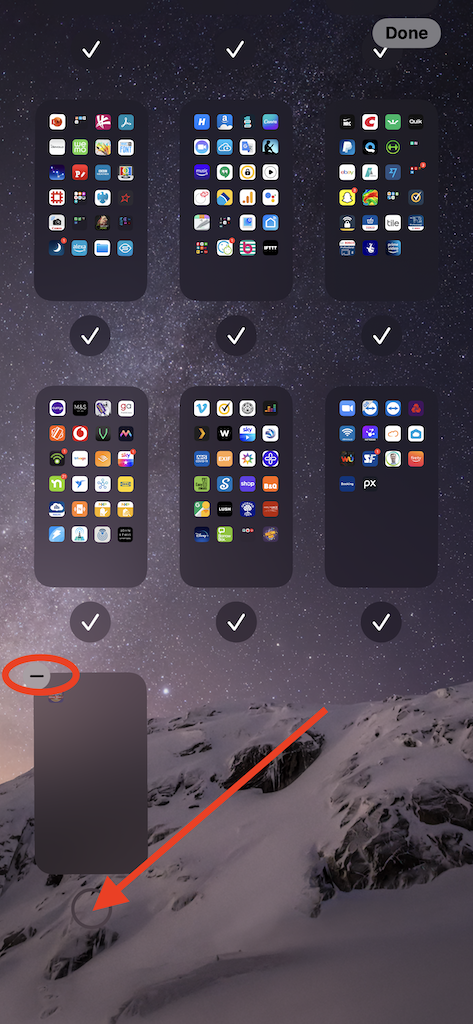
To delete a Home Screen page:
Touch and hold an empty space on the Home Screen to enter edit (wiggle) mode.
Tap on the row of dots at the bottom of the screen indicating the pages of your Home Screen.
All the pages of your Home Screen appear in a grid. Tap on the tick under the page that you want to delete.
Tap the minus (-) icon in the top-left corner of the screen to delete it.
A message will be displayed asking you to confirm, tap “Remove”.
Tap “Done” in the top-right corner of the screen when you have finished editing.
When you delete a Home Screen page, the apps remain in the App Library. If you want to add an app back to a Home screen you will need to drag them from the App Library onto the Home Screen.
Use the camera to scan any text
This is a very useful feature; it can be accessed directly through the camera app or from with another app. For me personally, I find this very handy as I can scan text from within my AAC app (Proloquo4Text) and then “speak” the text.
I do find it can take a moment for the device to process the text though. The text recognition while not perfect, is extremely good!
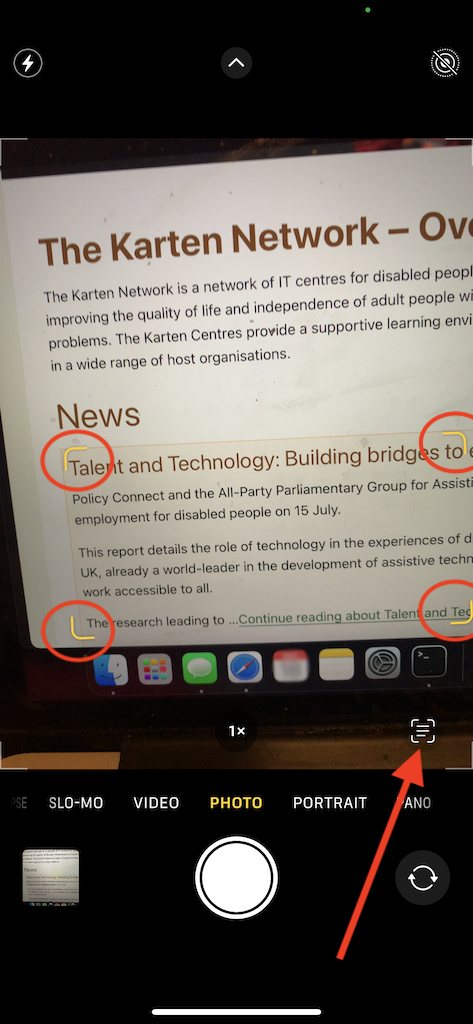
To access this feature from the camera app:
Open the Camera app.
Point the camera at the text you would like to scan.
When the device is ready, an icon will appear on the right-hand-side of the display, and a yellow bounding box is shown around the text being scanned.
Tap on that icon.
Once the text has been scanned you can choose how you want to use that text.
To access the text scan feature from within an app:
Open your app, it will need to be an app that supports text input.
Double tap, to bring up the context menu.
Tap the scan text icon. A view of what is visible by the camera is displayed. A yellow bounding box is shown around the text being scanned with an “Insert” button.
When you are ready, tap the “Insert” button.
Scan/extract text from any photo
Using the same underlining technology, you can copy any text in a photo. Similar to the real-time text scanning, it takes a moment for the text to be analysed.
To extract text from a photo:
Open the photos app.
Open the photo containing text.
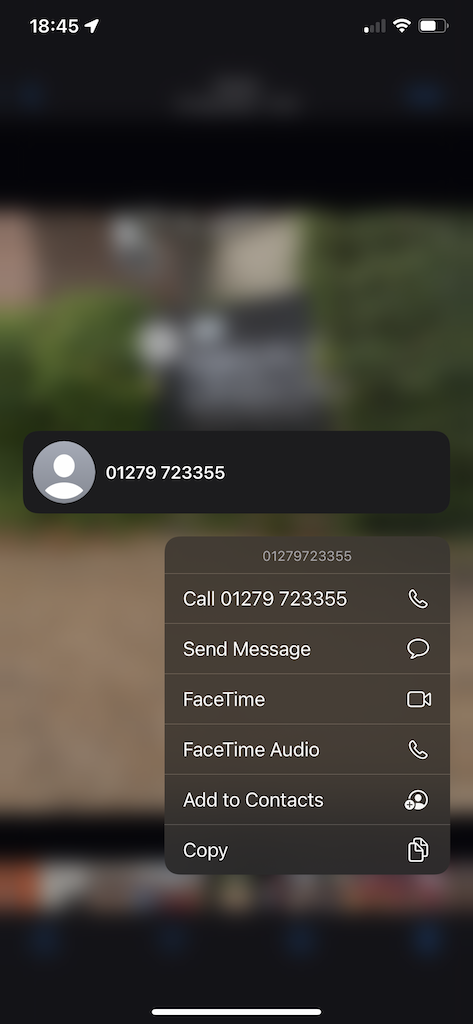
Tripple tap, or long press on the text to bring up a menu with options. From here you can use the text as you wish. If the photo contains a phone number, you will have the option to make a call to the number.
Safari tweaks
The Safari browser received a major update. For those who like using a lot of browser tabs (such as myself) it is now possible to create tab groups. This way your tabs can be organised into categories of your choosing.
To organise your tabs into groups:
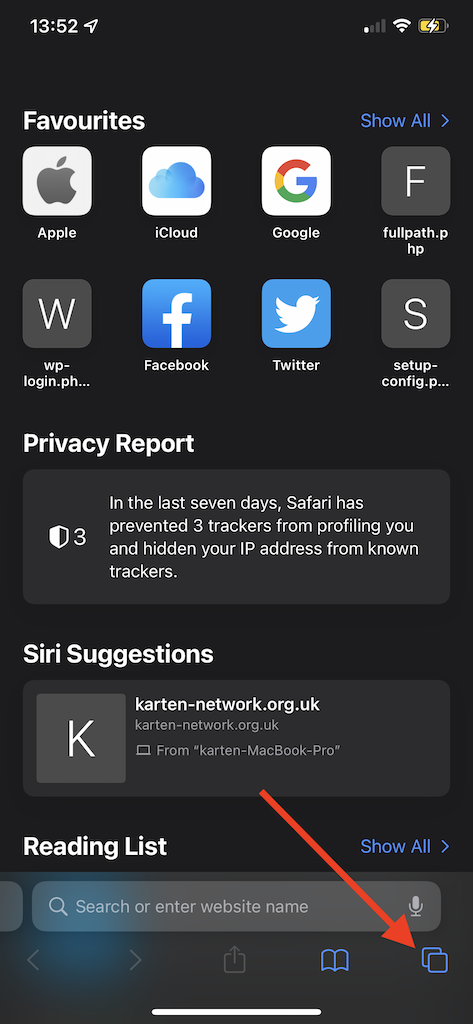
Tap the tab button at the bottom right of the screen.
A grid of tabs you already have open is displayed.
Hold down the tab number at the bottom of the screen to create a group with the current tabs, or you can create a completely new group of empty tabs to start browsing a particular topic.
Alternatively, long press on the URL/address bar. This will open a menu with an option to “Move to Tab Group” – this includes an option to create a new tab group.
In the new version of Safari the URL/address bar has been moved to the bottom of the screen. If you prefer having it at the top of the screen that can be changed.
To move the URL/address bar to top of the screen:
Tap on “Settings”.
Scroll down to locate and tap on “Safari”. Top tip, pulling down on the setting screen will display a “Search” box at the top of the setting. Typing in there will enable you to quickly find an app or setting you are looking for.
Scroll down to the “Tabs” section and tap “Single Tab”.
While you are in Safari’s settings you may enable “Hide IP Address” (although it is likely to be enabled by default). This is yet one more feature in Apple’s efforts to improve your privacy.
To enable “Hide IP Address” :
Tap on “Settings”.
Scroll down to locate and tap on “Safari”.
Scroll down to the “Privacy & Security” section and tap “Hide IP Address”.
Tap “From Trackers”.
iCloud Private Relay
For those concerned about privacy, Apple now offers a Private Relay option to paid iCloud subscribers – soon to be called iCloud+. Private Relay is a stripped-down virtual private network (VPN) – in effect this means your IP address and browsing activity is hidden from other parties, including Apple.
To enable iCloud Private Relay:
Tap on “Settings”.
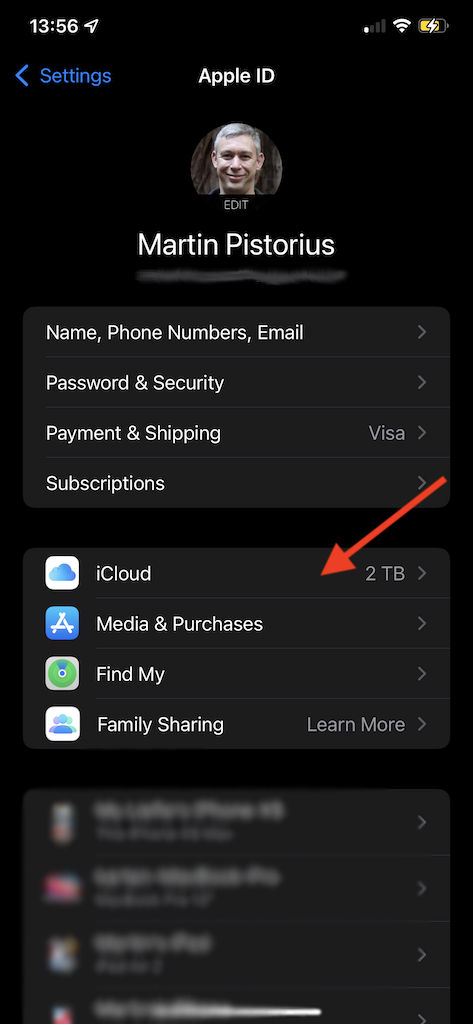
Tap on your account name.
Tap on “iCloud”.
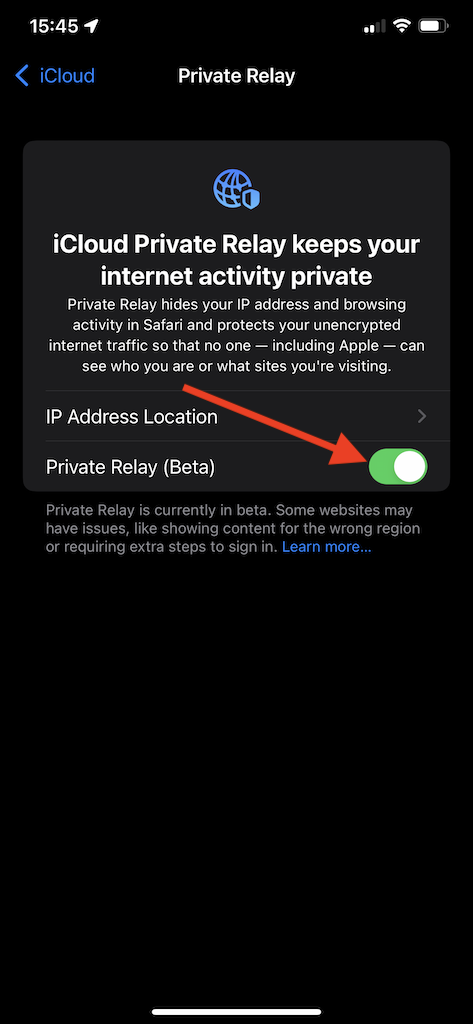
Tap on “Private Reply”.
Tap on the Private Replay switch to enable.
Recovery contacts
Were you to lose or be locked out of your device, Recovery Contacts may prove to be a great help. A Recovery contact enables you to select a person you trust as your “phone a friend for help”. They will then be able to provide you with a recovery key to access your and recover your data. They will not be able to access your data, merely verify your identity. They will need a device running iOS15 or iPadOS 15 or later. Apple also requires the person to be 13 years or older.
To enable Recovery Contacts:
Tap on “Settings”.
Tap on your account name.
Tap on “Password & Security”.
Tap on “Account Recovery”.
Tap on “Add Recovery Contact”.
Tap “Add Recovery Contact” you will be asked to authenticate with Face ID or Touch ID.
If you’re using “Family Sharing” one of these group members is recommended. Alternatively, you can choose one of your contacts. A message will be sent to your contact asking them to accept or decline your request. Note, if a family member is selected, they’re added automatically. After they’ve accepted your request, you will see a message that they have been added as your account recovery contact. Should they decline or remove themselves as your recovery contact you will receive a notification.
Now, should you ever be unable to access your Apple account/device for whatever reason, your recovery contact will be able to provide you with a 6-digit code that you enter on your device to log back in.
Set Background Sounds
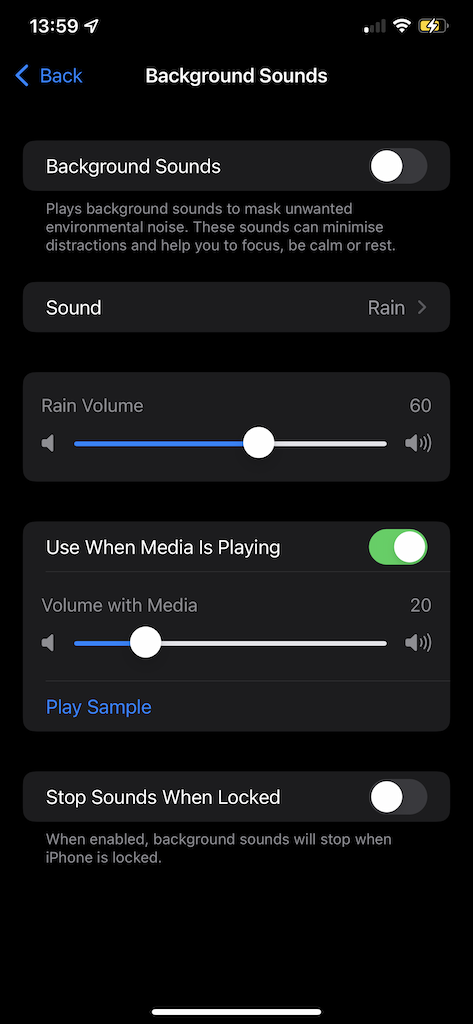
Amongst the raft of accessibility features you will find background sounds. The six sounds to choose from are similar to third-party noise generating apps, and are aimed at masking unwanted environmental noise.
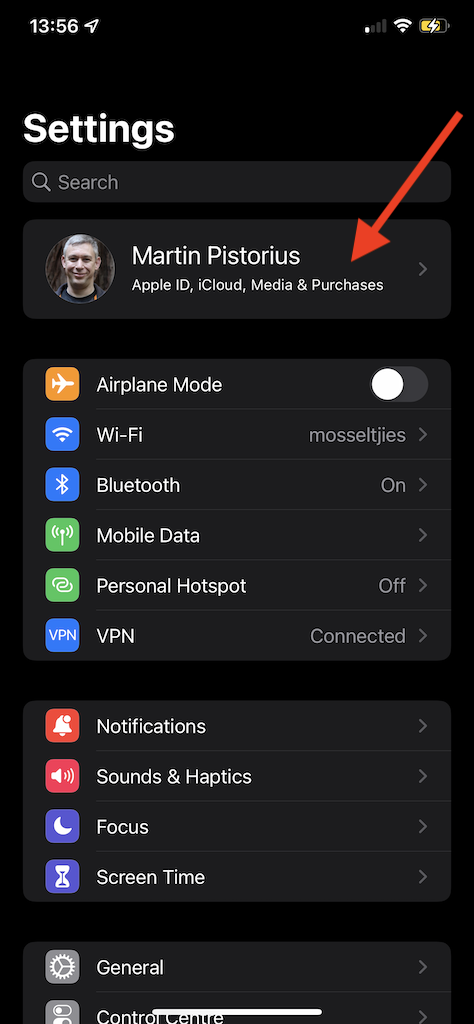
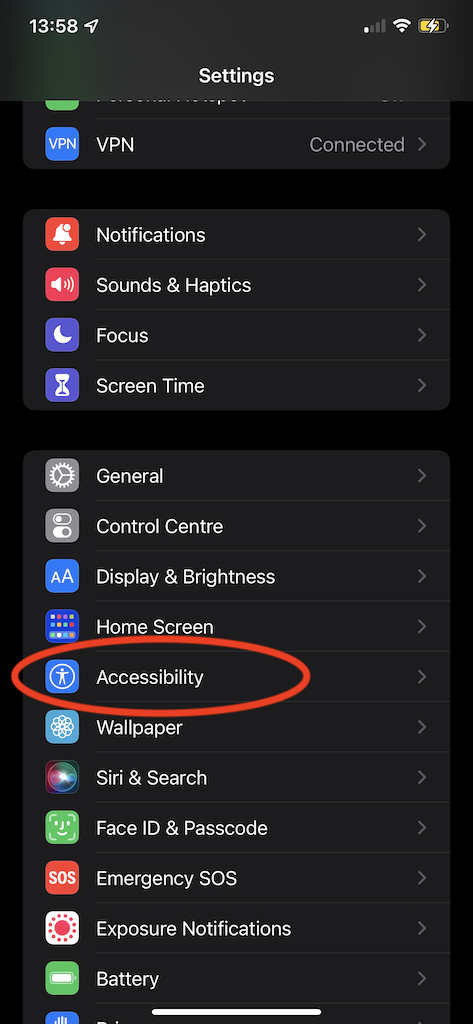
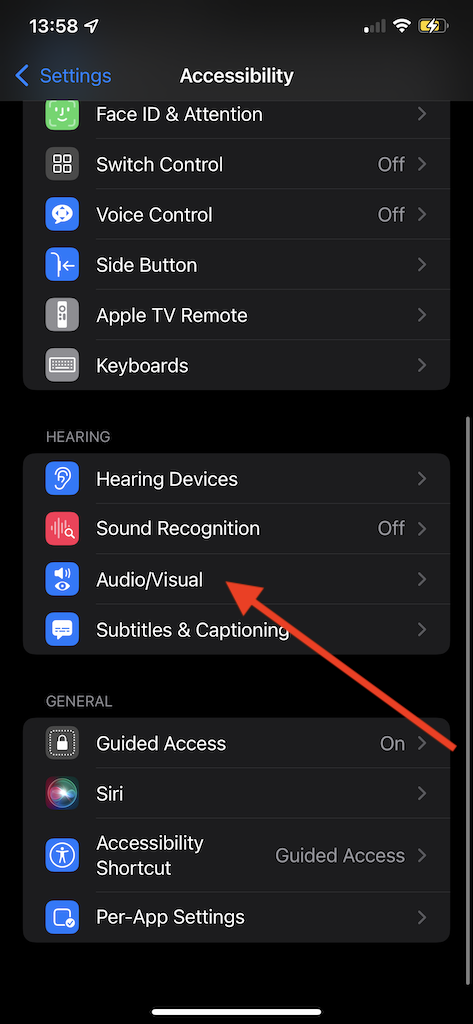
To enable Background Sounds:
Tap on “Settings”.
Scroll down and tap on “Accessibility”.
Scroll down and tap on “Audio/Visual”.
Tap on “Background Sounds”.
Tap the Background Sounds switch to enable and set your preferences.
Customise accessibility settings per app
iOS15 and iPadOS 15 also introduced the ability to customise the accessibility setting to individual apps. This means if there is one particular app that needs some adjustments, these can be applied on to that app, rather than the entire system.
To set per app accessibility settings:
Tap on “Settings”.
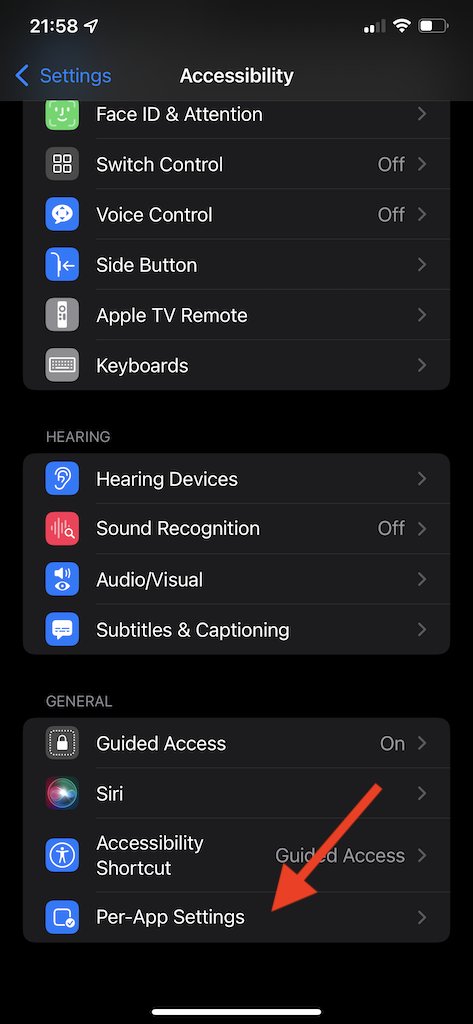
Scroll down and tap on “Accessibility”.
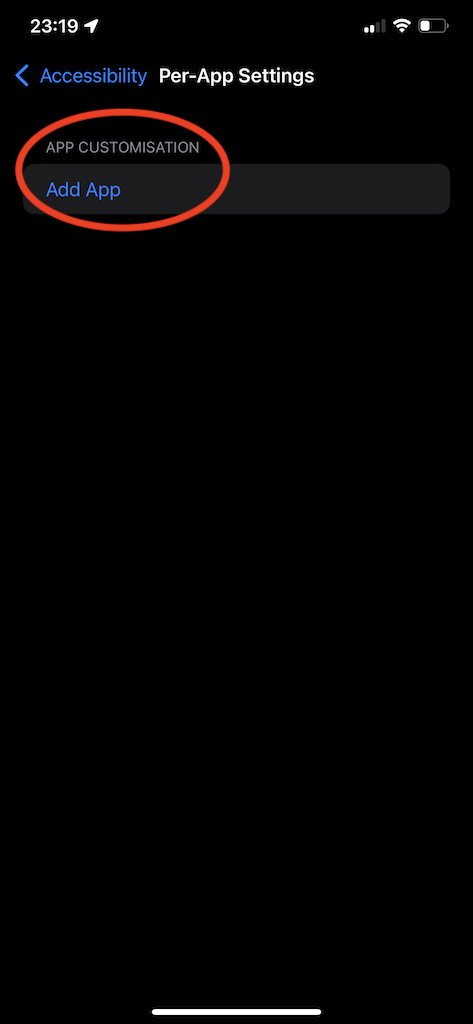
Scroll down and tap on “Per-App Settings”.
Tap “Add App”.
Browse through the list of apps and select the app you wish to apply the settings too.
From the list of added app, tap the app, and apply the required settings.
There are many more features and tips to enable you to use your iPhone or iPad more effectively. Should you require support or have a question please feel free to contact me.
Lastly, if you would like to have a particular topic covered in the next newsletter, please let me know.
As we get older our bodies go through inevitable changes and some daily tasks can become harder to perform. For some people this includes the use of hand-held devices and a perhaps laptop and desktop technology too. Even older people who are well-versed in home technology may suddenly find their devices becoming more difficult to use as their physical needs change.
Visual or cognitive impairment can be considered the dominating factors that contribute to difficulties when using devices, but it is the deterioration in the use of aspects of one’s hands that can be a true obstacle – both to hold and to function. Osteoarthritis and Parkinson’s Disease can cause such impairments and lead to the loss of a strong grip, painful wrists (arthritis), compromised tactile actions and overall deterioration in dexterity thus make the use of handheld devices particularly difficult.
Fortunately, over the years mobile phone manufacturers have adapted their phone designs to accommodate the needs of the older generation and it is possible to change the settings or source equipment that meets peoples’ needs. For example, to avoid manual dialling, phones offer voice calling, hands-free loudspeakers, lightweight casing, haptic feedback (when you press a key, the phone vibrates to avoid making a mistake when dialling), keypads with well-spaced buttons, vibration alert (to know when a call or message is being received) and shock/water/dust resistant casing – in case of a device being dropped.
Welcome, too, the tablet. Tablets have become a favourite with older people. It is an ideal device as its larger surface area aids with hand difficulties as the touch engagement of a tablet versus a smaller device such as a mobile phone, is considerably easier. Additionally, tablets are mostly light in weight compared with a laptop and thus easier to hold and transport. Usefully these days, tablets now have the same general capabilities as the average smartphone.
Any endeavours that allow older people to stay independent longer in the comfort of their own environment should be embraced even if it means adapting devices to meet their specific needs, especially signs of deteriorating hands for which much assistance exists, including from an Occupational Therapist who specialises in helping people to adapt themselves to their changing needs and ensures that they can continue carrying out everyday tasks.
SeeAbility launched our Supported Employment programme because we know that around 65% of people with learning disabilities and sight loss want meaningful careers but only 6% are in paid employment.
“My name’s Emily. A lot of people thought I would never get a paid job. But I proved everyone wrong.”
We support people to realise their full potential and move into work. Fulfilling career ambitions is a hugely important part of this.
We draw on over 220 years of experience to support people with learning disabilities, autistic people and people with sight loss, helping them achieve extraordinary things and crucially, to realise their ambitions around paid employment. At the heart of Ready, Willing and Able is inclusion, with the person always at the centre of the programme. The programme also gives employers the opportunity to recruit enthusiastic and talented individuals who will become valued employees.
We have developed a central hub of information for both participants and employers to find out all about the RWA programme, pioneering new accessibility options not commonly seen on other websites, such as easy read online content.
We also have dedicated Supported Employment coaches who work with participants to support them in building skills and confidence and to help them to find roles that they are interested in, and collaborate closely with the Creating Connections programme to provide digital upskilling for participants (where required).
Our coaches also work with employers to support their knowledge and confidence, so that they can provide accessible application forms, interviews and an accessible working environment once a candidate has been placed.
Since March 2021, we have set up several successful pathway partnerships, and have 17 participants meeting with a coach on a weekly basis developing their employability skills and actively applying for roles.
To learn more about how SeeAbility is promoting digital inclusion, check out Creating Connections and our resources. If you would like to hear more about how you could get involved with our Ready, Willing and Able programme please visit: https://www.seeability.org/supported-employment
John lives on site at The Meath and while he enjoys the variety of activities on offer at our dedicated Skills Centre, he has a natural leaning towards and interest in IT. He is fascinated by how things work and has huge capacity for finding out more about topics of interest, having spoken to John it is apparent that using the Skills Centre IT suite is a huge source of life enrichment. While John is happy to celebrate success made at the gym, he gains much of his sense of purpose and achievement from his progress in IT sessions which combine research, literacy, communication, design, and IT skills. The process of working on these projects helps him to maintain cognitive function, while typing helps to maintain his fine motor skills. John uses standard equipment and Microsoft word. He can work from a regular keyboard and screen; we support clients with a broad range of abilities and needs and many of our less able users require larger keyboards to work from in addition to specialist software, for clients who are visually impaired.
John has carefully and methodically been supported to produce three detailed research ‘how it works’ topic books on subjects of his choosing, these are: the Honda Car, the Television and the Denis bus (both motorised and electric). John’s research was enhanced by visits to Brooklands transport museum (home to the national bus museum) and even a trip to PC world is a source of great fascination and information for him.
The pandemic and many lockdowns have been an especially challenging time for many of the people we support and for John, having access to the IT suite was a huge factor in him maintaining good mental health during lockdowns. John has achieved much of his latest research book during lockdown periods and it gave him drive and focus during a difficult time.
John is extremely grateful to have easy access to the equipment on site and his two IT sessions are always the highlight of his week. He has set his sights on a new project book about The Hovercraft and plans on taking the Hovercraft on a day trip to the Isle of Wight for some field trip research. As John is also a keen and skilled photographer, he hopes to use some of his own photography in his next project. One of his learning objectives is also to use IT to prepare some presentations about his research topics; here IT will be utilised to enable John to improve in communication and presentation skills which is are areas that he feels less confident in.
Now that the IT sessions take place outside of lockdown, Activity Leader Rachel hopes to introduce some video editing software to enable the group to create their own short videos which explain and celebrate the progress they have made in IT or other sessions.
We use cookies on our website to give you the most relevant experience by remembering your preferences and repeat visits. By clicking “Accept All”, you consent to the use of ALL the cookies. However, you may visit "Cookie Settings" to provide a controlled consent.
This website uses cookies to improve your experience while you navigate through the website. Out of these, the cookies that are categorized as necessary are stored on your browser as they are essential for the working of basic functionalities of the website. We also use third-party cookies that help us analyze and understand how you use this website. These cookies will be stored in your browser only with your consent. You also have the option to opt-out of these cookies. But opting out of some of these cookies may affect your browsing experience.
Necessary cookies are absolutely essential for the website to function properly. These cookies ensure basic functionalities and security features of the website, anonymously.
Cookie
Duration
Description
cookielawinfo-checkbox-analytics
11 months
This cookie is set by GDPR Cookie Consent plugin. The cookie is used to store the user consent for the cookies in the category "Analytics".
cookielawinfo-checkbox-functional
11 months
The cookie is set by GDPR cookie consent to record the user consent for the cookies in the category "Functional".
cookielawinfo-checkbox-necessary
11 months
This cookie is set by GDPR Cookie Consent plugin. The cookies is used to store the user consent for the cookies in the category "Necessary".
cookielawinfo-checkbox-others
11 months
This cookie is set by GDPR Cookie Consent plugin. The cookie is used to store the user consent for the cookies in the category "Other.
cookielawinfo-checkbox-performance
11 months
This cookie is set by GDPR Cookie Consent plugin. The cookie is used to store the user consent for the cookies in the category "Performance".
viewed_cookie_policy
11 months
The cookie is set by the GDPR Cookie Consent plugin and is used to store whether or not user has consented to the use of cookies. It does not store any personal data.
Functional cookies help to perform certain functionalities like sharing the content of the website on social media platforms, collect feedbacks, and other third-party features.
Performance cookies are used to understand and analyze the key performance indexes of the website which helps in delivering a better user experience for the visitors.
Analytical cookies are used to understand how visitors interact with the website. These cookies help provide information on metrics the number of visitors, bounce rate, traffic source, etc.
Advertisement cookies are used to provide visitors with relevant ads and marketing campaigns. These cookies track visitors across websites and collect information to provide customized ads.