Sense College provides personalised learning to a range of young people with sensory, communication and associated needs; equipping them with the education and skills they require in order for them to achieve their chosen independent living, education and employment goals. It is part of the wider organisation, Sense, whose vision is for ‘nobody to be left out of life’.
The college operates out of a number of geographically spread sites. Recently there has been an increase in interest in the Bedford area, resulting in the decision to open a new centre in Bedford itself. This, in turn, provided us with an opportunity to realise our vision of providing accessible small enterprise facilities; enabling learners to practice new skills and ‘learn on the job’ in a setting which bridges the gap between the classroom and external employment.
We already know that we have some very talented learners within the college but sometimes they need some additional support with communication, or they need to spend some time linking small steps together to achieve the ‘bigger picture’ of providing a service that others want or need. For some learners, increased autonomy and improved communication are goals in themselves; rather than employment.
A successful bid for Karten funding has enabled us to fit out an accessible IT suite at the new centre; utilising EyeGaze technology for some learners, and more accessible online learning in the form of a mobile tilting whiteboard and specialist keyboards and switches. This will open up a world of communication for some of our learners.
The enterprise room is kitted out with an exciting range of equipment; from hi-tech sewing and embroidery machines to mug and t-shirt printers and even a 3D printer. This means that learners can be involved in all stages of production and sale; from design, through manufacture, to taking and fulfilling orders. A small ‘shop’ will display college-made goods and enable learners to practice their retail skills. The new facilities will be available not only to learners attending the Bedford centre as their base, but to learners from other college centres who can benefit from the equipment on offer. It will enable staff to learn and share new skills and techniques.
The first learners are beginning to transition into the new centre. During a first visit, one learner was asked what she thought. “I LOVE IT!” she replied emphatically. With that enthusiasm, and the generous support from Karten, we are looking forward to an exciting future!
We have 12 participants (adults with learning disabilities or autism) per day that come to us to learn work skills in a safe and supported real working environment. To enable this work experience, we take in live jobs from customers which can be anything from goodie bag packing, fulfilling mail, digital printing, t-shirt printing and embroidery.
We have 4 vocational mentors who provide individual training and support where required to enable our participants to progress and develop their skills with the aspiration of paid employment. In our most recent Karten application we applied for tablets so that we could provide video learning techniques to some of our participants who prefer visual instructions as opposed to verbal. A successful example of this was the assembly of Tayto boxes (part of their valentines campaign- send a packet to someone you love).
A staff member recorded the correct assembly process and set it up for our participants to play and rewind the video as many times as they need in order to complete the task correctly. This method was a success, especially for our participants who don’t feel comfortable asking for help.
We are currently working on other videos that will help support our participants in other areas, including embroidery, other product assembly and print finishing.
Hello everyone – I just wanted to introduce myself. My name is Inés Meza-Mitcher and I joined the Ian Karten Charitable Trust as their new Administrator early this year.
I have over a decade of experience in administrative support roles and have a particular interest in supporting charity boards and effective governance.
I’m really looking forward to getting to know you and supporting the excellent work you do. Please feel free to get in touch at: ines@iankartencharitabletrust.org.uk
The following article was produced in collaboration with our Karten Centre and is provided courtesy of Jewish Care Interact. For more information please visit: https://www.jewishcareinteract.org
While you may be eager to embrace technology, it’s important to protect yourself in the digital world.
Top tips
Here are the top 10 best practices for you to follow:
Passwords. Use hard-to-guess, unique passwords. Secure your accounts with your phone number.
Logins. Store your login information by using a passphrase or password manager.
Social media. Be a savvy social media user by selecting higher privacy settings and thinking twice before sharing personal information.
Devices. Protect your devices by setting a PIN or password and making sure your devices aren’t left unattended.
Banking. Keep your online banking information private.
Emails. Delete emails requesting personal information or urgent money transfers.
Locations. Only login to your accounts on computers you trust. Use your own devices when you can.
Privacy. When using shared computers, browse privately and log out of your accounts.
Virus protection. Restart your browser or computer if you’re told it has a virus, and don’t click on any virus alert messages.
Ad blocking. Use ad blocking tools for safer Internet browsing.
Each strategy is explained below.
Passwords: make them strong
Having a strong password is probably the most important thing you can do to reduce your risk online. These basic dos and don’ts can go a long way.
Password dos:
Do log out of your accounts when you’re finished using them—ALWAYS.
Do consider using a password manager or app and two-factor authentication.
Do use long passwords with symbols, since they are more secure.
Do have a different password for each account.
If you do write your passwords down (although this is not advisable), keep them in a safe space that’s far away from your computer/device.
Password don’ts:
Don’t use obvious passwords, like password, 123456, qwerty, letmein, dragon, shadow, abc123, master, sinatra, etc.
Don’t use passwords that someone who knows you can easily guess: birthdays, home towns, pets, relatives, etc.
Don’t share your passwords with anyone, and don’t let anyone see you type them in.
Don’t carry your devices and passwords in the same bag.
Don’t log in to your accounts on computers you aren’t sure are secure.
When deciding on your password, keep in mind that it shouldn’t be so difficult to remember that you need to write it down or tell someone about it. Age UK says a strong password should not be too short and should include a combination of letters, numbers and punctuation marks. The ideal password would be some obscure nonsense word that only has meaning to you.
If memorising a password is too difficult, you may want to try using a passphrase. A different sequence of words (like “Fido is a good dog”) for each account can be written down and stored somewhere safe. Passphrases are especially helpful if you have the option for a longer password.
Another helpful option is a password manager. This tool stores encrypted and protected versions of all of your passwords in one place. Ideally, the password you use for your password manager will be the only one you need to remember!
Social media: be selective
A breach of privacy can sometimes cause more damage than a financial loss. You might feel like you have nothing to hide, but at the same time, you might not want all your affairs to be public knowledge.
To protect yourself from identity theft, here are some good habits for Facebook, Twitter and Instagram:
Don’t share things on social media that you don’t want associated with you. Your posts might live forever on the Internet.
Be careful about photos you share, particularly those that relationship scammers might use to trick you into revealing private information or sending money.
Adjust your privacy settings to restrict who can view your posts.
Don’t share everything online. Information such as your birthday, address history, likes and dislikes can easily be used to impersonate you.
If you do store photos, videos and important documents online through social media, you may want to plan what will eventually happen to this information when you pass away. The Digital Legacy Association suggests that you download a copy of all of your photos and videos from social media accounts and share them with a person you trust. You may also want to assign administrative access of your social media accounts to someone trustworthy. You can download a template Social Media Will from the Digital Legacy Association.
Devices: protect them with PINs
Preventing others from hacking into your electronic devices is an important part of staying safe online. You can safeguard your devices (and your information) by taking the following steps:
Turn on the screen lock from your security settings.
Don’t use a pattern lock (PINs and passwords are safer).
Don’t leave your device unattended in public spaces.
Don’t write your access codes on the case of the device or keep them written down anywhere near the device.
Use anti-malware software if possible.
Banking: take care with financial information
The most common online banking scams typically happen when criminals trick you into proving information that opens the door to your account. Money transfers through job adverts, prepayment requests, false charitable donations, medication scams and other fraudulent actions can be avoided if you investigate before you send money or provide credit or debit card details for payment. And remember this: your bank will never email you or send you messages through the Internet.
Online banking and shopping can be used safely if you:
Discontinue any online transaction if your browser warns you that a website is not legitimate.
Be wary whenever someone requests money from you online; ask for advice from someone you trust if the request seems even the slightest bit questionable.
When checking out from an online store, be sure you are purchasing the things you really want (and not something that has ended up in your cart unintentionally).
Look up reviews, especially if you’re planning to buy from a business you are unfamiliar with (a good source is uk.trustpilot.com for British businesses).
Never give others access to your bank account, PIN or banking apps. Protecting your identity is an essential part of staying safe online. (For more advice on this subject, visit the Protect your identity page from NI Direct.)
Your bank’s fraud helpline is a good place to start if you have any questions about online banking.
Emails: be cautious about requests for money
Citizen’s Advice offers these helpful tips on spotting signs of an email scam. They warn you to be careful if:
Something comes out of the blue or from someone you don’t know.
Something sounds out of the ordinary, like you’ve won the lottery, or you’ve been invited to invest in an ‘amazing’ scheme but asked to keep it a secret.
You receive an email message urging you to phone an expensive number (these start with 070, 084, 087, 090, 091 or 098) or make a quick purchasing decision (a trustworthy company will be happy to wait).
Since scammers may mimic familiar email addresses by changing a letter or two, always check to make sure the source is accurate. The email could look very official—it might claim to be from HM Revenue and Customs or come in the form of an invoice from someone you do know—but if it’s unexpected, it’s probably a scam. If in doubt, give the sender a call, but be sure use the phone number you have in your records (not the phone number included with the questionable email).
If you do receive an email that’s suspicious or includes a request for your financial information, just delete it. Don’t bother to respond. Even if you just request to be deleted from the email list, this signals to the scammer that your email address is legitimate. This can ultimately lead to a continued flood of unwanted emails in your inbox.
While it may be tempting to log in to your online accounts from an unfamiliar device or location, it’s very important to avoid devices that are set up in places you don’t trust. A computer in a public location like a library or store could be saving and storing your personal data without your knowledge.
Privacy: keep your details top secret
If you do decide to log on to a public device, try to follow these three tips:
Use a private browsing mode (like Incognito) to keep your information safe.
Make sure you don’t save login information on a shared computer, and
Fully log off when you are finished.
Virus protection: use software to stay safe
Antivirus tools and firewalls that come with your machine can protect you from computer viruses and other unwanted cyber intruders (like spyware, malware, worms and more). But even if you have virus protection on your machine, make it a habit not to open attachments or click on links in emails that come from suspicious sources.
Keeping your operating system, firewalls and antivirus tools up to date is good practice and should be part of your regular online routine.
Ad blockers: avoid pop up ads the easy way
By installing ad blocker software on your machine, you can avoid clicking on messages designed to trick you into sharing information or making your machine vulnerable. Even if a message looks legitimate or seems urgent, it’s more than likely some sort of scam.
If you’re an advanced computer user, you may want to look into VPNs (or virtual private networks) for even more protection. These tools can block annoying ads, but they can also block scripts that track your online behaviour, prevent distracting banners and even speed up your web browsing.
Other ways to protect yourself online
Roughly half of all fraud crimes that happen each year take place online. Very often, these crimes go unreported.
Being aware of the most common scams will help you avoid them. Here are a few examples of scams that happen frequently:
Money transfer scams. These may be disguised as a transaction where you could be asked to provide information, such as your bank details, so that transfers can be made through a UK bank account and you will be paid generously for your trouble. This technique is used by fraudsters to launder money and could get you into serious trouble.
Medication scams. You can be encouraged to buy some sort of wonder medication online that turns out to be fake or sometimes isn’t delivered at all.
Relationship scams. This happens when someone finds your details online, pretends to be interested in you and then tries to manipulate you into sending them money.
Stranded traveller schemes. Scammers might pose as a friend or family member or pose as an authority figure and will then tell you that your friend or relative is in hospital or prison abroad. Using this information, the scammer will try to convince you to transfer money as soon as possible.
For more information on common scams, visit the following pages:
If you do suspect a scam, it’s a good idea to report it to an authority. That way you will help fight online crime and prevent others from being targeted by the same scammers. The following websites will give you more information on how to report a scam:
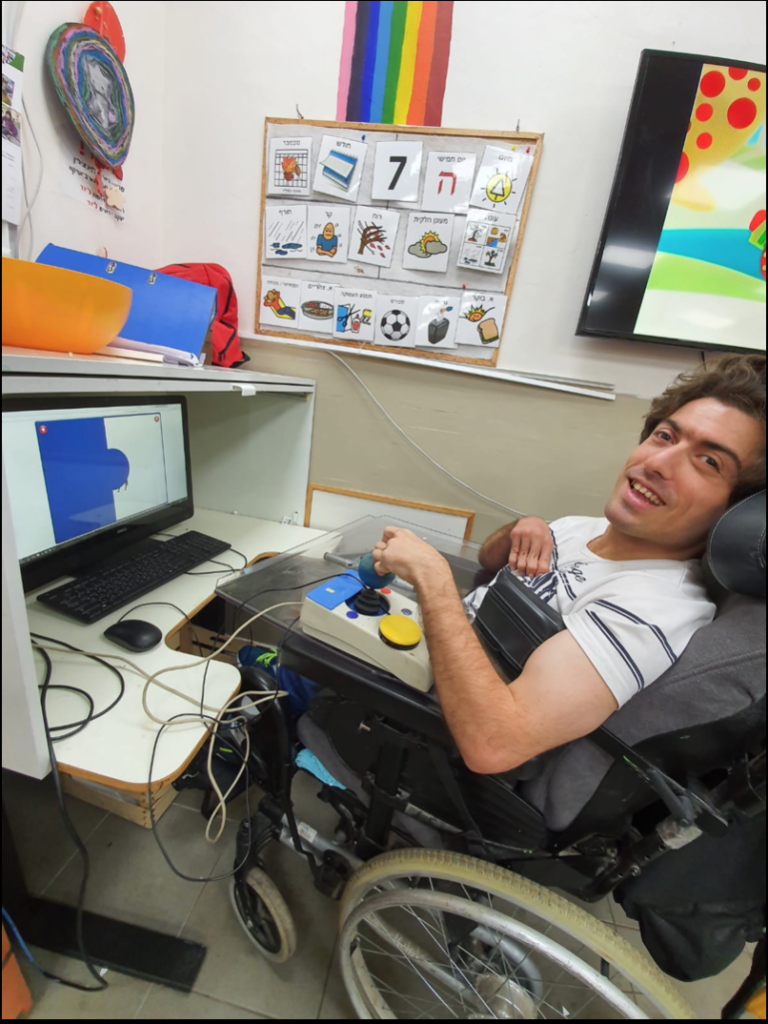
S,
33, has been integrated in the Aliza Center for six years. S’ sits in a
wheelchair, and his movement is lacking in all four limbs. However, his cognitive
functioning is mediocre, which often frustrates him. For years S’ complained
that he can’t walk and can’t eat alone. He asked a lot: “Why can’t I eat
alone? Why can’t I walk?”. As a center, we tried to give S’ as much
emotional support as we could, but it was clear that S’ needed significant
personal empowerment.
The
solution came unexpectedly, through cognitive work: S’ worked on the computer
on the Gingim gaming site using a switch, in simple action-reaction games, due
to the motor difficulty. In order to promote him to more complex games, he
began to practice working with a joystick; S’ began the work in individual
therapy with an occupational therapist, and gradually the use of the joystick
was transferred to the staff. He now plays on the computer almost daily.
Not only does the joystick allows S’
independence in using the computer and a higher level of cognitive practice –
it has also allowed him immense personal empowerment, which filled him with
pride and joy. Gradually, the complaints about eating and walking disappeared,
and the questions changed: “When do I play on the computer? Have you seen
how I play on the computer? Do you know that I play on the computer alone?”
Today S’ plays on the computer almost
completely independently, practicing high motor and cognitive skills – but most
importantly: he is much happier, satisfied and self-confident.
During each year of activity an ITM
(interdisciplinary team meeting) is held for every client, to which all
concerned with the client’s care are invited – the center staff, the health
care team, the social worker, the client’s family and of course the clients
themselves. During the meeting we discuss the client’s progress during the year,
the application of their personal program, successes and difficulties, and
raises questions and ideas for further work in the coming year.
Since
many of our clients do not communicate verbally, they are often unable to fully
express their thoughts on their personal program, and request for any changes to
be made. Therefore, we have designed a communication board for each client using
the TouchChat app, which focuses on their personal program and allows them to
express their thoughts and wishes. Even verbal clients benefit from the
communication board, as it helps them with visual representation.
As preparation for the ITM, each client sits with a staff member, and through the communication board, discusses their personal program – what goals they likes or dislikes, whether they feels they have progressed on a particular goal, and if there are any changes they would like to make. The answers are recorded and attached to reports prepared for the meeting by the various professionals.
In this way, the client’s voice is heard, and they are able to take an active part in designing their personal program. We see our center as a community where all members have an equal voice, and the ability to influence the reality around them.
On Tuesday 4 th February we were joined by Richard Bright and students from the New Bridge Team. Richard and the team filmed and interviewed members and staff within our print unit. The footage will form part of a Centenary film to celebrate the life and legacy of Ian Karten. We are delighted and proud to be part of the Karten Network.
On Friday 21 st and 28 th of February we hosted two screenings of our first feature film. The Connolly Files has been a two year project. Our members have shown great commitment over this time. The screenings took place at Cineworld St Helens. Over two hundred people attended. These were great occasions and the feedback around the film has been amazing.
On Tuesday 25 th February our Drama performance was filmed at the Theatre Royal St Helens. The Drama Cinderella was performed around Christmas time. The feedback was amazing so much so that we had to film the production at a venue befitting its quality.
On Friday 28 th February we hosted the Launch of the Merseyside Mencap Round the World Challenge. We were joined at the event by St Helens RLFC, St Helens Council Outdoor Activity Centre, Mill Green School and Ed and Mary from Mencap North. The aim of the project is to encourage physical activity whilst having fun at the same time. Periods of activity equate to a set number of miles. Individuals can plot routes around Great Britain, Europe and the World.
The Shalva National
Center in Jerusalem, Israel has been developing award-winning rehabilitative
and inclusion programs for children with disabilities for thirty years.
Recently, the organization has also incorporated an array of adult services;
including employment and vocational training programs, volunteer military
service with the Israel Defence Forces, social support, and independent living
in the community. In the years prior to launching their adult services, Shalva laid
the groundwork to create the optimal opportunities for their clients. In 2016,
Shalva partnered with the Ian Karten Foundation, the Dan Marino Foundation, and
the University of Southern California’s Institute of Creative Technology to
create a unique therapy solution based on virtual reality software called SHALVA
VITA. The SHALVA VITA program utilizes interactive avatars to simulate job
interviews for adults with disabilities in order to prepare them for a
successful transition into the mainstream job market.
Following an initial
pilot initiative, the VITA program is currently in the process of being
implemented across Shalva’s employment and vocational training programs. This
March, the SHALVA VITA program will be presented at the annual International
Down Syndrome Day Conference co-hosted by Shalva and the Hadassah Medical
Center, with approximately 500 disability professionals and members of the
broader community expected to be in attendance.
The Karten Network’s
March 2019 newsletter featured a Shalva VITA client named Ella who participated
in the VITA pilot program. Nearly one year later, Ella relays the life-changing
experience in her own words:
Ella an Employee at Shalva
Authored by: Ella Greco, January 2020
My name is Ella. I’m 24 years old and this
year has been a very exciting year for me because I moved to an independent
living apartment with other roommates. It’s my first time living outside my
family home, but so far it’s going well. I have a professional camera and I
took a photography course so I like to take pictures of things in my life. I
also like to go out with my boyfriend and talk with him on WhatsApp. During the
day, my favorite thing to do is working at the jewelry studio at Shalva. I like
to keep busy and have full days with lots of activities, especially since I get
bored quickly from doing the same thing for a long time. When I’m making
jewelry, it’s not like that so much. I can do it for a long time and plan out
different designs and patterns and then create them in the jewelry. I think
it’s because I like being creative and because its very relaxing in the jewelry
studio. We turn on music and we work quietly and its really fun and relaxing.
The jewelry studio is at Shalva but we work
with YVEL. Orna teaches us how to string pearls and we make necklaces and
bracelets that are sold in Shalva’s gift shop I also like working in the
creative workshop making ceramics.
[YVEL is a luxury jewelry brand which specializes in artistic pearl jewelry creations. YVEL has partnered with Shalva’s creative workshop to train adults with disabilities in creating pearl jewelry. YVEL founder and jewelry designer, Orna Levy provides personal instruction to Shalva’s employees in the art of stringing pearls. The unique, high-end pieces are sold at the Shalva SHOP and at craft fairs across Israel.]
Last year I started working with Liron using VITA. [Liron is Shalva’s Director of Research and Development who coordinated the SHALVA VITA pilot program.] There are characters on the screen and they ask you questions for job interviews. Even though VITA is about job interviews, I think it has helped me in conversations with Shimrit and the friends at the Shalva workshop. [Shimrit is the director of the creative workshop at Shalva and serves as the employees’ primary superior. In the process of creating marketable crafts, she guides the employees in practicing workplace etiquette and communication skills.]
The
hardest question for me in the VITA interview was to tell about my strengths
and weaknesses. I never thought about describing myself like that before. And
they also asked me that question at SHEKEL when I was interviewed for the
independent living apartment. [SHEKEL is another Jerusalem-based organization
that operates independent living apartments for adults with disabilities]. When
they asked me about my strengths and weaknesses and what would make me a good
roommate, I remembered the question from VITA and I think VITA helps prepare
for other kinds of interviews too, not just job interviews. It’s also more than
that; when you practice the questions in VITA, it teaches you things for life:
how to listen to others, how to talk in a way that other people will listen to
you, how to talk about things that are challenging for you.
E (27 years) lives with his parents. E has low vision due to a premature birth and holds a Certificate of Blindness. In addition, he has been diagnosed with Cerebral Palsy. He walks with the aid of a walker and has difficulty with motor skills.
E began a back office job working for a major health service company as well as the Community Center in the town where he lives. He was referred to Migdal Or’s computer classes in Jerusalem for design and customization of assistive technology. During the assessment that was carried out by Migdal Or, it was revealed that E was not familiar with basic computer applications and assistive technology, and, as such, was dependent on others to perform the tasks assigned to him during the course of his work.
As a result of this, in June he began a 3-month technology course in order to learn how to operate a computer independently with assistive technology and to use applications relevant to his role at the Health Service and Community Center. This would eventually help him to expand his responsibilities.
E improved his skills in Word (which were very basic prior to the course) and learned to use Excel and Outlook. Likewise, he learned to use keyboard short cuts to operate the screen reader program, NVDA, for when he is unable to depend on his sight. In addition, during the course, E gained skills in the use of the iPhone which helps him carry out various activities. “Due to the course, I can work faster” he says, “I can perform tasks all by myself”.
Following the course, E’s case manager reported that he now comes to work knowledgeable and self-confident – a stark contrast prior to undertaking the course. Today, he is more independent and tries to overcome challenges on his own. She added that as a result of the skills he learned on the course, E’s manager expanded his responsibilities and added new tasks.
E’s mother expressed great satisfaction with Migdal Or’s computer class. She reported that he receives positive feedback in both his workplaces and he feels great satisfaction in being a working person, and is able to give and be of help, not only receive help. She described with emotion how he gets up in the morning and goes to work happy. They could not imagine the magnitude of the change that has transpired in him.
Beaumont College were incredibly grateful to have secured a further grant from the Karten Trust in 2019. The bid was focussed on two main areas:
Developing a more innovative and interactive electronic music provision.
Upgrading and maintaining the Karten ICT Suite which is integral to the college’s education and social delivery.
Progression with both of these areas is described below.
Making music in different ways
Beaumont has always had an electronic component to its music delivery but in the last few years some exciting software and hardware tools have been released which the music department and Beaumont College Records were keen to access. Beaumont College Records is the in-house record company run by and for learners.
Ableton makes professional music creation software and this has been used at college for years. A new software tool called Link enables electronic instruments to be played live and to stay in time musically. This is really important for many Beaumont students whose physical impairments may mean they know when a note needs to be played, but can’t quite get their hand or foot to hit it at the right time. Link connects instruments wirelessly and synchronises any notes played to a specified timing. Instruments can be keyboards but often are iPads on which there is a wide range of apps with which to create sounds.
It could be seen that this use of syncing stifles creativity, but in Beaumont’s experience Link is a tool which can stop learners focussing on the “correct” timing and free them up to play what they want. It also improves self-esteem by levelling out the timing ability of learners and preventing some from feeling they are failing when playing with other learners. In a live playing situation the electronic instruments are often accompanied by guitar, bass, percussion etc. which cannot be synchronised and this continues to add a “free” element to the live performance. When recording Link is used in the same way professional artists use it and indeed recording studios have for many years had ways of “fixing” notes played out of time.
The Push is a versatile instrument also created by Ableton. The potential of this instrument was clear for our learners as it has multiple buttons on the front which can be configured to play any note, sound or sample. Many learners have experimented with the Push and different setups are used dependent on the learner’s access skills and understanding. For instance even though there are 64 buttons these can be programmed so that there are four large sections which each play one sound.
Sometimes minor improvements can have major impacts. As part of the Karten funding, Beaumont purchased a number of wireless microphone and instrument systems. These remove the need to have wires connecting microphones and instruments to amplification. This obviously prevents a health and safety issue but from a creative point of view this has enabled more freedom and experimentation within music sessions. Also a cross-curricular project with a dance group has been using these so performers are not ‘tethered’ by cables and can move freely within large spaces.
Upgrade for Karten Suite and increased access
The PCs and touch monitors in Beaumont’s Karten Suite had been serving learners well. However in the last few years many PCs had been repaired or had components replaced. In addition many of the touch monitors were failing and the rise and fall desks were making some ‘interesting’ grinding noises when adjusted. The Karten Suite is heavily used during teaching sessions, at breaks and lunchtimes. Residential learners also use the Karten suite during evenings and weekends.
As a way of increasing access for our learners we are experimenting with 3D depth sensing cameras mounted on the top of monitors. These can be linked to Windows Hello which enables log-in via facial recognition. Many learners at Beaumont it hard to input their log in and password, either because it can take a long time to type or they struggle to remember it. Currently one learner is experimenting with this as a solution and has agreed to work with us to iron out any issues, before we roll it out further. It could be transformational for some learners leading to greater independence, privacy efficiency.
The desks were replaced with new ‘non-grinding’ height adjustable desks. We were very specific about the cases our desktop PCs were housed in. Cases can sometime have the power button on the top, meaning accessibility fails at the earliest point as some learners might not be able to reach to turn the PC on! Likewise we made sure that there were front mounted USB sockets for plugging in alternative mice and keyboards and front mounted headphone sockets.
We chose large touch monitors which also have built in speakers. Previously PC speakers had been unplugged, swapped or were easily broken leading to frustration for learners. Unfortunately the built in speakers are not loud enough for that environment (possibly because they are rear-mounted). There was also some confusion when learners plugged in headphones as Windows displays a dialog box to choose which device you have plugged in. Not all learners can understand this dialog box so were not able to activate their headphones. We have purchased external speakers which have headphone ports and hopefully this will solve the issue.
The flexibility Karten allowed us in this bid enabled a split between the exciting music project and the (seemingly) mundane PC and desk replacement. However, both are critical to the engagement learners have with the subjects they are studying while both also give us the opportunity to experiment with cutting-edge ways of accessing technology.
Fil McIntyre. Lead Assistive Technologist, Beaumont College, Lancaster.
I get asked this question quite a lot, often by parents and sometimes by students themselves. Unfortunately I don’t really have an answer, but I do think that it is an important question that needs to be discussed.
The views and opinions in this article are my own, based on my experiences and do not represent the views or opinions of RNIB College or RNIB.
The question about technology and Braille always makes me think about the song ‘Video Killed the Radio Star’ and how the process of new replacing old continues: videos replaced home movies, DVDs replaced videos, and downloads are replacing DVDs etc. Technology changes quickly, but what remains the same is that people like to watch films and programmes, regardless of the method of watching. The purpose of Braille is for people with sight loss to be able to communicate and be able to read and write. It is a “code by which all languages may be written and read. Through the use of braille, people who are blind are able to review and study the written word. It provides a vehicle for literacy …” (www.royalblind.org)
When Louis Braille punched out that first dot he revolutionised life for people with sight loss and opened up a whole world for them. At that point if a person with sight loss wanted to read or write, then Braille was one of the main options, and it “allowed blind people to read independently for the first time”. (Rose, D; BBC News Feb 2012) But in our technologically advanced society there are so many different ways that people with sight loss can communicate and read and write.
I like technology, and believe that it can make life easier and fuller for people with sight loss. I have recently seen the RNIB and Amazon Alexa advert, which demonstrates how low cost technology can be used every day and how it can help people with sight loss. There is a lot of technology available now that can make a huge difference to people with sight loss and other disabilities. Apple and Microsoft have led the way with their accessible programmes and apps, particularly the very impressive, and free, Microsoft Seeing AI, the exceptionally useful Apple Voiceover and Siri. Other technology is also more readily available and being developed, for example Orcam Reader and the easy to use Synapptic. These tools or “vehicles” are in daily use by some of my students, and I can see the impact that the technology has had on their studies, independent living skills and personal lives.
I also like Braille and I really enjoy teaching it. I strongly believe that Braille was one of the most life changing inventions for people with sight loss at the time, but currently there are ongoing concerns “about the decline of Braille” (Clark, N. The Independent 20.5.2014). Although Braille is now more readily available, there is a “contradiction – as Braille use spreads across everyday objects, the number of people using the system has actually been in long-term decline.” (Rose, D; BBC News Feb 2012)
I learned Braille because I wanted to read Harry Potter. Some of my students learn Braille because they love to read, and aren’t keen on listening to books, while others use Braille because they have learned it as children, but are auditory learners and prefer audio books or JAWS / Voiceover etc. Before I start to teach Braille I identify why the student wants to learn / use Braille. Generally speaking, my students seem to have three main reasons for learning or using Braille:
To
read and write simple text, e.g. shopping lists
To
read and write for pleasure, e.g. reading a novel, or a letter
To
read and write for ongoing studies or employment
I am sure that there are other reasons for people to learn
Braille, but for the 3 purposes above I can identify at least one piece of technology
that could do the same (Alexa, Kindle, Laptop with JAWS).
As well as competing with technology, Braille can be hard
to learn. This could be due to the tactile
nature, but is also likely to be because of the complicated rules and the
difficulties in remembering everything.
It is difficult to recall all the complex rules, and even more demanding
to apply them in all the different permutations within the English language. Even students who learn Braille as children
can sometimes struggle to recall and to explain why a specific rule exists.
Moreover a lot of children who have sight loss also have
additional needs. This includes learning
difficulties, autism, cerebral palsy and physical difficulties. This can make the learning of Braille
extremely difficult and even impossible.
Technology, in comparison, is easier to learn for young
people. For those students who do want
to learn and use Braille, then portable Braille technology could be a way
forward. Technology can make a Braille
book manageable, make a Braille document accessible in print and make sharing
of ideas between a sighted individual and a person with sight loss
possible. However, Braille technology
has to be much more financially accessible.
For my students the choice between a Braille Notetaker costing nearly
£4000 and an iPad costing £600 is not a choice at all.
I believe that Braille is important and I hope that it
continues, but I do think there needs to be some changes and adaptations. Just as technology changes, so Braille also
needs to develop and change in order to fit into our technologically advanced
lives.
If Braille is to survive then Braille technology has to be
less expensive or at least on a par with other technologies that fulfil a
similar purpose. In order to remain
relevant, I also think Braille needs to become a little more user-friendly to
all those with sight loss, including those with additional needs. Perhaps it needs to be simplified and be made
less about the rules.
In my opinion Braille needs to develop and adapt, or risk
becoming obsolete. If it doesn’t become
more modern, then I believe that eventually technology will take over and
people will stop wanting to read cumbersome Braille books or will stop using
expensive Braille technology, because they can get cheaper audio books, tablets
and iPads and phones that can do as much, and more.
I do recognise that there is a place for more complex
Braille for technical, scientific and mathematical use and I know that there will be those who will
disagree with me, and will probably say that they do not want Braille to be
“dumbed down” or that the rules are there for a good reason and cannot be modified. However, without some adjustments, I feel
that the use of Braille is likely to continue to decline.
One of my favourite quotes is about technology being a tool
not the goal, and I think that this could be applied to Braille. Braille is a tool to enable people with sight
loss to communicate, read and write and it is not the goal. And just as technology adapts and changes, I
think Braille will need to do the same.
Hello
Everyone! When I put out my call for contributions for this newsletter
none of us could have imagined that our lives would have changed so much
so quickly.We are of course pleased to be sharing the articles provided
by our Karten Centres and I hope that you enjoy reading them. Perhaps
they will remind us of more normal times!
I
know that you are facing unprecedented challenges within your
organisations and wanted to provide assurance that we are here to help
however we can.
Home Learning Support
Lots
of the people you support will have returned home, or their needs will
now be met within smaller residential groups.We have pulled together a
collection of guidance, tutorials, webinars, specialist software, online
learning and Covid-19 specific easy reads.The materials can be found
here – https://karten-network.org.uk/home-learning-support/ We hope you find this useful and are keen to add other things that you would find useful.
Support for staff
We
are having a weekly Zoom on Thursdays at 11.00 so why not join us for a
#KartenCuppa. Save the slot in your diary and look out for the joining
instructions via email. We’ve only had a couple so far but they have
been really good for problem solving, sharing ideas and just helping if
feeling isolated when working from home.
WorldSkills UK
WorldSkills UK have extended the registration period for National Competitions until 5 May. They believe this is in the best interests of all those involved in WSUK competition and it allows them to relax the time pressure across the UK by giving as many people as possible the chance to be involved in their competitions. This is a one off extension until 5 May 2020.
Please register the people you support on this link for the competitions.
Contact us
We
are more than happy to be contacted by individuals about specific
issues. Don’t hesitate to ask, if we can’t help there is every chance
that we can signpost you to someone who can. Our contact details are at
the end of the newsletter.
Please do all you can to stay safe and well.
Dawn Green Karten Network and Development Co-ordinator
The New Bridge Enterprise have had a very busy couple of months. There are two new products that they are promoting as part of their involvement with Young Enterprise, which include the Cozy Cuddler heat pad and the Key Minds key rings. More information about the products and the NBEnterprise as a whole can be found on their website https://nbenterprise.co.uk/
Both groups had to prepare a presentation about the products to a Dragons Den in the business quarter of Manchester – Spinningfields.
Both groups did amazingly well in presenting their products in front of the Dragons and it was great preparation for the Young Enterprise finals happening later this term. Over recent years we have always come away with an award so fingers crossed for this year too. The Dragons gave both groups some advice and tips on how they might improve their presentations and both teams came away feeling motivated and confident. Especially as the Cozy Cuddlers heat pad was announced as the best product the Dragons had seen this year!
We have also been driving around the different Karten centres to film other projects that are happening for the Karten Centenary Promotional Film.
We visited The Hamlet, Derwen College, Langdon College, Bridge College and St Helens CDP and was blown away by the great work that is going on in the different centres.
We need more footage from other centres so that we can represent all the other successes funded by the Ian Karten Charitable Trust. The students are planning to start editing the footage after Easter break and we cant wait to see the results.
Another karten-funded project taking shape this year is our VR technology. This last few months we have started to film some of our work placements and bring an immersive experience with ClassVR of the potential job into the classroom before students go on their placement. We have also been testing how some of the young adults with complex needs cope with VR headsets and look to see if calm environments such as swimming with dolphins can help our service users relax when they are feeling anxious or in crisis.
And our final development has been around the use of our Karten-funded VR simulator. More and more students are now exploring the use of the Fork Lift Truck simulator and we are starting to generate a list of potential candidates who might progress further.
All projects are so exciting and we cant wait to see what the rest of the year brings.
Amidst the Covid-19 pandemic many organisations are making their products available either for free or at a reduced rate. There is an ever-growing collection of resources being developed to support people who are staying at home. For an extensive list of these and other resources please see the Karten Network website: https://karten-network.org.uk/home-learning-support/
For a bit of fun, invite a horse into your house, a
lion into your Livingroom and while you are at it, have a tiger round for tea!
You will require a mobile device that supports
Augmented Reality (AR). This will need to be, either an Android device running Android 7.0 or later
or an Apple device running iOS 11.0 or later.
Open your web browser and do a Google search for an
animal e.g. “tiger”. If an AR animal is
available, it’ll show up in a small box with some information and an invitation
to “Meet a life-sized tiger up close.” In that box will be an option to “View
in 3D”, tap that and the website (Wikipedia) will place an animated 3D model on
your screen. Tap on “View in your space,”. You may be asked to allow access to
your camera, if so tap “allow”.
Point your device at the
floor and the view will switch to an AR mode. You will be asked to move your
phone around – this step may take a couple of minutes. Typically, you also need
a room with fairly good light and a flat-ish surface. Then almost by magic the
animal will pop up in your space. You can now move your device around to view
the animal.
The current list of
available animals is:
Alligator
Angler fish
Brown bear
Cat
Cheetah
Dog
Duck
Eagle
Emperor penguin
Goat
Hedgehog
Horse
Lion
Macaw
Octopus
Pug
Giant panda
Rottweiler
Shark
Shetland pony
Snake
Tiger
Turtle
Wolf
As always, I am interested to hear about how you are using mobile and
other smart technology. I am also available to support and help where I
can, even more so during these
exceptional times.
Martin Pistorius, Karten Network Mobile Technology Advisor
The power of the Karten Network is its ability to share its wealth of knowledge and expertise. A few years ago, Matt Harrison, then at Portland College, now at Beacon Centre, shared his use of QR codes during the Karten Network Events. More recently TechAbility and National Star’s Neil Beck showed me a project he had done using both QR codes and RIFD tags. This inspired me to write this tutorial on how to use QR codes and RFID tags.
How to use QR codes and RFID tags
QR Codes
A QR (Quick Response) code is a two-dimensional
barcode that enables you to quickly access the data associated with a QR code.
Most of the time this is a URL (a website address).
As the name suggests, QR
codes are ideal for quickly and easily accessing a network linked
resource, like a video, photos or other information. An example could be to
allow a learner to access a video on how to perform a task. The learner would
then simply need to point their device at the QR code and link through to the
resource. Or QR codes could be placed on the packaging of a product or printing
job, making it easier to tell customers more
about your Karten Centre or enable them to place
another order. What and how you use QR codes for is really only limited
by your imagination.
There are a number of online services, most of them
free that allow you to generate QR codes. I would suggest simply doing a Google
search for “qr code generator”. Fill in your information e.g. the URL and
generate the code. You will typically get an image file
containing the QR code to download.
This can then be printed and placed wherever needed.
To read (scan) a QR code used to require an app
however any iOS device running iOS 11 or later has a QR reader built into the
native camera app. Android 9 and later also have
the feature included with the camera app courtesy of Google Lens.
To scan a code, open your camera app, and point it
at the code. Typically, a window will pop up asking you if you want to open the
link. Tapping OK/Allow will take you to
wherever the QR code is set to go.
If your device doesn’t support reading QR codes through the camera, then you will need to download and install an app such as QR Reader for iPhone and QR Droid for Android.
RFID tags
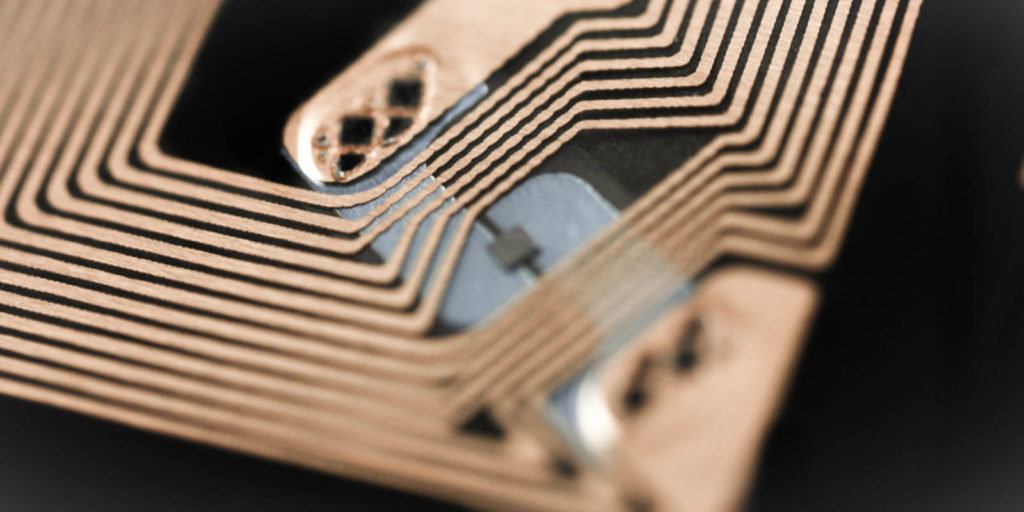
RFID (Radio-frequency identification) tags are tiny
radio devices that can store data. A lot of us use them all the time as they
are what make contactless payments and hotel card keys possible.
There are generally speaking two kinds of RIFD tags
– passive and active. The main difference is passive tags get their power from
the reader and active tags have their own power source.
You may have also either heard of or seen NFC on
your device. NFC (Near-Field communication) is technically a sub-set of RFID and is based on the RFID protocols. The main difference
between RFID is that an NFC device can also emulate a tag. It is also possible
to use NFC in a peer-to-peer mode, to transfer information between two NFC
devices.
While I have provided this
basic overview of the technology, in reality you don’t really need to worry
about the underlying details to use the RFID/NFC tags. For the sake of
simplicity, I will use the term “NFC tags” for the rest of this tutorial.
NFC tags usually come
either embedded in a plastic card or fob, or as a sticker. They are cheap. For
the purposes of this tutorial, I purchased 10 blank cards for £3.57 and 10
blank stickers for £2.93 including postage on eBay.
Similar to QR codes blank
NFC tags allow you to store data on them. In most cases more than you could
using a QR code. However, the major advantage to NFC tags is you don’t need to
open an app and simply need to be close enough for your device to read the tag.
Dedicated NFC tags writers and readers are available, however, for the purpose of this tutorial I have only used a mobile phone and an App.
You will need:
An Android or iOS device (Please see the “devices” section for details on supported iPhone models)
A NFC app – for this tutorial I used the NFC Tools app, available for both Android and iOS. Another good option are the, NFC TagInfo and NFC TagWriter apps by NXP. These are available for both Android and iOS. (See the links section for more details)
Blank NFC tags. I recommend tags with the NTAG213 chip. These can be purchased online. I used eBay but they are available elsewhere. If you prefer a reputable UK supplier, try Seritag
Devices
While both Android and iOS
can read and write Apple have, until recently been far more restrictive. In
fact, creating (writing) NFC tags is easier to do on an Android phone.
Android
Most Android phones can
read NFC tags without the need for an app. You may however need to enable the
NFC on the device. To do so go to settings, or swipe down from the top of the
screen and tap the NFC icon to toggle it to “on/enabled”.
You will however need an
app to write to NFC tags.
iOS
Apple devices have NFC
enabled natively within iOS, so you don’t need to turn it on. However, until
the iPhone 7 Apple didn’t allow the use of NFC other than for payments.
To read a NFC tag you will
need an iPhone 7, 8 or X running iOS 11
or later as well as an NFC reader app. The app doesn’t need to be open but must
be installed on the phone.
The newer iPhone XR, XS, XS
Max, 11, 11 Pro and 11 Pro models can all read NFC tags natively without
requiring an additional app.
iPhone will also not read
blank tags. The tag must be encoded with NDEF data otherwise it is ignored.
To write/encode an NFC tag
you will need an iPhone 7 or newer and be running iOS13 or later.
Writing/Encoding NFC Tags
There is no real difference between Android and iOS
when it comes to encoding NFC tags using the NFC Tools app. Although the apps
interface is slightly different between Android and iOS.
While either an Android or iOS device can be used, I would recommend using an Android device to create the NFC tags.
Select the type of record you want to add. In most cases this will be a URL
Enter the data e.g. the URL
Tap “OK”
You can add additional records by repeating the
steps above.
Once you are happy with the record. Tap “write”.
You will now be prompted to touch the NFC tag to the device.
Your NFC tag should now be ready to be used.
Please note that the records you have entered
remain “loaded” in the app allowing you to encode multiple tags with the same
data. To write new data first remove the existing records by:
Tap the NFC Tools app
Tap “write”
Tap “More options”
Tap “Clear record list”
Tap “Yes” when asked if you are sure
Reading NFC tags.
As mentioned above Android devices read NFC tags
without the need for any additional apps, provided NFC is turned on. Simply either tap your
device to the tag or bring the tag to the device.
Only iPhone 7 or newer running iOS11 or later will read NFC tags. If you have an iPhone 7, 8 or X you will need to install an NFC reader app such as TagInfo or NFC Launch apps by NXP (See the links section). The TagInfo app has more features whereas NFC Launch is a lightweight app designed for reading a URL from an NFC tag.
Using NFC tags
Now that you have the tags, where and how you use
them is limited only by your imagination.
If you have an iPhone running iOS 13, using Apple’s
short cuts app you can do all sorts of fun things, e.g. turn off smart lights,
take a photo, play music etc. From my testing this also
appears to. be an exception where iOS
will read a blank NFC tag.
To do this:
Tap the Shortcuts app
At the bottom of the app, tap “Automation”
Tap the + in the top right corner
Tap “Create Personal Automation”
Scroll down to “NFC”
Tap NFC
Tap scan and scan the NFC tag
Scan the tag
You will be prompted to “Name This Tag” – Enter a name, and tap “OK”
Tap “Add Action”. From here you have a vast number of options such as playing music for example:
Continuing on from the instructions above, tap “Apps”, then “Music” then “Play Music”
This will now add on the text “Music” text, this will take you into the music library where you can select what exactly gets played.
Finally, you have the option to be prompted to confirm before running the action, or to simply run the action.
Now whenever you tap on that tag, the automation
will be performed.
While both QR codes and RFID/NFC tags are reasonably safe, please excise a degree of caution and common sense when scanning unknown codes and tags.
As always, I am interested to hear about how you are using mobile and
other smart technology. I am also available to support and help where I
can, even more so during these
exceptional times.
Martin Pistorius, Karten Network Mobile Technology Advisor
We use cookies on our website to give you the most relevant experience by remembering your preferences and repeat visits. By clicking “Accept All”, you consent to the use of ALL the cookies. However, you may visit "Cookie Settings" to provide a controlled consent.
This website uses cookies to improve your experience while you navigate through the website. Out of these, the cookies that are categorized as necessary are stored on your browser as they are essential for the working of basic functionalities of the website. We also use third-party cookies that help us analyze and understand how you use this website. These cookies will be stored in your browser only with your consent. You also have the option to opt-out of these cookies. But opting out of some of these cookies may affect your browsing experience.
Necessary cookies are absolutely essential for the website to function properly. These cookies ensure basic functionalities and security features of the website, anonymously.
Cookie
Duration
Description
cookielawinfo-checkbox-analytics
11 months
This cookie is set by GDPR Cookie Consent plugin. The cookie is used to store the user consent for the cookies in the category "Analytics".
cookielawinfo-checkbox-functional
11 months
The cookie is set by GDPR cookie consent to record the user consent for the cookies in the category "Functional".
cookielawinfo-checkbox-necessary
11 months
This cookie is set by GDPR Cookie Consent plugin. The cookies is used to store the user consent for the cookies in the category "Necessary".
cookielawinfo-checkbox-others
11 months
This cookie is set by GDPR Cookie Consent plugin. The cookie is used to store the user consent for the cookies in the category "Other.
cookielawinfo-checkbox-performance
11 months
This cookie is set by GDPR Cookie Consent plugin. The cookie is used to store the user consent for the cookies in the category "Performance".
viewed_cookie_policy
11 months
The cookie is set by the GDPR Cookie Consent plugin and is used to store whether or not user has consented to the use of cookies. It does not store any personal data.
Functional cookies help to perform certain functionalities like sharing the content of the website on social media platforms, collect feedbacks, and other third-party features.
Performance cookies are used to understand and analyze the key performance indexes of the website which helps in delivering a better user experience for the visitors.
Analytical cookies are used to understand how visitors interact with the website. These cookies help provide information on metrics the number of visitors, bounce rate, traffic source, etc.
Advertisement cookies are used to provide visitors with relevant ads and marketing campaigns. These cookies track visitors across websites and collect information to provide customized ads.