AI avatars, eye gaze, and the return of “presence” in communication
AI has been present in so many conversations lately, from conferences to policy discussions. Some of these have been about how AI could make things more accessible and improve disabled people’s lives. Alongside that, there are ongoing efforts by many to make sure disabled people are not only part of these conversations but are included in designing and developing the next generation of assistive technology. That matters, because it changes what gets built, and why.
Every so often, a technology story comes along that is not really about the technology. It is about a human problem we all recognise, and a fresh attempt to solve it in a way that respects the person.
One example of this is SMF VoXAI, developed by the Scott-Morgan Foundation in collaboration with D-ID, an Israeli founded company, alongside other partners including NVIDIA, Lenovo, ElevenLabs and Irisbond.
What is SMF VoXAI?
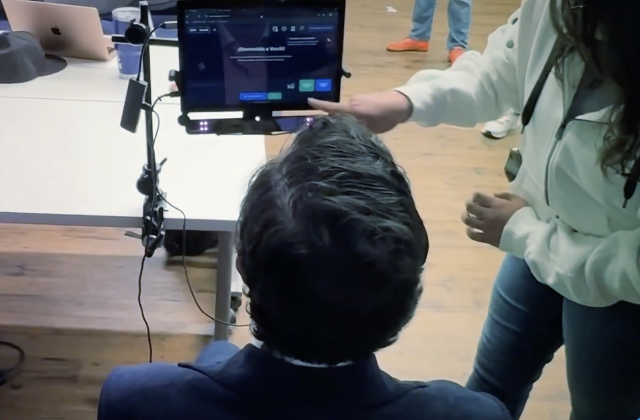
SMF VoXAI is described as a communication system for people with severe communication disabilities, including people who cannot rely on speech and may have very limited movement. It was publicly presented on the 10th of December 2025 at the AI Summit in New York.
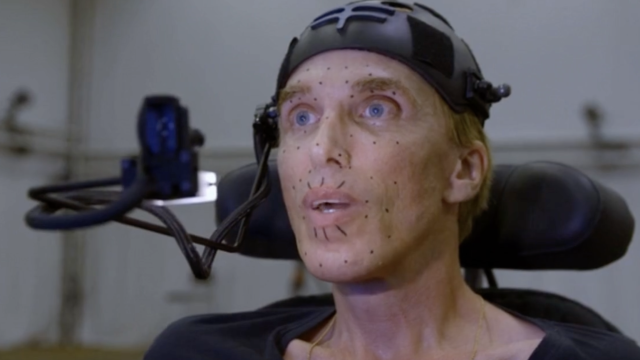
One detail that stood out to me is the involvement of Bernard Muller, the Scott-Morgan Foundation’s Chief Technologist, who lives with motor neurone disease (MND). In the launch materials, he is described as having architected the system using only eye tracking (eye gaze), which is a reminder that this is not only a technology story, but also a story about who gets to shape what is built.
If you would like a bit more context, the Scott-Morgan Foundation has a short YouTube video that explains the idea behind VoXAI and shows an example of how it works.
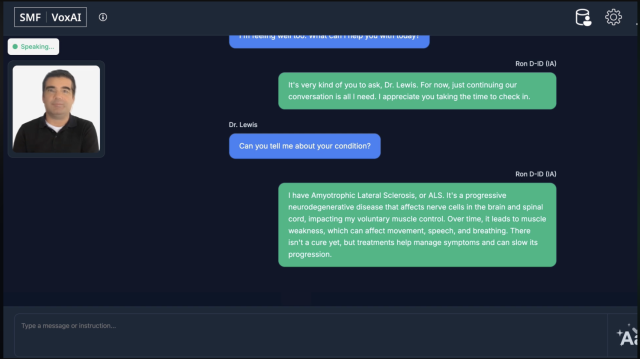
The system combines eye tracking with an AI-supported communication layer, AI-voice, and an expressive on-screen avatar. The aim is to reduce the delay and effort that can make communication feel slow and exhausting, and to bring back more of the flow of natural conversation.
During the December 2025 launch, it was also mentioned that a two-year research study would be conducted across six countries, looking at the impact of AI avatars on quality of life for people with communication disabilities. It will be interesting to see what comes out of that over time.
A lot of the attention has been focused on the idea of a “digital twin” described as a personalised, photorealistic avatar intended to preserve appearance and identity as a condition progresses.
VoXAI comes from the Scott-Morgan Foundation, which grew out of Dr Peter Scott-Morgan’s work after his diagnosis. The Foundation has continued that work since his death in 2022. For many people living with progressive conditions, the question is not only whether they can communicate, but whether they can keep a sense of identity and social presence as things change.
What problem is it trying to solve?
For many people who use AAC, communication works, but it is rarely quick. Even when someone has a reliable way to select words, the process takes time, physical effort and concentration, and that has a cost. It can be tiring. It can be frustrating. It can also change how other people respond, especially in fast-moving conversations.
Delays affect the rhythm of interaction. It can be harder to jump in at the right moment, harder to keep up with humour, and harder to say something before the topic has moved on. Over time, that can shape relationships, not because someone has nothing to say, but because the conversation does not easily make space for them.
VoXAI is being presented as an attempt to reduce that gap, by bringing back more of the sense of “presence” in communication. In other words, not only producing the right words, but doing it in a way that feels closer to real conversation.
A digital twin, and the questions it raises
The idea of a “digital twin” is part of what has drawn attention to VoXAI. Put simply, it is being described as a photorealistic avatar created from images or video captured while the person could still move or speak, with the aim of preserving appearance and identity as a condition progresses.
It is a compelling idea, but it also raises difficult questions. Who controls the images and the avatar. How consent is captured and revisited over time. What happens if the person’s preferences change. What a family can or cannot request. What happens after death. And, most importantly, whether the person remains in control of how they are represented.
These are not reasons to dismiss the idea. They are reasons to treat it carefully. If this is going to become a real part of AAC and assistive communication, it needs to be built around the person’s control, not only around what is technically possible.
Cost and access
One practical detail mentioned in the launch announcement is pricing. The Foundation describes a freemium model, with basic access offered free, and premium features listed at $30 per month. If that remains the case, it is an interesting contrast to the cost of some high-end AAC solutions, but it also introduces the usual questions that come with subscription models: who pays long term, what happens if a subscription lapses, and how this fits with procurement and funding in real services.
Final thoughts
What I find interesting about VoXAI is not simply the use of AI, or the fact that it can generate an expressive avatar, but the shift in emphasis. It is treating conversational flow, identity, and social presence as part of the communication challenge, not as optional extras.
This is not a replacement for every AAC system, and it does not need to be. For some people, a familiar, stable AAC approach will remain the best fit. For others, especially where conditions are progressive, the promise of preserving identity and presence may be particularly meaningful.
If there is a wider lesson here, it is the same one that comes up again and again. The people who live with these realities need to be involved early, listened to properly, and part of the decisions, not just the demonstrations. That is how we end up with technology that genuinely helps, rather than technology that simply looks impressive.
Get in touch
As always, I am keen to hear how you are using AAC, mobile, and other assistive technology in your setting, and whether AI is starting to come into those conversations too. If you would like a particular topic covered in the next newsletter, please let me know. Finally, please feel free to contact me if you have a question or need technical help and support.
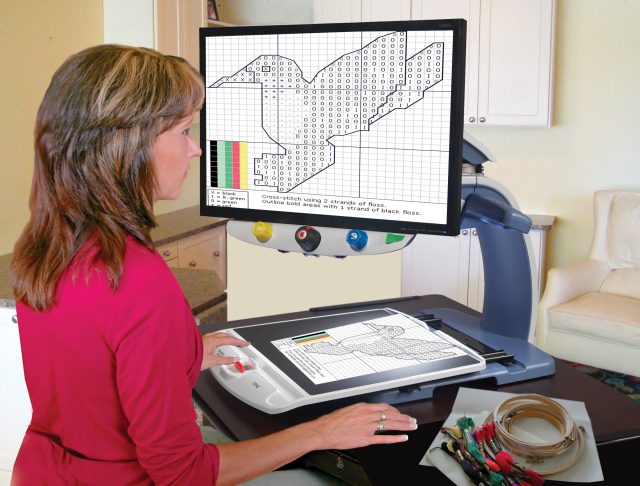
For many people with low vision, a CCTV (closed-circuit television) is a familiar and trusted assistive tool. In this context, “CCTV” does not mean security cameras. It refers to an electronic magnification device used to enlarge text, documents, and everyday objects to support reading and writing. These systems come in desktop and portable versions, and they can make a significant difference to independence at home, in education, and at work.
In recent years, the iPad has become a practical alternative to dedicated CCTV devices for some users. With the right setup, it can provide high-quality magnification, flexible viewing options, and access to a broader range of accessibility tools in one device.
What a traditional CCTV does well
A dedicated CCTV is designed primarily for magnification. It uses a camera to capture what is on a desk or in front of the user, then displays it on a screen with adjustable zoom and contrast. Many people rely on it for reading mail, filling in forms, looking at labels, and writing, because it provides stable positioning and consistent performance. Desktop units can be particularly helpful for long reading sessions or sustained writing tasks.
Why consider an iPad instead
The iPad can offer a cost-effective and multi-purpose option, especially if a person already owns one or can access one through school, work, or a service. In addition to magnification, it also supports a wide range of iOS accessibility features, including VoiceOver and dynamic zoom options. Unlike a single-purpose CCTV, the iPad can also be used for communication, learning, entertainment, and daily planning, which may reduce the need for multiple devices.
Another advantage is personalisation. Users can adjust magnification and contrast to match their needs and preferences, and iPads benefit from regular software updates that can improve performance and accessibility over time.
Making the iPad work like a CCTV
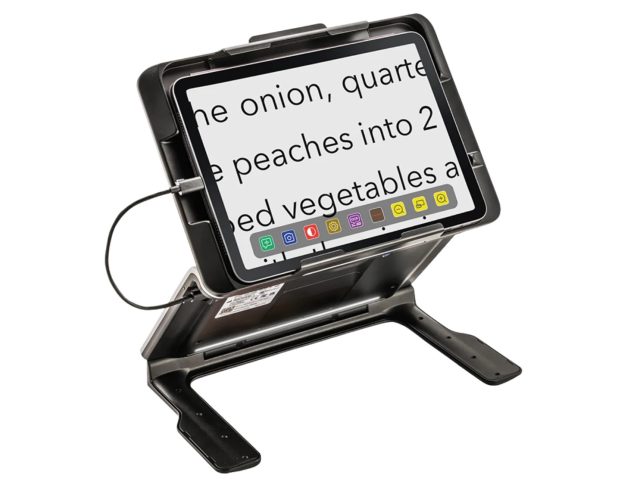
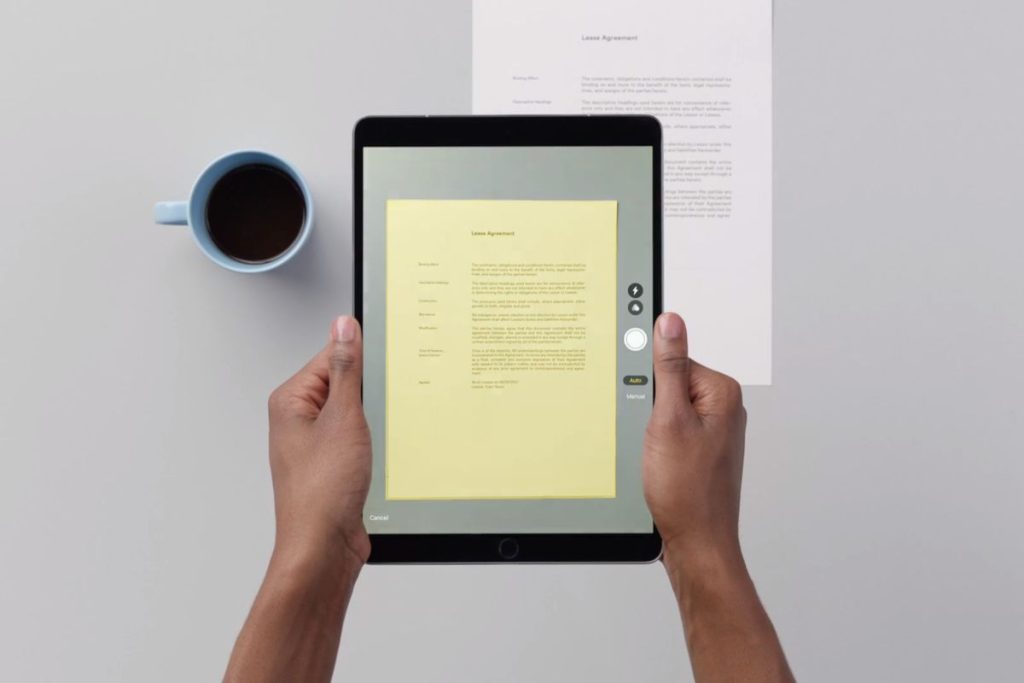
A key practical adaptation is using a stand. With a stable stand, the iPad can be positioned above reading material for hands-free use, which is especially useful for reading and writing tasks. This setup can feel more like a traditional CCTV experience, because it keeps the camera steady and frees the user’s hands to turn pages, write, or handle items.
When paired with appropriate magnification and camera-based apps, the iPad can support common CCTV tasks such as enlarging printed text, viewing objects on a table, and adjusting contrast for improved readability.
How it compares to a dedicated CCTV
A quick comparison is helpful here. In general, an iPad-based setup tends to score highly for portability, display quality, and personalisation. Dedicated electronic magnifiers (often called CCTVs) can vary in portability depending on the model, and they are typically more expensive. Where the iPad can really stand out is in the extra functionality it can offer alongside magnification, such as OCR (text recognition) and a wider range of built-in accessibility features, while many dedicated devices remain focused primarily on magnification and contrast.
When a dedicated CCTV may still be the better fit
An iPad will not replace every CCTV use case. Some people benefit from the simplicity and purpose-built design of a dedicated device, especially for long sessions of reading and writing, or when a stable desk-based setup is essential. Others may prefer the physical controls and specialised ergonomics of traditional systems. The best choice often depends on the person, their vision, their daily activities, and what support they have for setup and training.
Video demonstration
If you would like to see the setup in action, there is a short YouTube demonstration in Hebrew that walks through using an iPad in a CCTV-style setup. Even if you do not speak Hebrew, the visuals can be useful for understanding how the iPad is positioned on a stand and how the camera-based magnification is used in practice. Depending on your YouTube settings, you may also be able to enable English subtitles, although the translation may not always be accurate.
A visit to Google’s Accessibility Discovery Centre: What I saw, What I learned
In September, I had the opportunity to visit Google’s Accessibility Discovery Centre (ADC) in London. Tucked inside what used to be a server room on the seventh floor in Google’s Kings Cross office, the space has been transformed into something far more meaningful: a living, learning environment dedicated to accessibility and inclusive design.
The ADC isn’t a typical tech showcase. Yes, there are plenty of devices, tools and features on display from eye gaze systems and gaming controllers to Android and Chrome accessibility settings but what makes the space stand out is how deeply it considers not just products or users, but people.
That human-centred, inclusive thinking came through in ways both big and small. For example, the team initially provided straws for those who might need them, which in itself is a detail often not thought of. But they quickly learned that paper straws aren’t always ideal; they soften and disintegrate too quickly. Their solution? Pasta straws. Still environmentally friendly, but more durable. A great example of what happens when accessibility and practicality meet.
Google’s mission statement is “to organize the world’s information and make it universally accessible and useful.” That word “universally” isn’t decorative. It’s a guiding principle. At the ADC, it felt like they were taking it seriously. The space feels open and inviting, but also adaptable to accommodate the needs of whoever is in the room.
The ADC is divided into zones that reflect different access needs and perspectives:
Vision – tools like TalkBack, Guided Frame for taking selfies, and magnifiers
Hearing – Live Caption and transcription services across platforms
Dexterity – adaptive input devices, switch access, and keyboard remapping
Cognitive and learning – tools like text-to-speech, simplified layouts, distraction reduction
Neurodiversity – environmental controls, communication supports, and sensory awareness features
Each area offers a hands-on, interactive experience, thoughtfully designed not to impress, but to invite curiosity, challenge assumptions, and start better conversations. The ADC is a place where those with little knowledge or experience of disability and accessibility can begin their journey, while those with lived experience can share and learn, too.
While it’s a great introduction, to accessibility, it’s also a space for practitioners, technologists, and advocates to reflect, refine their thinking, and explore emerging ideas in inclusive design.
It’s used by both external guests and Google staff.
The visit began with a general discussion about accessibility and inclusion, and the importance of recognising that everyone has unique needs. One example involved passing around a Harry Potter book in braille, a small exercise that invites empathy and insight.
Each zone offered something memorable. At the ADC Arcade, visitors could try out switch access and eye gaze systems by playing games. A great resource worth exploring is Everyone Can, a UK charity specialising in accessible gaming technology. They offer assessments, gaming sessions, and custom controller design to support disabled and neurodivergent people.
In the Cognitive and Learning zone, the discussion included access methods, but also showcased alternative ways to make music and communicate using Augmentative and Alternative Communication (AAC). I was impressed that AAC was included, as this is often overlooked in mainstream accessibility conversations.
Within the Neurodiversity zone, we explored various environmental adaptations from using IKEA leaf material to create private workspaces, to simple dyslexia-friendly tools. One item that stood out didn’t involve technology at all: a small wearable slider badge called a Social Battery Badge.
It lets the wearer indicate whether they’re open to interaction or would prefer personal space. A quiet, respectful way to let others know how to support you, no explanations needed.
At the Hearing zone, we also got a glimpse into what future AI could mean for signed communication. One highlight was SignGemma, Google’s most advanced model for sign language understanding. Built as part of the open-source Gemma family, it uses multimodal learning to interpret and translate sign languages, starting with American Sign Language (ASL) into English.
What makes it particularly exciting is that it isn’t limited to a fixed dataset or static gestures. Its architecture is designed to be extensible, meaning it can be adapted and trained for other sign languages over time. When it becomes publicly available, it will allow developers, researchers, and the Deaf and Hard of Hearing community to build on the model, fine-tune it, and explore new applications from live interpretation to education, captioning, and beyond.
Imagine being able to watch any film or video and have a virtual sign language interpreter appear in real time, powered not by pre-recorded footage, but by a model that understands and translates as it goes.
Reflections
I thoroughly enjoyed my visit to Google’s ADC. More than any single device or feature, what struck me was the attitude: accessibility wasn’t framed as a checkbox or a polished finished product, but as a shared responsibility and an ongoing commitment.
Christopher Patnoe, Google’s EMEA Lead for Accessibility and Disability Inclusion, was once quoted as saying: “When people have equitable access to information and opportunity, everyone wins – but we know people’s needs are constantly changing, throughout their lives or even their day.”
Being in the ADC was a powerful reminder that accessibility is less about tech specs and more about mindset. That awareness, that accessibility isn’t static or limited to a specific context, was present in every corner. It doesn’t always have to mean technology either, and when it does, it’s rarely the shiny parts that matter most. It’s the thoughtful design choices that make a real difference: the option to navigate without using your hands, a camera that guides someone who can’t see the screen, a badge that lets you quietly signal “not today,” captions that follow you across devices, or straws that don’t collapse before the drink is finished.
Some of these choices might appear small at first, but their effect can be profound. They reflect something deeper: an understanding that inclusion starts with respect, empathy, and is sustained through iteration. Progress over perfection.
Throughout the Karten Network, many of us work at the leading edge of these realities, supporting people whose communication, movement, or sensory needs require creativity, compassion, and flexibility. The ADC didn’t offer all the answers, but it reaffirmed many of the questions we ask daily:
Who’s being excluded?
How can we support and enable people?
What can we change so people don’t have to ask?
It also reminded me how important awareness is. So many accessibility features—on phones, tablets, browsers, and other devices, are already built in. But if people don’t know they’re there, they may as well not exist.
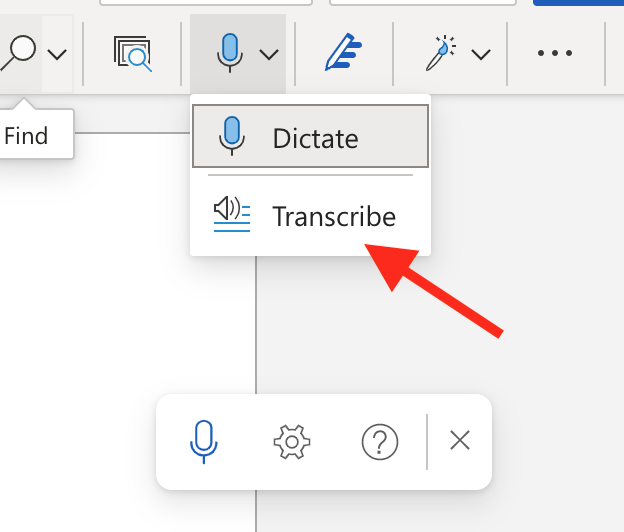
For example, tools like Live Transcribe on Android devices turn spoken words into real-time text, useful not only for people who are Deaf or hard of hearing, but also in noisy environments or for temporary communication barriers.
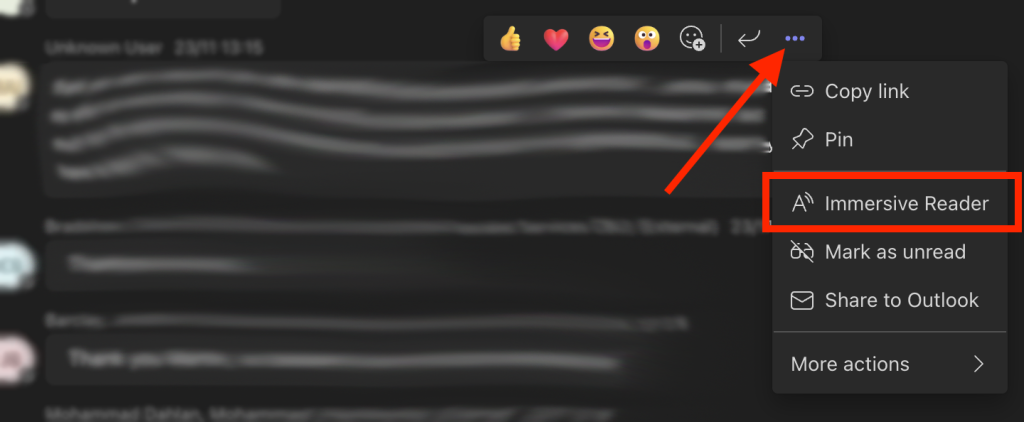
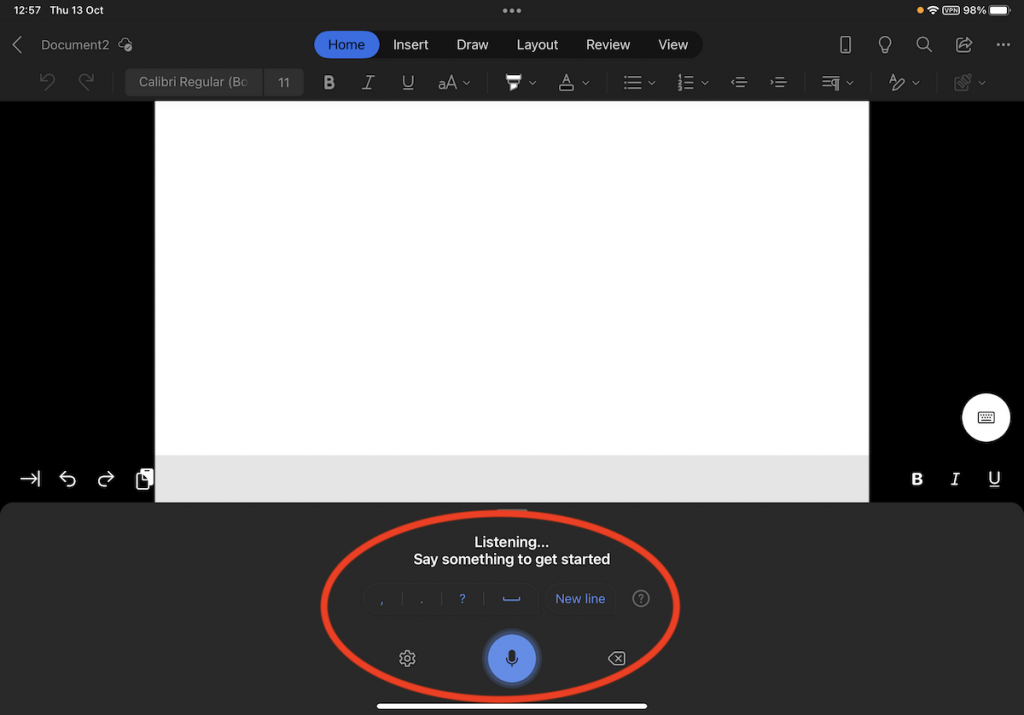
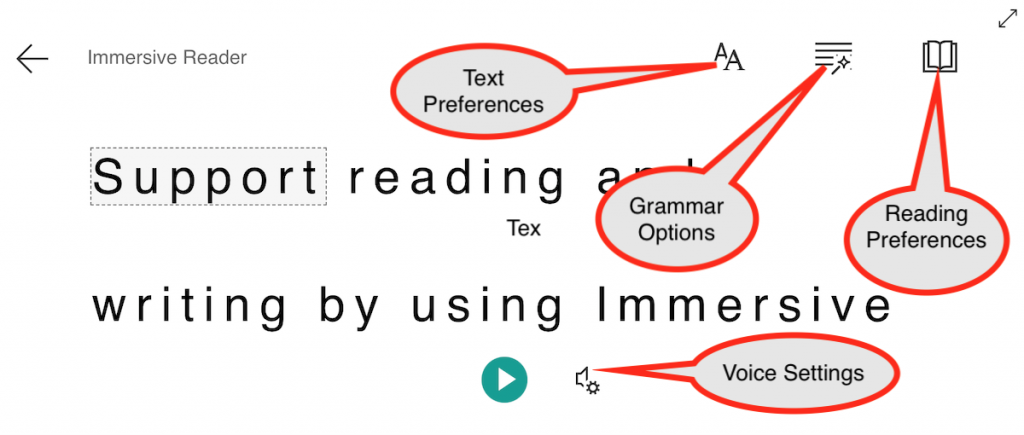
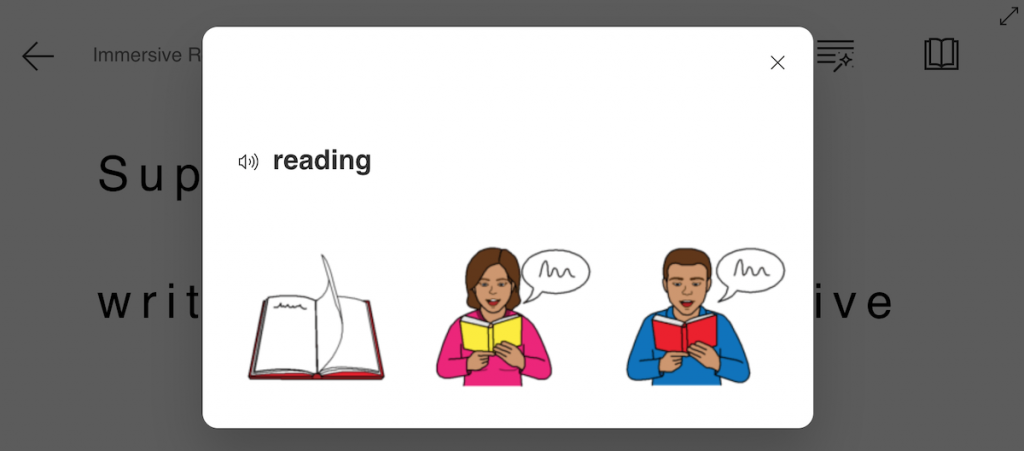
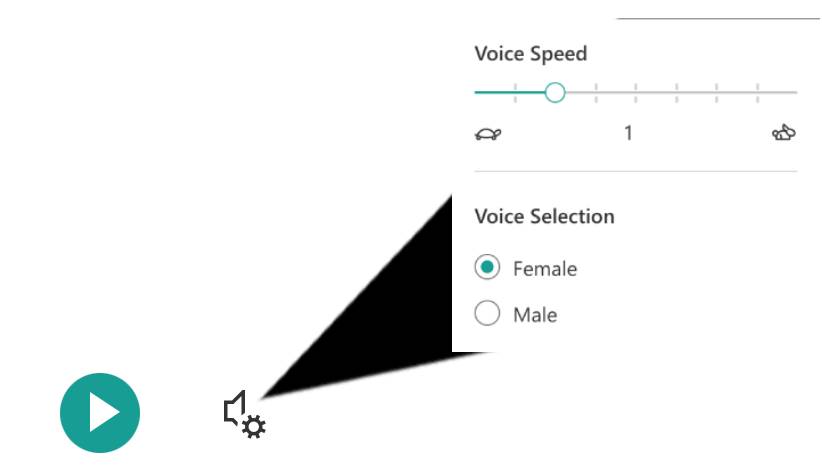
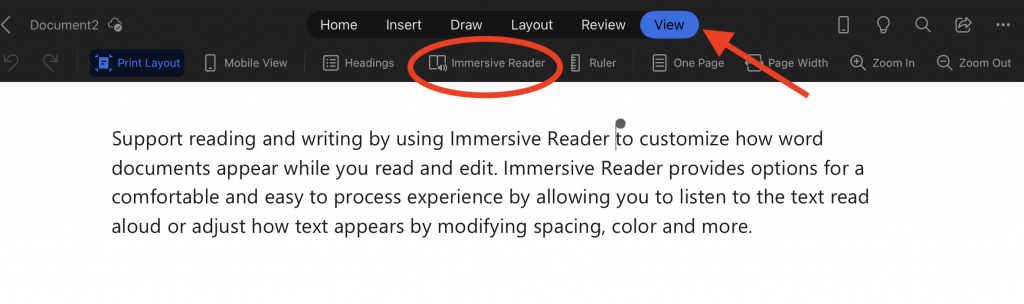
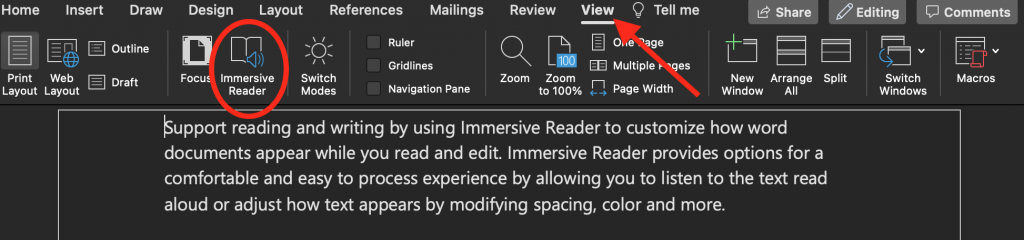
Microsoft’s Immersive Reader helps reduce visual distractions, reads text aloud, and supports focus and comprehension, particularly valuable for neurodivergent users or anyone with literacy challenges.
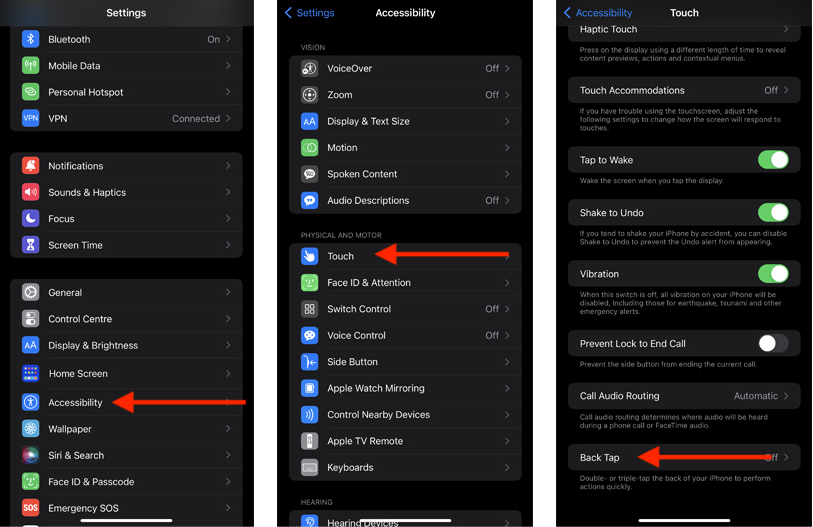
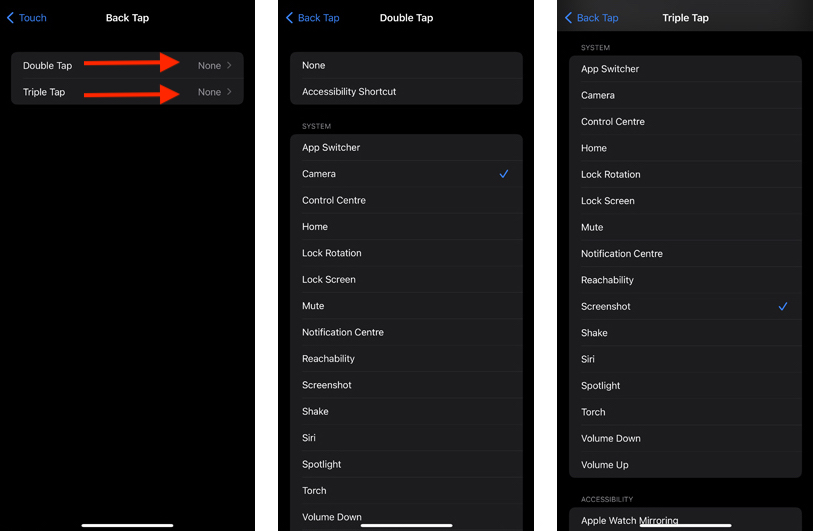
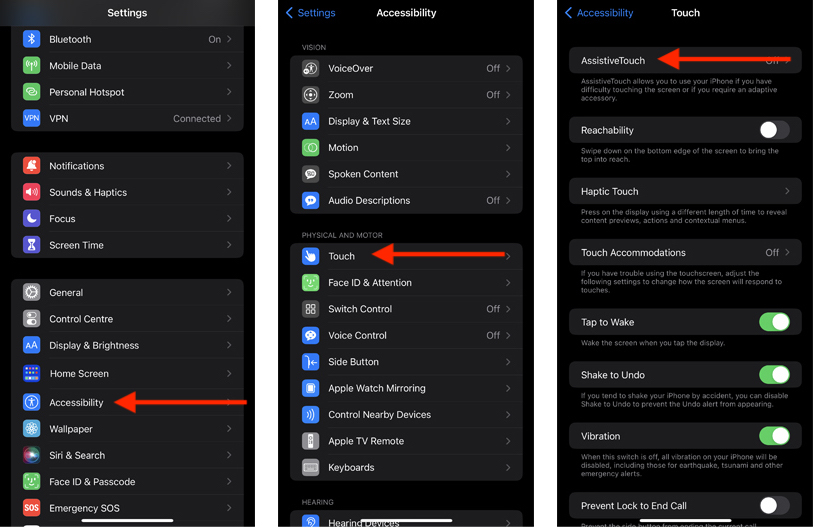
And Back Tap on iOS lets users trigger custom shortcuts, like opening the magnifier, launching an AAC app, or turning on VoiceOver, just by tapping the back of the phone.
Features like these can support communication, focus, and independence, but they’re often hidden in settings menus or never switched on. That’s why conversations like these matter. And it’s why I’m always happy to help uncover what’s already possible.
If you’d like to explore the Google’s Accessibility Discovery Centre for yourself, there’s a short ADC video tour hosted by Darren Ryden, with examples ranging from LEGO to literacy tools.
As always, I would love to hear how you’re using mobile technology, AI, or assistive tools in your setting. If there’s a topic you’d like covered in the next newsletter, or if you need technical help or advice, please don’t hesitate to contact me.
More Than Meets the Eye – Accessibility and AI at WWDC and Google I/O
July marks Disability Pride Month, a time to celebrate the richness of disabled identity, and to reflect on how far we have come and how far we still need to go.
Though its origins lie in the United States, first marked in 1990 to commemorate the signing of the Americans with Disabilities Act (ADA), its message has taken root globally. More countries each year are recognising July as a moment for visibility, dignity, and pride. At its heart, Disability Pride is about challenging the idea that disability is something to hide, overcome or fix. It is a celebration of identity, diversity, and human difference.
As technology increasingly shapes every aspect of daily life, the ways in which disabled people are included in, or excluded from, these conversations matter deeply. Against this backdrop, two of the world’s biggest tech companies, Apple and Google, unveiled their latest innovations at their annual developer conferences: WWDC and Google I/O.
While the headline features span far beyond disability, both companies have continued to build on their accessibility work, reflecting a recognition that inclusive design is central to innovation, not separate from it.
WWDC 2025
Apple kicked off WWDC with its most sweeping software update in years. For the first time, it aligned system version numbers with the calendar year, so iOS, iPadOS, macOS, watchOS, tvOS, and visionOS all jumped to version 26. The previous version of iOS was iOS 18. The leap reflects a shift to year-based numbering rather than a series of skipped releases. Apple described the move as a way to simplify versioning, reduce confusion across platforms, and reflect a more unified, ecosystem-wide approach to innovation.
Liquid Glass: A Unified New Look Across Apple Platforms
One of the most innovative and visually striking changes was the introduction of Liquid Glass, Apple’s new cross-platform design language. It will roll out across iOS 26, iPadOS 26, macOS Tahoe, watchOS 26, tvOS 26, and visionOS, bringing a consistent, layered visual aesthetic to the entire Apple ecosystem.
The design features subtle translucency, depth effects, and dynamic lighting to give interfaces a sense of dimensionality and responsiveness. Panels and navigation elements now appear as if they are crafted from softly frosted glass, floating, refracting, and shifting with the user’s movement and input. It is the most substantial visual update since the flat design introduced with iOS 7.
Apple describes Liquid Glass as more than just a visual refresh. It is intended to create a more immersive and cohesive experience across devices, from iPhones to Vision Pro.
Reactions so far have been mixed. Some users and designers are excited by the fresh aesthetic, while others, particularly within the accessibility community, have voiced concerns. The first beta version prompted considerable feedback, particularly around readability in areas like Control Center, where high transparency made text and icons difficult to distinguish. In response, Apple adjusted blur levels, increased contrast, and added background frosting in later developer betas.
These changes suggest that Apple is aiming to strike a balance between aesthetic ambition and day-to-day usability. The visual richness of Liquid Glass reflects a broader move toward interface expressiveness, but the company’s willingness to respond to accessibility concerns during testing reinforces its ongoing commitment to inclusive design.
iPadOS 26: A More Capable, Flexible iPad
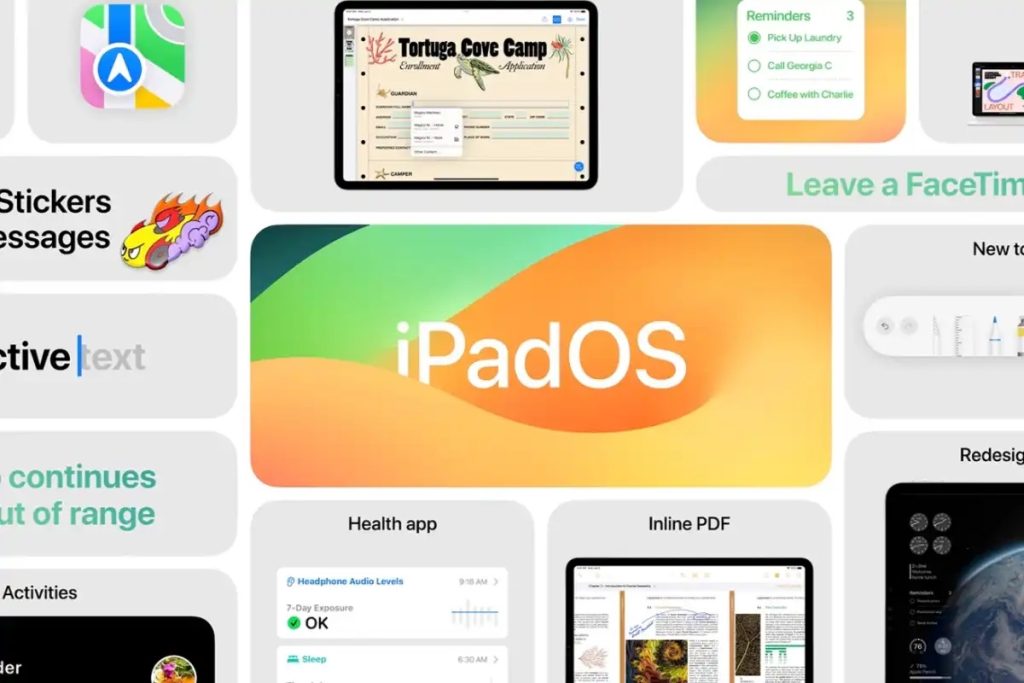
iPadOS 26 brings some of the most meaningful changes we’ve seen to the iPad in years. While it shares the new Liquid Glass visual language with the rest of the Apple ecosystem, this update is as much about function as it is about form.
The most significant change is the introduction of a more flexible windowing system, giving users the ability to resize, move, and layer app windows. It’s a shift that brings the iPad closer to desktop-style multitasking, with more control over how apps behave on screen. Apple has also introduced a slide-down menu bar for easier access to app controls, alongside an improved Exposé-style overview of open windows. For users who rely on the iPad as a primary device, especially with a keyboard or trackpad, these updates will likely be a welcome refinement.
There are also updates aimed at productivity and creative work. The Files app now supports a new list view and docked folders, making it easier to organise and navigate documents. A new Preview app brings annotation tools and file inspection capabilities, and Apple has added background audio support and local capture for more flexible content creation. Together, these updates broaden what the iPad can do without changing what it is.
iPadOS 26 also integrates the same Apple Intelligence features coming to iPhone and Mac, including Live Translation, Genmoji, and smart Shortcuts. These tools have potential value across many use cases, from creative tasks to communication support.
Finally, many of the accessibility updates introduced in iOS 26 carry over here too, such as Accessibility Nutrition Labels, Braille support, and Accessibility Reader, reinforcing Apple’s ongoing focus on inclusive design.
Altogether, iPadOS 26 moves the platform forward in practical ways. It doesn’t reinvent the iPad, but it makes it more capable, more adaptable, and better suited to a wider range of users.
Accessibility Highlights from WWDC 2025
Accessibility has long been a core part of Apple’s design philosophy, and this year’s WWDC brought a number of meaningful updates across iOS, iPadOS, macOS, watchOS, and visionOS. While not headline announcements, these features reflect steady progress in expanding options for disabled users and supporting more diverse ways of interacting with technology.
Accessibility Nutrition Labels
Apple introduced a new labelling system in the App Store called Accessibility Nutrition Labels, designed to help users quickly see which accessibility features an app supports, such as VoiceOver, Dynamic Text, Captions, or Switch Control. Much like hashtags, these labels act as quick signposts, helping users filter and discover apps that align with their access needs. The system adds a layer of transparency to app listings and encourages developers to be more deliberate about inclusive design. It’s a relatively small addition, but one that could make a meaningful difference in how disabled users navigate and evaluate the App Store.
Accessibility Reader
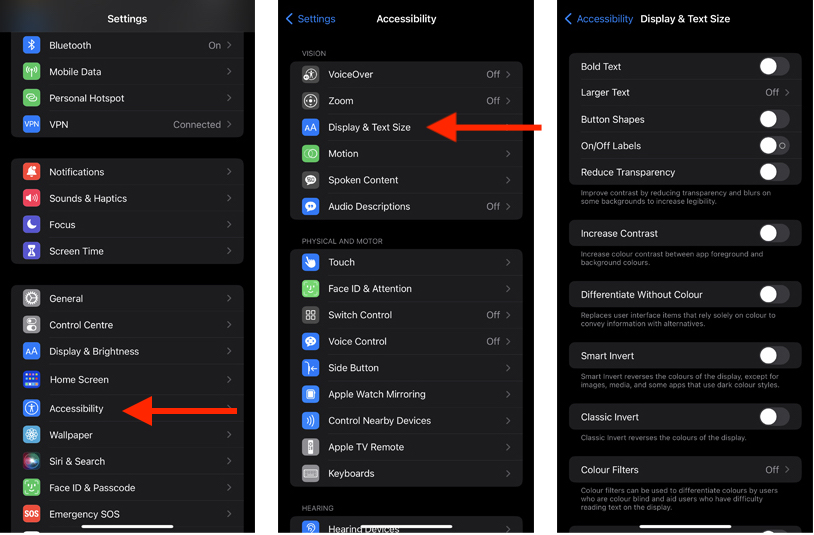
Apple introduced a new system-wide Accessibility Reader, designed to simplify on-screen content. It offers adjustable fonts, spacing, colour themes, and the option to have text read aloud. It’s particularly helpful for users with low vision, dyslexia, or cognitive fatigue, and builds on existing tools like Speak Screen and Safari Reader.
Magnifier for Mac
Mac users now have access to a standalone Magnifier app, providing on-screen zooming with custom filters, contrast settings, and image enhancements. It works with external cameras and integrates with other macOS accessibility tools.
Braille Access
Support for braille displays has been extended, with more robust options for navigation, input, and note-taking across Apple devices. The update also includes support for Nemeth code, used in mathematical notation.
Assistive Access Integration
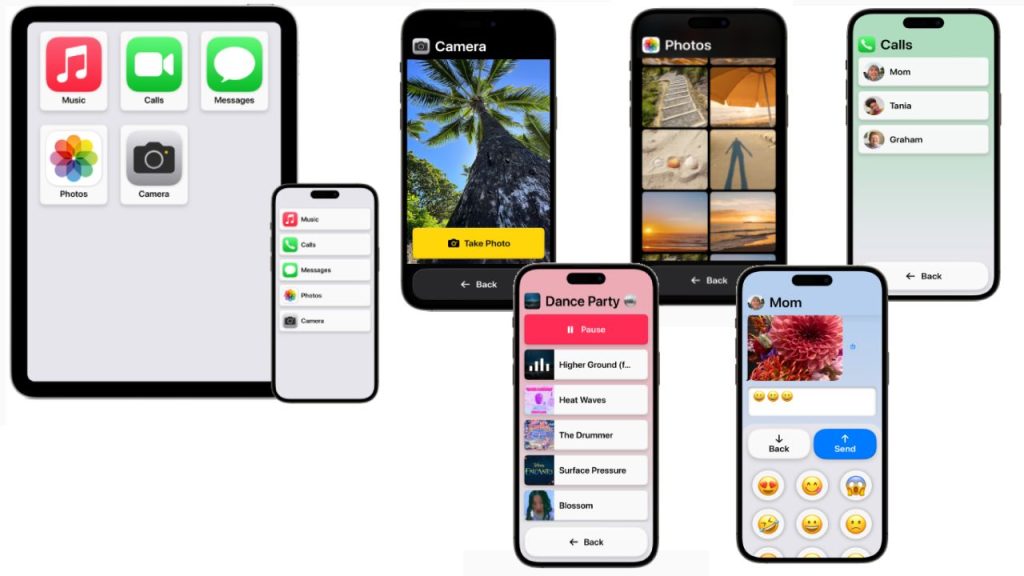
Apple is expanding Assistive Access, the simplified interface for cognitive accessibility, with new developer tools. Apps can now integrate with Assistive Access directly, allowing for more tailored layouts, reduced complexity, and larger touch targets.
Voice Control Enhancements
Voice Control has seen some incremental improvements, including better integration with Xcode and multi-device syncing of custom vocabulary. While helpful, feedback suggests there is still work to do around support for atypical speech patterns and fatigue management during extended use.
Live Captions on Apple Watch
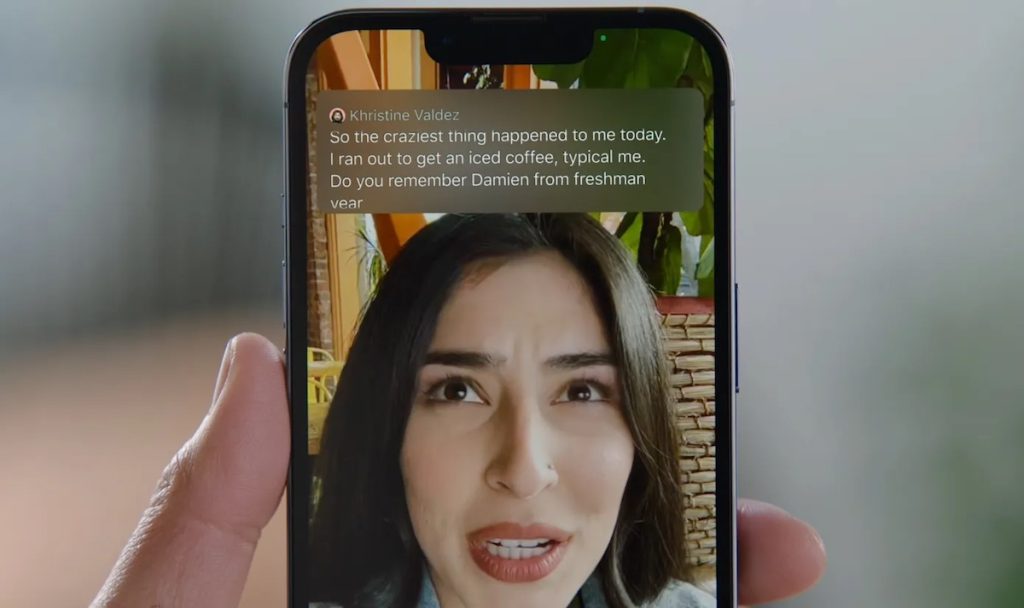
Live Captions are now available during calls routed through an iPhone or AirPods, with remote control via the Apple Watch. This adds more flexibility for Deaf and hard-of-hearing users in everyday conversations.
Other Updates
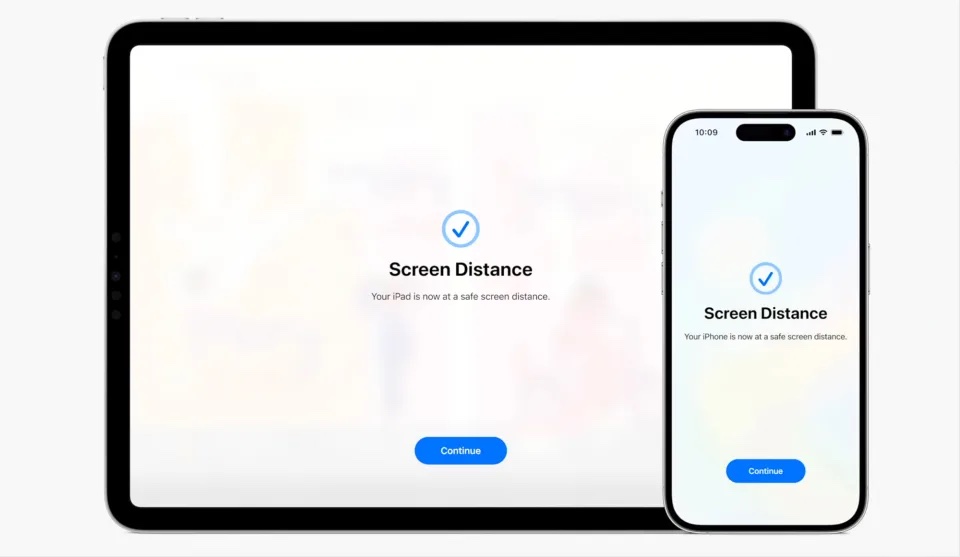
There were also updates to Eye and Head Tracking, new audio modes for clearer sound in noisy environments, and features like Vehicle Motion Cues to support users who experience motion sickness. A limited but notable mention was made of BCI (Brain-Computer Interface) support through Switch Control. While BCIs’ have been around for some time, particularly in the research and development space, Apple’s inclusion of BCI is significant and suggests to future possibilities.
These updates may not be front-page announcements, but they reflect a broader commitment to embedding accessibility across the platform, not just in how devices work, but in how developers are supported to design inclusively. Tools like Accessibility Reader and Assistive Access integration show an understanding that access needs are diverse and often layered. While there’s still room to grow, particularly around speech and cognitive flexibility, WWDC 2025 showed that accessibility remains part of the conversation, not an afterthought.
Apple Intelligence: Quietly Present, Practically Useful
AI was always going to be part of the conversation at WWDC 2025. With so much of the industry focused on artificial intelligence, many expected Apple to make a bold, headline-grabbing move. Instead, the company took a more measured approach weaving AI into the fabric of the operating system, rather than putting it centre stage.
Apple Intelligence appears across iOS, iPadOS, macOS and visionOS, with features like Live Translation in Messages and FaceTime, smarter Shortcuts, and new tools like Genmoji and Image Playground. These additions are largely practical designed to support everyday use rather than reinvent it. Translation, image generation, summarising long messages, and context-aware replies are all helpful, but they’re not presented as revolutionary.
One area with clear potential is automation. Shortcuts now allow more complex actions to be triggered and adapted intelligently whether that’s summarising notes, adjusting phrasing in a message, or suggesting a follow-up task. For users who experience fatigue or cognitive load, this kind of contextual support could offer meaningful benefit, though it will depend on how well these features perform in day-to-day use.
Apple has also opened up its foundation models to developers via a new framework, making it easier to build AI-powered features directly into apps, on-device, and with user privacy in mind. This is consistent with Apple’s broader approach: avoid overpromising, focus on trust and usability.
It’s still early days for Apple Intelligence, and not all features will be available at launch. But the direction is clear. Rather than positioning AI as the star of the show, Apple is embedding it where it’s useful, quietly expanding what devices can do, while keeping the user in control.
More Than It Seems
WWDC 2025 may not have been the most attention-grabbing event Apple has hosted in recent years. There were fewer big reveals or headline-grabbing product announcements, and for some, it might have felt like a quieter year. But on closer reflection, there’s more going on beneath the surface.
From the shift to year-based OS versioning, to the introduction of Liquid Glass, to continued investment in accessibility and the quiet rollout of Apple Intelligence this year’s announcements feel less about immediate impact and more about laying the groundwork. It’s a year that seems to be about consolidation, alignment, and setting the stage for what’s coming next.
With that in mind, it’s interesting to compare how Google approached its own developer conference just a few weeks earlier. If Apple took a more understated path, Google I/O leaned more heavily into AI, offering a different perspective on how technology might evolve in the months ahead.
Google I/O 2025: AI Takes Centre Stage, Accessibility in View
Google I/O 2025 carried one clear message: AI is now at the heart of Google’s ecosystem. Unlike Apple’s quieter roll-out, Google pulled out all the stops, with an event packed full of AI‑centred announcements and tools. From search and development to wearables and XR, artificial intelligence featured across nearly every corner of the platform and accessibility was very much part of that conversation.
Many of the announcements may not have immediate day-to-day impact, but they reveal where Google is heading – toward a platform shaped by context-aware, generative, and increasingly multimodal AI. And while not everything was framed explicitly around accessibility, several tools have clear relevance for disabled users and inclusive design.
Gemini Everywhere: AI Across the Google Ecosystem
At the centre of it all was Gemini 2.5, Google’s latest AI model, now integrated across Android, Chrome, Search, Workspace, and beyond. Designed to handle complex, multi-input queries whether text, voice, images, or video Gemini is intended to be more adaptable, responsive, and practical for everyday use.
This year’s announcements weren’t just about putting AI into apps they were about reimagining how AI can support creativity, communication, and access across the entire Google ecosystem.
Creative AI: Imagen 4, Veo 3, Flow and Lyria RealTime
Some of the most talked-about tools were centred on content creation:
Imagen 4 sharpens image generation, improving how text is handled, enhancing detail, and allowing more control over layout and style.
Veo 3 steps into AI-generated video, capable of producing short clips with synchronised audio, including dialogue, music, and ambient effects, all from a prompt.
These models come together in Flow, a new web-based video studio. Users can create scenes, adjust dialogue, tweak camera angles, and guide edits using plain language. It’s pitched at creators, but the lower technical threshold opens the door for more people to express themselves, including those who may find traditional editing software inaccessible.
Lyria RealTime, Google’s interactive music model, complements this suite. Available through Gemini’s API (a tool developers use to plug AI into their apps) and AI Studio, it allows live responsive music composition. Users can shift style, tempo, mood, or instruments on the fly. It’s the kind of tool that could support not just musicians, but educators, therapists, and disabled creators alike.
Together, these tools mark a shift towards more flexible, multimodal creative expression and a future where storytelling is less about what software you know, and more about what you want to say.
Hands-Free Help: Gemini Live, AI Search, and Android XR
Gemini also powers some of the most practical updates for day-to-day use:
Gemini Live is a real-time conversational assistant built into Android phones and Wear OS. It can see through the camera, listen, and respond offering translation, object recognition, or guidance without needing to type or tap. For users with low vision, cognitive fatigue, or physical access needs, this kind of hands-free support could be especially powerful.
AI Mode in Google Search reframes how information is delivered. Instead of static results, users get conversational summaries, follow-up options, and support for image-based queries. This could significantly reduce cognitive load and improve navigation, especially when used with screen readers or other assistive tools.
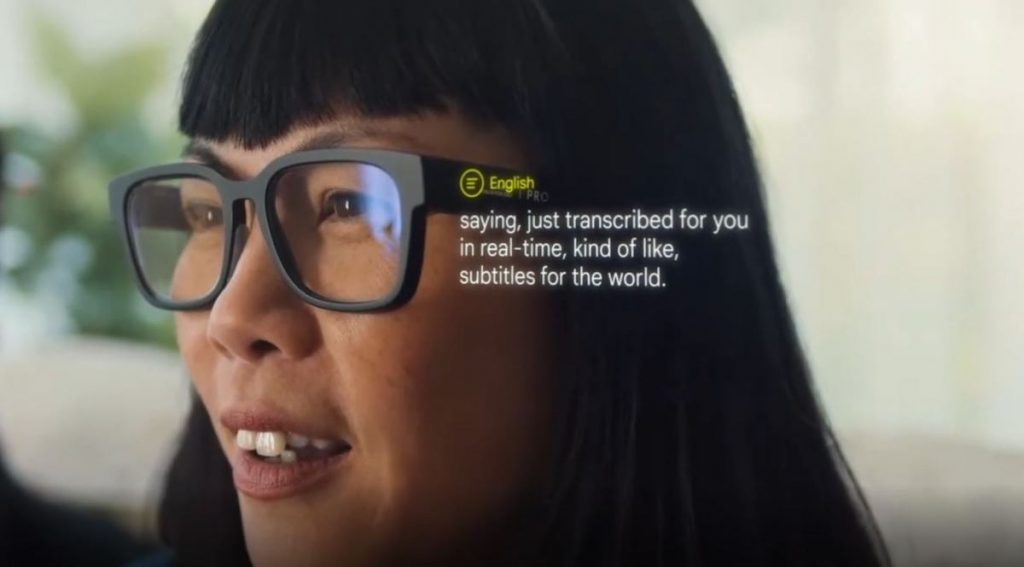
Perhaps most compelling was the on-stage demo of Android XR, Google’s extended reality platform. Worn as glasses, the system used Gemini to identify people and objects, translate signs, and deliver real-time prompts via audio. The demo involving live translation and environmental description hinted at how XR might become a kind of assistive tech: ambient, responsive, and quietly helpful in the background. For people with vision loss, sensory sensitivity, or mobility restrictions, the implications are substantial.
Project Astra and AI Ultra
Looking further ahead, Google previewed Project Astra, an AI agent designed to proactively interpret the world. In demos, Astra responded to what it saw and heard offering help without being asked. While still early, it reflects a vision of AI that’s always-on, context-aware, and designed to quietly assist in the background.
Alongside that, Google introduced a new premium AI Ultra subscription tier. For £234.99/month, users get access to tools like Flow, Veo 3, early Gemini agents, and priority support. As AI tools become more central to how we work, create, and communicate, these kinds of tiers will raise important questions about who gets access and who’s left behind.
Implications and Impact
Google I/O 2025 wasn’t just about showing off what’s possible with AI it was about laying the foundation for how these systems will be used. Imagen, Flow, Veo, Lyria these tools suggest a future where expression becomes more fluid and multimodal. Gemini Live and Android XR offer hints of a hands-free, more contextual approach to assistance one that could prove deeply valuable for many disabled users.
Accessibility wasn’t always the headline, but it was there, baked into demos, embedded in product decisions, and increasingly part of the conversation. As always, the real test will be how these tools work in the hands of users and how they experience and use them – will they feel intuitive, helpful, and empowering? Or will they raise new barriers? Either way, it’s clear that accessibility is no longer something added after the fact, it’s part of where technology is heading.
The path Ahead
Taken together, WWDC and Google I/O 2025 show just how central accessibility, design, and AI are becoming to the future of technology. Not everything launched this year was bold or showy but beneath the surface were some significant shifts: more inclusive defaults, quieter forms of support, and new creative possibilities that weren’t imaginable even a few years ago. The challenge now is to ensure these tools evolve in ways that support everyone not just the average user, but those whose needs are often left at the edge of innovation.
As always, I’m keen to hear how you’re using mobile technology, AI, and anything else that’s helping (or hindering) your digital experience. If there’s a topic you’d like to see covered in a future newsletter, or if you have a question or need technical support, please don’t hesitate to get in touch.
Martin Pistorius Karten Network Technology Advisor
It’s more than fair to say, that since November of 2020 when the first genuine pair of smart glasses for visually impaired people was released, that the competition in this particular market has evolved and is growing at a phenomenal rate as more and more companies are entering the space with ideas on how to solve age old problems we experience in our daily lives. These issues mainly relate to problems with reading and identifying text, navigating safely, locating objects and having a clear idea of your surroundings.
In terms of reading text and detailed scene descriptions, there are many different solutions currently available whether it’s an app on a smartphone or a specialist device. However, the two issues I personally find most challenging are navigating safely when both indoors and outdoors and locating different objects accurately and with confidence, which could be about to change, thanks to a new pair of smart glasses Seva Vision.
I am now involved in testing the software for the developers and the results, even at this early stage have been rather extraordinary and already have the potential to be extremely unique, life changing and can give information and details which are different to any other similar device I have previously tested.
Now in all honesty, it’s the “navigation” and “find object” features which have really got me excited. I’ve used similar features on other devices before, but none of them come anywhere close to matching the level of accuracy and detail in the Seva Vision Glasses.
Most other devices will just give a general description of objects such as “there is a table and two chairs in front of you.” You have no idea how far away the items actually are or exactly where they are actually located. However, the Seva Vision Glasses take this to the next level by giving the exact location of objects and how far away they are, which gives me access to more information than I have ever had before. Similarly, when using the “navigation” feature, audio instructions are given on where there are clear paths and the direction to go, but they then go the extra mile by giving additional information such as “walk for three meters and follow the wall on your right”, which could be extremely useful for cane users, in particular. The Seva Vision glasses also have some other interesting features such as face recognition, magnification and an SOS feature which allows you to call a designated contact in an emergency.
The text reading features on these glasses are vision based so still quite basic, however the next edition will be OCR enhanced, meaning you have more useability and can read offline, which is much more beneficial. The scene description feature is very detailed, but this sort of AI is already being used on lots of different devices, though it will be a massive and integral part of these glasses going forward.
What is also great is that the glasses can be personalised to provide the priorities and features most suitable to an individual, for example, digital zoom features for those with Low Vision making zooming on TV programs or small prints possible.
Some final points to make are that while most similar devices require a smartphone app to drive them in some way, the Seva Vision Glasses can be used completely on their own without the need for a mobile phone tether. They can be controlled via a touchpad or most interestingly, completely by voice activated commands, meaning that I have a completely hands-free solution which is a huge help, especially when using my Guide Dog. If you were to purchase the Seva glasses, they are supported by a SEVA on the GO pack; wi-fi dongle, a portable battery, Bluetooth speaker and magnetic charger, so you never need to worry about overuse, you can charge them while wearing and using them.
Unlike other consumer products in the market, SEVA is a specialist product dedicated to the Blind and Low Vision community to meet their special needs. SEVA is hardware agnostic providing them the freedom to bring versatile frame options in the future through manufacturing partnerships.
To sum-up, while these glasses will evolve, it’s already great to be part of the journey and I personally can’t wait to see where they go from here, as their potential is huge. The team is continuously evolving software & hardware to bring advance features to the community, and new and long-lasting hardware is already in the pipeline.
So, without doubt, extremely exciting times are ahead.
A little about Purview Technology, the Scottish Company behind SEVA Vision
SEVA Vision was founded by Mani Gupta and Reddy Punna, both core technologists with over three decades of industry experience, dedicated to delivering cutting- edge solutions to clients. As industries increasingly adopt wearables integrated with AI and AR for enhancing the capabilities of field workers, Mani and Reddy envisioned using the same AI models to assist a team member who had lost their sight at an early age. They trained the AI models to recognise everyday items like sandwiches and milk bottles in a refrigerator, allowing their blind colleague to identify objects around them. This marked the inception of SEVA Vision, with a mission to leverage AI and AR-powered smart wearables to enhance the lives of people with sensory impairments related to sight, sound, or speech.
SEVA Vision’s current glasses are now available to buy. They can be purchased as part of a subscription and licence model. All software and hardware upgrades will be free to those within the SEVA Vision Community.
Look out for Purview Technologies latest development in your next Newsletter.
Following on from SEVA Vision, Maitiri, a solution developed to support individuals who are either Deaf or hearing impaired will be launched in the Winter. Glasses are currently being designed and testing will soon be complete.
Never Miss a Word – A Guide to Teams Transcription and Accessibility
These days the use of Microsoft Teams has become quite common. Microsoft Teams has evolved from a simple communication tool to a powerful platform for meetings, collaboration teaching and more.
Microsoft Teams has made significant strides in accessibility and inclusivity by introducing transcription and live captioning features. These features are particularly beneficial for individuals who are deaf or hard of hearing, those with language barriers, or anyone who simply prefers to follow along visually – helping to avoid information shared during the Teams call from being missed.
In this article, I will guide you through how to enable and use transcription and Live Captions in Microsoft Teams, including key technical details, accessibility features, and what to do if you forget to start transcription but have recorded the meeting.
What is Transcription in Microsoft Teams?
Transcription in Microsoft Teams allows meeting content, especially the audio, to be converted into text in real-time. This is beneficial for people with hearing impairments, those who prefer reading to listening, or those who simply want to refer to meeting details at a later time. Teams can transcribe spoken content and display it alongside the meeting video feed, allowing people to follow the conversation in both audio and text formats. The meeting transcription can also be downloaded or shared after the meeting.
How to Enable Transcription in Microsoft Teams
For Microsoft 365 Admins
Before users can take advantage of transcription in Microsoft Teams, there are several steps a Microsoft 365 administrator needs to follow to enable this feature.
Ensure Microsoft Teams is Up to Date: The transcription feature is available to users with an up-to-date version of Teams. Admins should ensure that all users are on the latest version of Microsoft Teams.
Verify Licensing: Transcription in Teams is part of Microsoft 365 enterprise plans (such as Business Standard, Business Premium, or Enterprise E3/E5). Admins need to verify that the organisation has the necessary licenses to access this feature.
Enable Cloud Recording: Transcription works with cloud-based recording. Admins should ensure that cloud recording is enabled in the Teams Admin Center:
Under Recording & transcription, ensure that the “Allow transcription” option is turned on. Note: Recording & transcription is typically found within the “Global (Org-wide default)” policy. Tip: Provided you have sufficient permissions, this can also be enabled in the Teams app under Admin> Settings > Meeting “Allow transcription” toggled to On.
Set Up Permissions for Recording and Transcription: Ensure that the appropriate permissions are granted to users who need to record meetings. The “Allow Cloud Recording” setting must be enabled for users to record meetings and access transcription features.
Activate Live Captions and Transcription: In the Teams Admin Center, make sure the live captions and transcription setting is enabled globally or for specific user groups.
Go to Teams Admin Center > Meetings >Meeting Policies>Live Captions.
Set the default language for captions and transcriptions.
Ensure “Allow transcription” is toggled to On.
Compliance Considerations: If your organisation is subject to legal or privacy regulations or policies, please review and consider the compliance implications of transcription. Transcriptions are stored in the Microsoft 365 cloud, and sensitive information might be captured. Admins should communicate any relevant privacy policies to users.
Please note that exact location and name of setting may differ slightly depending on your Microsoft Tenancy and version of interface being used.
Enable Microsoft Teams Transcription with PowerShell
Once the feature is enabled by your Microsoft 365 administrator, people can easily enable and use transcription during meetings. Similar to recording the meeting, it is good practice at the start of the meeting to inform the meeting participants that a transcription will be automatically generated.
Starting Transcription in a Meeting
Schedule or Join a Meeting: You can either schedule a Teams meeting in advance or join an existing meeting.
Start Transcription:
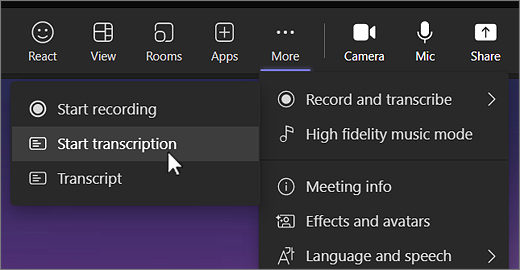
Once in the meeting, click the three dots (More options) in the meeting control bar.
Select Start transcription. This will immediately begin transcribing the conversation in real-time. The transcription will appear in a side panel (for desktop and web clients) or as captions for mobile devices.
Note: You can transcribe the meeting without needing to record it. However, if transcriptions have been enabled by the admin and you start recording your meeting, transcriptions are typically automatically created too.
Review Transcription: After the meeting, the transcription will be available in the meeting chat or under the meeting details, and typically accessible to all participants depending on the settings. Users can download the transcript as a text file in either Microsoft Word document (.docx) or a Video Text Tracks (.vtt) format or review it directly in Teams. Note: as transcripts are automatically generated, they may not be 100% accurate so you may wish to edit the document before sharing it.
Stopping Transcription: To stop the transcription, click the three dots (More options) again and select Stop transcription. The transcript will automatically save once the meeting ends. You can also stop and restart the transcription if you wish not to have a part of the meeting included in the transcription, e.g. discussing a data sensitive topic.
What if You Forgot to Start Transcription, But Recorded the Meeting?
If you forgot to start transcription during a meeting but recorded the meeting, all is not lost! Microsoft Teams automatically saves a recording of the meeting, and, in some cases, you may be able to generate a transcript post-meeting.
For Cloud Recordings: When the meeting is recorded, the video and audio are stored in Microsoft Stream or OneDrive/SharePoint (depending on the organisation’s settings). Once the recording is processed, Teams may automatically generate a transcription of the meeting if the transcription feature was previously enabled.
Manually Start Post-Meeting Transcription: If transcription was not enabled during the meeting but the recording is available, the meeting organiser can start transcription manually after the meeting ends by accessing the recording in the meeting chat. From there, the organiser can turn on transcription if the organisation settings allow it.
Note: This feature may take a few minutes to process after the meeting ends, so users should be patient while the transcription is generated.
If you find however that the transcription option is not showing when accessing the recording of the meeting, contact your Microsoft 365 administrator as they may be able to access the recording directly and generate a transcription for you.
Live Captions in Microsoft Teams
Live captions in Microsoft Teams is another accessibility feature designed to improve the meeting experience for people who are hard of hearing or in noisy environments. Similar to transcriptions Live captions display real-time transcriptions of spoken content as the participants speak. However, unlike transcriptions, Live Captions are not saved and will disappear after the meeting.
How to Use Live Captions
Enable Live Captions in a Meeting:
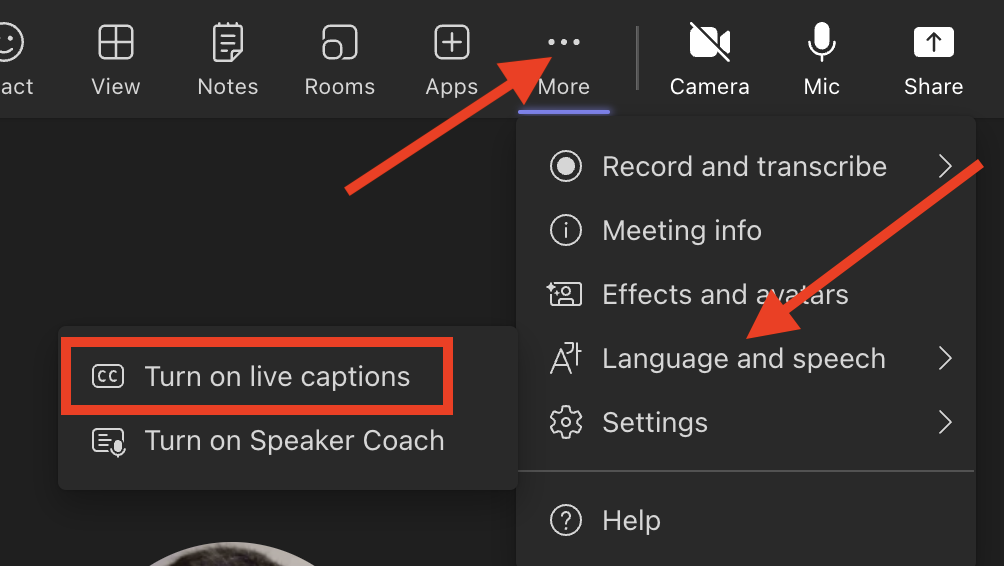
During a meeting, click the three dots (More options) in the meeting control bar.
Select Turn on live captions. This will display captions for all spoken content in the meeting, including the speaker’s name and their dialogue.
Language Options: Currently, Microsoft Teams supports live captions in several languages. The meeting organiser can set the preferred language for captions in the Teams settings (see the Teams Admin section for this). Participants can also select a preferred language for captions during the meeting.
Editing Captions: In some cases, users may be able to edit captions for accuracy. However, this is typically done at the admin level, and users should follow the compliance guidelines in place for their organisation.
Viewing Captions on Different Devices: Live captions are supported across desktop, web, and mobile devices, allowing participants to view captions wherever they are.
Customising Captions: You can customise the appearance of the caption bar, including font size, colour, and background
Accessibility Benefits of Transcription and Live Captions
Transcription and live captions in Microsoft Teams are essential tools for ensuring meetings are accessible to everyone, regardless of hearing ability or language proficiency. These features help:
Individuals with Hearing Impairments: Transcriptions and captions provide equal access to meeting content for people with hearing loss, allowing them to follow along with the discussion.
Non-Native Language Speakers: By enabling captions in multiple languages, Teams helps bridge language barriers during international meetings.
Meeting Recording and Reference: Transcriptions can be referenced later, making it easier for participants to recall key points or follow up on action items discussed during the meeting.
Conclusion
Transcription and live captions in Microsoft Teams are transformative features that improve accessibility, productivity, and collaboration for all users. With a few simple steps, both Microsoft 365 admins and individual users can unlock the power of these features to enhance the meeting experience. Whether you’re using it for note-taking, accessibility, or record-keeping, transcription and captions ensure that everyone has the opportunity to fully participate and benefit from the meeting, no matter their hearing abilities or language skills.
By leveraging these tools, organisations can create more inclusive and efficient virtual meeting environments, ensuring no one misses out on important discussions.
As always, I am keen to hear about how you are using mobile, and other technology, and AI too. If you would like to have a particular topic covered in the next newsletter, please let me know. Finally, please feel free to contact me if you have a question or need technical help and support.
In early summer people from all over the world gathered to attend two of the major developer conferences – Apple’s Worldwide Developers Conference (WWDC) and Google’s Google I/O. These events serve as the platform to announce what new advances we can expect to see on our devices in the near future. Perhaps unsurprisingly the advances and integration of artificial intelligence (AI) dominated both conferences. In this article I have highlighted some of the more interesting announcements.
WWDC 2024
Apple’s Worldwide Developers Conference (WWDC) 2024 showcased an impressive array of technological advancements, with a clear emphasis on artificial intelligence (AI). However, Apple’s commitment to creating technology that is not only cutting-edge but also inclusive and adaptive to the needs of all users continues.
Accessibility Innovations
Accessibility has long been a cornerstone of Apple’s design philosophy, and WWDC 2024 was no exception. This year, Apple introduced several groundbreaking features aimed at enhancing the user experience for individuals with disabilities. Below are some of these features. I have included some that appeared in press releases prior to WWDC.
Eye Tracking
This revolutionary feature empowers users with limited mobility by enabling complete device control through eye movements. The iPad or iPhone’s front camera tracks eye positions, allowing users to navigate the interface, interact with apps, and even type using their eyes. This is a significant leap forward in providing independent device access for individuals with physical disabilities. In keeping with Apple’s emphasis on privacy all data used to set up and control this feature is kept securely on device and is not shared with Apple. How well this compares to dedicated eye tracking systems remains to be seen. But certainly, opens up another exciting way to interact with your device, assuming it supports this feature.
Music Haptics
Designed to broaden the musical experience for those who are deaf or hard of hearing, Music Haptics leverages the iPhone’s Taptic Engine to translate music into a series of vibrations. These vibrations correspond to the music’s rhythm and intensity, creating a new way to feel the music and appreciate its nuances. This innovative approach opens up music enjoyment for a wider audience.
Vocal Shortcuts
Going beyond traditional touch or voice commands, Vocal Shortcuts cater to users who might find them challenging e.g. those with atypical speech. This feature allows people to create custom sounds that trigger specific actions on their device. Imagine snapping your fingers to take a photo or uttering an indistinguishable word to activate voice control. Vocal Shortcuts open doors for a hands-free and potentially voice-free interaction method, empowering users in unique ways.
Vehicle Motion Cues
Depiction of Apple’s Vehicle Motion Cues
Vehicle Motion Cues aim to counteract motion sickness while using your iPhone or iPad in the car. This feature utilizes the device’s sensors to detect motion and subtly adjusts display settings to combat nausea and dizziness. By reducing on-screen motion, Vehicle Motion Cues creates a more comfortable in-car experience for passengers prone to motion sickness, allowing them to enjoy games, movies, or reading without feeling unwell.
VisionOS Advancements
While specifics remain undisclosed, Apple indicated upcoming improvements to VisionOS, the operating system powering their assistive technology device, the Vision Pro. These enhancements aim to further empower users with visual impairments. It is anticipated that advancements in areas like screen narration, object recognition, and voice control. This will make the Vision Pro an even more valuable tool for daily living, allowing users with visual impairments to navigate their surroundings, access information, and perform everyday tasks with greater ease and independence.
Apple Vision Pro, now available in the UK is reported by some to be the of the most accessible device produced by Apple yet, and a testament to Apple’s commitment to accessible and inclusive design.
The Dawn of Apple Intelligence
Perhaps the most intriguing announcement was Apple Intelligence. While apple has utilised, it is unique AI in other forms (machine learning, powered by Apple’s neural engine) for years it has been slow to join the major tech companies in the AI boom. However, legal issues may mean it could be a while before Apple Intelligence appears on supported devices in Europe.
Apple has also taken the approach of working with partners to bring AI to their systems, in particular Open AI. It has been reported that this approach could allow for people to choose which AI (e.g., Google’s Gemini) they wish to use in future.
Irrespective of which LLM (large language model – the artificial intelligence) Apple Intelligence, is integrated with, it is an ambitious A.I. system designed to be more than just a digital helper. While specifics are still under development, Apple promises an A.I. experience that goes beyond basic tasks. Imagine an assistant that anticipates your needs, proactively suggesting actions, and seamlessly connects tasks across your Apple devices. This personalised approach to A.I. has the potential to significantly alter how we interact with technology in our daily lives.
Unlike virtual assistants that respond to specific commands, Apple Intelligence aspires to be proactive and anticipate your needs. Imagine an A.I. that scans your emails for upcoming travel plans and proactively suggests creating a packing list or currency converter app download. It might interact with your smart fridge, analysing your supplies and recommend adding items to your shopping list.
A major concern with A.I. assistants is your privacy. In keeping with Apple’s drive to ensure your privacy, Apple Intelligence addresses this by prioritizing on-device processing. This means your data stays on your iPhone or iPad, with only anonymised or encrypted information sent to Apple’s secure servers for more complex tasks. This focus on privacy allows you to leverage the power of A.I. with peace of mind.
Apple Intelligence goes beyond simply understanding your words; it aims to grasp your world. By analysing your emails, photos, messages, and even browsing history, it can build a contextual understanding of your life. Imagine asking “What time is mum’s train arriving?” Apple Intelligence, having gleaned “Mum” from your contacts and the train details from your inbox, can provide the answer without you needing to specify where you found the information. This contextual awareness could make interacting with your devices feel more natural and intuitive.
Apple Intelligence is not just about managing tasks; it aspires to be a creative partner. It boasts writing tools powered by A.I. that can help you rewrite sentences for clarity, summarize lengthy articles, or even generate different creative text formats like poems or code. This could be an advantage for students, writers, or anyone who wants to explore different creative avenues.
While specifics are still under development, Apple Intelligence is slated for a developer beta later in 2024 with a full launch in 2025. This glimpse into the future of A.I. assistants suggest a more personalised and helpful way to interact with technology. Apple Intelligence has the potential to become an indispensable partner in our daily lives, streamlining tasks, understanding our needs, and even fostering creativity.
At WWDC 2024 Apple unveiled several AI-driven features designed to enhance user experience across its ecosystem they include:
Image Playground
Apple’s Image Playground, an AI-powered tool that lets you create playful images directly within Apple’s existing apps. By describing concepts, choosing themes, or referencing people in your photos, Image Playground then generates unique illustrations, animations, or sketches. This user-friendly feature prioritizes fun and personalization, offering a range of artistic styles to match your creative vision. With Apple’s on-device processing for privacy, Image Playground empowers you to add a spark of AI generated flair to your messages, notes, presentations, and more.
Genmoji
While the not a standalone app, the Genmoji feature expected to be included in the Messages app and possibly elsewhere. It will allow you to generate your own custom emojis by entering a descriptive prompt. For example, “a t-rex wearing a tutu on a surfboard”.
AI-Enhanced Photos and Videos
The Photos app will now include advanced AI capabilities that automatically enhance images and videos, making them clearer and more vibrant. This feature is particularly useful for users with visual impairments, as it adjusts the content to be more distinguishable and enjoyable.
Siri 2.0
The latest iteration of Apple’s voice assistant, Siri 2.0, leverages advanced AI to provide more contextually aware and conversational interactions. Siri can now understand and process more complex queries, offering more accurate and relevant responses. This upgrade makes Siri not only more useful but also more accessible to users with varying needs.
Other announcements
While there were many more improvements and innovations announced at WWDC the last two I would like to mention are:
Calculator app for iPad
Apple’s Calculator for iPad in action, including Maths Notes
For years, there wasn’t native iPad Calculator app. It is reported that Steve Jobs was never satisfied with the calculator app for iPad, feeling it lacked something. However, Apple has finally announced that iPadOS 18 boasts a built-in Calculator app!
This addition is a game-changer for students, professionals, and anyone who needs to crunch numbers on the go. No more hunting for third-party apps or relying on web-based solutions. The built-in Calculator app puts essential calculations at your fingertips, seamlessly integrated into the iPadOS experience.
Apple is not simply porting a phone app to a larger screen. The Calculator app is designed to take advantage of the iPad’s spacious display. Expect a well-organized layout with clear buttons and ample space for calculations. This makes it easier to see what you are doing, reducing errors and improving overall usability.
While the core functionality focuses on addition, subtraction, multiplication, and division, the Calculator app offers additional features:
Scientific Mode: For those who need more advanced functions, a scientific mode could be included, providing access to trigonometry, logarithms, and other complex calculations.
Unit Conversion: Imagine easily converting between units of measurement like temperature, length, or currency right within the app. This eliminates the need for separate conversion tools, simplifying everyday tasks.
History Tape: Keep track of your calculations with a history tape feature. This allows you to review previous calculations, double-check your work, or pick up where you left off on a complex problem.
The built-in Calculator app might integrate with other iPadOS apps, allowing you to seamlessly copy and paste calculations between them. Imagine performing calculations in the Calculator app and then easily pasting the results into a spreadsheet or a notes document. This streamlines workflows and eliminates the need for manual data entry.
To compliment the Calculator app Apple’s announced the innovative Math Notes feature introduced in iPadOS 18. This built-in Calculator function goes beyond basic calculations. Simply write out your math problems with your Apple Pencil on the iPad screen and watch as Math Notes recognizes your handwriting and solves them in real-time! No more clunky typing or struggling with equations. Math Notes can handle everything from basic arithmetic to complex functions. It even understands variables, allowing you to explore different scenarios within your equations. Plus, the ability to solve problems directly on your notes keeps your work organized and eliminates the need for separate scrap paper. The experience is further enhanced by the new Smart Script feature which smooths and straightens your handwriting as you write, making it instantly neater and easier to read.
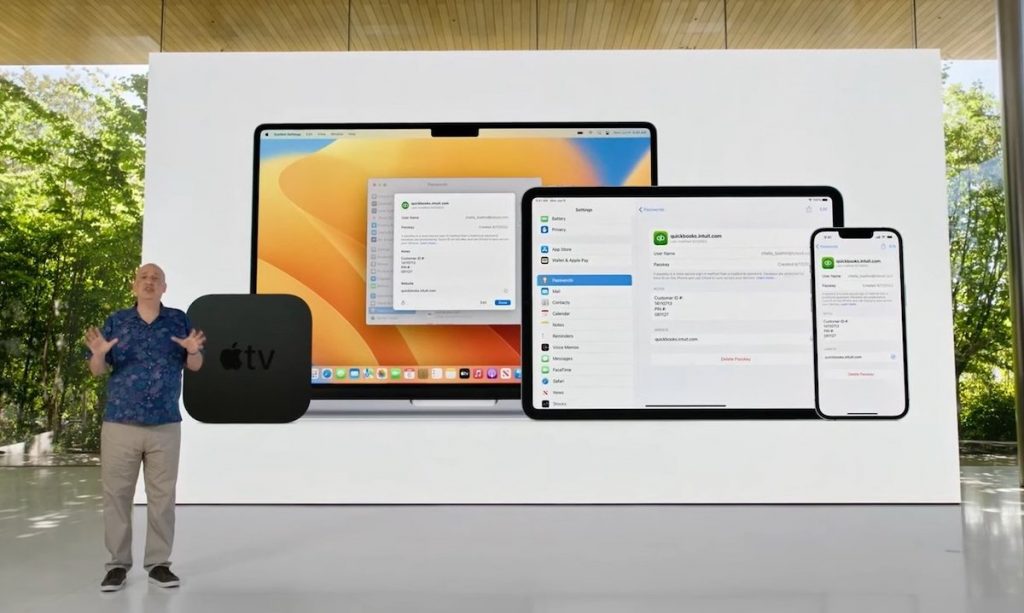
Standalone Passwords App
Managing passwords securely across a multitude of websites and apps can be a constant struggle. Apple addressed this with the introduction of a standalone Passwords app, a significant improvement on the previously buried functionality within Settings.
No more digging through menus! The Passwords app offers a centralized location to view, manage, and store all your login information. This includes website usernames and passwords, Wi-Fi network passwords, and potentially even passkeys, a new emerging secure login method.
The app categorizes your logins clearly, making it easy to find the specific credentials you need. Imagine separate sections for frequently accessed websites, social media accounts, and email logins, allowing for quick retrieval and organization.
Building on Apple’s existing security features like iCloud Keychain, the Passwords app is designed to keep your data safe. Features like strong password generation and automatic filling of login information across apps streamline the process while maintaining security.
The Passwords app integrates with other Apple products. You can expect features like:
Cross-device Syncing: Access your passwords from any Apple device, be it your iPhone, iPad, or Mac. Your login information stays up-to-date and readily available, no matter which device you’re using.
AutoFill on Browsers: The app integrates with Safari and other browsers, automatically filling in login information when you visit a website. This eliminates the need to remember complex passwords or manually type them in, saving you time and frustration.
Windows Compatibility: Even if you use a Windows PC alongside your Apple devices, you’re not left out. The Passwords app can be accessed through the iCloud for Windows app, ensuring you have your logins at your fingertips regardless of platform.
The Passwords app directly challenges third-party password managers like 1Password and LastPass. With its focus on simplicity, security, and integration within the Apple ecosystem, it has the potential to become a go-to solution for Apple users who want a secure and convenient way to manage their login credentials.
Google I/O
Similar to WWDC, Google’s annual developer conference, I/O, focused heavily on artificial intelligence, and its integration into Google products. The announcements focused more on the evolution of Google’s AI than new developments. That said, there have been significant advances to Google AI, Gemini. In fact, Gemini seemed to dominate the conference.
Gemini 1.5 signifies Google’s continued commitment to pushing the boundaries of AI. Powerful AI models use a Large Language Model (LLM), this means the model is fed massive amounts of text data to understand and generate human language. In context of large language models (LLMs) like Gemini 1.5. The latest version of has a 2 million Token Context Window. In simple terms an AI “token” means a unit of information that it has learned from. A “Context Window”is the amount of data the LLM considers when generating a response or completing a task. Imagine it like a window that the LLM uses to peek at the surrounding information to understand the current prompt or question.
One of the key strengths of Gemini 1.5 is its ability to understand and process information within a much larger context. Compared to its predecessor, Gemini 1.0, it boasts a significantly longer context window, allowing it to grasp the nuances of information spread across vast amounts of text, code, audio, or video. Unlike many AI models focused solely on text, Gemini 1.5 is a true multimodal powerhouse. It can process and understand information presented in various formats, including images, audio, and video. This versatility allows it to tackle a wider range of tasks. For example, imagine describing a scene you want to create in a video; Gemini 1.5 could analyse your description and generate visuals based on your input.
Gemini 1.5 is not a single entity, but rather a family of models with varying capabilities. Google offers a mid-sized “Pro” version optimized for a wide range of tasks and a “Flash” version focused on speed and efficiency. This allows developers to choose the Gemini model best suited for their specific needs. The Gemini family also includes Gemini Nano. This lightweight version allows Gemini to be used in the Chrome browser and could significantly enhance web browsing experiences by offering advanced capabilities like real-time translation, content summarisation, and code generation. It also allows for Gemini to be included on mobile devices.
In fact, Gemini will be integrated throughout Google’s products such as Gmail and Docs.
Revamped Search Engine
The advances also mean a revamped Search Engine built using the AI. This could be a major game-changer in how people find information online. Google is also working on Gemini agents to complete tasks like meal or trip planning. You would be able to type queries like “Plan a meal for a family of four for three days”. The AI will then provide you with recipes and links for the three days.
Ask Photos
Gemini is also making its way into Google Photos. While still in the experimental phase the Ask Photos feature will allow users to search across their Google Photos collection using natural language queries that leverage an AI’s understanding of their photo’s content and other metadata. While it has been possible to search for specific people, places, or things in the photos, thanks to natural language processing, the AI upgrade will make finding the right content more intuitive and less of a manual search process.
Imagen 3
Imagen 3 is Google’s latest and most advanced text-to-image generation model. It builds upon its predecessors, offering a significant leap in image quality. It can generate incredibly realistic and detailed images that closely resemble photographs. Imagine describing a fantastical landscape with waterfalls cascading down mountains shrouded in mist, and Imagen 3 could generate an image that captures the scene with breathtaking detail.
Google would like this advanced AI model to be a tool that empowers everyone to unleash their creativity. By simply describing your concept in text, you can generate unique and visually captivating images. This opens possibilities for:
Storytelling and illustration: Bring your stories and ideas to life with stunning visuals. Generate illustrations for your blog post, create storyboards for your animation project, or visualize your next marketing campaign.
Design and Prototyping: Imagen 3 can be a valuable tool for designers and product developers. Quickly generate mock-ups and prototypes of your design ideas without needing to spend hours crafting them manually.
Education and Exploration: Imagine exploring historical events or scientific concepts through AI-generated visuals. Imagen 3 has the potential to revolutionize the learning experience by making abstract concepts more tangible and engaging.
Imagen 3 goes beyond just generating images based on simple text descriptions. Imagen 3 allows you to take an existing picture and add elements to it, change the background, or adjust the overall style. Imagine taking a vacation photo and adding a fantastical creature into the scene for a touch of whimsy.
Imagen 3 is designed to run entirely on your device, so your prompts and the generated images remain private and secure. This ensures you maintain control over your creative process and protects your data and privacy.
One of the more exciting announces was Veo. Google DeepMind’s Veo, is a groundbreaking text-to-video generation model. This innovative AI tool takes your textual descriptions and transforms them into dynamic and visually stunning videos.
While other AI models excel at generating realistic images, Veo goes a step further by creating videos complete with motion, lighting effects, and even camera movements. Describe a bustling city street at night, and Veo might generate a video displaying the neon lights, moving cars, and bustling crowds.
This technology holds immense potential. You could bring your stories and ideas to life with captivating animated sequences. Imagine creating storyboards for your animation project or generating explainer videos for your blog post.
While details about Veo’s public availability are limited, its development signifies a significant leap in AI-powered video creation. As this technology continues to evolve, we can expect even more sophisticated and user-friendly tools that will revolutionize the way we create video content.
Google’s Veo paves the way for a future where creating videos becomes more accessible and intuitive. With the power of AI-powered text-to-video generation, anyone with a creative vision will have the potential to bring their ideas to life on screen.
LearnLM
Google unveiled LearnLM, this is an interesting use of AI to support education allowing questions to be asked about a YouTube video, or a quiz to be created. While this is still in the experimental phase, it is already powering features across Google products, including in YouTube, Google’s Gemini apps, Google Search and Google Classroom.
Project Astra
Finally, Google’s Project Astra, aimed and developing Google’s future vision for AI that combines multiple sensory inputs (sight, sound, voice, text) and has the potential to revolutionize human-computer interaction. It is well worth taking a moment to watch the videos showing Gemini Live. What is impressive of the video is not only the speed of processing but the fact that the system is able to capture, store and use the information to answer a question like, “Do you remember where you saw my glasses?”. This shows the huge potential future digital assistants could have.
Whether from Google, Apple, Microsoft, Amazon or elsewhere it is clear that AI will continue to permeate our lives. As always, I would like to hear about how you are using mobile, and other technology, and AI too. If you would like to have a particular topic covered in the next newsletter, please let me know. Finally, please feel free to contact me if you have a question or need technical help and support.
The world has been all abuzz with talk of the increasing use of artificial intelligence, AI. While the field of AI has been around for many years, with the famous computer scientist and mathematician, Alan Turing writing about the “imitation game” in 1950. This later became known as the Turing test – a test to establish if a machine could be so good at mimicking human responses that, you can’t tell if you are interacting with a human or a computer.
AI has been quietly making its way into our lives. Apple’s Neural Engine, a form of AI was first introduced in the A1 Bionic chip found in the iPhone 8 in 2017. Today AI is found in mobile and other devices we use without even thinking about it.
However, it has only been since the wider release of OpenAI’s ChatGPT in 2022 that AI has come to the foreground of our awareness. We have since seen a plethora of AIs emerge, some using OpenAI, some using their own.
Despite some fears and concerns AIs can being very useful and fun to interact with. In this article I will focus on some generative AIs used to create images.
A generative AI, as the name suggests, using its trained model to create something, based on the data it’s given, in the case of the AIs listed in this article, some descriptive text data.
Midjourney
Midjourney quickly earned a reputation for producing rich coherent interesting and visually appealing images. Initially you were able to use Midjourney for free, however the free trail option is currently suspended. You now require a subscription to use the service. Subscriptions start from $10 a month or $8 a month for an annual subscription. This equates to being able to generate approximately 200 images a month.
Currently, you can only interact with Midjourney through Discord, making the interface a little tricky to use. You generate an image by typing the prompt /imagine followed by a description of whatever you would like to create. The AI will then generate four images you can then choose to either download, upscale, or re-edit, the image.
Your generated images are public, so can be viewed by anyone who is connected to Midjourney’s Discord server. People can also view which images you have created by looking at your profile. This, and the fact that you can access other Discord servers is something to be mindful of there are eSafety concerns.
Midjourney are currently testing a web app which means the AI image generator will soon be easier to access and use.
OpenAI’s DALL·E 3 is perhaps the biggest and most popular AI image generator. DALL·E 3, is a significant improvement on the popular previous version, DALL·E 2. DALL·E 3 uses ChatGPT-4’s understanding of language to expand your prompts and as a result it produces more interesting, realistic, and consistent results.
The biggest advantage to using DALL·E 3 is it’s easy to use, particularly if you are familiar with ChatGPT. Currently DALL·E 3 is only available to ChatGPT Plus subscribers. A subscription starts from $20 a month. However, you can access DALL·E 3 for free if you have a Microsoft account and use Microsoft’s Image Creator. See the DALL·E 3 web page for more information.
Microsoft’s Image Creator
Microsoft Designer is a feature rich AI-powered graphic design tool. Currently, Microsoft Designer is in preview (i.e. testing phase) and is free to use. Microsoft states that once Microsoft Designer is officially released it will remain free, but more advanced features would then require a Microsoft 365 subscription.
Within Microsoft Designer is Image Creator, this uses OpenAI’s DALL-E 3 to generate images. The Image Creator is incredibly simple to use and produces images for each prompt you enter. Depending on the current server load, it can take some time for the images to be generated. These images can then be either downloaded, edited or opened in Microsoft Designer to create things using the image. See the Microsoft’s Image Creator for more information.
DALL-E 3 is also available through Microsoft’s AI chatbot, Copilot. Simply ask Copilot to create an image for you. You will, however, need to be signed into a Microsoft account to do this.
DreamStudio
DreamStudio is a powerful image generating AI. It is the official Stable Diffusion web app. DreamStudio allows you to enter various parameters for the images you would like to create. While this gives you greater control, some people may find the additional options confusing. DreamStudio do however provide a good user guide. Currently, DreamStudio requires you to purchase credits in order to generate images. However, you are given 25 credits for free when you create an account which is enough to get a good sense of what DreamStudio is like. See the DreamStudio website for more information.
Adobe Firefly
Adobe is a company that has quietly been working on AI for more than a decade. This is evident with their image generator AI, Firefly. Firefly can be accessed through a web browser. However, it is also making its way into Adobe’s products like Photoshop.
A lot of the current generative image AIs struggle with text generation (i.e. text within an image). Firefly however seems to cope really well with this making it a useful tool for creating images that need to include text, e.g. a logo.
Similar to DreamStudio, the Firefly interface is packed with options that stem from Adobe’s image creation and editing heritage, making it a truly powerful tool.
Adobe Firefly can be accessed through a free individual account that includes 25 credits a month. If you require more then there are various payment plans available, including discounted rates for Students and teachers. See the Adobe Firefly website for more information.
Google’s ImageFX
Google, a bit late to the AI image generator space have produced an AI that is capable of generating high-quality, realistic images, including objects that are difficult to render, such as hands.
Google’s ImageFX interface is filled with features, that make it easier to refine your prompts or generate new ones via dropdowns. ImageFX also provides style suggestions for example photorealistic, 35mm film, minimal, sketch, handmade, and more. This combination of features makes ImageFX perfect for beginners who want to experiment.
Google’s ImageFX is free to use, but does require a Google account. It can be accessed through a web browser at Google AI Kitchen. While you are there, be sure to check out MusicFX.
As always, I would like to hear about how you are using mobile, and other technology, and AI too. If you would like to have a particular topic covered in the next newsletter, please let me know. Finally, please feel free to contact me if you have a question or need tech help and support.
Advancements in technology continually transform the landscape of education. At our college, we have embraced Virtual Reality (VR) to enhance and elevate students’ learning journeys.
What is Virtual Reality?
It’s a realm of simulated three-dimensional environments where users can immerse themselves, interact, and explore. These digital worlds can range from entirely fictional realms to life-like replicas of real-world settings and scenarios.
Equipped with motion sensors and tracking technology, VR headsets transport students into these immersive environments. They can freely look around and navigate, fostering a tangible presence that blurs the boundary between what is real and what is simulated. With controllers in hand, students can manipulate objects within the virtual space, further enhancing their interactive experience. While some applications support hand-tracking technology, it is not universally integrated yet.
It is essential for us that students distinguish between reality and unrealism; that is one of the reasons why we project the ongoing sessions.
How do we use Virtual Reality?
We collaborate closely with subject teachers, tailoring VR experiences to align with students’ educational objectives.
By leveraging the extensive library of apps and games available in the Meta VR ecosystem, we empower students to engage with their learning in novel and impactful ways.
Even if students prefer not to wear headsets or experience discomfort such as motion sickness, they can still participate in sessions and collaborate with their peers. Our VR initiatives are not just about immersion; they are about inclusivity and flexibility in learning.
Let us take a glimpse at how VR intersects with GCSE English:
Engaging in Escape Rooms fosters creativity, promotes problem-solving skills, enhances reading comprehension, and cultivates teamwork.
Crafting Virtual Mind Maps aids students in organizing their thoughts, refining their writing abilities, and structuring their ideas effectively.
What lies ahead in our VR journey?
We are actively expanding our VR curriculum, integrating it with Sports, Maths, and Science subjects.
The response from students has been overwhelmingly positive, with enthusiastic engagement and eagerness to explore new horizons. Our teachers are equally excited, witnessing firsthand the transformative impact of VR on student learning.
We are not just embracing technology for technology’s sake. We are exploring it to unlock new realms of educational possibility, fostering creativity, collaboration, and discovery.
Seashell is an extraordinary place for extraordinary young people. We support children and young adults with the most complex needs in the country to reach their potential through our specialist school, college and residential care facility.
Seashell were kindly provided with two Drive Decks (left) by the Ian Karten Charitable Trust. This allowed us to have one based in our specialist school and one in the college. These have been hugely beneficial to Seashell and are being used in several ways to benefit our learners across our site.
Smile Smart Tech describe their innovative Drive-Deck device as a “Unique training and assessment device which allows wheelchair users to remain in the comfort of their personal seating to train in using switches and control use”.
The drive deck allows an individual to learn and practise the skills needed to drive their wheelchair, using any kind of switch. The deck has several options to be accessible to a multitude of learners:
A drive Deck can be set to follow a track and activated with a single switch; an accessibility feature that allows learners with complex needs, at the start of their wheelchair driving skill progression, the opportunity to learn safely. With the introduction of more switches, alongside experience and training using the equipment, an individual can learn to drive their wheelchair off a track – in Free Drive mode.
My name is Ted and I have been the Assistive Technologist for Seashell Royal College Manchester since Jan 2022. When I started in post the Drive Decks had already been funded and provided to us by the Karten Trust. Since then, I have utilised and evolved the college’s use of them.
I now run Drive Deck sessions multiple times a week. I have collaborated with our Occupational Therapy (OT) department to embed sessions, skill learning, and progressions into the college students’ use of the Drive Deck. Together with OT we have embedded the use of the drive deck into our switch skills progression matrix.
Currently we are using the Drive Deck in three distinct ways in students’ Drive Deck sessions:
Used for further switch progression and development: The Drive Deck provides an innate way of introducing and embedding more switches to control more aspects of driving, if this is the switch progression our students are on.
Adapted, fine motor rehabilitation: I have recently had wonderful success using the Drive Deck with a student who recently suffered a stroke and lost a vast amount of his left hand and arm usage.
This learner, who uses a standard wheelchair, previously had the capability of self-propelling himself functionally using both his hands. This student’s OT and I have devised a weekly session where he is being supported to re-learn to use his left hand and arm. At the start of these sessions the student was very resistant to any encouragement and prompting to engage with his left arm.
However, driving the Drive Deck quickly became very motivating for him; especially with the introduction of a preferred and motivating P.O.L.E (*person, object, location, event) at the end of the track, in the form of switch activated music on a large interactive whiteboard. This allowed the learner to activate a switch with his left hand, with staff modelling and prompting the repeated action of this; and once he has driven to the end of the track, he activates his favourite music, again using his left hand and a second switch.
This learner’s OT has fed back that; “The use of the drive deck has been integral in the rehabilitation of a young adult who had upper limb surgery to reduce contractures. Switch activated motion on the drive deck has proven to be an intrinsically motivating activity for this young adult with a clear cause and effect structure allowing it to be accessible for them. This has facilitated our ability to utilise both neuroplasticity and his own volition to increase the functional use on a non-dominant hand post-surgery. This would not have been possible without OT and AT collaboration and highlights the importance of a continued relationship between the two professions.” – Dionne Nmai, Seashell Trust Occupational Therapist
OT and I have been blown away by the rapid rehabilitation benefits of using the Drive Deck in this way, and this has opened our eyes to further ways of using this equipment with Seashell learners.
Switch use progression in driving/ self-propelling: working towards an assessment for a switch adapted powered wheelchair. Working in conjunction with Smile Smart, the Drive Deck can be used for assessment as well as training and experience on switch-wheelchair driving. This can lead to an assessment, given by, Smile Smart to evaluate an individual’s skill set and overall use of the Drive Deck equipment and determine whether they are ready and would further benefit from a Smile Smart Powered Wheelchair.
Smile Smart System (SSS) Powerchairs are adapted personal powered wheelchairs tailor-made to an individual specification. SSS powerchairs are modified using a wide range of controls and switching to offer optimum comfort, freedom and independence for the user.
These unique powerchairs come with anti-collision sensors, voice confirmations, pre-determined track following, speed and motion controls.
Here at Seashell, I am very proud to say, I am about to undertake my first student assessment for a Smile Smart System Powerchair. This young man has been working with the college Drive Deck for the past 18 months. He has progressed from using one switch, driving on a track, to using a bespoke layout of three switches to drive forwards and turn left and right in Free-drive mode, being able to choose where he wants to Drive to. In this way the Drive Deck is offering this individual an opportunity that he would not be able to experience without this equipment.
Working as an Assistive Technologist I have not come across a similar or alternative method of offering support, training, experience and assessment for switch-users learning wheelchair driving who cannot self-propel or use a typical powered wheelchair joystick. Our OTs report that:
“The drive deck is used both as an assessment and intervention method, with progress tracked using GAS goals as an outcome measure. Initial assessments inform the clinician’s understanding of gross and fine motor movements, including range of movement and limb function, what style of switch would be appropriate for use, and what POLEs the student may find motivating in addition to the drive deck itself.
Following assessment, OT and AT design interventions dependent on intended outcomes for the student. In the case of one student, the drive deck session is being used to increase participation in switch-based activities, promoting increased upskilling through repetition with familiar switches and POLEs.
For another student, initial use of the drive deck for switch work indicated the potential for the development of skills in independent driving and has led to AT arranging an external assessment for the student to be considered as a potential powered wheelchair user. A third student engages more consistently in drive deck sessions than in other switch work, and uses the drive deck functionally to practice upper limb control, which can be particularly tiring for them physically. In all cases, the drive deck has been utilised with full-time wheelchair users whose physical or medical conditions present a barrier to independent movement, and in all cases consistent motivation has been observed when the student is able to move themselves with greater autonomy, whether for
learning cause and effect, practicing switch-operation skills, or developing driving skills.” Lucy Basing, Seashell Trust, Occupational Therapist.
Going forward I would like to offer other services within the Network, and any around the Northwest; who may be considering the purchase of a Drive Deck the opportunity to get in touch with myself, and try the equipment with us on site here at Seashell. I would be happy to coordinate visits where you could see the kit yourself, and observe the sessions we run with our students.
The Ian Karten Charitable Trust, in providing the funds for the Drive Decks we have at Seashell, has immensely improved the service we are able to offer the Young Adults we support; and the benefits of the Drive Decks are vast, unique, and still evolving.
Thank you to Smile Smart Technology, and to the Ian Karten Charitable Trust for making this possible.
With the festive season upon us, I thought to provide a sprinkling of stocking filler tips to bring some cheer while using the technology you use on a regular basis.
Microsoft Teams
Muting
Anyone who has used Microsoft Teams will be all too familiar with “You’re on mute”. What you may not know is you can help them out, by unmuting them. You will however need to either be the meeting organiser or have been assigned as presenter. If you have either of these roles, you will be able to unmute a fellow participant by clicking on their name and selecting the Unmute Participant. Similarly, you can choose to mute them too.
Note: Microsoft Teams will by default mute anyone joining a meeting in progress when there are 5 or more participants. This is aimed at reducing distraction.
Rich-text Messages
There may be times when it would help to add format and structure to messages. To do this, simply click on the ‘A’ icon/button on the bottom left of the text entry window. This will expand the text window and provide you with options to add format and structure to the text, before sending it.
Keyboard Shortcuts
Keyboard shortcuts can be a quick and easy way to use an application. They can also be used to setup assistive technology (e.g. The Grid) to perform various actions. Three common ones are:
Microsoft Immersive Reader enables you to adjust how the text is displayed, removing distractions as well as being able to have the text spoken aloud. You can launch the Immersive Reader option by hovering over a message with your cursor and clicking the ellipsis. Note that Immersive Reader may be found under the “More actions” the first time you use it.
The live transcriptions feature, as the name suggests, generates a transcription of everything said during a meeting/call. This could make the meeting more accessible and help others who missed part of the meeting. It will also make captions available in the post-meeting recording.
This feature, however, can only be activated from the desktop (i.e. not in a browser) version of Teams. It also typically needs to be enabled from within your Microsoft 365 Teams Admin section. This may require asking IT or the person who administers your Microsoft 365 tenancy to do so.
To start Live Transcriptions:
Go to the meeting controls and select “More actions”
Choose “Record and transcribe”, and select “Start transcription”.
All the participants will see a notification that the meeting is being transcribed. The transcript appears on the right side of the screen.
Note: If you also want to record the meeting, select More options again and this time choose Start recording.
Live Captions
Live captions will display all the words spoken as text on the screen. The font size and position can be customised to suit.
To start Live Captions:
During a meeting. Go to the meeting controls and select “More actions”
Select “Language and speech”, and then “turn on live captions”.
Live captions can be toggled off at any time during the meeting by repeating the process.
Set status duration
By defaults Teams changes your status after 5 minutes (e.g. from Busy to Away.) You can however set a status duration that suits your needs.
To do this click on your name and set your status. From within the status options, select “Duration”; set your desired status and for how long that status should remain active.
iPad
Scan documents
An iPad or or iPhone can be used to scan documents, through the Apple Notes.
To Scan a document
Open the Notes app and select a note or create a new one.
Tap the Camera button, and then tap “Scan Documents” .
Place your document in view of the camera.
If your device is in Auto mode, your document will automatically scan. If you need to manually capture a scan, tap the Shutter button or press one of the Volume buttons. Then drag the corners to adjust the scan to fit the page and tap Keep Scan.
Tap Save or add additional scans to the document.
Virtual trackpad
It can sometimes be useful to be able to move the cursor within a section of text, for example when writing an e-mail. By touching your two fingers on the on-screen keyboard and moving them across the keyboard, the cursor will move as you move them. Note: this does not work if you are using a different keyboard app to Apple’s default one.
Voice assistants
In the festive season here are some fun things to try with your voice assistant.
Ask Siri “I see a little silhouetto of a man”
Playing a game, can’t find or use a dice, simply ask, “Alexa, roll a dice.”
Say, “Alexa, Beatbox for me”
Say, “Alexa, We don’t talk about Bruno”
Say, “Alexa, drum roll, please.”
Say, “Alexa, rap for me.”
Say, “Alexa, meow.”
Ask, “Alexa, how many sleeps until Christmas?”
Wishing you a very happy peaceful festive season and may 2024 be a good year for you. As always I am available to provide to support and help where I can, whether that be on using Microsoft Teams, Microsoft 365 in general, mobile technology, Smart Home technology or something else .
I recently qualified with my third Guide Dog, Dax and to help him with learning routes and for my own confidence and piece-of-mind. I worked with my Guide Dog instructor around my home area and used a specialist GPS and navigation device called the StellarTrek to mark all of the places I go to on a regular basis. This was enormously helpful, as Dax is still very young and while he keeps me safe in terms of obstacle avoidance. I am able to keep him right and give him correct directions when navigating to places like the local shops, football ground and to the local café for a nice cup of tea.
Dax has since mastered all of our home routes, but the StellarTrek will still be very useful in the future if I ever do need to learn a new route in my local area. However, it was when I was trying to learn a route at my place of work at Seescape where the capabilities of the StellarTrek blew me away.
Seescape is based at Newark Road North in Glenrothes, Fife, and finding a safe walk for Dax and I in our lunch our was proving challenging, as it is on an estate and Glenrothes is completely unfamiliar to us both. My Guide Dog instructor persevered though and we eventually found a safe walk with only a few busy roads to cross. The problem was that I was having serious trouble committing the route to memory and on one memorable occasion, I actually became completely lost and had to call my work and ask for someone to come and find me and take me back in their car.
I called my Guide Dog instructor again and we tried the same route, but this time and with her sighted assistance, I used the StellarTrek and voice tagged the correct places to cross the roads and what to do when I got to the other side. So for example, when Dax took me to the first down-kerb, I marked the exact place to cross and said, “cross, then keep going straight. At the next down-kerb, I said “turn right” because I didn’t actually need to cross that road, I just needed to keep going and Dax then took me to the next road crossing which I marked with the instruction to “cross and turn right on the up-kerb.” I was unsure if this plan would work, but the only way to find out was to try it and my colleagues were on call if I needed help.
I recently went out accompanied by Dax as always and with the StellarTrek clipped to my pocket. The experience was absolutely uplifting, amazing and astounding. I followed the route and as soon as I was at a point I had previously marked with an instruction, I was able to follow it and keep Dax on the right path. Now with Dax’s superb guidance to keep me safe at all times along with the instructions from the StellarTrek, I can complete the route at lunch times independently and with confidence. Without the StellarTrek, I can honestly say that this would not be possible.”
Have you ever filled out an accessibility or adjustments passport? It’s a format disabled people often know all too well; you’re sent a word document for you to list your diagnoses, fill in some text boxes with your most personal, private information, and then send it into someone else’s inbox, not knowing where it might end up, or what will happen as a result.
Accessibility passports should be designed to enable disabled people, to break down the barriers that prevent us from accessing our education, work, and lives. And yet, in reality, they often present us with more barriers, such as:
Cognitive barriers, like trying to understand what we’re being asked of with vague questions of “what do you struggle with at work?”
Emotional barriers, like feeling vulnerable about being asked to share very intimate information with business owners, managers or coworkers
Digital accessibility barriers, like filling in PDF documents that aren’t compatible with our screen reading software.
Diversity and Ability’s team of disabled and neurodiverse inclusion experts have the solution: AXS Passport. AXS Passport heralds a new, inclusive approach to passports, with a digital tool that gives everyone the opportunity to share their needs in the way that feels best for them, all while maintaining ownership of their own data.
Using AXS Passport involves signing in via the website or app and simply ticking off the requirements that fit you. It’s specifically designed to include everyone, regardless of whether you identify as disabled or not. You have the ability to share everything from dietary needs, to caring responsibilities, to physical access requirements, all on one digital platform. Plus, it’s completely free for individuals to sign up; create your AXS Passport now!
If you’re involved in an organisation that serves people with disabilities, you’re already aware of the intricate landscape of individual needs and adaptive solutions – and the amazing array of solutions brought forward by innovators looking to make life easier for people with disabilities and those who provide care and support to them.
Today we’d like to share our modest (yet revolutionary!) contribution to these efforts with our affordable and all-device accessible app that puts help in the hands of all staff. teamSOS brings invaluable efficiencies to organisations that support individuals with complex needs, providing a streamlined way for organisations to manage, respond and resolve incidents in real-time.
Incident Management: More Than Just Emergencies
The term “incident management” often brings to mind crisis scenarios or immediate medical needs. While these are undoubtedly part of the picture, teamSOS offers so much more than that – offering a streamlined solution to manage every-day interests and concerns. From staffing gaps, to safeguarding concerns, behavioural issues, or medical emergencies, teamSOS is robust enough to handle it all and support and empower staff members every step of the way.
The Advantages Unveiled
Your Organisations Command Centre
Accessible on all devices, teamSOS’s home screen offers a simple, customised interface with one-tap buttons that empower staff to reach the right team in seconds. Our customisable categories allow institutions with complex or unique requirements to adapt the system to their needs, whether that’s behavioural monitoring or tracking therapeutic interventions. We also offer discreet smart buttons for an alternative way to get help fast. For urgent situations, escalation failsafes are built-in so that staff are never left un-heard.
Real-Time Communications
Gone are the days of squawking walkie-talkies, 1-way alerts or co-ordination calls to the office. teamSOS equips all users with innovative tools like live-audio broadcasting to facilitate real-time support and effective collaboration – whether it’s coordinating paraeducators or alerting the healthcare team for a medical emergency, the lines of communication are always open.
Support In-The-Moment
During an incident, teamSOS automatically pulls up your organisation’s relevant guidelines or protocols. For organisations dealing with complex needs, this is incredibly powerful in ensuring staff are supported to take the right steps, and provides an instant record of what was done, and when. With the ability to check off tasks as they go, assign follow up steps to other staff, and more, teamSOS aids in effective and consistent management, alleviating the pressure on staff, and allowing them to focus on delivering the best care possible.
Time-Saving Efficiencies
Say goodbye to post-incident paperwork. This reclaimed time allows staff to focus on what truly matters – providing direct, individualised care
Data-Driven Decisions
teamSOS’s user-friendly analytics enable leadership to identify patterns, optimise processes, and proactively tackle issues, facilitating a smoother operational workflow and compound improvement over time.
A Companion in Staff’s Mission to Provide the Best Care Possible
In our ever-changing world, adopting tools that offer better care is a necessity. teamSOS provides an effective, affordable solution that meets the challenges of organisations serving people with disabilities head-on.
Each year we are given a peek into the near future of mobile technology at the Google I/O and Apple’s WWDC conferences.
This year Apple joined the augmented reality (AR) and mixed reality (MR) space with the launch of Apple Vision Pro. Google, Magic Leap and Microsoft have released AR/MR devices over the past few years with varying degrees of success. Apple is known for only releasing technology when they feel it is refined and functional enough to comply with Apples high standards. It is fair to say Apple’s iPhone, iPad and Watch revolutionised mobile computing. Apple describes the Vision Pro as a new era in spatial computing. Once you put on the headset you are able to either augment your view of the world with photos, videos or apps; or completely immerse yourself into another reality. Unfortunately, the cost of the Vision Pro, expected to be in excess of £3000 when released in the UK in 2024 will limit its adoption. Only time will tell the impact the Vision Pro will have. Nevertheless, the Apple Vision Pro looks incredible and very exciting! I can see huge potential to enhance and enrich the lives of people with disabilities. Apple’s Vision Pro introductory video is well worth a watch.
The Vision Pro was not the only announcement at WWDC 2023. Plenty of new hardware was revealed, including new Mac models, and new Apple Silicon chips. As customary, Apple also unveiled the next iteration of its mobile software platforms – iOS 17, iPadOS 17, and watchOS 10.
iOS 17
Many of these improvements are can be described as enhancements to the user experience.
Contact Posters
The phone app in iOS 17 has received a big update and now features Contact Posters, these enable you to create personalised images of how you would like your name to appear on another person’s device when making a call, using FaceTime (or other third-party apps), or sharing your contact details.
Live Voicemail
The new Live Voicemail enables you to see a transcript in real-time when someone leaves you a voicemail. Apple also uses this feature to help identify and decline spam calls. To ensure that your information is kept private, all the data remains, and is processed on the device by the Neural Engine.
iMessage and Check-in
iMessage has also received an update, with a redesigned menu system and the addition of a new sticker experience allowing you to create Live Stickers from your photos or GIFs. But most significant is the new Check-in feature.
Check-in enables you to alert someone that you have arrived at a particular location. What makes Check-in more advanced than simply sending a message when you get there, is the built-in intelligence. Once Check-in is initiated it will calculate the estimate travel time, and if for some reason it takes longer than expect it will send an alert to your specified contact. This alert will include your current location, the battery level of your device and the signal quality. If there is no signal or your phone dies, the person will be able to access your last known location. When you do arrive at your destination, Check-in will automatically send an alert to inform the person that you have reached your destination.
All data used in this feature is encrypted helping to safeguard your privacy. The Check-in feature could be useful for travel training and other scenarios.
Updated AirDrop and new NameDrop
Apple’s wireless sharing feature, AirDrop has also been updated too. It now allows the transfer of files to continue over an internet connection, meaning you no longer need to remain in close proximity to the device sharing files with you. AirDrop has been extended too, with the addition of NameDrop. This enables you to easily share your contact details with someone just by bringing the devices close to each other. While a similar feature has been available in the past, NameDrop has refined this, making it far easier to use. NameDrop is also supported by Apple Watch making it possible to share contacts through Watch too.
Journal app
An unexpected addition to iOS is the new Journal app. As the name suggests, this diary app allows you to capture your thoughts and feelings in your own personal digital journal. It uses machine learning to prompt you to add the details of your day and the Journal app integrates with photos and maps allowing you to create rich entries about your day. In keeping with Apple’s commitment to privacy, all processing is done securely on the device.
Autocorrect, prediction and speech recognition
An updated “transformer language model” is included in iOS 17. This means you will see an improvement in Apple’s autocorrect and prediction. Dictation has also been updated with a new speech recognition model making speech recognitions more accurate.
Siri
Siri, Apple’s voice assistant has also received a number of updates, including the option to now be able to simply say “Siri” rather than “Hey Siri”. A nice new accessibility feature is Siri will be able to now read the content of a web page to you. This can be done while the phone is locked too, meaning you could set it to read the page and put your phone down and just listen.
iPadOS 17
iPadOS 17 includes many of the updates included in iOS 17. It also adds a new lock screen feature similar to what, until now, has only been available on iOS. This allows you to create custom iPad lock screens using photos, changing layouts, fonts and how the clock is displayed. Clocks can also be intelligently hidden in the background.
Widgets have been added to iPadOS 17. These widgets can be placed on the lock and home screens. With the bigger screen size of iPads, these widgets are slightly larger than the ones seen on iPhone. These widgets are also interactive, allowing you to actively use them, rather than merely displaying information.
Health app
The Health app has now been added to iPad too. This is not merely an addition from iOS but has been specifically designed for iPad and features larger and more detailed displays of the health data.
Support for PDF
Support for PDF has been improved dramatically in iPadOS 17, making it even easier to view and work with PDFs. It is now possible for text entry sections of PDFs to be detected automatically allowing you to easily make edits and send the file. PDF files can now be stored within the Notes app, even allowing you to store multiple PDFs within a single note and/or work with someone else on the document using Live Collaboration.
Countering Myopia
Over the recent years Apple has devoted resources to address various health related issues. This year Apple focused on trying to reduce Myopia (short-sightedness). Studies have indicated that if children spend between 80 and 120 minutes a day outdoors, the chance of developing myopia is reduced.
Apple watchOS 10 will introduce daylight tracking to determine how much time is actually spent outside. In addition to this, a new feature in iOS17 and iPadOS 17 will be able to measure distance between the person’s face and their iPad or iPhone screen. This can be used as a key indicator of potential myopia.
New Accessibility Features
Apple will also be releasing some exciting new accessibility features.
Assistive Access
Assistive Access is aimed at reducing the cognitive load, making using iPhone and iPad simpler – focused on a limited number of tasks e.g. taking photos, listening to music, calling someone.
Once Assistive Access is enabled the entire interface is transformed. The simple interface has high contrast buttons and large text labels. The Phone and FaceTime apps get combined into a single Calls app. Tools enable the interface to be further customised, for example Messages can include an emoji-only keyboard and the option to record a video message.
Live Speech
Live Speech is effectively an AAC system built into Apple’s platforms, and will be available on iPhone, iPad, and Mac. Live Speech will enable people to type what they want to say and then have it be spoken out loud during phone and FaceTime calls as well as in person conversations. It will include the option to save commonly used phrases that can be accessed and used.
Personal Voice
Personal Voice adds voice banking to the iPhone, iPad, and Mac. It is a simple way to create a personal synthetic voice. This can be done in 15 minutes – reading a randomised set of text prompts while recording the audio on your iPhone or iPad. Personal Voice uses on-device machine learning ensuring that the information remains private and secure. It is not clear yet if Personal Voice can be used with third-party AAC apps but it will integrate seamlessly with Live Speech so users can speak with their Personal Voice.
Live Caption
The new Live Caption feature, as the name suggests, will generate captions from audio in real-time. Whether that be from a phone or FaceTime call, social media content or video stream. When used in FaceTime, the captions will automatically be attributed to the person speaking, making it easier to follow the conversation. As with most of Apple’s technology, all the processing happens, and remains on the device ensuring that the person’s data remains private.
Point and Speak
A new feature is to be added to Detection Mode in Magnifier, Point and Speak. This feature enables you to interact with physical objects that have several text labels e.g. a microwave. The person can then hold up their iPhone or iPad with the Magnifier app and moving their finger across the appliance, their iPhone or iPad will read each thing their finger is pointing to. Point and Speak requires a device with a camera and LiDAR Scanner – most new iPhone and iPads have these.
Phonetic suggestions
For people who use Voice Control for text editing and as an alternative to typing, Voice Control will now be able to provide phonetic suggestions so you can choose the right word out of several that might sound alike, for example “do,” “due,” and “dew.
Virtual game controller
The Switch Control accessibility feature can now also be used to turn any switch into a virtual game controller allowing the person to play their favourite games on iPhone and iPad
Google I/O 2023
For Google, similar to Apple there were a number of new hardware announcements. These included additions to the Pixel range of devices, namely the Pixel Fold, Pixel Tablet, and the Pixel 7A. But really, it was all about the AI (Artificial Intelligence).
PaLM 2
Google unveiled PaLM 2, the latest version of Google’s large language model (LLM) AI, and a rival systems like OpenAI’s GPT-4.
It was stated that PaLM 2 is stronger in logic and reasoning, thanks to its broad training. It is much better at a range of text-based tasks, such as reasoning, coding, and translation. It was trained on multilingual text spanning over 100 languages.
PaLM 2 is a significant improvement on PaLM 1 which was unveiled in 2022. There are several variants of PaLM 2, with the PaLM 2 Gecko version, reported to be small enough to run on mobile phones. Google revealed that the new model (PaLM 2) is in fact already powering 25 Google services, including the Google’s chatbot, Bard.
Google Bard
Google Bard will now be available to everyone, an no longer limited to those signed up to the waiting list. Google will also be adding a host of new features to Bard, including an easier way to export generated text to Google Docs and Gmail.
Google plans on adding even more functionality to Bard in the future such as AI image generation using Adobe’s AI image generator, Firefly. Bard will also be integrated with third-party services like OpenTable and Instacart.
AI in Android
The AI will make its way into Android too. One of these new features, Magic Compose, will enable you to reply to text messages using responses suggested by AI.
AI powered search – snapshots
PaLM 2 lies behind Google’s new AI powered search, “snapshots”. Once you decide to use the new feature called Search Generative Experience (SGE), AI powered answers to your search query will appear at the top of the results. You can then further refine the answers returned with follow-up questions.
No doubt we will be seeing more AI powered features across Google’s products and services as it tries to narrow the “AI gap” between the Google and competitors like Microsoft. Microsoft already offer AI features that help you to write e-mails, summarize documents, and even generate slides for presentations.
Get in touch
Finally, I am always interested to hear about how you are using mobile and other smart technology too. If you would like to have a particular topic covered in the next newsletter, or how to use some of the new features mentioned in this article please get in touch. I am also available at any time to offer support and help where I can.
Fundify is the search Engine for Grant Funding. We are grateful to the Karten Network for their assistance to find Beta testers for the Fundify platform.
Fundify has now gone live and the service is FREE for individuals with a disability.
There is also a PAID version for UK charities who have a need to fundraise from grants. As a token of thanks, Fundify would be very happy to offer any Karten Network members 25% off. Please send an e-mail to jeff@fundify.org.uk instead of signing up online.
Amazon’s Echo devices have become increasingly common in our lives. They are primarily known for Amazon’s artificial intelligence voice assistant, Alexa. However, the power of these relatively cheap devices extends far beyond asking Alexa what the weather is like outside. Apart from some of the earlier versions of the Echo dots, they can be used as a hub to connect, control, and manage smart devices – although some smart devices will require an additional hub.
With the list of “Works with Alexa” devices increasing, I will not go into details of the devices available. But these include smart plugs, smart switches, smart lights, cameras, smart blinds, small appliances etc.
Many of the newer versions of the Echo dot include ultra-sonic and temperature sensors too. Some of the Echo show devices allow you to use the built-in camera as a sensor. There are also a multitude of third-party motion, temperature, and other sensors available.
To harness the power of these you can create a “Routine”. In simple terms a routine is a set of instructions that get triggered by something e.g. time of day, movement, a voice command etc.
Creating a routine
To create a routine, you will need the Alexa app (available for both iOS and Android) and the Amazon account associated with the Echo device/s.
First, ensure that the Alexa app is installed and you have signed in.
To create a routine from scratch, in the Alexa app:
1. From the Alexa app home screen, tap on “More” 2. Tap on “Routines” 3. Tap the plus sign
4. Tap the plus sign next to “Enter routine name”. 5. Type a name for your routine. You can currently have up to 200 routines per Amazon account, so I do recommend choosing a name that is quite descriptive. 6. Tap “Next”
7. Tap the plus sign next to “When this happens”. This is what triggers the routine. If it’s a voice command, you can add up to 7 variations of the phrase. In the example below I have chosen to have the routine trigger by time, specifically 40 minutes after sunset.
8. Tap the plus sign next to “Add action”. These can range from a simple spoken response to, playing music and controlling devices. You can also launch a Skill. This step can be repeated multiple times to build up complex routines. One nice feature is the option to add a delay in the routine. This allows you to for example, turn on a light, wait an hour, then play some music and then turn the light off. 9. If you have multiple devices you can set the “From” to control which Echo device responds to the routine – either “The device you speak to” or a specific Echo device. Unfortunately, routine names and phrases used to trigger them must be unique. Routines are also global, associated with the Alexa Amazon account, and not specific to a particular device. This means you can for example, only set up a routine to turn on the lights in a specific room when you say “Alexa turn on the lights” once. If you want to set up the same function you will need to choose a different routine name and phrase. 10. Tap “Save” to save your routine. Wait for a few moments for the devices to update.
Pre-made templates
You can choose to use one of the pre-made templates such as “Begin my day”. These are shown on the Alexa home screen when you first start using the app. They can also be found by:
From the Alexa app home screen, tap on “More”
Tap on “Routines”
Tap on the “Featured” tab
These templates can be edited to suit your needs.
Editing a routine
To edit a routine that you have created:
From the Alexa app home screen, tap on “More”
Tap on “Routines”
Tap on the routine you want to edit
Tap on either “Change”, “View/Edit” the plus or minus. The order of multiple actions can also be changed.
Copy Actions to New Routine
If you have a routine that performs a particular action for example turning lights on, and you want to create another routine to turn lights off, you can copy and edit that routine. To do this:
From the Alexa app home screen, tap on “More”
Tap on “Routines”
Tap on the routine you want to edit
Tap the 3 dots at the top right of the screen
Tap “Copy Actions to New Routine”
Enter a name for the routine and make the changes
Tap “Save”
Sharing a routine
Routines can also be shared. To do this:
From the Alexa app home screen, tap on “More”
Tap on “Routines”
Tap on the routine you want to share
Tap the 3 dots at the top right of the screen
Tap “Share Routine”
You will be prompted to with a warning informing you that you will be sharing information. While it’s important to always be responsible when sharing information, you can rest easy knowing that all network and account details will be removed. Device name will be anonymised e.g. “Hallway Motion Sensor” will be changed to “motion sensor,”. If you are still happy to share your routine, tap “Continue”.
You will now be presented with various ways to share the routine. Select the one that best suits your needs. Effectively, a URL is created.
Once the person receives the link, they will need to open it on a device that has the Alexa app installed. A screen will appear asking to either reject (“No, Thanks”) the Routine or “View Routine”. If you are not expecting a routine to be shared with you always tap “No, Thanks”.
Tap “View Routine” and edit or remove the fields highlighted by orange text and tap “Save.
There are countless possibilities that can be created using routines and I hope you enjoy experimenting with them.
Microsoft365 Support Survey
The Karten Network, in association with TechAbility intend offering free support for Microsoft365 (previously called Office365) to Karten Network member organisations. To help us plan for this we kindly request that you complete this short online survey: https://survey.karten-network.org.uk
As always, I am keen to hear about how you are using mobile and other smart technology. If you would like to have a particular topic covered in the next newsletter, please let me know. Finally, I am available to provide help, support and advice to any of the Karten Centres.
Martin Pistorius Karten Network Technology Advisor
Technology has permeated almost every aspect of our lives. Access to that technology and being able to use it enables us, especially those of us with additional needs, to participate in society to a greater extent. Over the past decade an enormous effort has gone into providing built-in accessibility features in many of the devices, applications and operating systems we use every day.
While there are far too many features to cover in just one article, I have highlighted some of the accessibility features that you may find useful.
Microsoft 365
Microsoft underwent a dramatic shift when Satya Nadella became CEO in 2014, placing accessibility on the top of Microsoft’s agenda. There are now many built-in accessibility features across their suite of products. Two features worth noting within Microsoft 365 (previously called Office 365) are Dictation and Immersive Reader.
Dictation
Dictation is available in all versions (web, desktop and mobile) of the Microsoft 365 edition of Word. To access Dictation in the web (online) version of Microsoft Word, log into your Microsoft 365 account, and open a new Word Document. Select “Home” then the “Dictate” icon.
Note: Depending on which web browser you are using, and the security settings you may need to enable access to the microphone for this to work.
Dictate works on the desktop version too. Simply, launch Microsoft Word, open a Document, click on “Home” and then the “Dictate” icon.
Dictate is also available on mobile devices. Tap on the Microsoft Word app, open a Document and you will notice a microphone icon in the bottom right of the screen, just above the keyboard. Tapping on the icon starts dictation.
Note: There can sometimes be a short delay before the microphone becomes active. You may also need to grant access to the microphone.
You can now speak what you want to have typed into the document.
As with all speech-to-text systems, it isn’t 100% accurate. However, it does provide a great way to create a text document with minimal keyboard input. For a full list of Dictation’s features and how to use it, please see the Microsoft Dictation help pages:
Microsoft’s Immersive Reader is a real gem. If you are not aware of it, urge you to have a look at it. In keeping with Microsoft’s “on every device” principle Immersive reader is available on web, iPad and desktop. However, there are some small differences between the exact features available depending on the platform.
Immersive Reader allows you to make adjustments to the text to best support your needs. These include adjusting the size and spacing of the font, breaking words up into syl·la·bles, highlighting parts of speech, changing the background colour, speaking the text and more. Of particular note is Boardmaker PCS symbol support – unfortunately, this is only available on the web version.
To access Immersive Reader on the web, open a web browser, login to Microsoft 365 and launch Microsoft Word. Click “View” then “Immersive Reader”. This will open the document Immersive Reader view. This view can also be expanded to full screen. The display preferences can be set by clicking on the three icons located in the top right corner of the screen. The text can be spoken by clicking on the “Play” icon on the bottom middle of the screen. Clicking the gears icon next to the play button allows you to adjust the speed and voice used to read the text out loud.
To access Immersive Reader on an iPad, tap on the Microsoft Word app, tap “View” then tap “Immersive Reader”
To access Immersive Reader on a desktop, launch the Microsoft Word application click on “View” then “Immersive Reader”.
In the interest of brevity, I will use “iOS” referring to both iOS and iPadOS.
Display & Text Size
Sometimes, you just need to adjust the size of things. Tapping on “Settings”, then Accessibility, then with in the vision group, tap “Display & Text Size”. From within the Display & Text Size settings you can choose to bold text, increase text size, adjust button shapes, turn labels on or off, and reduce transparency. You can also increase the contrast, differentiate without colour, invert display colours and add colour filters.
Zoom
If you find you have a need to enlarge things on the screen, then enabling the Zoom feature may be useful. To do this, tap on “Settings”, then Accessibility, then with in the vision group, tap “Zoom”, and tap to turn it on. Once enabled, double-tapping with three fingers anywhere on the screen will open the magnifier (Zoom). Depending on your version of iOS you will either get a menu with options, or a magnifier window.
If you find Zoom useful, then I suggest also turning on the Smart Typing Function – also found within the Zoom options under Accessibility. This feature automatically magnifies any text you type in an input field, e.g. when you write a message.
Magnifier
Depending on your version of iOS and device the built-in magnifier app can be a powerful tool to view and identify objects in your environment. If you can’t find the magnifier app either search for it using the spotlight search or in the App Library. Alternatively, you can enable an accessibility shortcut. To do this, tap on “Settings”, then “Accessibility”, then with in the general group, and tap “Accessibility Shortcut”, scroll to “Magnifier” and tap on it – a check (tick) will appear next to it. Now triple clicking the Side button or Home button will open the Magnifier app.
Within the Magnifier app there are a number of settings and features, including filters, torch and detection. Detection can identify objects, people and doors – providing visual, audible and spoken feedback about the object, and in the case of doors and people, how far away they are.
The detection feature as mentioned in the previous newsletter is only supported on the newer Apple devices with the LiDAR Scanner. While it may not be as good as dedicated assitive devices (e.g. OrCam) and other apps (e.g. Seeing AI) from my experimenting with it I found it to do a decent job.
Sound Recognition
Apple devices have fairly decent microphones, these can be used to help alert you to specific sounds such as a doorbell, kettle boiling, running water etc. With the option to add custom sounds too. To enable this feature, tap on “Settings”, then Accessibility, then with in the hearing group, tap “Sound Recognition”, and tap to turn it on. If this feature has not been turned on your device, it will download some additional files before enabling it.
Background Sounds
Background sounds is one of those lesser-known features that can be very useful. This feature is designed to play a sound to blockout sounds within your environment, helping you to focus. To enable this feature, tap on “Settings”, then “Accessibility”, then with in the hearing group, tap “Audio/Visual”, and tap ‘Background Sounds” to turn it on. There are currently six sounds to choose from.
If you do find this useful, I suggest adding “Hearing” to the Control Centre. This can be done by tapping on “Settings”, then scrolling down to “Control Centre” and adding it.
Back Tap
Back Tap is one of those features that has a multitude of possible uses. In short, Back Tap allows you to assign a particular function to either double or triple tapping on the back of your iPhone (not available in iPad) to trigger an action, e.g. launch the camera, take a screenshot, turn on the torch etc. Combining this with Apple Shortcuts makes even more complex actions possible.
To enable this feature tap on “Settings”, then “Accessibility”, then with in the physical and motion group, tap “touch”, scroll down to the bottom and tap ‘Back Tap” to turn it on. You can now assign an action to a double and/or triple tap.
Note: if you have a case on your iPhone this may affect the responsiveness of this feature. Although, personally even with a rugged case, I have not experienced any problems with this.
Guided Access
Guided Access restricts the use of an iPhone/iPad to a single app. You can also opt to disable the buttons on the device. This feature can be useful if you want to ensure that someone either accidently or intentionally doesn’t navigate away from a particular app.
To activate Guided Access tap on “Settings”, then “Accessibility”, then with in the general group, and tap “Guided Access” to turn it on.
From within the Guided access settings you can set a passcode, what happens if a time limit is set, and set how long before the device locks, including preventing the device from locking. You can also turn on an Accessibility shortcut – if you are going to use Guided Access I recommend turning this on. When enabled you can triple click the side button to launch Guided Access.
To use Guided Access, navigate to and launch the app you want to restrict use to. Start Guided Access. Triple click the side button if you enabled the shortcut. You now have the option to set more specific restrictions e.g. disabling the volume buttons. Then tap “Start”. You will be prompted to enter a passcode. This passcode is unique to Guided Access and can be different to the passcode used to unlock the device. Use of the device is now restricted to the chosen app.
Assistive Touch
Assistive Touch is designed to help with people who either have difficulty using the touch screen (or part thereof) or require an adaptive accessory. To enable this feature tap on “Settings”, then “Accessibility”, then with in the physical and motion group, tap “Touch”, and tap “Assistive Touch” to turn it on.
Once enabled a floating virtual button will appear on the screen. Selecting it will open a menu with a multitude of options, from controlling the device to viewing notifications and the options can be customized to suit your needs.
Spoken Content
Personally, Spoken Content is one of my favourite features. While it may not have all the features of an app like Speechify it is extremely effective at reading content. To enable this feature, tap on “Settings”, then Accessibility, then with in the vision group, tap “Spoken Content”. Within the Spoken Content settings you have the options to “Speak Selection” or “Speak Screen” – unless you have a particular need for the entire screen to be spoken, I recommend only enabling “Speak Selection”.
“Typing Feedback” a subsection of the Spoken Content setting allows you to enable spoken feedback to what is being typed and speak predictions.
If you have Spoken Content enabled you can now select any text, and from the context menu select “Speak” to have it read to you. Note: The “Speak” option may be hidden further along the context menu – tap the right arrow to view it.
More Accessibility features
I have only scratched the surface of the accessibility features in Microsoft 365 and iOS. Not to mention the fact that many of the accessibility features are also available for Android based devices.
For more information, please visit the following web pages:
As always, I am keen to hear about how you are using mobile and other smart technology. If you would like to have a particular topic covered in the next newsletter, please let me know. Finally, I am available to provide help, support and advice to any of the Karten Centres.
A chromebook is a laptop computer which has the google chrome operating system built-in. Just like windows and Apple Mac computers, Chromebooks can be used for everyday tasks such as word processing, working with email, using the internet and so much more. They are also a lot cheaper to buy, although if you have never used one before, it does take a bit of getting used to. However, I am one of those people who did decide to persevere and learn how to use a Chromebook and it is now my laptop of choice.
Why choose a Chromebook?
As I have already said, they are a much cheaper alternative to windows and Apple computers. The main reason for this, is because they require very little storage, my Chromebook only has 32gb. This is of little concern because any work I do is saved and backed up online automatically. For me at least, this is a huge advantage, as it means that I don’t have to back anything up on to an external device such as a memory stick or SD card. It also means that, if for any reason my Chromebook stopped working or was lost or stolen, I could just replace it for less than £200 and all of my previous work would be immediately available after signing-in with my Google account details. While there are other online storage services available, in most cases, you can only use a limited amount of storage. You will then be charged either monthly or yearly if you want to use more. This is not the case with Chromebooks, unless you need to store vast amounts of information. The final point to note, is that Chromebooks don’t pick up viruses very often if at all, because they are continually performing automatic updates in the background when the device is switched on. There is nothing you need to do, just let the Chromebook do the work.
So now we need to ask the question, how accessible are Chromebooks for people with a visual impairment?
The short answer is completely accessible. They have a number of built-in accessibility features to assist people who have low vision or for those who are unable to see the screen and therefore need to use a screen reader. Google’s version of a built-in screen reader is called ChromeVox and it can be used to navigate the entire Chrome operating system and will also work with the Google suite of apps which include:
Google Docs [for word processing];
Google Sheets [ when you need to work with spreadsheets];
Gmail [for email];
Google Chrome [for web browsing];
Google slides [for PowerPoint presentations];
Google Calendar [for scheduling and keeping track of appointments]; and
Google Drive [where all of your files and folders can be accessed]
To turn the ChromeVox screen reader on, press the keystroke Control+alt+z. This is a toggle keystroke to enable and disable the screen reader. When you turn ChromeVox on for the first time, you are taken through a quick start tutorial, which walks you through the basics of using ChromeVox. There are also other fantastic help features built-in to the screen reader, mainly a keyboard learn mode and a keyboard commands menu, which you can access at any time by pressing certain keystrokes.
Final thoughts
After making the decision to purchase a Chromebook and persevere in terms of learning the new operating system and screen reader, I can honestly say that the positives far outweigh the negatives and while Chromebooks obviously won’t be everyone’s preference, they should be seriously considered when making the decision about what computer will best suit your needs.
For more information, please contact Stuart Beveridge.
Nimbus Disability was created in 2006 by Martin Austin. Nimbus is a Social Enterprise with several areas of focus, from Training on Disability and the Social model of Disability to Access Audits, but its main area of business is running the Access Card. The organisation is run by and for disabled people, which is a very unique and outstanding model of operation.
Martin describes ‘The Access Card’ as a card like no other; we translate your disability or impairment into symbols that highlight the barriers you face and the reasonable adjustments you might need.
He goes on to say it’s all based on your rights under the Equality Act and providers’ responsibilities to ensure that Disabled people are not put at a disadvantage in participating in such events as live music or sporting events. The card and our partners have expanded over the years to see it being used at Buckingham Palace to Alton Towers. Once you are a cardholder and your needs have been assessed based on your application, this informs providers quickly and discreetly about the support you need and may gain you access to things like concessionary ticket prices and complex reasonable adjustments without having to go into loads of personal detail.
Even more ground-breaking is the international reach of the Card, having been rolled out the other side of the world, in New Zealand. The locally operated Hapai Access Card, works in the exact same way and is led by a dedicated team in Auckland.
Accolades
In 2019, Martin was named in the New Year’s Honours list, receiving an MBE for Accessibility in the Tourism and Entertainment Sector. Martin describes the moment he found out about the award:
“There was the usual bundle of mail on my desk when I got into the office. After a little while of going through emails etc out of the corner of my eye I noticed a letter from the Cabinet Office. I couldn’t believe it when I opened the envelope.
“I had to read the letter a few times but couldn’t really take it in. Was it spam?! Eventually, it sank in and I was just… speechless!
Now in 2022 Nimbus discovered that the Access Card has received the extremely prestigious Queen’s Award for Enterprise in the Innovation category. Mark Briggs, Nimbus latest member of the team, working as Director of Partnerships, describes this as a true accolade to the determination of Martin and the team in getting the card to this place, and now we have the springboard to shout from the hilltops about how different and innovative thinking can be so impactful to Disabled people. The next few months are going to be very exciting as we unveil so many new projects and partners that will expand the Card and Nimbus’s reach. One of these in development is an ingenious way we will be able to use the concept of the Access Card and new digital technology to protect Disabled people’s parking. Much of the detail is still under wraps for the moment, but we are close to announcing our partnership with sector leaders in parking management and EV charging, that could be the answer to one of the most contentious issues for Disabled people, the misuse of accessible parking bays.
You can apply for the Access Card by visiting www.accesscard.org.uk. it’s £15 for 3 years and you can see all the benefits of the card on the website along with provider and access information.
Parkability
The ongoing misuse of Disabled peoples parking bays has been a topic on many news stories and governmental agendas.
To date, there is no universal way to mitigate this abuse other than on-site enforcement, and now with the introduction of ANPR car parking management, there is no on-site presence, resulting in an increased ‘allowance of abuse’, which puts Disabled people at an increased disadvantage. This misuse will only increase with the rollout of electric vehicles and their charging points, which will be instrumental in Disabled people having an equitable mobile future.
The ParkAbility partnership, Combines the Queens Award winning Access Card, cutting edge technology and accessible EV charging solutions, monitoring bay by bay vehicle interaction, validating registered Blue Badges. The one time registration is simple and easy via the Access Card, with Blue Badge kiosks in larger retail environments or by a simple phone app, that validates you in under a minute.
The Technology
The Patent Pending camera technology can monitor a number of individual bays within a car park including Disabled Parking bays and EV Charging bays. Each bay is individually cross referenced with the Nimbus Access Card database. You can register your Blue Badge and vehicles simply and easily either by the web app or buy using the onsite kiosks.
Any unregistered vehicles using the bays will automatically be issued with a parking notice charge (PNC), and or in the case of EV chargers, be unable to use to draw charge.
In late spring developers from around the world gathered to attend the two major developer conferences – Google I/O and Apple’s WWDC. These conferences typically serve as platforms for major announcements and glimpses into the near future, this year was no exception.
Google I/O
Google I/O held in early May incorporated many announcements, these included four new mobile devices (Google Pixel 6A, Pixel 7, Pixel Watch and Pixel Tablet), Android 13, and excitingly, the return of Google glass.
Android 13
The latest iteration of the Android operating system, Android 13 will include a host of improvements and refinements. Most noteworthy improvements have been made to the user interface through Google’s “Material You” theme.
Google will also be relaunching Google Wallet. This is expected to go beyond just Google Pay and will now support a variety of digital ID – much like the features currently offered by Apple Wallet.
Android 13 could be considered more of a refinement of Android 12 than a significate jump forward. Android 13 is available as a public beta for those who wish to explore it, and is expected to be released later in the year.
Google Pixels
Google will be launching 3 new mobile phones. The Pixel 6A, a mid-range phone expected to be available at the end of July this year. Unlike previous models where the cost of the device was reduced by using a less powerful processor, the 6A will feature the same Pixel 6 Tensor chip and design but will only have a 12-megapixel camera compared to the 50 megapixel camera in the standard Pixel 6.
Google also provided a glimpse into their new flagship phones, the Pixel 7 and Pixel 7 Pro. These new devices will include a newer version of Google’s Tensor chip and improved cameras. However, the full specifications of the new devices will only be known when they become available in the autumn.
Pixel Watch
Similar to the Pixel 7 and Pixel 7 Pro not much detail was revealed other than Google will be releasing its own smart watch, the Pixel Watch. Google acquired Fitbit a little over two years ago for their health and wellness tracking technology. The Pixel Watch will be fully integrated with Fitbit system and run on Google’s Tensor chip. It is expected to include emergency SOS features as well as work with the Google Wallet, Google Maps, and Google Smart Home apps. The Pixel Watch is expected to be released in the autumn.
Pixel Tablet
While Google was very sketchy with the details of the new Pixel Tablet, they did confirm that it will run on Tensor, like Google’s other devices and will be released next year.
The return of Google Glass
Perhaps the most exciting announcement was Google’s next generation augmentative reality (AR) glass. Gone is the futuristic look of the first generation of Google Glass – appearing more like regular glasses. Despite Google not really providing any details, they are clearly keen to join the likes of Meta (i.e. Facebook/Instagram) Snap and Magic Leap in the augmentative reality space. In Google’s demonstration they showed Google’s glasses being used to project real-time translation of what someone was saying, this included being able to translate American sign language into text.
WWDC 2022
During the WWDC keynote Apple announced the new MacBook Air, and excitingly the next generation of Apple Silicon – the M2 Chip, a major advance on the M1 processor. In keeping with tradition Apple announced a plethora of new software updates for the iPhone, iPad, Apple Watch, and Mac. Here are just a few highlights of what will be coming to a supported device later in the year.
iOS16
As with every release of iOS there are a raft of improvements, refinements, and new features, many not even making the news headlines. Below and some of the changes coming in iOS 16.
All-New Lock Screen
The new lock screen is now highly customizable with different styles, colour filters, and fonts. New widgets can now also be added to display information such as calendars, weather and even live updates from various sporting events. You can now also use photo shuffle to display different photos on the lock screen throughout the day.
Dictation
Major updates to dictation will now allow you to swap seamlessly between voice dictation and the touchscreen keyboard. Along with the improvements to Dictation itself it will automatically add updates to the text and can even include emoji dictation.
Live Text
Live Text, which enables text to be extract from either the camera or images has now been extended to video too. Now you can pause on any frame and interact or grab text from the video.
This technology has also been expanded to allow you to now extract images from a background and paste them into other apps.
Safety Check Privacy Settings
Apple in recent years has put a lot of effort into improving your privacy when using their devices and announced Safety Check. This new privacy setting to review allows you to quickly revoke access, sign out of iCloud on all devices and limit Messages to a single device. This feature is aimed at supporting people who find themselves in an abusive relationship.
Security updates
Starting with iOS16 security updates will be able to be automatically installed as they become available and will no longer require a full new version of iOS. This will allow you to ensure that your devices are kept as secure as possible without you needing to think about it.
This new feature will be enabled by default. However, should you wish to turn it off. (not recommended) you can do so by with Settings app under “General > Software Update > automatic security updates”.
Medication tracking
While only available in the US for now, this new feature will enable reminders to be set and log when medication was taken. It will also notify you if there are any potential negative interactions of the medication, for example, if it’s not advisable to consume alcohol while taking a particular medication.
Matter Smart Home App
Apple have redeveloped there Home app incorporating the Matter standard. Matter is a connectivity standard that emerged from an industry lead (Amazon, Apple, Google, Samsung SmartThings, the Zigbee Alliance) working group started in 2019. Matter aims to allow smart home devices to seamlessly work together.
Apples new Smart Home app now allows better control and navigation of smart home devices. You can now get an overview of your smart home stats in a single image, and the app has new features such as lights and climate controls. You can now add a home widget to the lock screen too, making it possible to keep an eye on your smart home without needing to unlock your phone.
Fitness app
Until now Apple’s fitness app was only available to Apple Watch users. Starting from iOS16 the Fitness app will now be available to all iPhone users.
Accessibility improvements
Apple has often led the way by embedding accessibility into every aspect of their technology. With the advancements in hardware, machine learning and software, iOS16 will include even more accessibility features. These include:
Door Detection
This feature will assist someone with a visual impairment to navigate by identifying a door. Door Detection can then provide the person with information about how far they are from the door, if it is open or closed, whether it can be opened by pushing, turning a knob, or pulling a handle. Additionally, Door Detection can read signs, door number and symbols around the door.
Door Detection requires iPhone or iPad with the LiDAR Scanner, for instance either the iPhone 12 Pro and Pro Max, iPhone 13 Pro and Pro Max, or the iPad Pro.
Live Captions
Live Captions will now be available on iPhone, iPad, and Mac. Live Captions are generated in real time on the device ensuring they are provivate and secure. With Live Live Captions enabled any audio content will appear as text captions too. This could be a phone or FaceTime call, using a video conferencing or social media app, streaming media content, or having a conversation with someone next to you. You can adjust font size to suite your needs too. When using this feature with FaceTime on a Mac you have the option to type a response, and have it spoken aloud in real time to others who are part of the conversation.
Live Captions will be available on the Phone 11 and later, iPad models with A12 Bionic and later, and Macs with Apple silicon.
Buddy Controller
Buddy Controller combines any two game controllers into one, this means multiple controllers can drive the input for a single player. So now someone can ask a care provider or friend to help them play a game.
Siri Pause Time
For people with speech disabilities, you can now adjust how long Siri waits before responding to a request.
Sound Recognition
Allows you to effectively teach your device to recognise custom sounds for example a home’s unique alarm, doorbell, or appliances.
Apple Watch Mirroring
For people who have difficulty interacting with Apple Watch, Apple has introduced Apple Watch Mirroring allowing you to control a watch paired with your iPhone. This allows you to then use the iPhone’s assistive features such as Voice Control and Switch Control as alternatives to tapping the Apple Watch display.
iPadOS 16
Many of the new features included in iOS16 will also appear in iPadOS.
One new feature coming to iPad is Apple Stage Manager. This new feature automatically organises open apps and windows allowing you to focus on your task while still being able to see everything at a glance. Unfortunately, due to the memory requirements, Apple Stage Manager will only be available on iPads with an M1 or newer Chip.
A new digital whiteboard app will also be introduced. The Freeform app, enables you to add notes, include photos, draw and even FaceTime someone directly from the app. Freeform supports collaboration so it is possible for you to work together with others on the digital whiteboard with changes happening in real-time.
Apple Passkeys
Currently a lot of effort is being put into creating a more secure way of logging into systems. Apple is working with industry partners such as Microsoft and Google, the FIDO alliance and developers to create a next-generation credential that’s more secure and easier to use. While there is still a long way to go, the aim is to create passwordless logins across mobile, desktop, apps, and browsers.
Passkeys which Apple announced during an WWDC presentation on updates to Safari (Apple’s web browser) aims to make this possible. In simple terms, Apple Passkeys uses the biometrics features built into Apple devices such as Touch ID or Face ID and “cryptographic techniques” to generate a unique and secure key. This is then stored on your Apple devices and shared through Apples iCloud Keychain which uses end-to-end encryption. This, in theory, means that your password can’t be stollen because it only securely exists on your device. In time, you will be able to sign into websites and apps on non-Apple devices using an iPhone or iPad by scanning a QR code and then use Touch ID or Face ID to authenticate.
This is really exciting, not only as it provides a more secure means to login but will make it easier for those who have difficulty logging into systems. Many more announcements covering other products were made during WWDC. It remains thrilling to see the ongoing advances in technology and its potential to improve people’s lives.
Here to help
As always, I am interested to hear about how you are using mobile and other smart technology. If you would like to have a particular topic covered in the next newsletter, please let me know. I am also available at any time to support and help where I can.
We use cookies on our website to give you the most relevant experience by remembering your preferences and repeat visits. By clicking “Accept All”, you consent to the use of ALL the cookies. However, you may visit "Cookie Settings" to provide a controlled consent.
This website uses cookies to improve your experience while you navigate through the website. Out of these, the cookies that are categorized as necessary are stored on your browser as they are essential for the working of basic functionalities of the website. We also use third-party cookies that help us analyze and understand how you use this website. These cookies will be stored in your browser only with your consent. You also have the option to opt-out of these cookies. But opting out of some of these cookies may affect your browsing experience.
Necessary cookies are absolutely essential for the website to function properly. These cookies ensure basic functionalities and security features of the website, anonymously.
Cookie
Duration
Description
cookielawinfo-checkbox-analytics
11 months
This cookie is set by GDPR Cookie Consent plugin. The cookie is used to store the user consent for the cookies in the category "Analytics".
cookielawinfo-checkbox-functional
11 months
The cookie is set by GDPR cookie consent to record the user consent for the cookies in the category "Functional".
cookielawinfo-checkbox-necessary
11 months
This cookie is set by GDPR Cookie Consent plugin. The cookies is used to store the user consent for the cookies in the category "Necessary".
cookielawinfo-checkbox-others
11 months
This cookie is set by GDPR Cookie Consent plugin. The cookie is used to store the user consent for the cookies in the category "Other.
cookielawinfo-checkbox-performance
11 months
This cookie is set by GDPR Cookie Consent plugin. The cookie is used to store the user consent for the cookies in the category "Performance".
viewed_cookie_policy
11 months
The cookie is set by the GDPR Cookie Consent plugin and is used to store whether or not user has consented to the use of cookies. It does not store any personal data.
Functional cookies help to perform certain functionalities like sharing the content of the website on social media platforms, collect feedbacks, and other third-party features.
Performance cookies are used to understand and analyze the key performance indexes of the website which helps in delivering a better user experience for the visitors.
Analytical cookies are used to understand how visitors interact with the website. These cookies help provide information on metrics the number of visitors, bounce rate, traffic source, etc.
Advertisement cookies are used to provide visitors with relevant ads and marketing campaigns. These cookies track visitors across websites and collect information to provide customized ads.