Nuvoic TechAbility Ian Karten Charitable Trust
Skip to Content
login
karten Network Logo

Supporting organisations working with disabled people

  • Home
  • About Us
    • Introduction
    • Trustees
    • Support Team
    • Minutes of Board Meetings
    • Karten Centre DVD
  • Research
  • Centres
    • Karten Centre Search
    • All Centres
    • Eire
    • England
      • East Midlands
      • East of England
      • London
      • North East
      • North West
      • South East
      • South West
      • West Midlands
      • Yorkshire and The Humber
    • Israel
    • Northern Ireland
    • Scotland
    • Wales
    • Success Stories
    • Equipment Donation
    • Apply for support
  • News
    • Newsletters
  • Resources
    • Mobile Technology Resource
    • eSafety
    • Useful links
    • Webinars
    • Talent and Technology Report
    • Audio Books
    • Event Handouts
  • Job Vacancies
  • Events
  • Contact Us
  • Home
  • About Us
    • Introduction
    • Trustees
    • Support Team
    • Minutes of Board Meetings
    • Karten Centre DVD
  • Research
  • Centres
    • Karten Centre Search
    • All Centres
    • Eire
    • England
      • East Midlands
      • East of England
      • London
      • North East
      • North West
      • South East
      • South West
      • West Midlands
      • Yorkshire and The Humber
    • Israel
    • Northern Ireland
    • Scotland
    • Wales
    • Success Stories
    • Equipment Donation
    • Apply for support
  • News
    • Newsletters
  • Resources
    • Mobile Technology Resource
    • eSafety
    • Useful links
    • Webinars
    • Talent and Technology Report
    • Audio Books
    • Event Handouts
  • Job Vacancies
  • Events
  • Contact Us

Connect & Learn – the classroom-ready study package for low vision learners!

Posted on December 11, 2019 at 8:05 pm.

Written by martin

Dolphin's SuperNova connect and learn

A single portable and light weight device, Connect & Learn is the newest way for low vision learners to access the curriculum. Unlike many specialist VI devices, Connect & Learn centres around a popular mainstream Windows 10 tablet – Microsoft’s Surface Pro. SuperNova Magnifier comes included as standard, along with a large print wireless keyboard, a folding stand and a backpack.

Place the tablet on the stand and Connect & Learn acts as a digital magnifier. Place a document under the built in camera and students can: magnify the document, zoom in using their fingers on the touchscreen, add a colour scheme, rotate or lock the image. They can even save the image to add to their work or to explore again at home.

Choose the Connect & Learn package with SuperNova’s speech included and your student can tap the screen and hear the words on the document read aloud. And the scan and read feature is impressively accurate. Send the text to a Word document, move fingers to the keyboard and Connect & Learn becomes a Windows 10 laptop complete with SuperNova’s full set of magnification and colour enhancing tools.

Connect wirelessly to the interactive whiteboard and low vision learners, can ‘see’ and magnify the whiteboard. Again adjust colours, zoom in, take photos – Connect & Learn doesn’t need an extra & expensive camera that points at the board so your partially sighted student isn’t forced to sit at the front of the class. [We also know IT skills aren’t always readily available in school, so we’ve recently released a free whiteboard wizard download to help you connect to the whiteboard.]

As with all of Dolphin’s products, Connect & Learn gives direct access to browse and download from the RNIB Bookshare Education collection of more than 320,000 textbooks. [Contact the RNIB to get your school’s free login.]

There are also a couple of other Connect & Learn features that teachers tell us are worthy of note. The Surface Pro charger connects magnetically, so it’s super easy for partially sighted students to plug in the power. And the tablet weighs less than 2kg – so much lighter to move between classes than your typical VI solution. It’s also worth saying that because Connect & Learn is built on Windows 10 and uses MS Office products, students are developing their essential IT skills for life outside of school.

Connect & Learn is best summarised by a young VI gentleman I recently met in year 8 at secondary school in the Midlands. “With Connect & Learn I don’t feel different!”

Visit the Dolphin website to find our more or ask for more information about Connect & Learn or call on 01905 754577.


Connecting People

Posted on December 11, 2019 at 1:50 pm.

Written by martin

SeeAbility’s specialist teams working to reduce isolation and promote education opportunities to ensure that people with learning disabilities, autism and sight loss are able to access the latest technology to get connected and grow their independence.

Introducing voice activated home assistants, like Amazon’s Echo Dot, opens up whole worlds of possibilities for the people we support to live with greater independence. Using the Echo Dot is one of the easiest ways for someone with sight loss to verbally access the internet and gain immediate auditory response. It helps people do everything from turning on their favourite music to searching the internet for information and sharing ideas with others. It’s hugely empowering and gives individuals greater control in their lives.

Group activity and skills sessions at the Millennium Centre in Surrey have taken on a new energy and are far more interactive since the introduction of the Echo Dot. This new gadget has transformed everything from our music workshops to keep fit sessions.

Learning to make voice commands has taken time and a lot of support from Our Vision Rehabilitation and Speech and Language Therapy teams. At first the people we support had to learn how to ask short, factual questions that that could be deciphered by the Echo Dot. Some people may have struggled with getting their words out in time but everyone enjoys having their questions answered so they persevered.

David and Anne use an Echo Dot to choose music in their Book Club session

Sessions now offer a more inclusive experience since the Echo Dot has been embedded. In fact, our volunteers and specialist teams can engage more with the people they are supporting now that the voice activated technology is on hand to offer up answers to tricky questions.
Workshops have more spontaneous interaction and people are developing confidence to lead conversations.

Anne says: “With Alexa it means you can hear lots of different types of music in the same session. We all get to request what we want on it. It’s made our music slot so much more fun.”

David, who has a love of folk and blue grass music, uses Alexa to play obscure tracks as part of his music session. He says: “Alexa helps me find rare tracks and I enjoy hearing and singing along with my favourite songs and sharing them with my friends. It brings us closer.”


App Review – Hive

Posted on October 14, 2019 at 12:51 am.

Written by martin

The Hive app

As we are now well and truly in to the season of winter and approaching Christmas, I decided to discuss the Hive App and hub. The app is fully accessible for both Apple and Android devices and is relatively easy to navigate and use.

I purchased the Hive Hub back in August of this year and although it is pricy at £300 I have found the benefits to be enormous in terms of giving me more control and access to my heating, lighting, security and everyday appliances in particular.

As I have a busy daily schedule, I wanted to make the process of operating my heating that little bit easier to manage. Until I purchased Hive, I had no way of setting timers or controlling the thermostat when trying to warm my home up effectively. This is now a thing of the past thanks to the Hive app and hub. From controlling heating and hot water, switching lights on and off and even turning everyday appliances such as the kettle on using Smart Plugs, I have total control of my entire home using the Hive app on my iPhone at anytime, anywhere. This has helped make my life much easier and in theory, should help me keep my utility bills affordable.

So how does Hive work?

Firstly, you must have a smart meter and a reliable internet connection through your wifi router before even considering looking into purchasing the Hive Hub. Also important to note is that Hive is exclusive to British Gas customers. Therefore, if you are with an alternative energy supplier you will need to contact them directly to find out if they have a similar option.

You then need to have the hub installed by a qualified engineer. Once this has been achieved, you can manage and setup your smart thermostat, plugs and lights straight from the Hive app on your smart phone. The Hive thermostats allow you to monitor the temperature in your house, set heating timers and even set the thermostat to a target temperature so that if it falls below the set degree, the heating will turn on automatically.

The Hive Smart Plugs can make energy use more efficient by enabling electrical appliances in the home to be turned on and off or by setting schedules. So for example, if I am walking my guide dog and returning home, I can turn the kettle on using my iPhone and it will be ready to pour as soon as I am through the door. The use of smart plugs also gives the added benefit of allowing me to switch off appliances I might have accidentally left on even though I am not actually in the house. So they basically can help take the stress out of my working day because I can monitor everything on the go. The Hive smart light bulbs work in essentially the same way as the plugs meaning you can schedule timers so they will be switched on when you are out of the house which is really good from a security point of view. The additional advantage of being able to connect all of your Hive appliances and heating to a smart speaker such as a Google Home or Amazon Echo means that you have the opportunity to control everything just by using your voice.  

In summary, finally going down the route of making my home “smart” gives me total control of almost every appliance, heating and security, all through the use of an app. It makes my life far easier and definitely gives me peace of mind for the future, both in terms of monitoring my utility bills and also for security reasons. In my personal opinion, for those of you who are smart phone users and are reasonably tech savvy, this kind of technology could be a game changer for you in the future.


App Review – Clew

Posted on October 14, 2019 at 12:43 am.

Written by martin

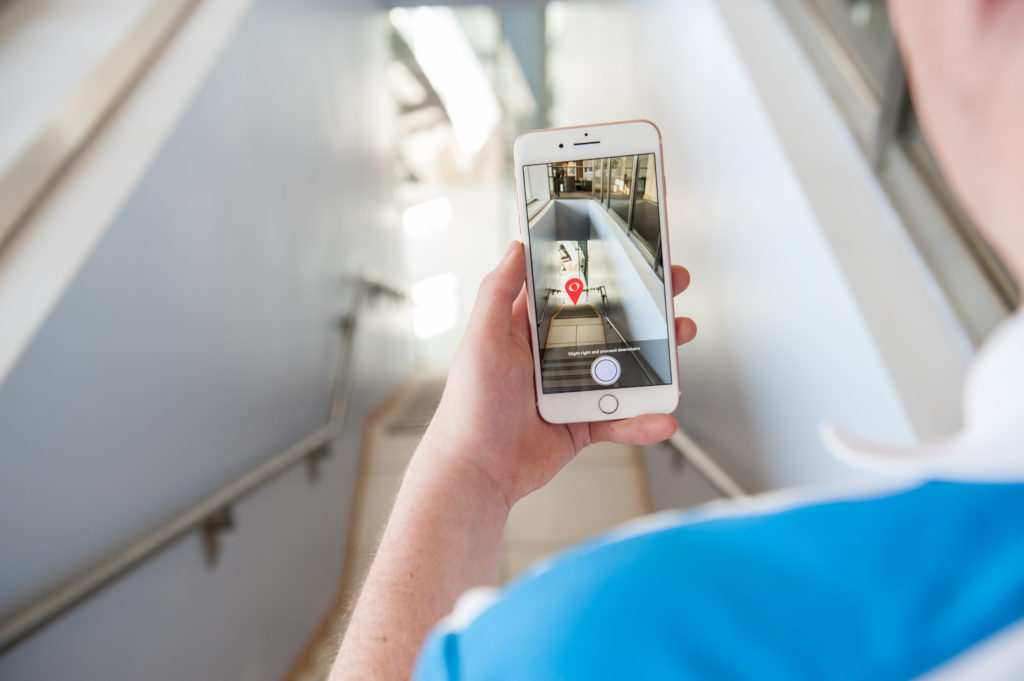
The clew app being used to navigate

Over the last few years it is fair to say that there have been some extremely exciting, innovative and life changing apps which have been developed which increase the independence of people with all kinds of visual impairment. Once again, I am delighted to bring another of these to your attention. This time it’s an indoor navigation app called Clew.

Clew is a free iPhone app that records a user’s path and then guides you back to your starting point. Clew was created to help visually impaired people to remember a location such as returning to a seat in a room. Designed to work indoors, Clew uses the camera on your iPhone to record a video of landmarks along your route. It will then save certain points such as stairs, turns etc and guide you back to your initial starting point.

How to use Clew

Hold your phone upright in front of you with the camera pointing straight ahead. Press the “record path button”, then walk the route you want the app to remember. It is worth stating that at this stage, it is recommended that when recording a route, you ask for sighted guide if possible. Press Stop Recording at the end of the route. When ready to return, Press the “Start Navigation Button” and Wait for Clew to convert the information. Clew will then provide verbal, haptic and visual feedback as you reverse the  route. Visually, the screen shows an image of the next part of the  route with a red pin indicating where to go. If the user veers off the path, the red pin disappears off the edge of the screen. When walking along the desired path, a clicking sound is heard; the clicking sound stops to indicate when the traveler has veered. A whistle tone indicates a turn; the app also verbally announces which way to turn. The route is available until the app is closed from the app switcher. According to the website, Clew works best with short indoor routes and it is not advisable to use the app when outdoors because of varying lighting conditions and possible glare from sunlight which could interfere with the video recording.

First impressions

I have been hoping for an app like Clew for years to assist with travelling independently when an indoor environment. I have mainly tested the app in familiar areas such as our centre  and so far, I am delighted to say that the experience has been fantastic. I recently used it to create a route from my upstairs office to the downstairs kitchen as sometimes I still get confused with this route as I don’t do it very often. The app then guided me almost flawlessly back to my office from the kitchen and only stopped giving me directions when I was back at my chair. It even told me when I was coming up to stairs and where to turn when I had reached the first landing and needed to go up another flight. Sometimes the app does get confused if you have to make a lot of left and right turns in quick succession, but for the most part it is extremely reliable and has really increased my confidence when using it. I think the technology used within the app is also extremely interesting as everything is achieved by video. There is no GPS or internet connection required to use the app which means you can use it in any indoor environment you choose. Please note that this app is still in it’s early stages so it will be a case of trial and error when using. The developers are planning to update the app regularly though and have lots of great ideas for improving it’s capabilities. Also, as always with these apps, please remember that they are not designed to be a replacement for a Cane or Guide Dog. It is designed to work alongside your mobility aid and you will need to depend on your mobility and orientation skills when using this app.


App Review – Soundscape

Posted on October 14, 2019 at 12:38 am.

Written by martin

Screen shots of the sound scape app

At the beginning of March, Microsoft released a new and extremely innovative app designed to assist people with a visual impairment to navigate and understand their surrounding environment. The app is called Microsoft Soundscape and is free to download and use.

Note: At this stage, the app is only available for iPhone users.

Overview

Soundscape uses 3D audio sound to give you a full audio map of what’s around you when you are out and about. It is designed to help you navigate independently and encourage you to be more confident in exploring streets and getting to destinations. The app announces streets and points of interest such as shops, cafes etc. in 3D so that you actually hear the exact direction in which the place is located. To use Soundscape accurately, you need to use a pair of either bone conducting headphones or Apple AirPods. As soon as you put the headphones in your ears and start walking, the app will begin telling you what is in your surrounding area.

Example:

As you walk along a street, you may suddenly hear directly in your right ear, “McDonalds, twenty five metres.” This means that there is a McDonalds restaurant not too far away from you, immediately to your right. Then if you wish, you can actually tell the app to direct you to McDonalds by setting a beacon. This will then give you constant audio information and feedback to let you know if you are heading in the direction of McDonalds or if you are going off course.

Operating the app

Soundscape offers three modes – ‘My Location’ tells you the direction you are facing and the streets and intersections which are closest to you, ‘Around Me’ gives you places of interest which are near you in all four cardinal directions, and ‘Ahead of Me’ provides the names of five places of interest which are nearest to you and directly ahead of you. It is also worth mentioning that the app is fully accessible and that VoiceOver does not have to be enabled in order to use the app. So basically, anyone with a visual impairment can use this app.

First impressions

I was actually a tester for this app when it was under development and have been impressed with it from the very start. I find the app extremely easy to use and another great feature of the app I haven’t mentioned yet is that it is compatible with Apple Watch. This means that I don’t have to keep stopping in the street and taking my iPhone out of my pocket when I want to use the app. I can just tap the relevant button from my Apple Watch which is constantly on my left wrist.

I think my favourite feature of the app is definitely the beacon feature. I used the beacon feature once when it was snowing very heavily and I wanted to get to my local Co-op. I became disorientated, but once I had told the app to direct me to the Co-op, it kept me on track the whole way and always kept me heading in the right direction. In fact, the app only stopped giving me information when I was outside the door of the store. I felt very reassured after this experience I now actually use Soundscape almost every day when I am walking with my guide dog.

Important additional note!!
The app is designed to be used in tandem with your usual mobility aid, such as a cane or guide dog. Do not use this app on its own when you are travelling outside. Also, to use this app, a constant internet connection is required, so a 3 or 4G mobile data plan is essential.


App Review – Seeing AI

Posted on October 14, 2019 at 12:32 am.

Written by martin

The seeing AI app

Seeing AI is a Microsoft research project that uses Artificial Intelligence features to deliver an intelligent app, designed to assist visually impaired people with performing everyday tasks such as reading text, recognising people’s faces, identifying products, and identifying your surroundings. This app is fully accessible with VoiceOver and magnification features on iPhones.

How it works:

The app has nine different ‘channels’, which you can use for performing a specific task. Below is a brief description of each of the channels.

Short text:

Simply point the camera at text and it will be read aloud. Very useful for reading signs, text on noticeboards or even on food tins etc.

Document:

Hold the phone camera over a document such as a magazine, newspaper or letter and the app will automatically take a picture of the document and read it aloud to you. It will also try to format the document for you as well, so you have an idea of how the page is laid out.

Product:

Hold the camera over the barcode of a product and the app will scan it and then tell you the name of the product. You can also find additional information about the product such as cooking instructions or ingredients. Barcodes are sometimes difficult to locate on certain products, but a really cool feature of the app is that audible beeps are given to help with the locating and scanning of barcodes.

Person:

This channel allows you to take a picture of a person’s face and the app will then attempt to work out the age of the person and tell you what they look like. Note that you can also train the app to recognise people’s faces as well, so if you point the camera towards them, the app will actually tell you who they are.

Currency preview:

Point the camera at different types of currency such as Euro, Dollar and Pound to hear their values.

Scene preview:

Simply point the camera in front of you and take a picture. The app will attempt to describe everything in the view of the camera. Note that the Scene channel is still being developed, so is not always accurate in describing certain things. Hopefully it will improve over the next few months though.

Colour preview:

Just point the camera of your phone at any object and its colour will be announced. Note: lighting conditions are a factor.

Handwriting preview:

This experimental channel allows you to take a picture of handwriting and the app will attempt to recognise it and read it to you. Note: the text has to be the right way up for this channel to work.

Light detector:

The camera on the phone will detect the amount of light around you. This works by using pitch sounds. The higher the pitch, the more light there is.

First impressions

I have used this app for around two months and am really enjoying most of its features. The barcode and text reading facilities along with the facial recognition features are extremely accurate most of the time. The colour, handwriting and light detecting features also have huge potential, as does the scene preview mode. To be honest though, I am a little unsure about the currency feature, as now that plastic notes are being printed, all £10 notes have Braille in the top left corner. On the whole though, I really feel that this app has made a big difference in terms of increasing my independence on a daily basis. Now I don’t need to depend on friends or family to read my mail or find products in my freezer for me. The fact that all these features are available in one easy to use app is fantastic!

Price:

Seeing AI is free to download and use.

Note: This app is currently only available for Apple products and requires a constant internet connection.


3D Printer loan opportunities

Posted on October 13, 2019 at 9:38 pm.

Written by martin

Create Education event - a room full of students with 3D printers and examples of 3D printed items

I have been working with Sarah Jones and the team at Create Education regarding 3D scanning and printing developments.  Create Education have a 3D Printing loan scheme that may be of interest to the network.

For more information and how to apply please visit the Loan agreement page on the Create Education website: https://www.createeducation.com/loan-scheme/

The website also contains lots of information and resources to help prepare people that are looking to develop their 3D Printing and Design skills.

Should you wish to get involved please let me know and I will connect you with Sarah who will help you to find out more.

Dawn Green
Karten Network and Development Co-ordinator


Sight and Sound Summer Sessions

Posted on October 11, 2019 at 12:53 pm.

Written by martin

Over the summer we hosted a series of training sessions called the Sight and Sound Summer School. We realise that for many people, accessing training can be difficult and costly, so we made it as easy as possible by delivering the sessions online, using the very popular Zoom meeting platform.

Over the course of 5 days, we covered a range of solutions, with sessions on JAWS and keyboard shortcuts, ZoomText, RUBY magnifiers and Braille displays. Finishing with a surgery style session, where the attendees had the chance to ask us any questions about the Sight and Sound product range.

With August being the prime time for summer holidays, we made sure that we recorded each session in both audio and video format for people to catch up on. You can find the details for these sessions below:

Sharpening your Shortcuts with Sharon Lyons

Audio only: https://audioboom.com/posts/7340419-sight-and-sound-summer-school-2019-session-1-sharpening-your-shortcuts-with-sharon-lyons

Video: https://youtu.be/hGqN-GFSzmw

Exploring RUBY magnifiers with Ash Cross

Audio only: https://audioboom.com/posts/7342466-sight-and-sound-summer-school-2019-session-2-exploring-ruby-magnifiers-with-ash-cross

Video: https://youtu.be/-V27ZQPZ4Gg

Introducing ZoomText Magnification software with Ruth Gallagher Carr

Audio only: https://audioboom.com/posts/7342471-sight-and-sound-summer-school-2019-session-3-introducing-zoomtext-magnification-software-with-r

Video: https://youtu.be/Lo-aRkdkEas

Exploring the Focus Braille displays with Stuart Lawler

Audio only: https://audioboom.com/posts/7343337-sight-and-sound-summer-school-2019-session-4-exploring-focus-braille-displays-with-stuart-lawler

Video: https://youtu.be/gXr2VbYWp3U

Sight and Sound Tech Surgery

Audio only: https://audioboom.com/posts/7344746-sight-and-sound-summer-school-2019-session-5-the-sight-and-sound-technology-surgery

Video: https://youtu.be/XrPQj28q7mk

Something we missed?

Is there something else you’d like us to cover or did you have a question that wasn’t quite answered in these sessions? We’d love to hear from you! You can email you suggestions or questions to carla.barker@sightandsound.co.uk


News from Your Dolphin

Posted on October 11, 2019 at 12:53 pm.

Written by martin

  • Our rolling programme of free webinars to deliver training and answer questions on Dolphin accessibility products.
  • SuperNova Case Study Assistive Technology Levels the Playing Field
  • GuideConnect Case Studies:
    • GuideConnect helps seniors with sight loss enjoy their computer – and life!
    • Senior reconnects with his family and regains his independence with GuideConnect

If you look at this page you can see information on all Your Dolphin products for education including SuperNova: https://yourdolphin.com/en-gb/products/education

In respect of GuideConnect, this page gives all the information available, including how to get it on a suitable device: https://yourdolphin.com/en-gb/products/individuals/guide-connect

Here is our latest news:

  • SuperNova Magnifier & Screen Reader 13.02 – Braille: Plug and Play-type Connectivity for USB Braille Displays
  • GuideConnect via the TV – Now with Voice Input & new Remote Control

We hope you enjoy reading about our products – Your Dolphin Team


Product reviewes

Posted on October 11, 2019 at 12:53 pm.

Written by martin

Stuart Beveridge, the Assistive Technology Trainer at seescape has provided an expert review of the following products.

Victor Reader Trek

Victor Reader Trek

Last November, the company Humanware released their latest product called the Victor Reader Trek. This is a combination of two of Humanware’s most popular products, the Victor Reader Stream and the Trekker Breeze. The product is basically an audiobook player and GPS system compacted into one small and easy to use device. There is so much more to this product though as it can also be used to play podcasts, listen to radio stations and record voice memos. To put it simply, it is an entertainment and navigation system, all rolled into one. It is small enough to actually fit into a jacket pocket and can be operated one handed. This is made possible because of  buttons which are all differently shaped and have easy to distinguish tactile markings which make them easy to locate by touch alone. The trek also has built-in bluetooth which means you can pair it with a set of bluetooth headphones for ease of use. In addition, the trek has an update feature which means that it is almost certainly a future proof device as additional content can be added in the coming years. There will also be frequent map updates, so that you have the latest information about your surrounding area curtesy of the TomTom map system which is fully supported within the device.

How does Victor Reader Trek work?

The victor Reader Trek has three different modes which you can switch between at the touch of one button. These modes are:

  • Offline bookshelf mode,
  • Online bookshelf mode and orientation mode.
  • Offline bookshelf

Within this mode you are able to listen to audiobooks, daisy and other forms of text books which you can load onto the Trek via an sd card. This mode also allows you to record voice notes such as memos, shopping lists and can even in some cases be used to record lectures if you are a student.

Online mode

Within this mode, you can listen to radio stations through the internet, download and play podcasts, search wikipedia for facts and update the product to the latest version.

Orientation mode

This is the GPS orientation system. You would use this mode when travelling either on foot or by vehicle. When in this mode you are kept up to date about your current surroundings. Streets, interesting locations around you and a detailed description of upcoming intersections are all announced. There is also a fantastic feature which allows you to landmark areas which are important to you and when you approach them in the future, they are announced to you. You are also able to plan and get turn by turn instructions for speciffic roots both when in a vehicle or when walking.

Please note that the orientation mode should be used alongside another mobility aid such as a cane or guide dog.

First impressions

I have been using this product now for around serveral months and am really enjoying almost all  of it’s features. I think it’s main appeal for me is the fact that you can easily toggle between the three different modes at the press of a button. This means that the potential of the product is huge because while you are using public transport, you can be listening to an audiobook or podcast while at the same time have full knowledge of the streets around you at all times. The fact that the product also supports bluetooth means that you can also use bone conducting (aftershock) headphones, which means that your ears are completely free to focus on traffic when crossing roads. The battery life of the product is also much better than expected.

Price

The Victor Reader Trek currently retails at £545. If you would also like to purchas the Trekz Titanium Aftershock Headphones, which are also supplied by Humanware and come highly recommended, they are an additional £80.

Dyson 360 Eye

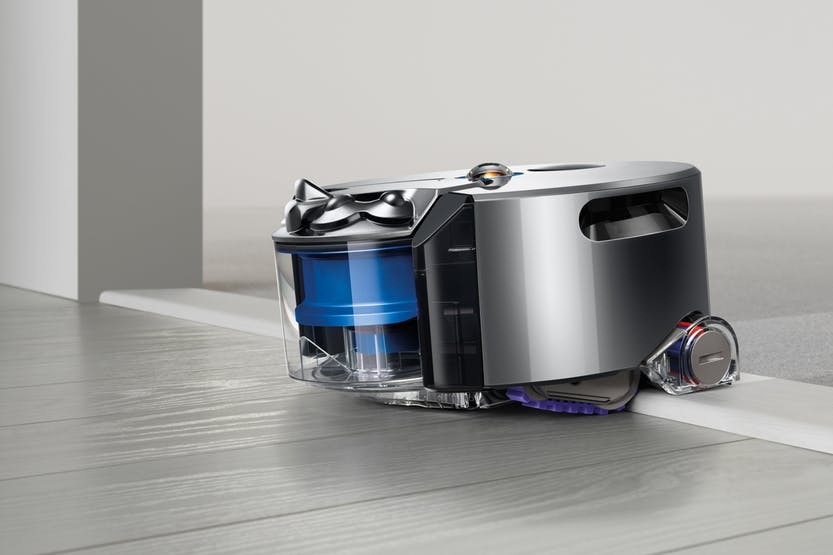
Dyson 360 Eye

Tired of hoovering every day or missing chunks of dirt, dust and possibly other mess such as pet hair? I certainly was, and solved this solution by purchasing a Dyson 360 Eye robot vacuum cleaner.

This self-navigating dirt destroyer is designed to clean every floor of your house at the simple touch of a button. It’s powerful enough to clean well on all floor types and surfaces, smart enough to navigate efficiently from room to room on one level and simple enough for anyone to use. Setting it up is also a breeze. Just plug in the pleasingly small and discreet charger/docking station, place.

The already assembled robot hoover on it and, when it’s charged, hit the button on its top to start cleaning. It’s as simple as that. Note that for best results you do need to make sure your floors are tidy, but if there is enough room for the robot to successfully navigate, you have nothing to worry about.

So how does it work?

The Dyson Eye 360 is small, compact and runs on rubber tracks rather than wheels. It gets its name from the tiny   360-degree camera which sits on top and it’s this camera that   is the key.

Essentially, it means that the hoover can see   in every direction simultaneously, which helps it to not only map out where it’s going, but also to avoid obstacles. It still bumps into things now and again, particularly items below its camera line, but the Dyson knows where it’s going in relation to where it’s been.

In terms of its approach to cleaning, it’s methodical, calculating and efficient meaning that it covers as much of your floors as possible. It picks its starting point and slowly works its way outwards in squares, each time overlapping a little with its previous path so it doesn’t miss anything. The fascinating thing about it is that when it is running out of charge, it goes back to its docking station, recharges, and then remembers all of the places it had previously cleaned and just carries on hoovering the rest of the house. There’s really no limit to where the robot can clean, just close your doors on any of the rooms you don’t want it to go and they will be avoided.

The Dyson Link app

You also have the ability to connect your Dyson robot to an app on your smart phone. The app which is fully accessible for iPhone users,

Allows you to use your phone to perform useful features. At the point of writing this article, the app is also available for Android users however I have been unable to thoroughly test it so am unsure how accessible it actually is with the TalkBack screen reader. The app allows you to  start and end cleaning sessions remotely, control the cleaning schedule, and view what your robot did in each session. That’s it.

Let’s finally discuss how I feel it performs and give my conclusion.

I send the 360 Eye out every day before I leave the house for work. It cleans the whole of my one bedroom bungalow meticulously covering every available space. The one drawback of it is that it doesn’t clean skirting boards, so you will still need a manual hoover of some description, but on the whole, my life is made so much easier with the Dyson robot in it. Another small consideration is the 360 Eye works best in daylight or decent artificial light. Since it relies on a camera to navigate, the Dyson is more sensitive to changes in lighting as it cleans. It has two infrared “headlights” to help combat low-light areas, but it still works best when it can see clearly.

Now for the “big but”, price.  Eight hundred pounds is a lot to spend on anything. However, the benefits out way the cost. It is, without doubt, a luxury. But it delivers and does so with minimum fuss and from my point of view is life changing.

In Your Pocket

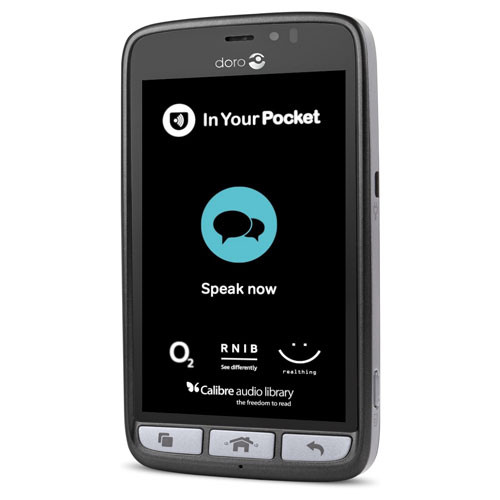
In February this year we acquired a new gadget which is ideal for anyone who struggles to use either push button or touch screen mobile phones. The In Your Pocket is a fully Voice Activated mobile phone which allows you to make and answer phone calls, send and read text messages, create contacts, listen to newspapers and audiobooks, get weather information, tell the time, hear your current location and streets around you and much more. All of this is achieved entirely by using your voice. This is a solution for anyone who would just like technology that is simple and easy to use with hardly any learning required.

How it works

The phone is operated by simply pressing a tactile button found at the bottom of the screen. After you press the button, you simply speak to the phone naturally and give it a command. So for example, some basic voice commands include:

Phone Seescape”, “send a text message to Stuart”, “create a new contact”, “What is the date”, “read the Guardian, “what is the weather forecast”, “Where am I”etc.

Pricing

The In Your Pocket runs exclusively on the O2 network and if you purchase the phone you would be subscribing to a fixed contract over two years at £22 per month. This price plan gives you three GB of data and unlimited calls and texts to any number. If you run out of mobile data, don’t worry, it will just renew the next month and you will not incur any hidden charges as the price plan is designed so that you will never go over your allowance. Note that you can also connect to Wi-Fi which should save you using a lot of mobile data.

Future plans

Later this year, the developers are planning to add even more features to the phone which will be installed automatically as soon as they become available. These include enhanced weather information, as well as a personal diary function and the ability to set alarms.

OptiGrill

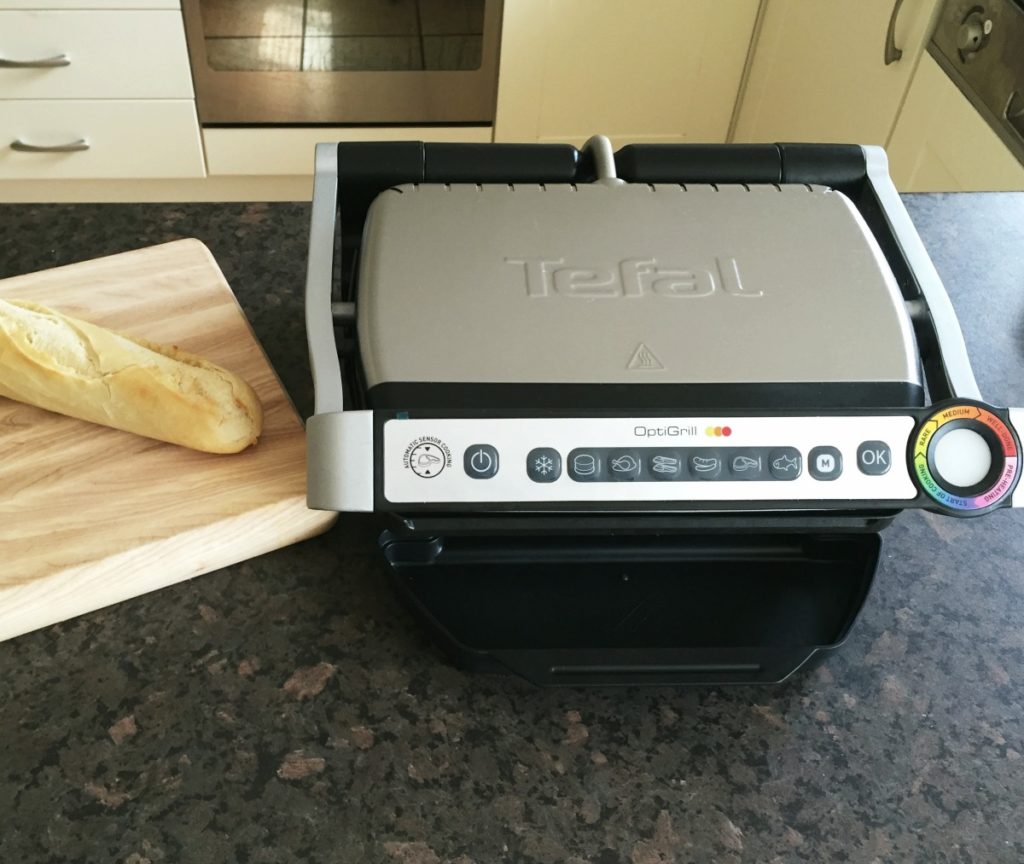
As we are approaching the festive period, I would like to draw your attention to a new gadget I recently bought myself. Using this device, I can now cook confidently and independently without the risk of either burning or under cooking food. This new revolutionary product is the OptiGrill and is made by the company Tefal.

The Tefal OptiGrill is an electrically heated grill similar to the George Foreman grill. However, unlike the George Foreman grill, the OptiGrill is a smart grill! It will cook meat, poltry, fish and even sea food, vegetables and toasted sandwiches. Another great feature of this grill, is that it will also cook food from frozen as well.

How does it work?

The OptiGrill’s controls are found on  the  handle. From left to right there’s the On/Off button and dedicated programmes for cooking specific food such as  defrost, burgers, chicken, bacon, sausage, steak, and fish. There’s also a manual mode and finally an OK button when you are ready to start cooking. Right at the end is the LED cooking indicator that uses different colours of lights to represent stages of the cooking process.

When you open the llid you’ll find the removable non-stick plates. The bottom plate is slightly angled so any grease or oil can run down into the dripping tray, which means healthier eating.

To cook, first turn the grill on and then select the type of food you want to cook. Then press the ok button, and the grill will begin heating up. When it is ready, it will give a series of beeping sounds. You can then lift the lid and place the food on to the grill and then close the lid. Now the magic part, the grill will do the cooking for you. There are sensors inside the grill to measure the weight and the thickness of the food you are cooking. You can cook food to rare, medium and well done standards. The grill will give audible beeps to indicate each cooking stage. Just cook it to your liking.

As I eat a lot of meat and fish, I am loving the OptiGrill. I use it everyday, and the thing I really like is the fact that all the guess work is taken out of cooking. Also, the grill is easy to clean as you can remove the plates and clean them either in the sink or by putting them through the dishwasher. I also love the fact that the food doesn’t dry out. Food such as steak and chicken still retain a lot of their juices and moisture, even when cooked to well done standard. The fact that the device has a massive stick out handle for using to lift the lid is another added bonus. The risk of burning yourself is seriously diminished, although I would advise some caution to begin with.

Price

There are two types of OptiGrill. The small version is priced at £110 and the larger version is currently £120. Depending on your family circumstances, it would be up to you which one you prefer.

Please also note that while we don’t actually have an OptiGrill at our centre, I would be more than happy to discuss this technology with you. Also note that if there is enough interest in this device, we will purchase  the OptiGrill to demonstrate to clients at our premises in Wilson Avenue in the future.


Update from Mobile Technology Advisor – Autumn 2019

Posted on October 11, 2019 at 12:53 pm.

Written by martin

Security Fears

photo of man holding to iphones

In August Google’s security research taskforce, Project Zero announced that they had discovered there was a “sustained effort” to hack iPhones over a period of at least two years.

The Project Zero researchers found that attackers were exploiting 12 separate security flaws in order to compromise iOS devices. Most of these flaws were within the native iOS browser, Safari.

These security flaws meant that if a user visited a compromised website code would be implanted in the iOS device. The malicious code could access an enormous amount of data, including contacts, images, apps a person was using e.g. Instagram, WhatsApp, and GPS location data. It would relay this information back to an external server every 60 seconds. This flaw existed in almost every version from iOS 10.

While this was a real and valid threat, it was sensationalised by the world’s media as iOS devices are notorious for their high level of security. In reality, this sophisticated attack was mainly targeted at a particular group in China. Android devices were also affected by a similar exploit. Apple released a security patch which fixed all the issues at the beginning of February, six days after they were informed by Google about the issue.

While we can only speculate why the story made news headlines six months after the issue had been identified and fixed. It highlights the importance of ensuring that operating system updates get installed on a regular basis. Should you require guidance or help to do this please feel free to contact me.        

Action Blocks

Goole's Action Blocks being used on a mobile phone

Lorenzo Caggioni, a Software Engineer at Google set up Project DIVA. This project was developed to help Giovanni’s brother who has multiple disabilities to listen to music and watch movies independently. The Project DIVA proved to be the starting point for Action Blocks. These can be used by the Google Assistant to make it easier for people who have disabilities to use Android phones and tablets.

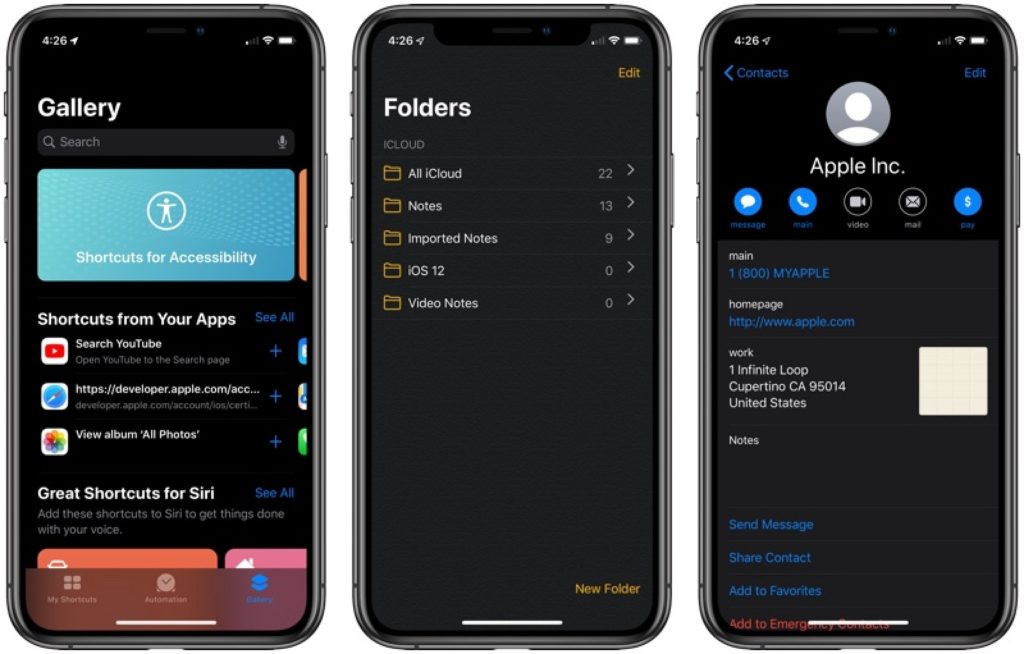
With Action Blocks, (similar to Siri Shortcuts in iOS 12 and later) you add a string of commands to Google Assistant and then create a custom image/icon to your home screen, that acts as a visual cue. This allows for the complexity of tasks to be reduced.

For example, a seemingly simple operation on your phone, like booking a taxi involves a number of steps. To do this, you need to unlock your phone, find the right app, type in your pickup location and book the taxi. A process that also requires you to read and write, remember your selections, and focus for several minutes at a time. Now,  potentially this can all  be reduced to a single icon that you simply need to tap.

The Mobile Technology Resource (MTR)

Near the end of 2015 I created and launched the Mobile Technology Resource (MTR). This private website contains a collection of resources related to the use of mobile technology throughout the Karten Network. The primary reason for creating the MTR was to encourage and facilitate sharing – so doing help to reduce reinventing the wheel and promote good practice.

There is a wealth of knowledge and expertise throughout the network, and many of the resources are items that would get produced anyway – e.g. How many organisations have lists of apps?

We took the decision when creating the MTR to keep it a private resource to create a safe space for resources to be used and shared. As such you will need a Karten Network website account, these are free and there is no limit to the number of accounts per organisation. There are currently 209 users registered on the system. If you have an account and have forgotten your password you can reset it by visiting: https://karten-network.org.uk/wp-login.php?action=lostpassword

If you require accounts please send me an email with the email addresses and names of people needing accounts.

To access the MTR please visit the Karten Network website and login. The MTR can be found under the “Resources” tab. If you are not logged in and click on that link it will prompt you to login.

Four years later we are relaunching the MTR, with an updated look and a full review and update of the content. My hope when I created the MTR is that it will be a living resource. One that is driven and shaped by the network with my support.

In this spirit I would like to extend a special note of thanks to seescape’s Stuart Beveridge who has contributed the reviews of the apps below. As well as a list of all apps designed to help blind and partially sighted people that has been incorporated into the MTR.

I hope that you will find the MTR helpful. If there is something that you would like to contribute, a feature you would like, or need help, please contact me.

App Reviews – Stuart Beveridge

Seeing AI

The seeing AI app being used to read an letter

Seeing AI is a Microsoft research project that uses Artificial Intelligence features to deliver an intelligent app, designed to assist visually impaired people with performing everyday tasks such as reading text, recognising people’s faces, identifying products, and identifying your surroundings. This app is fully accessible with VoiceOver and magnification features on iPhones. How it works: The app has nine different ‘channels’, which you can use for…Read the full Seeing AI review

Soundscape

The soundscape app

At the beginning of March, Microsoft released a new and extremely innovative app designed to assist people with a visual impairment to navigate and understand their surrounding environment. The app is called Microsoft Soundscape and is free to download and use. Note: At this stage, the app is only available for iPhone users. Overview Soundscape uses 3D audio sound to give you a full audio map of what’s around you when you are out and about. It is designed to…Read the full Soundscape review

Clew

The clew app being used to navigate

Over the last few years it is fair to say that there have been some extremely exciting, innovative and life changing apps which have been developed which increase the independence of people with all kinds of visual impairment. Once again, I am delighted to bring another of these to your attention. This time it’s an indoor navigation app called Clew. Clew is a free iPhone app that records a user’s path and then guides you back to your starting point. Clew was created to…Read the full Clew review

Hive

The Hive App on a mobile phone

As we are now well and truly in to the season of winter and approaching Christmas, I decided to discuss the Hive App and hub. The app is fully accessible for both Apple and Android devices and is relatively easy to navigate and use.

I purchased the Hive Hub back in August of this year and although it is pricy at £300 I have found the benefits to be enormous in terms of giving me more control and access to my heating, lighting, security and everyday appliances in particular.

As I have a busy daily schedule, I wanted to make the process of…Read the full Hive review

Martin Pistorius
Karten Network Mobile Technology Advisor


Update from Mobile Technology Advisor – Summer 2019

Posted on July 12, 2019 at 10:59 am.

Written by martin

One of the strengths of the Karten Network, lies in the name – a network of people doing some incredible, innovative and inspiring work. Through this network we can collaborate, exchange knowledge and support each other. One way we try to facilitate this is through our website. I have recently invested a lot of time and effort into improving and upgrading the website. A lot of this work was focused behind the scenes. This work has resulted in an improved search facility – content previously omitted is now being included in the search index.

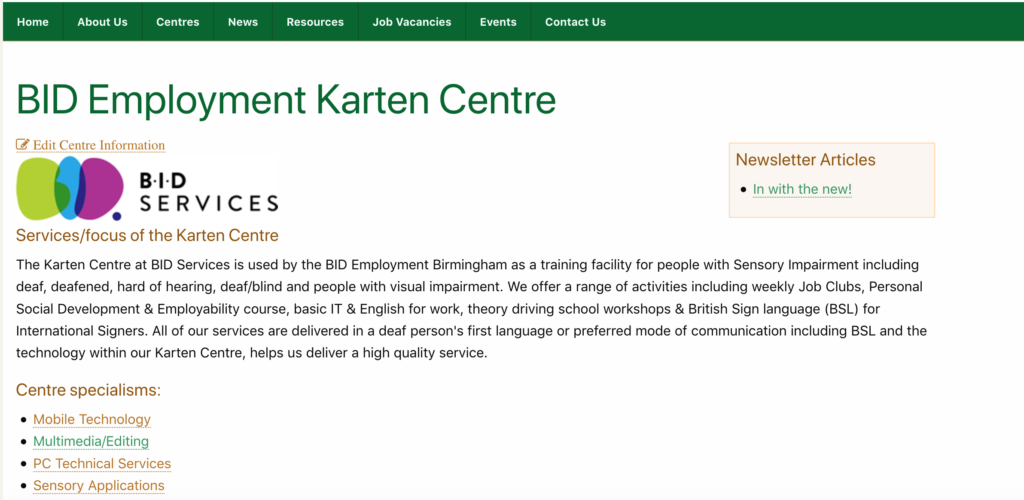
Additional meta data has been added to the Karten Centre Pages. These include information on technology specialisms, service provision, disability, age groups and centre setting (e.g. education, social care, etc.)  This was done in an effort make the information already contained on the centre pages more useful. It is now possible to click on one of the meta data items and get a list of Karten Centres with similar areas of interest.

A new feature has been added too, the “Karten Centre Search”. This allows you to create very specific searches based on a host of easily selectable criteria, including only showing centres within a certain number of miles of your or a specified location. This means it would be possible to search for all centres doing printing within a 30 mile radius of Manchester for example.

Screen shot of the Karten Centre Search

Centre pages now display the centres location on a map. While this feature existed elsewhere on the website it had, until now not been included on centre pages. Centres now also feature the option to upload your logo, with the option to upload photos to the page coming soon.   

Screenshot of the updated centre page

My hope is that these improvements and upgrades (with more coming soon) will make the website more useful to you. However, for all these features to truly work, we need your help. If you are a Karten Centre manager, please logon to your centre page and update the information.  To do this (once logged in), navigate to your centre page, and click on the “Edit Centre Information” link below the page title. This will take you to form where you can update and add information.

Should you require any assistance, have questions or suggestions please feel to contact me.

Newsletter

As some of you may have noticed we have changed the format of the newsletter – we hope you like it. The changes however, go beyond mere formatting. Newsletter articles are now available as individual items too, meaning they are not longer confined to a newsletter. This makes it possible for a list of all news letter articles to appear on your centre page. Currently, only articles from this and the previous edition of the newsletter are in this format. However, I hope to port some of the old articles to this format too soon.

WWDC 2019

Apple’s annual Worldwide Developers Conference (WWDC) took place at the beginning of June. WWDC gives thousands of developers from around the world a chance to meet up with Apple engineers and attend workshops, it is also where traditionally Apple makes major announces of what is new and what is to come. Some of these were updated versions of iOS, macOS, watchOS, and tvOS. All of which gain new features and capabilities. As well as the introduction of iPadOS, a separate version of iOS specifically for the iPad.

iOS 13, expected later this year, is the next iteration of Apple’s mobile device operating system. iOS13 has had a major overhaul making it faster and more efficient. It is reported that these improvements make Face ID 30 percent, and apps launches 50 percent faster. App update times have also been improved as well as reducing app download sizes.

iOS in Dark Mode

A new systemwide Dark Mode option has been added. This changes the entire look of the operating system from light to dark. You have the option to have Dark mode permanently enabled or come on at sunset or on a custom schedule.

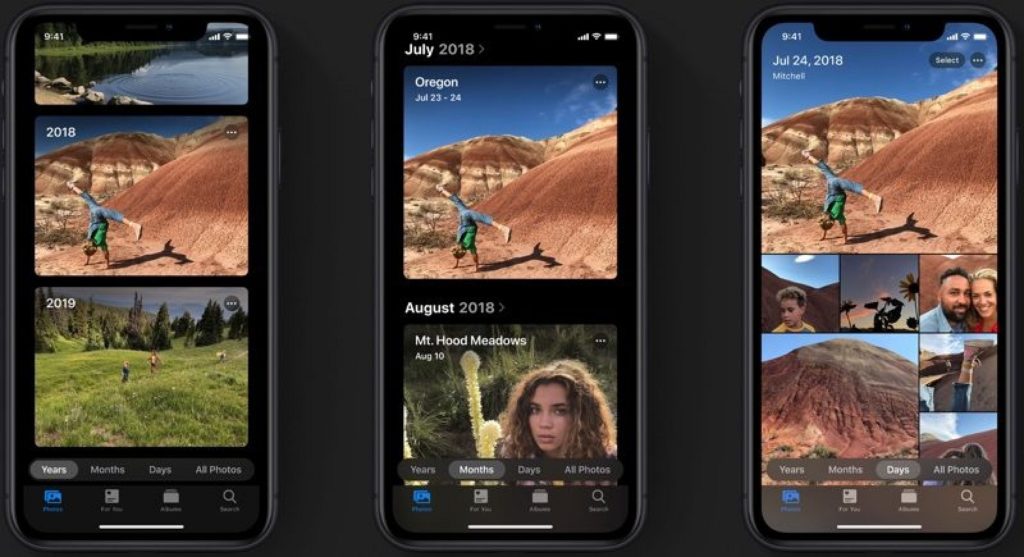
Apple’s Photos app has been improved with a new photo library feature in an attempt to intelligently organise your photos and videos. Editing tools have been revamped too.

iOS13 photo features

A new “Sign In with Apple” feature has been added, allowing a convenient way to log into apps and websites. While this is a similar feature to those offered by Google, Microsoft, Facebook and Twitter it is reported that the enhanced privacy feature means that your logins won’t be tracked, unlike other services. Your Apple ID will be used to authenticate your account via Touch ID or Face ID, and developers will see a unique random ID rather than your real information. Apple are able to even generate single-use randomized email addresses, so you never have to use your real email address. Two-factor authentication has also built into this feature to give you even more security.

Apple’s Maps have received another upgrade and now also include a “Look Around” feature similar to Google’s Street View.

iPhone shoing Apple's Look Around

Siri has been given a new, more natual sounding voice. Siri Shortcuts have also been improved with the new “Suggested Automations” feature that suggests personalised shortcuts you might want to create.

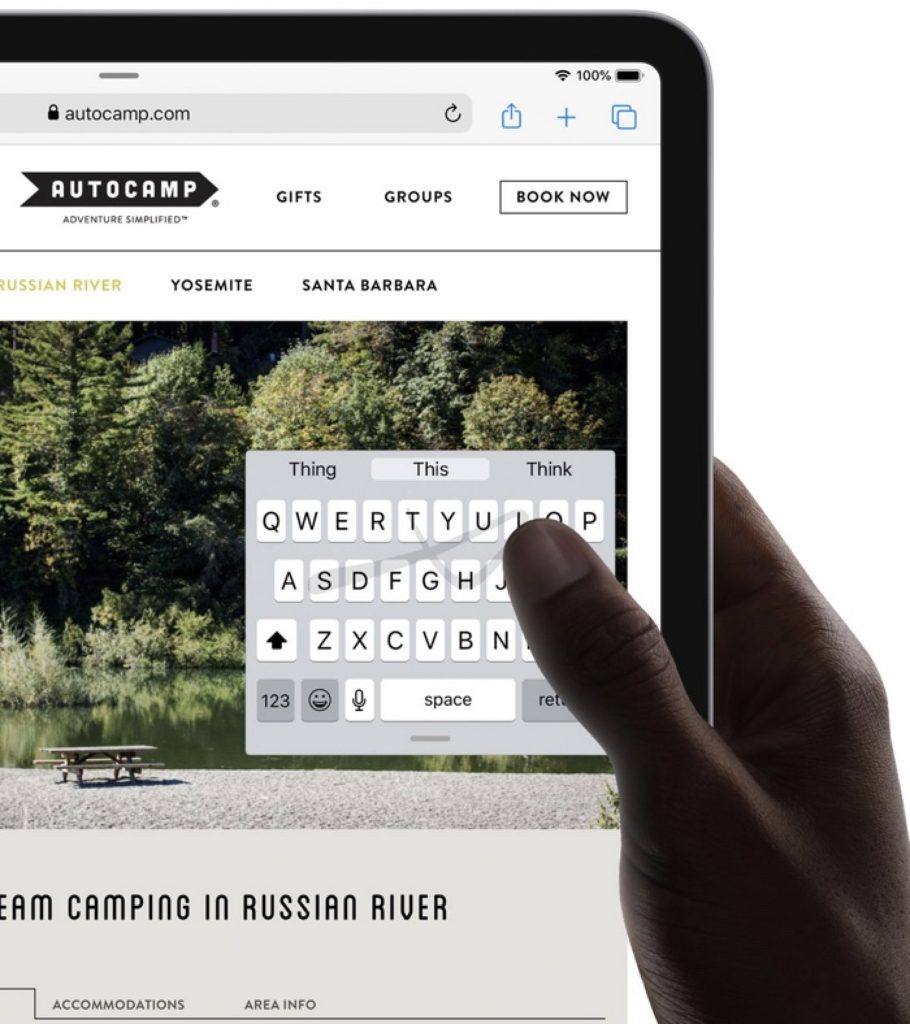
Accessibility has been improved and expanded with a new Voice Control option that enables you to operate your iPhone or iPad entirely with your voice. There is also a new swipe-based QuickPath keyboard option for quicker text entry.

iPad shoung swipe-based quickpath keyboard

I have only touched on some of the long list of changes and new features and there are even more reported for the iOS 13 version for iPad, iPadOS.

iPadOS has been primarily designed with extra features specifically for the iPad’s larger display. iPadOS will be supported by, All iPad Pros, iPad (5th & 6 generation), iPad mini (5th generation), iPad mini 4, iPad Air (3rd generation) and iPad Air 2.

iPad showing mouse control

Amongst a whole host of improvements and new features, perhaps one of the more exciting additions is mouse support. For the first time you will be able to connect a USB mouse to an iPad. This has the protentional to open up another set of access options. Mouse support is currently considered an accessibility feature and will need to be enabled within the Accessibility settings.

Google IO

Google’s developer conference, Google IO which took place in May also feature a host of announcemts, including the new version of Android, Android Q. As well as the new Google Pixel phones and new Nest Hub Max; improvements to Google Search, Google Lens, Google Duplex, Google Assistant and more.

Man in wheelchair using assistive technology

Perhaps the most intriguing was Project Euphoria. This project aims to use Google technologies to give people with speech impairments their voice back. It is reported that this new software suite and features, powered by machine learning will coming to Android. It is not clear yet when, how or even if this will happen, but it’s certainly going to be interesting to see what develops

As always, I am interested to hear about how you are using mobile and other smart technology in your centre. I am also available to support and help where I can.

Martin Pistorius
Karten Network Mobile Technology Advisor


Accessible PCs

Posted on July 12, 2019 at 10:58 am.

Written by martin

Often the basics get overlooked when purchasing PCs so I’ve put together a short guide of what needs to be considered when purchasing PCs.  If a user can’t even turn a PC on, how can we expect them to be independent?!

This might be something you to consider when ordering new PCs. 

A Microsoft Word version containing some guidence can be downloaded from: – https://natspecorguk-my.sharepoint.com/:w:/g/personal/fil_mcintyre_natspec_org_uk/EaA9V-vDFMBPgYEJtGk2PCQB4Ju4FFmv76rEZQ9j6TcSIg?e=0Mkel2

Fil McIntyre


Built in Technology Resource

Posted on July 12, 2019 at 10:57 am.

Written by martin

Built in Technology Resource is a fabulous FREE resource which TechAbility’s Fil McIntyre has produced for the Education and Training Foundation (ETF).

The resource comprises approximately 20 short videos designed to show the people we support (and staff) how to get the best out of the built-in settings on devices they already own or use.

A poster with links which can be downloaded from here – http://bit.ly/MakeTechWorkPoster – links on it are clickable.

Videos are all on YouTube channel – http://bit.ly/MakeTechWorkETF

The videos are also available in categories here:
Great Apps – http://bit.ly/AccessibleApps
My Phone – http://bit.ly/AccessiblePhones
Reading – http://bit.ly/AccessibleReading
Writing – http://bit.ly/AccessibleWriting
Using the Web – http://bit.ly/AccessibleInternet


EyeControl

Posted on July 12, 2019 at 10:56 am.

Written by martin

EyeControl is a social innovation company, founded to improve the quality of life for locked-in individuals in home and hospital settings. The EyeControl is the first wearable, simple to use, and screenless assistive communication device, enabling communication anytime and anywhere.

Man in a wheelchair using the eyecontrol system

AI-powered, eye tracking technology enables locked-in individuals, such as those suffering from ALS/MND, brain injury or stroke, as well as ventilated patients, to communicate solely using eye movements. The EyeControl device can be worn overnight, upon waking, while in the bathroom and during travel. Restoring the ability to communicate socially and/or for emergency purposes is life-altering.

EyeControl has a growing base of customers, is CE marked, FDA listed, ISO certified and is included in the Israeli “Health Basket” and the UK NHS Supply Chain. The device has also been granted reimbursement codes for Medicare/Medicaid in the USA.

Tania Suares, EyeControl’s VP of Operations and Product recently relocated to the UK to support the product and first users in the region. She has met with 19 Augmentative and Assistive Communication hubs throughout the UK and demonstrated the device at innovation and research centres, as well as with actual users. “The most rewarding part of my work here,” says Tania, “is the opportunity to interact directly with individuals that benefit from the EyeControl and witness how the ability to communicate can make a huge difference.”
The EyeControl being demonstrated

The EyeControl device for hospital and medical facility use, is currently undergoing clinical trial at Israel’s Sourasky Medical Center ICU and is scheduled for an expanded trial at Emory Hospital in the US. The EyeControl will revolutionize the way locked-in patients communicate inside ICU departments. 

“The company founders all have personal experience with locked-in loved ones,” says Or Retzkin, CEO and Co-Founder of EyeControl. “It is deeply moving to help people in the same situation communicate with those dear to them, who benefit from our work”.

The EyeControl is currently being sold in the UK and Israel, and will soon be available in other regions as well. For more information, please contact us: hello@eyecontrol.co.il and/or register to receive our monthly newsletter and stay updated on our progress: https://www.eyecontrol.co.il/contact.


Getting AT Ready

Posted on July 12, 2019 at 10:55 am.

Written by martin

Sight and Sound Technology’s latest Getting AT Ready event was a great success with a keynote from University College Dublin, a panel discussion featuring the Scottish Funding Council (SFC) and Student Awards Agency for Scotland (SAAS) and workshops from Industry experts that encouraged thought provoking, engaging dialogue from the Higher and Further Education delegate audience.

Getting AT Ready event at  University College Dublin

This year the event was run in conjunction with the Karten Network and Strathclyde University – two organisations who champion best practice in the world of disability.

A panel discussion featuring the Scottish Funding Council

Feedback from the day was enormously positive and we were excited to hear how inspired people had felt, being able to match the many practical solutions on show at the AT exhibition, to what our speakers had to say. To see the full line-up, workshop leaders’ presentations and much more please go to www.atready.co.uk for more information.


Scanning pens

Posted on July 12, 2019 at 10:54 am.

Written by martin

Scanning pens are neat and effective devices to support people who have reading difficulties or dyslexia.  They help people to access text discretely and are exam-legal. 

Scanning pen being used on a document

<h3>Case Study</h3>

IAIN STRACHAN
Inclusive Learning Officer
Ayrshire College (Kilmarnock, Ayr & Kilwinning)

Ayrshire College has three campuses across the councils that make up Ayrshire; East Ayrshire, Kilmarnock campus, South Ayrshire, Ayr campus and North Ayrshire, Kilwinning campus. This college has students ranging from 16 to mature students of any age. We also have school students who attend twice a week.

As an Inclusive Learning Officer at Ayrshire College I am always trying to keep abreast of any assistive technologies that can help students with various learning difficulties. I came across the reader pen, specifically the exam reader at an Assistive Technology event at the Golden Jubilee Hotel in Glasgow on the 15th June 2017 and was immediately excited about how it could be used to assist students. Many students with difficulties with processing information and students with dyslexiacan sometimes misread questions during exams. This can lead them to write a great answer to the wrong question.

On returning back to Ayrshire campus I brought this technology to the attention of my team leader who spoke to the Head of Inclusive Learning. They both agreed that this technology was something that the college should invest in. Now, at the end of 2018, the three campuses that make up Ayrshire College have at least half a dozen of these devices, both exam reader and the reader pen each. These devices are very popular with the students.

I am now presenting AT workshops across the campuses to different classes to inform all students, not just those with needs assessments, of the assistive
technologies that are available. One of the most popular items during these
presentations is the reader pen. Students like the compact size and how it can be set up for left and right-handed users. Additionally, the fact that it is quite discreet and can be used with headphones was something the students commented on.

Student A, studying IMI Motor Vehicle at the Kilmarnock campus, uses the exam reader. This student said this technology was a ’miracle’. They added it also boosted their confidence because they knew they would not get the words mixed up, so knew they were answering the question asked.

Student B, studying HNC Coaching & Developing Sport at the Kilmarnock campus,thought it ‘really helped’. They said it made answering set questions clearer as they knew they would not misinterpret the information. This student also liked the fact they could sit in the class with their peers and do the assessment without being taken out due to the headphones.

This equipment could be adapted in various ways but one that students have brought up is they would like to be able to use it on their laptop or desk top screens. I don’t know how viable this would be.

I find this assistive technology a great learning tool and would definitely recommend it to other schools and colleges. We are always looking at ways to make students more independent learners and this technology definitely helps them to achieve this.

TechAbility recently had a webinar about scanning pens, you can watch the recording here: https://www.youtube.com/watch?v=whMlTv6ytO8&list=PLlQNUqK0ICK7tEd8rGaBmFUF5Lu4yyH-p&index=18&t=0s

Detailed product information is available on the Scanning Pens website. http://www.scanningpens.co.uk/


Dolphin Computer Access

Posted on April 11, 2019 at 10:00 am.

Written by martin

Adults and children with a visual impairment and specific learning difficulties choose Dolphin accessibility products for their personal, professional and educational use. Dolphin’s solutions support individuals with blindness, partial sight, mild sight loss, low vision, degenerative eye conditions, SpLD including dyslexia, low literacy skills, learning disabilities and age-related conditions. Dolphin aims to empower users with all degrees of sight loss, computer skills, reading aptitude and physical ability, through our Windows software and free apps including SuperNova, GuideConnect, EasyReader and EasyConverter Express. 

By using Dolphin’s accessibility software, individuals with varying levels of visual impairment and technological experience can do everyday things easily on computers, tablets and smartphones – you can read, browse, work, learn and communicate in the way that best suits you. You can read more below about our family of products.

Computer Screen showing SuperNova in use

SuperNova provides the World’s best magnification, speech and screen reading for Windows. Supernova grows with your needs and your sight – for life. We offer three editions, so you can find your perfect solution.

Ensure you’re always productive, in touch and in control with SuperNova, whether reading your letters and other hard copy documents, shopping online with the latest web browsers or creating spreadsheets and slideshows in Microsoft Office. Advanced yet intuitive, SuperNova Magnifier is flexible for every task, and you can pick your blend of magnification, screen reading and braille.

Ensure you’re always productive, in touch and in control with SuperNova, whether reading your letters and other hard copy documents, shopping online with the latest web browsers or creating spreadsheets and slideshows in Microsoft Office. Advanced yet intuitive, SuperNova Magnifier is flexible for every task, and you can pick your blend of magnification, screen reading and braille.

man holding an iPad with GuideConnect displayed on the screen

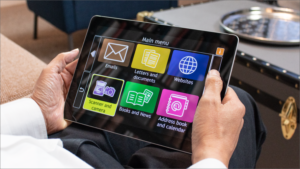
GuideConnect is simple talking technology for sight loss, which delivers effortless email, entertainment and internet. GuideConnect is a talking digital assistant that brings you closer to family and friends. It helps you manage your everyday life and have fun. 

Simple internet access makes it easy to find information, be entertained and stay up-to-date with what’s happening in the world. GuideConnect is thoughtfully designed by and for people with sight loss, enabling you to enlarge the text or have it read to you. There are straightforward menus and lots of help. GuideConnect is available as a download on a tablet, laptop or desktop, or for your TV.

An Android and iPhone with the EasyReader app

EasyReader is the World’s most accessible reading app. Designed for people with blindness, low vision and dyslexia/SpLD, EasyReader is available for iOS and Android smartphones and tablets and, crucially, it’s FREE.

EasyReader is the simplest way to access audiobooks, talking magazines and podcasts. If you have low vision you can make text as large as your sight requires, adjusting colours, highlights and contrast to suit. If you are blind you can add speech to books with no inbuilt narration. If you have dyslexia you can reduce glare, read with dyslexia-friendly fonts and colours, and enjoy perfectly synchronised text and audio. EasyReader offers access to 20+ digital libraries including epubBooks, RNIB Bookshare and RNIB Overdrive.

A laptop with EasyConverter Express on screen

EasyConverter Express enables you to convert Word docs to large print, braille, MP3 and ePub. Fulfil your legal requirements and promote accessibility. 

EasyConverter Express is an essential toolkit to create the widest range of accessible documents – braille, large print, MP3 and ePub. Avoid the expense and delays in outsourcing transcriptions. Choose EasyConverter Express and you will be able to confidently and effortlessly deliver accessible information to all your service users. EasyConverter Express is affordable and simple to use, converting Word documents to accessible information on demand and in seconds. 

More information can be found on the Dolphin website.


Update from Mobile Technology Advisor – Spring 2019

Posted on April 10, 2019 at 12:00 am.

Written by martin

As the mobile technology advisor for the Karten Network, I strive to support and assist Karten Centres and members of the Karten Network with their mobile technology. Recently while providing support to one centre I became aware that a feature within iOS could reduce Apple devices to expensive paperweights.

In iOS 7 Apple introduced Activation Lock (sometimes referred to as “iCloud lock”). This was developed in response to the US Smartphone Theft Prevention Act of 2015. This legislation, in an attempt to discourage smartphone theft, requires device manufacturers to implement an aptly named “kill switch”; allowing device users to remotely wipe and lock devices. Further changes to California law resulted in Activation Lock being enabled by default in iOS 8 or later.

Activation Lock on an iPad, iPhone and Apple Watch

Activation Lock forms part of a larger protection system typically referred to as Factory Reset Protection (FRP), and most notably the native iOS app “Find my iPhone” Find my iPad”, “Find my iPod”… in fact most Apple products can be included in this system.  

Activation Lock, as well as being a deterrent by making stolen devices useless, aims to keep your device secure, even if it’s lost or stolen, and Find my iDevice, can improve your chances of recovering it. Even if you use the system to erase your device remotely.

Activation Lock works by registering your device on Apple’s activation servers and linking it to your Apple ID when you turn on Find my iDevice (e.g. Find My iPhone).

From this point on, the device is automatically protected and will require either the device’s passcode or your Apple ID password to disable Activation Lock. Even if the device is reset to its factory default using DFU (Device Firmware Update) mode – this can be used to reset the passcode, the device still won’t be able to be reactivated and used without first removing the Activation Lock.

Earlier versions of Activation Lock had some vulnerabilities that could be exploited to bypass Activation lock. However, these have been fixed by Apple making the system very good at what it is designed to do – prevent someone else from ever using your device. This within the context of a lot of Karten Centres creates a potential problem, particularly where devices are set up by one member of staff using their iTunes (Apple ID) account and then leaving the organisation. These devices can’t then be added to a mobile device management system (MDM) as they are locked to the person’s Apple ID. Typically what then happens is either to update the device or remove a passcode the device is reset using DFU mode and gets stuck in the Activate device loop.

While there are online services that claim to be able to remove Activation Lock, these can be unreliable and not recommended, not to mention expensive. Currently, the only reliable way to remove Activation Lock is to use Apple Care or take the device/s to an Apple store. You will however be required to prove that you purchased the device from a reputable source and own the device.

Apple have attempted to address this issue by introducing Managed Apple IDs with Apple School Manager and Apple Business Manager programmes. These Apple IDs are similar to your personal Apple ID however, they are associated with an organisation rather than an individual. These IDs can also be customised and have restrictions applied to them, for example preventing them from being used to make purchases in the Apple App store.

Activation Lock can be disabled in most MDM systems; or by “Supervising” the device through Apple Configurator; or by turning off Find my iPad within settings.

While Activation Lock still has a place within the Karten Centre context, I strongly recommend that organisations have a policy and procedure to safely and securely store each iPads Apple ID, password and passcode as well as proof of purchase. Not only to avoid having devices reduced to expensive paperweights but that should the person responsible for the iDevices leave or become incapacitated that the next person charged with managing the iDevices has the necessary information to do so.

watchOS 5.2

Point releases of software, in other words the version number after the period typically contain bug fixes and performance enhancements, usually there nothing to get excited about. However, watchOS 5.2 released at the end of March included something to get the heart beating a bit quicker – the introduction of the ECG app.

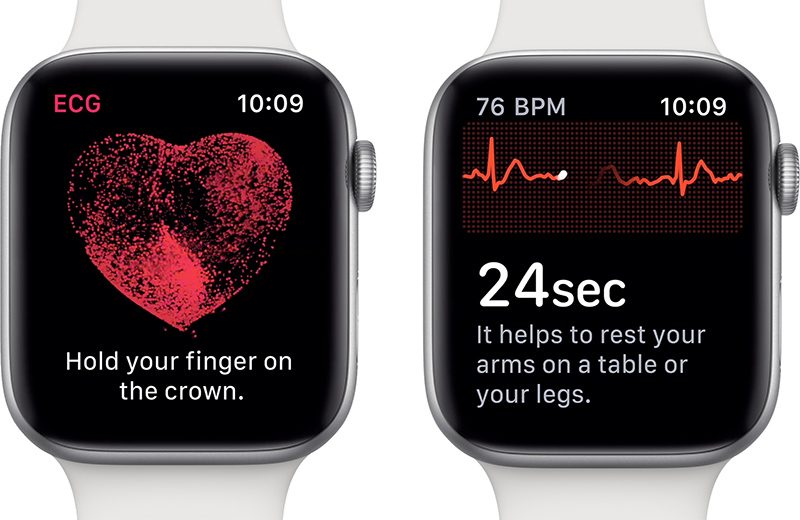
Only available on Apple Watch Series 4, the ECG app enables you to take your own ECG in just 30 seconds simply by opening the app and placing your finger on the digital crown. The ECG data is then saved in the iPhone’s Health app and can be exported as a PDF to share with your doctor.

Apple Watch 4 showing the new ECG app

A clinical trail conducted by Apple with 600 participants reported that the ECG app was able to detect Atrial fibrillation  (quivering or irregular heartbeat – that can lead to blood clots, stroke, heart failure and other heart-related complications) with 98.3 percent accuracy and a sinus rhythm (normal heartbeat with the upper and lower chamber of the heart beating in sync) with 99.6 percent accuracy.

Also included in watchOS 5.2 are Irregular heart rhythm notifications, this monitors the heart rhythm in the background and notifies you if an irregular heart rhythm is detected over 5 times in 65 minutes. This feature is available on Apple Watch Series 1 and above. Apple concerned that Receiving the right notification at the right time can be the difference between someone going to a doctor or ignoring it tested the Irregular heart rhythm notifications feature with over 400000 people.

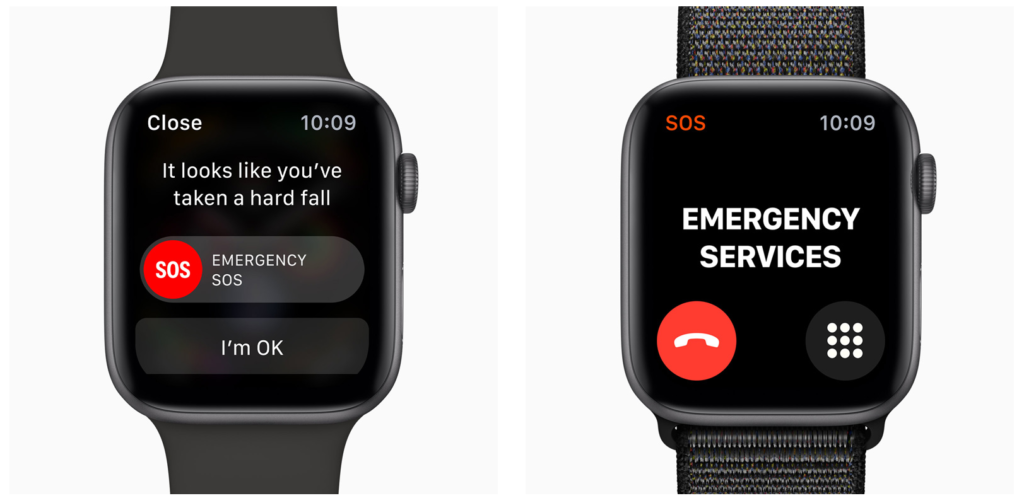
These newly enabled features along with the Fall Detection available in Apple Watch Series 4, and Emergency SOS make the Apple watch far more than merely a cool way to tell the time, particularly for people with disabilities.

Apple Watch, showing Fall detection and SOS

As always, I am interested to hear about how you are using mobile and other smart technology in your centre. I am also available to support and help where I can.

Martin Pistorius
Karten Network Mobile Technology Advisor


  • «
  • 1
  • 2
  • 3
  • Website Feedback
  • Site Map
  • Cookies
  • Accessibility
  • Privacy
  • Data Protection Policy
  • Disclaimer

© 2026. Karten Network

We use cookies on our website to give you the most relevant experience by remembering your preferences and repeat visits. By clicking “Accept All”, you consent to the use of ALL the cookies. However, you may visit "Cookie Settings" to provide a controlled consent.
Cookie SettingsAccept All
Manage consent

Privacy Overview

This website uses cookies to improve your experience while you navigate through the website. Out of these, the cookies that are categorized as necessary are stored on your browser as they are essential for the working of basic functionalities of the website. We also use third-party cookies that help us analyze and understand how you use this website. These cookies will be stored in your browser only with your consent. You also have the option to opt-out of these cookies. But opting out of some of these cookies may affect your browsing experience.
Necessary
Always Enabled
Necessary cookies are absolutely essential for the website to function properly. These cookies ensure basic functionalities and security features of the website, anonymously.
CookieDurationDescription
cookielawinfo-checkbox-analytics11 monthsThis cookie is set by GDPR Cookie Consent plugin. The cookie is used to store the user consent for the cookies in the category "Analytics".
cookielawinfo-checkbox-functional11 monthsThe cookie is set by GDPR cookie consent to record the user consent for the cookies in the category "Functional".
cookielawinfo-checkbox-necessary11 monthsThis cookie is set by GDPR Cookie Consent plugin. The cookies is used to store the user consent for the cookies in the category "Necessary".
cookielawinfo-checkbox-others11 monthsThis cookie is set by GDPR Cookie Consent plugin. The cookie is used to store the user consent for the cookies in the category "Other.
cookielawinfo-checkbox-performance11 monthsThis cookie is set by GDPR Cookie Consent plugin. The cookie is used to store the user consent for the cookies in the category "Performance".
viewed_cookie_policy11 monthsThe cookie is set by the GDPR Cookie Consent plugin and is used to store whether or not user has consented to the use of cookies. It does not store any personal data.
Functional
Functional cookies help to perform certain functionalities like sharing the content of the website on social media platforms, collect feedbacks, and other third-party features.
Performance
Performance cookies are used to understand and analyze the key performance indexes of the website which helps in delivering a better user experience for the visitors.
Analytics
Analytical cookies are used to understand how visitors interact with the website. These cookies help provide information on metrics the number of visitors, bounce rate, traffic source, etc.
Advertisement
Advertisement cookies are used to provide visitors with relevant ads and marketing campaigns. These cookies track visitors across websites and collect information to provide customized ads.
Others
Other uncategorized cookies are those that are being analyzed and have not been classified into a category as yet.
SAVE & ACCEPT