“You’re on mute”…a phrase that has become familiar to many of us over the past year. A sign of how the digital age has transformed how we live, work and interact with each other. Mobile devices have put a computer in our hands, one that is able to capture images and video, contributing to the zettabytes of data that is created and generated each year. In this data era, how valuable is your data to you, to your organisation?
The 31st of March is world Backup Day! (http://www.worldbackupday.com/en/) A day to emphasise and remind you of how important it is to backup your data.
Despite the increased reliability of modern devices, hardware can, and does fail, devices get damaged, stolen, or infected by viruses and ransomware. Hardware can be relatively easily repaired or replaced (at a cost) however, data loss, can be priceless – irreplaceable. The simple rm -rf * command executed on the wrong directory at Pixar deleted 90% of Toy story 2! Fortunately, that data or a copy thereof, was able to be recovered. That incident also transformed Pixar’s backup policy.
Simply put, a backup is copy of all your important files which is stored on another device in a safe place.
Typically, backups are done either to an external device (e.g. external hard drive, NAS, etc) or an internet based service, or both. Each option has its advantages, external devices in most cases don’t have any on-going-costs and data transfer rates are higher, meaning backups (and crucially restores) take less time to complete. Internet base services offer off-site backups and greater data integrity as services providers have their own backup procedures to keep your data safe. They also may be included in a service that you are already paying for e.g. Microsoft 365.
The exact backup solution will depend on your requirements. However some key aspects to consider when determining a backup procedure/policy:
What data should be included in the backup?
How often should backups be done?
How many copies will be made?
Where is the backup data stored? If this is internet base, where are the servers located.
Who has access to the backup data?
How long is backup data retained?
While having a backup procedure is good practice, if it includes personal data, backups are a General Data Protection Regulation (GDPR) requirement. The GDPR states that: “…must have the ability to restore the availability and access to personal data in the event of a physical or technical incident in a ‘timely manner’.”
For personal data included in backups, the GDPR could also influence where backups are stored, who has access to them, and how long they are retained for. Trickier aspects include the anonymisation of data, and the individual’s “right to be forgotten”. The GDPR does not make any exceptions for personal data contained in backups i.e. personal data should be deleted from backups too. The guidance from the Information Commissioner’s Office (ICO) is that the steps need to remove an individual’s personal data be dependent “…on your particular circumstances, your retention schedule (particularly in the context of its backups), and the technical mechanisms that are available”. The ICO stresses that “You must be absolutely clear with individuals as to what will happen to their data when their erasure request is fulfilled, including in respect of backup systems.”.
While it is context specific, the guidance acknowledges that due to technical reasons it would be difficult to erase an individual’s data from a backup. If this is the case the backup data be marked as ‘beyond use’. The ICO states “You must ensure that you do not use the data within the backup for any other purpose, ie that the backup is simply held on your systems until it is replaced in line with an established schedule.” For more information on the ICO website.
Most, mobile devices by default will automatically backup to cloud based storage – Google Drive for android devices (Samsung devices can also be backed-up to a Samsung account); iCloud for Apple devices. This is dependent on the available storage space and usually only happens when the device is connected to Wi-Fi and is charging. These backups may not include all the data on the device. Some app e.g. WhatsApp offer their own backup service specific to that app’s data.
Depending on the context in which these devices are being used, these backup options may need to be reviewed and disabled.
Whatever your backup procedure is, backups should be checked for integrity – most backup software allows for this. After all, a backup that can’t be used to restore your data is not much use.
Whether you choose to take the backup pledge or not, on the 31st of March please give some thought to backing-up your data. To quote the World backup day website “Don’t be an April Fool. Backup your data.”
Finally, as always, I am interested to hear about how you are using mobile and other smart technology. I am also available to support and help where I can.
With a new year, comes renewed hope and enthusiasm for the potential that 2021 holds. Unfortunately, we still find ourselves facing many challenges due to the Coronavirus (COVID‑19) restrictions. Our Home Learning Support resource is still available on our website. This collection of information, links and resources can be accessed at: https://karten-network.org.uk/home-learning-support/
An app included in the Home Learning Support resources, BorrowBox allows you to access audio as well as eBooks from your local library for free. If not already registered with your local library, this can be done through the app.
You may find however, depending on your local library service that you get stuck in an error loop when trying to register on an iOS or iPadOS device. This is caused by Apple’s strong password feature which automatically generates a password when filling in forms. While you can choose to use this password or create your own, the library service web-form validation constantly alerts you to the error that you are unable to do this.
I would therefore suggest registering with your library on a computer first. The government website provides a handy postcode lookup to find your nearest library: https://www.gov.uk/join-library
Alternatively, you can choose to disable the strong password feature.
To do this:
Tap on the Settings icon
Scroll down and tap “Passwords”
Tap “AutoFill Passwords”
Turn off AutoFill Passwords
When devices misbehave
Thankfully, most mobile devices are very reliable but when things do go wrong, what can you do, particularly under the Coronavirus restrictions? For Apple devices, Apple Repair (https://support.apple.com/en-gb/repair) offer a variety of options including, phone and online chat support, and the option for the device to be collected by a courier, repaired and returned to you.
It will be best to know the Apple ID and password before beginning the repair request process. It may also be handy to have your device’s IMEI/MEID, or ICCID (i.e. the serial number). To find this on an iPhone, iPod touch, or iPad please see Apple’s guide available at: https://support.apple.com/en-us/HT204073
Some other providers/suppliers may offer a similar service, including the option for a technician to visit your premises, conducting the repairs outside.
For software issues where remote assistance is appropriate, my go-to application is TeamViewer. TeamViewer is free for private and non-commercial use. Various licencing/ pricing options are available, including a free 14-day trial.
A possible challenge with the use of TeamViewer is the app needs to be installed on the mobile device. For some devices, such as Samsung devices will require an add-on TeamViewer app. If this is the case, the user will be prompted to install the add-on app when they install the TeamViewer QuickSupport app.
To establish a remote session the app needs to be launched, the TeamViewer ID needs to be sent to the person providing remote support – for some this may be difficult and require extra support. Thankfully this process has been made more user friendly.
Once the connection is established you can view the screen and in the case of Android devices and computers control the device as if you had physical access to it, including restarting it.
Unfortunately, currently iOS and iPadOS devices only allow screen sharing with a text and audio chat facility. You will therefore need to guide the person, instructing them what actions to take.
A word of caution: do not accept TeamViewer support from people or organisations you do not know and trust.
As mentioned [earlier in the newsletter], the Ian Karten Charitable Trust website was launched in December 2020 to mark the centenary of the Trust’s founder, Ian Karten MBE. To coincide with this quick access tabs have been added to the Karten Network website. These allow access to the Nuvoic, Techabilty and Ian Karten Charitable Trust websites.
I would like to take this opportunity to thank Jo Healy for her valuable feedback. Thanks to this I have improved the Centre Edit form.
If you have any other suggestions, comments or requests regarding any of the Karten websites, please contact me.
As always, I am available to support and help where I can. Please also feel free to let me know if there is a particular topic you would like covered in future newsletters.
The Karten Network website aims to not only provide information to the general public but to serve the Karten Network itself. A prime example of this is our Home Learning Support section, if you have not already done so, please take a look at the resource: https://karten-network.org.uk/home-learning-support/
We also aim to facilitate collaboration by providing information about what services and areas of expertise a centre has. We would therefore kindly request that the information on your centre page is kept up-to-date. This can be done by your Karten Centre manager, or the relevant person within your organisation.
While every effort is made to ensure that the current person responsible for the Karten Centre information has a Karten Network account with the necessary privileges we do know that things change. If you don’t have an account please contact me.
If you have forgotten your password, this can be reset, by clicking on the “Login” link, located on the top left of every page on the website.
Clicking on the “Lost your password?” link below the login form.
Enter either your user name or e-mail address and clicking the “Get New Password” button. You should then receive an e-mail enabling you to reset your password.
Allow a few minutes for the email to reach you. Please check your junk/spam folder.
If you don’t receive an e-mail, please contact me.
To update your centre page:
Please login to the Karten Network website. The login link can be found on the top left of each page or by visiting: https://karten-network.org.uk/login/
Enter your username or e-mail address, and your password.
Once logged in, navigate to your centre page. Below the page title an “Edit Centre Information” link should now be visible. If this is not the case, please contact me [martin@karten-network.org.uk]
Click on the “Edit Centre Information” This will take you to a form where you can update and add information.
Edit the information as necessary. Then scroll down to the bottom of the page, and click the “Save Changes” button. Should you wish to exit the edit form without saving any changes, a cancel link is also available at the bottom of the page.
Should you have any questions, comments or suggestions about your centre page, please contact me: martin@karten-network.org.uk
It wasn’t that long ago when the idea of talking to and interacting with a computer by speaking was the stuff of science fiction. Now we “Hey Google…”, “Siri…”, and “Alexa…” without giving a second thought to it.
While Intelligent virtual assistants (IVA) are still maturing, they already offer an interface to many who would otherwise find traditional computer interfaces difficult to use. However, for some, accessing virtual assistants is still challenging. Thankfully, built in accessibility features may make this easier. As of iOS 11 you are able to type rather than speak to Siri.
Google Home accessibility features are largely dependent on the device. On mobile devices, the app relies on Android’s accessibility features. On Google Nest smart speakers and displays accessibility features are controlled through the Google Home app. To access these features, ensure you mobile device is connected to the same Wi-Fi network as your smart speaker or display. Open the Google Home app. Tap your speaker or Smart Display. Tap on “Device settings, then “Accessibility”. Currently the options are limited. They mainly include additional audio feedback and cues. For smart displays in addition to auditory options, including closed captioning, it is possible to adjust the colours and the amount of contrast, as well as magnify the screen.
Amazon’s Alexa has a large number of accessibility features. Similar to Google Home, some of which are device specific. These accessibility features can be accessed either through the Alexa app or directly through the device. The features include audio instructions for configuration of Amazon Alexa devices; customisable sound cues; text size and contrast; screen reader support for the Alexa app; support for keyboard navigation in the app and on some Alexa devices; screen magnification; and the rate at which Alexa speaks can also be adjusted.
The “wake word” can be changed, although this is currently limited to four options – “Alexa,” “Amazon,” “Echo,” and “Computer.”
On supported devices (e.g. Amazon echo show) you can interact with Alexa without speaking. This includes using a keyboard during video calls made using the supported device. The Real Time Text (RTT) feature adds a live, real-time chat feed during calls and “Drop Ins”. When RTT is enabled, a keyboard pops up on the screen (external Bluetooth keyboards are also supported), enabling you to type text which appears in real time on both parties’ screens.
Ongoing efforts promise to expand access to virtual assistants for people with disabilities. Google recently announced a partnership with Tobii Dynavox to integrate Google’s virtual assistant into Tobii Dynavox augmentative and alternative communication devices.
The Karten Network is excited to be a partner in the European Union funded Nuvoic Project, led by specialist app developer Voiceitt to further develop the Voiceitt app. The app is designed to translate impaired or unclear (‘dysarthric’) speech into intelligible speech as well as control other voice-driven technologies such as virtual assistants. (see the Nuvoic project article for more information).
While privacy and data protection concerns exists, intelligent virtual assistants are hear to stay and possess the potential to make all our lives, particularly those with disabilities a little easier.
As always, I am interested to hear about how you are using mobile and other smart technology. I am also available to support and help where I can.
Martin Pistorius Karten Network Mobile Technology Advisor
Apple’s annual Worldwide Developers Conference (WWDC) took place last month. Unlike the previous 30 conferences, it was held virtually and free for anyone to attend.
The WWDC keynote, streamed directly from Apple Park included, the introduction of iOS and iPadOS 14, watchOS 7, tvOS 14, and more. The full keynote is available on YouTube.
iOS and iPadOS 14
Version 14 of iOS and iPadOS, expected to be released in September, brings the first major change to the user interface since iOS was first released with the introduction of widgets. A concept that Apple have used successfully on their Apple watch. These widgets, available in different shapes and sizes can be placed on the home screen, creating a more data-rich home screen. A variety of widgets that can be added through the Widget Gallery.
Widget Stacks
To optimise the use of space you can create Widget Stacks, allowing you to stack up to 10 widgets on top of each other. Swapping between them with a swipe.
A Smart Stack can be added. This folder uses on device intelligence to automatically display the best widget option based on time, location, and activity. For example, if you stack up the weather widget, the calendar widget, and the maps widget, you might see the weather when you wake up, the calendar as events as they come up and maps when you are out.
Siri is also ever present, providing a Siri Suggested widget based on your device usage. If you read the news every morning on the bus or train, you may see the BBC or Apple News app. If you order coffee each day around lunch time the Costa or Starbucks app will appear around that time.
App Library
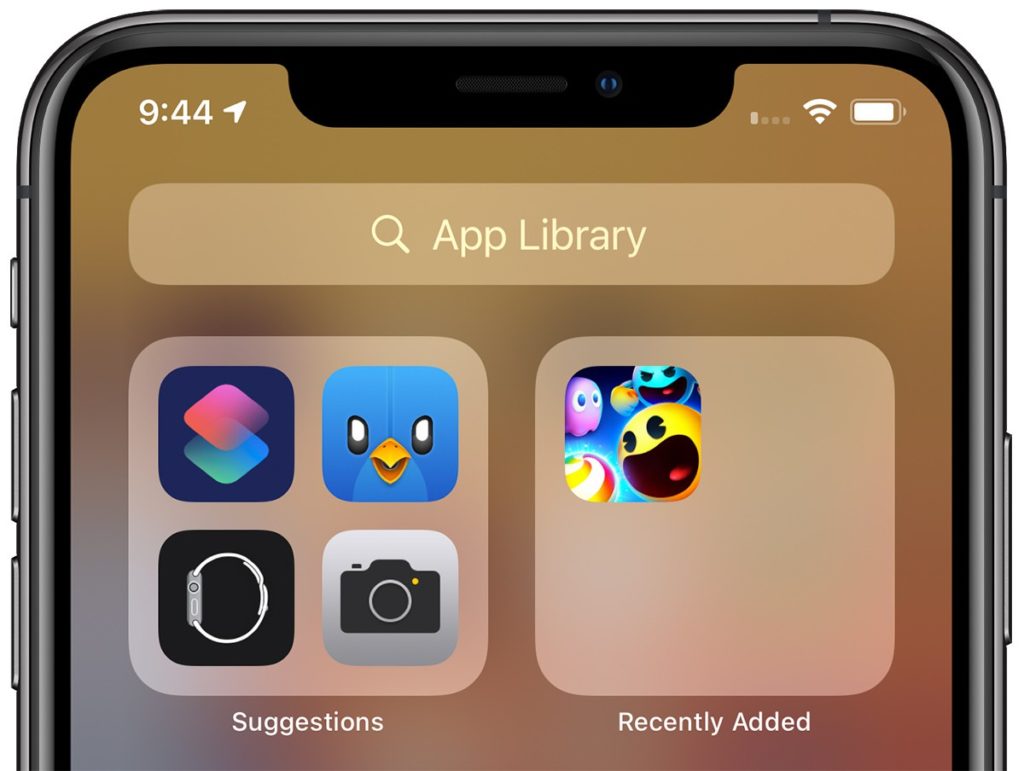
To compliment widgets, a new App Library feature has been added. Similar to Apple Watch’s app list view, App Library automatically organises every app you have installed into category folders.
Swipe right to get past the Home Screen pages and onto App Library view. This seems a great to quickly access apps that normally reside beyond the first or second page.
App Library includes an intelligent “Suggestions” folder where four recommended apps are shown based on factors like, usage, the time of day, location, and activity.
It is now possible to hide individual pages or apps, limiting apps to the App Library. This will allow for much tidier screens.
Other screen-space saving changes include a new compact incoming call and Siri interfaces. Siri is not only now more compact but has received a significant update, making Siri “smarter”.
Improved Accessibility
As with every new iteration of iOS, the accessibility has been improved and expanded. Voice Control, introduced last year gets a new British English voice and expanded capabilities, support for Braille has been enhanced and expanded, and more. Some of the new features worth mentioning are:
Sound recognition
While this is not a new concept, it is the first-time sound recognition has specifically been used for accessibility purposes. Amazon, Google, and others have used AI-based sound recognition for personal safety applications. For example, Google Pixel phones are able to listen for a car crash and Amazon’s Alexa can listen for the sound of broken glass. Once enabled in the accessibility section of iOS 14 the phone will listen for 14 different sounds, including a knock at the door, a doorbell, sirens, smoke detector alarm, dog barking, a crying baby, and more. If one of these sounds is heard you are alerted.
Headphone enhancements
This new feature allows people to adjust the frequency response and boost softer sounds to make it easier to hear. While this requires one of the compatible headphone sets (e.g. AirPods Pro, AirPods, Powerbeats, Powerbeats Pro and Beats Solo Pro, EarPods) it is a great enabler for anyone who has trouble hearing.
Back Tap
Back Tap this new simple feature lets you assign an action to a tap on the rear of your iPhone and it even works when the phone is in a case. Currently, Back Tap only supports two movements, a double and a triple tap. However, there are large number of actions that can be assigned to the taps.
FaceTime Sign Language
The update to FaceTime now includes artificial intelligence that will recognise if someone is using sign language during group FaceTime call. The system will then make the person on the call who is signing appear more prominent.
VoiceOver
VoiceOver has been upgraded. Most notably is VoiceOver utilises on-device machine learning and Apple’s Neural Engine to recognise and audibly describe what’s happening on screen. VoiceOver can now identify key display elements, especially on websites and apps that don’t have their own accessibility functionality. This can include text within images as well as interface controls that can all now be read out.
Apple Magnifier
Apple Magnifier has been upgraded too. It now magnifies more of the area you are pointing at, as well as capture multi-shot freeze frames. You can now filter or brighten images for better clarity as well as capture multiple images at once – making it simpler to review multipage documents or longer content.
Other new features and changes in iOS
With more than the reported 250 changes and enhancements from iOS 13 here are some of the changes and new features:
Picture-in-Picture (PiP). While not a new concept Apple has added it’s “Apple touch” to it. If you swipe away while watching a full-screened video, the window will now float on your home screen, allowing you to move and resize it. The video can also be minimise into a small button on the side of the screen. All this means that you can continue to play a video while doing something else.
App Clips – similar to Android’s Instant Apps, App Clips allow you to use an app without needing to download the full version. App Clips will also support Apple Pay. This feature could be useful for those times when you need quick access or only need an app temporarily.
A significant update to Apple Maps and includes new cycling-specific navigation, among other things. This can alert you to increases in elevation as well as a notification if there are stairs along your route. This could be very useful for wheelchair users too.
Unfortunately, for now, is US and China focused and will be first available for New York City, Los Angeles, San Francisco, Shanghai, and Beijing. Although more cities will be added once iOS 14 is released.
Third-Party Default Apps – for the first time since iOS was released Apple allows you to set third-party browser and e-mail apps as the default. This means Google Chrome users and those who prefer other e-mail apps can use them more easily.
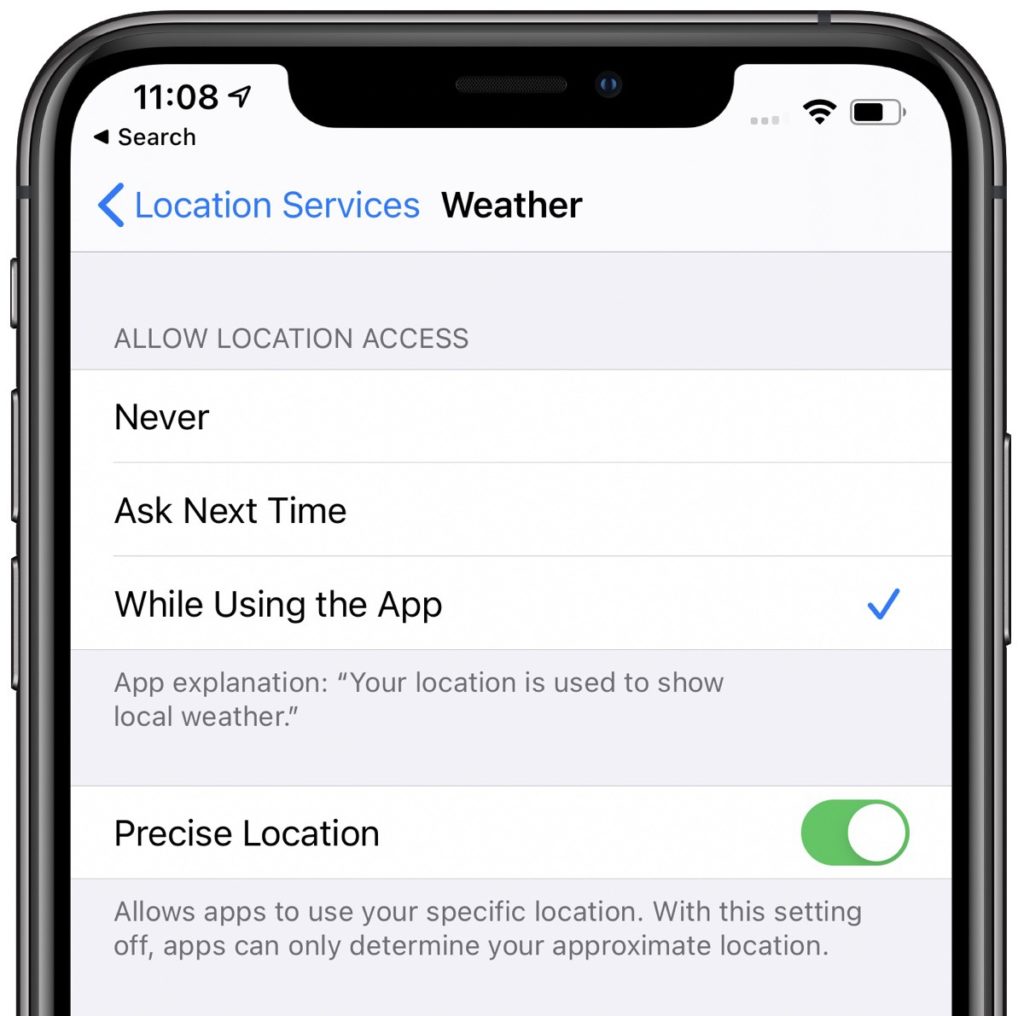
Privacy Protections – A significant amount of work has gone into improving and expanding the privacy protections. It is now even clearer what information apps collect, requiring more user permission. It is now possible to use location dependant features without providing your specific location data.
Changes have been made to the Apple app store to make is clearer what the privacy impact of each app is before you download it. Apple now require developers to self-report their privacy practices, including any data they collect and used to track people.
Developers must now also obtain express permission from the user to access or use any tracking data.
The Apple Clipboard now provides a notification, so you know what app is accessing text copied to it.
Apps that need to discover and access devices on your local network now need to gain your permission to do so first. Fine-grain control to your photos has been added. Any app that requests access to the Photo Library, no longer needs to have access to all your photos. You can choose to block access, select specific photos that the app can view, or allow full access.
If an app uses either the camera or microphone for recording purposes an indicator light will now appear next to the mobile signal bar. This will happen whether an app is being used or running in the background. This will ensure that apps are not secretly recording without your knowledge.
To prevent operators tracking your device Wi-Fi now includes the option to “Use Private Address”; and Bluetooth devices can be renamed.
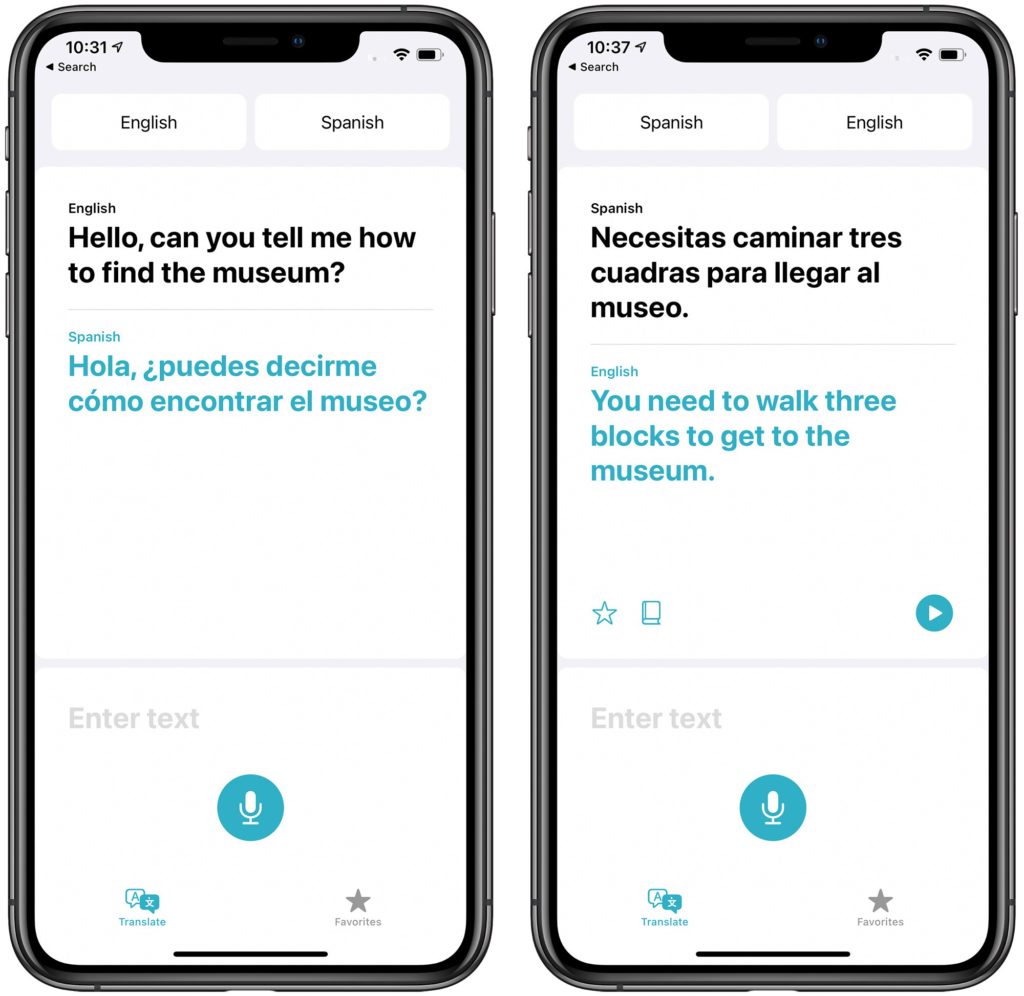
Translate App – Siri’s translation capabilities added in iOS 13 have been expanded into a dedicated translation app.The underling translation engine has also been integrated into the new version of Safari. This makes it possible for websites to be translated too.
Memoji will be expanded, including more age options, and accessories for Memoji, such as face masks – I sign of the extraordinary times we are living in.
iPadOS 14
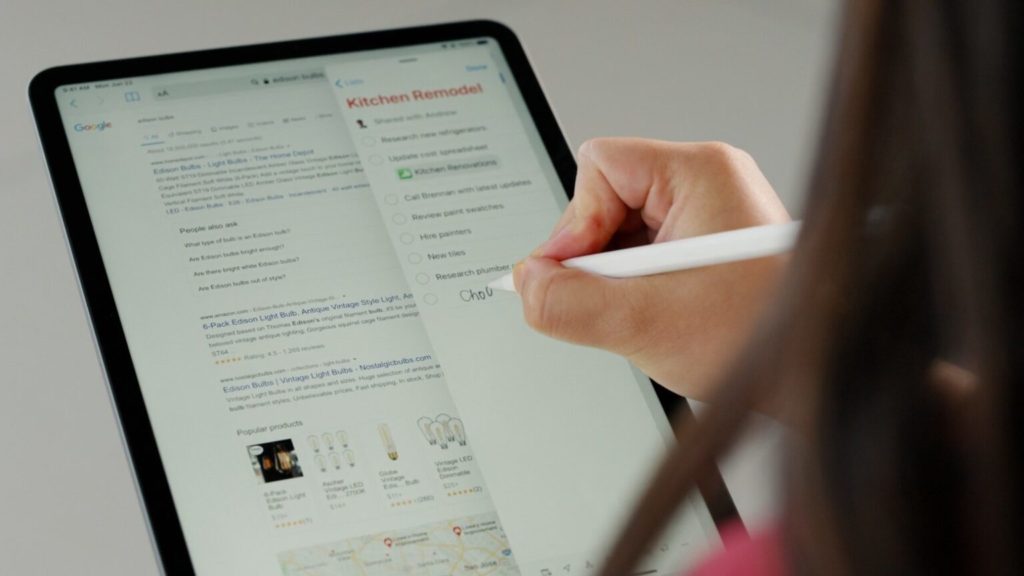
Most of the changes and new features of iOS 14 will also be included in iPadOS 14. Apple also introduced a new “Scribble” feature for Apple Pencil. This can automatically convert handwriting into text. Built in intelligence makes Scribble context aware. This means it is able to for example recognise a phone number or address and offer you an appropriate app to use the data.
watchOS 7
Apple has finally added sleep tracking to Apple watch. While more in-depth data will be gathered if you use an Apple watch, the companion app for iPhone doesn’t require you to use an Apple Watch.
With the coronavirus pandemic hand hygiene has become even more important. watchOS 7 now includes a Handwashing app. This new app not only can detect the motion of you washing your hands but uses the watch’s microphones listen for the sound of splashing water to confirm that you’re actually washing your hands. The app then displays a countdown to ensure you wash your hands for an adequate amount of time.
Google I/O
Google took the decision to cancel their annual developer conference entirely. Google did however announce some accessibility improvements.
An Accessible Places feature has been added to Google Maps. Available on both Android and iOS, Accessible Places is designed to display wheelchair accessibility information about a location or business. You can enable Accessible Places by open the latest version of the Google Maps app. Navigate to “Settings”, then choose Accessibility and turn on Accessible Places.
Once turned on, it’ll show a wheelchair icon for places with an accessible entrance. More detailed information is also available, including Blue Badge parking, accessible seating, and toilets. Accessible Places will be released in the UK, US, Japan and Australia, with more countries being added later.
Action blocks, mentioned in the Autumn 2019 newsletter has now been released. The app enables you to create customisable home screen buttons. Creating a string of tasks or actions that can be trigged by a single tap
Live Transcribe, Google’s real-time, speech-to-text transcriptions for conversations has been updated. You can add custom words or names for the system to recognize and spell. You can use search to search through past conversations. To enable this feature though you need to enable “Saving Transcriptions”. This will then save transcriptions to the device for three days.
It is now also possible to set Live Transcribe to listen for your name. Your phone will then vibrate whenever someone nearby says your name.
Amidst the Covid-19 pandemic many organisations are making their products available either for free or at a reduced rate. There is an ever-growing collection of resources being developed to support people who are staying at home. For an extensive list of these and other resources please see the Karten Network website: https://karten-network.org.uk/home-learning-support/
For a bit of fun, invite a horse into your house, a
lion into your Livingroom and while you are at it, have a tiger round for tea!
You will require a mobile device that supports
Augmented Reality (AR). This will need to be, either an Android device running Android 7.0 or later
or an Apple device running iOS 11.0 or later.
Open your web browser and do a Google search for an
animal e.g. “tiger”. If an AR animal is
available, it’ll show up in a small box with some information and an invitation
to “Meet a life-sized tiger up close.” In that box will be an option to “View
in 3D”, tap that and the website (Wikipedia) will place an animated 3D model on
your screen. Tap on “View in your space,”. You may be asked to allow access to
your camera, if so tap “allow”.
Point your device at the
floor and the view will switch to an AR mode. You will be asked to move your
phone around – this step may take a couple of minutes. Typically, you also need
a room with fairly good light and a flat-ish surface. Then almost by magic the
animal will pop up in your space. You can now move your device around to view
the animal.
The current list of
available animals is:
Alligator
Angler fish
Brown bear
Cat
Cheetah
Dog
Duck
Eagle
Emperor penguin
Goat
Hedgehog
Horse
Lion
Macaw
Octopus
Pug
Giant panda
Rottweiler
Shark
Shetland pony
Snake
Tiger
Turtle
Wolf
As always, I am interested to hear about how you are using mobile and
other smart technology. I am also available to support and help where I
can, even more so during these
exceptional times.
Martin Pistorius, Karten Network Mobile Technology Advisor
The power of the Karten Network is its ability to share its wealth of knowledge and expertise. A few years ago, Matt Harrison, then at Portland College, now at Beacon Centre, shared his use of QR codes during the Karten Network Events. More recently TechAbility and National Star’s Neil Beck showed me a project he had done using both QR codes and RIFD tags. This inspired me to write this tutorial on how to use QR codes and RFID tags.
How to use QR codes and RFID tags
QR Codes
A QR (Quick Response) code is a two-dimensional
barcode that enables you to quickly access the data associated with a QR code.
Most of the time this is a URL (a website address).
As the name suggests, QR
codes are ideal for quickly and easily accessing a network linked
resource, like a video, photos or other information. An example could be to
allow a learner to access a video on how to perform a task. The learner would
then simply need to point their device at the QR code and link through to the
resource. Or QR codes could be placed on the packaging of a product or printing
job, making it easier to tell customers more
about your Karten Centre or enable them to place
another order. What and how you use QR codes for is really only limited
by your imagination.
There are a number of online services, most of them
free that allow you to generate QR codes. I would suggest simply doing a Google
search for “qr code generator”. Fill in your information e.g. the URL and
generate the code. You will typically get an image file
containing the QR code to download.
This can then be printed and placed wherever needed.
To read (scan) a QR code used to require an app
however any iOS device running iOS 11 or later has a QR reader built into the
native camera app. Android 9 and later also have
the feature included with the camera app courtesy of Google Lens.
To scan a code, open your camera app, and point it
at the code. Typically, a window will pop up asking you if you want to open the
link. Tapping OK/Allow will take you to
wherever the QR code is set to go.
If your device doesn’t support reading QR codes through the camera, then you will need to download and install an app such as QR Reader for iPhone and QR Droid for Android.
RFID tags
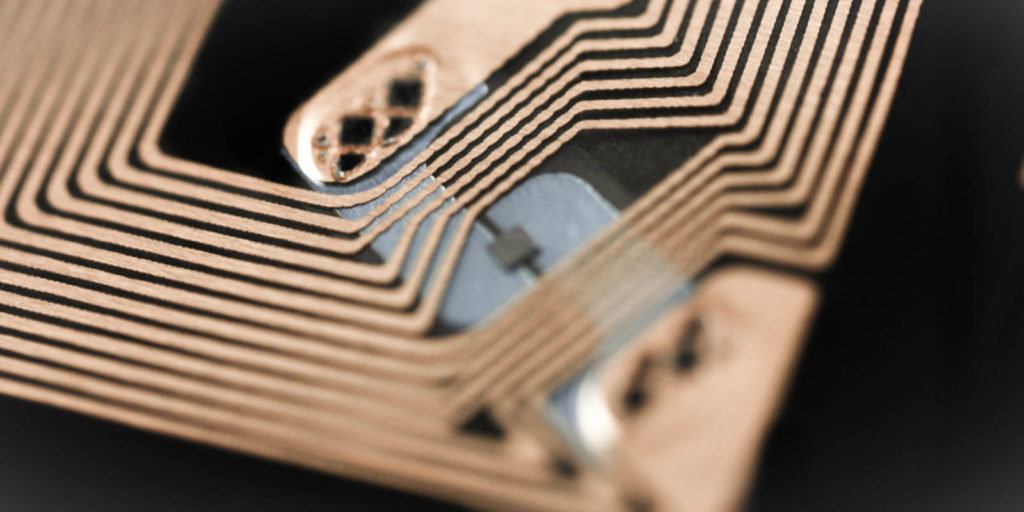
RFID (Radio-frequency identification) tags are tiny
radio devices that can store data. A lot of us use them all the time as they
are what make contactless payments and hotel card keys possible.
There are generally speaking two kinds of RIFD tags
– passive and active. The main difference is passive tags get their power from
the reader and active tags have their own power source.
You may have also either heard of or seen NFC on
your device. NFC (Near-Field communication) is technically a sub-set of RFID and is based on the RFID protocols. The main difference
between RFID is that an NFC device can also emulate a tag. It is also possible
to use NFC in a peer-to-peer mode, to transfer information between two NFC
devices.
While I have provided this
basic overview of the technology, in reality you don’t really need to worry
about the underlying details to use the RFID/NFC tags. For the sake of
simplicity, I will use the term “NFC tags” for the rest of this tutorial.
NFC tags usually come
either embedded in a plastic card or fob, or as a sticker. They are cheap. For
the purposes of this tutorial, I purchased 10 blank cards for £3.57 and 10
blank stickers for £2.93 including postage on eBay.
Similar to QR codes blank
NFC tags allow you to store data on them. In most cases more than you could
using a QR code. However, the major advantage to NFC tags is you don’t need to
open an app and simply need to be close enough for your device to read the tag.
Dedicated NFC tags writers and readers are available, however, for the purpose of this tutorial I have only used a mobile phone and an App.
You will need:
An Android or iOS device (Please see the “devices” section for details on supported iPhone models)
A NFC app – for this tutorial I used the NFC Tools app, available for both Android and iOS. Another good option are the, NFC TagInfo and NFC TagWriter apps by NXP. These are available for both Android and iOS. (See the links section for more details)
Blank NFC tags. I recommend tags with the NTAG213 chip. These can be purchased online. I used eBay but they are available elsewhere. If you prefer a reputable UK supplier, try Seritag
Devices
While both Android and iOS
can read and write Apple have, until recently been far more restrictive. In
fact, creating (writing) NFC tags is easier to do on an Android phone.
Android
Most Android phones can
read NFC tags without the need for an app. You may however need to enable the
NFC on the device. To do so go to settings, or swipe down from the top of the
screen and tap the NFC icon to toggle it to “on/enabled”.
You will however need an
app to write to NFC tags.
iOS
Apple devices have NFC
enabled natively within iOS, so you don’t need to turn it on. However, until
the iPhone 7 Apple didn’t allow the use of NFC other than for payments.
To read a NFC tag you will
need an iPhone 7, 8 or X running iOS 11
or later as well as an NFC reader app. The app doesn’t need to be open but must
be installed on the phone.
The newer iPhone XR, XS, XS
Max, 11, 11 Pro and 11 Pro models can all read NFC tags natively without
requiring an additional app.
iPhone will also not read
blank tags. The tag must be encoded with NDEF data otherwise it is ignored.
To write/encode an NFC tag
you will need an iPhone 7 or newer and be running iOS13 or later.
Writing/Encoding NFC Tags
There is no real difference between Android and iOS
when it comes to encoding NFC tags using the NFC Tools app. Although the apps
interface is slightly different between Android and iOS.
While either an Android or iOS device can be used, I would recommend using an Android device to create the NFC tags.
Select the type of record you want to add. In most cases this will be a URL
Enter the data e.g. the URL
Tap “OK”
You can add additional records by repeating the
steps above.
Once you are happy with the record. Tap “write”.
You will now be prompted to touch the NFC tag to the device.
Your NFC tag should now be ready to be used.
Please note that the records you have entered
remain “loaded” in the app allowing you to encode multiple tags with the same
data. To write new data first remove the existing records by:
Tap the NFC Tools app
Tap “write”
Tap “More options”
Tap “Clear record list”
Tap “Yes” when asked if you are sure
Reading NFC tags.
As mentioned above Android devices read NFC tags
without the need for any additional apps, provided NFC is turned on. Simply either tap your
device to the tag or bring the tag to the device.
Only iPhone 7 or newer running iOS11 or later will read NFC tags. If you have an iPhone 7, 8 or X you will need to install an NFC reader app such as TagInfo or NFC Launch apps by NXP (See the links section). The TagInfo app has more features whereas NFC Launch is a lightweight app designed for reading a URL from an NFC tag.
Using NFC tags
Now that you have the tags, where and how you use
them is limited only by your imagination.
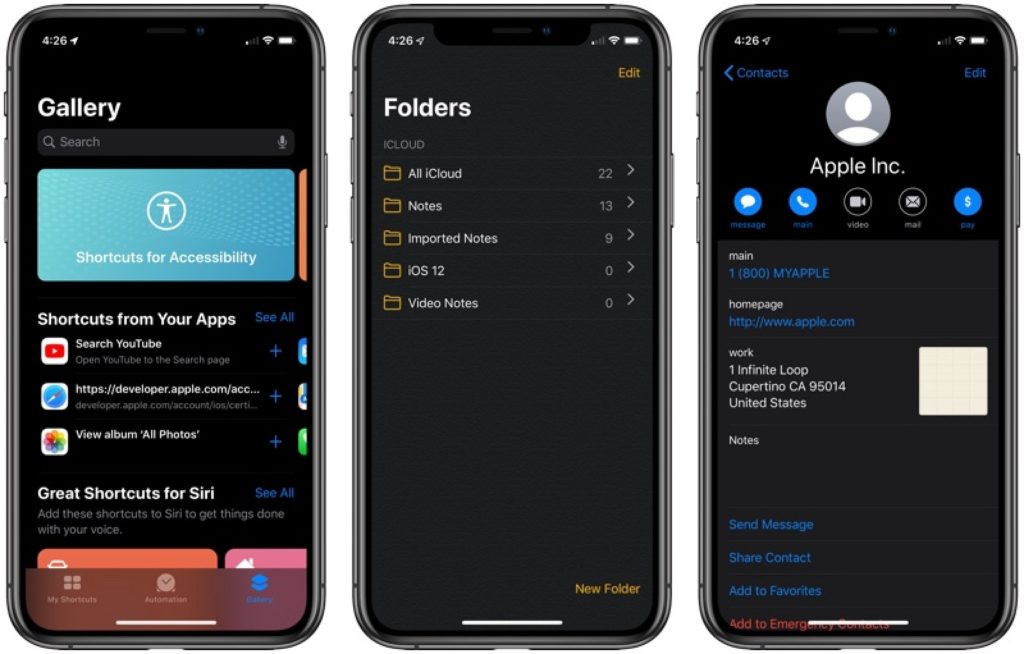
If you have an iPhone running iOS 13, using Apple’s
short cuts app you can do all sorts of fun things, e.g. turn off smart lights,
take a photo, play music etc. From my testing this also
appears to. be an exception where iOS
will read a blank NFC tag.
To do this:
Tap the Shortcuts app
At the bottom of the app, tap “Automation”
Tap the + in the top right corner
Tap “Create Personal Automation”
Scroll down to “NFC”
Tap NFC
Tap scan and scan the NFC tag
Scan the tag
You will be prompted to “Name This Tag” – Enter a name, and tap “OK”
Tap “Add Action”. From here you have a vast number of options such as playing music for example:
Continuing on from the instructions above, tap “Apps”, then “Music” then “Play Music”
This will now add on the text “Music” text, this will take you into the music library where you can select what exactly gets played.
Finally, you have the option to be prompted to confirm before running the action, or to simply run the action.
Now whenever you tap on that tag, the automation
will be performed.
While both QR codes and RFID/NFC tags are reasonably safe, please excise a degree of caution and common sense when scanning unknown codes and tags.
As always, I am interested to hear about how you are using mobile and
other smart technology. I am also available to support and help where I
can, even more so during these
exceptional times.
Martin Pistorius, Karten Network Mobile Technology Advisor
Technology for people with disabilities can be truly liberating and empowering. It enhances, enriches and potentially transforms lives. From my personal perspective as a person with a disability I am heavily reliant on technology to function in my everyday life. However, one key aspect to the use of technology by people with disabilities is that it is accessible.
By accessible, in this context, I mean digitally accessible. Digital accessibility is a practice to ensure that websites, mobile apps and other digital resources e.g. eBooks can be accessed and used by people with impairments, either directly or through the use of assistive technology.
Legislation within the USA, EU and UK require developers to ensure that website and apps are accessibly. However, in reality, compliance with this is mixed – this is why we find that some apps don’t support switch access.
In the UK the Equality Act (2010) (and the Disability Discrimination Act 1995 in Northern Ireland) requires organisations not to discriminate against people with disabilities and provide reasonable adjustments where needed. On the 23rd of September 2018 new regulations on the accessibility of websites and mobile applications of public sector bodies were introduced.
23 September 2019 – Public sector websites published on or after 23 September 2018 must be compliant.
23 September 2020 – Websites published before 23 September 2018 must be compliant.
23 June 2021 – Apps must be compliant.
In simple terms, to comply with the Public Sector Bodies (Websites and Mobile Applications) Accessibility Regulations two main requirements must be met:
Meet accessibility standards, either the international accessibility standard, WCAG 2.1 AA or the European equivalent, EN301 549
These guidelines are extensive, and while much effort has gone into improving the readability, the documentation still tends to be quite technical and can be tedious to read. I will therefore attempt to provide to some high-level guidelines. Current web accessibility (which is applicable to apps and other digital accessibility) is structured around four principles: Perceivable, Operable, Understandable, and Robust (POUR).
POUR
Note, I use “website” in this article, but it is applicable to apps too.
Perceivable:
Website users must be able to process information presented on/through the website. In broad terms, this means that a website and the content contained within it must be presented in a way that people of all abilities are able to process it. For example, text support for any audio content for people with a hearing impairment; audio for people with a visual impairment – this does not necessarily mean creating audio for all text but that screen readers and other assistive technologies can access the content of the website.
Simply put: Is there anything on the website that someone who has a visual impairment (including colour blind), or who is deaf would not be able to perceive?
Operable:
Website users must be able to operate the website with a variety of tools. Many people with a disability either have difficulty or cannot operate a mouse at all. It is therefore imperative that the website supports keyboard-based interaction.
To support users with cognitive impairments to operate a website, animations and media should be controllable. Any time limits for completing an action should be generous or configurable. All people, not just those with disabilities, make mistakes so users should be supported by providing appropriate instructions, cancellation options, and warnings.
Simply put: Can all functions of the website be performed with a keyboard? Can users control interactive elements of the website? Does the website make completing tasks easy?
Understandable:
If the website users can perceive and operate the website, can they understand it? Support users by using clear, concise language and offering functionality that is easy to comprehend. If a user takes an action, the connection between the action and the result should be obvious. Navigation should be consistent throughout the website. Forms should follow a logical flow, be clearly labelled and provide adequate guidance.
Simply put: Is all of the text on the website clearly written? Are all of the interactions easy to understand?
Robust:
Website users use their own preferred technologies. Within reasonable limits, a website should work well across platforms, browsers, and devices i.e. websites should not dictate the technology users can use. Ensuring that a website conforms to standards and conventions is one of the best ways to meet the principle of robustness. Clean well written code is generally more robust and accessible across platforms.
Simply put: Does the website only support specific browsers or operating systems, or devices? Is the website developed in accordance with standards and best practices?
Specific technical guidelines
Within these principles there are specific technical guidelines on how to create accessible websites. The General ones are:
Navigation and website structure
Make use of well-structured mark up. i.e. heading should be marked with the appropriate heading tags and in a logical order H1 > H2 > H3….etc. Ensure all parts of the website are able to be accessed without a mouse and that the reading and navigation order is logical and intuitive including multiple ways of finding information. Provide a means for users to skip repetitive elements on the page e.g. providing a “Skip to Main Content,” or “Skip Navigation” link at the top of the page which jumps to the main content of the page.
Colours
Ensure there is high contrast between the text presented and the background colour. Ensure that colour is not only used to convey information or as a prompt e.g. do not say “click the red button to continue”.
Images
Ensure all images have alternative (alt) text unless they are purely for decoration. Ideally decorative images should be called from the style sheet, not embedded in the page. For images that are purely decorative, such as a bullet point or border, the alt text should be empty or null. Alt texts should be appropriately descriptive – think of describing what the image is about.
Audio and video
Ensure you have subtitles, captions or at the very least written transcripts available with video and audio content. If there is audio that plays automatically on a website, ensure that these sounds can be paused or stopped by the users. Check your audio and video has open captions (captions that are available all the time) or written transcripts and that there is a pause or stop on automatic audio on your pages.
Text
Ensure the text can be made larger without affecting the content or function of the page or website. Don’t use images of text purely for decorative purposes.
Tables
The use of tables for layout should be avoided and only used for tabular data. Tables should be marked up with tags (table heading) to aid screen reader users to make sense of the content.
Links
Ensure that links describe where the link is going, what the link is or the purpose of the link. Links should make sense when read out of context.
Forms
Ensure there are labels immediately next to fields you want people to type in or click on. Check fields that prompt for an input (e.g. name, email, comments) have a label next to them which explains what data is to be entered.
Page time limits and flashing
Ensure pages with a time limit can have the time limit adjusted or turned off. Moving, blinking or scrolling can be used to highlight content so long as it lasts less than three seconds. However, do not put anything in your pages that flashes more than three times in any one second.
Resources and further reading:
The primary resource for web accessibility best practice guidelines is the W3C’s Web Accessibility Initiative (WAI) who set the standards. The standard that is most relevant to the new regulations is the Web Content Accessibility Guidelines (WCAG) 2.1. You may have seen that some websites state that they have an “A”, “AA”, or “AAA” rating this is based on their compliance to the WCAG.
In August Google’s security research taskforce, Project Zero announced that they had discovered there was a “sustained effort” to hack iPhones over a period of at least two years.
The Project Zero researchers found that attackers were exploiting 12
separate security flaws in order to compromise iOS devices. Most of these flaws
were within the native iOS browser, Safari.
These security flaws meant that if a user
visited a compromised website code would be implanted in the iOS device. The
malicious code could access an enormous amount of data, including contacts,
images, apps a person was using e.g. Instagram, WhatsApp, and GPS location
data. It would relay this information back to an external server every 60 seconds.
This flaw existed in almost every version from iOS 10.
While this was a real and valid threat, it was sensationalised by
the world’s media as iOS devices are notorious for their high level of
security. In reality, this sophisticated attack was mainly targeted at a
particular group in China. Android devices were also affected by a similar
exploit. Apple released a security patch which fixed all the issues at the
beginning of February, six days after they were informed by Google about the
issue.
While we can only speculate why the story made news headlines six
months after the issue had been identified and fixed. It highlights the
importance of ensuring that operating system updates get installed on a regular
basis. Should you require guidance or help to do this
please feel free to contact me.
Action Blocks
Lorenzo Caggioni, a Software Engineer at Google set up Project DIVA.
This project was developed to help Giovanni’s brother who has multiple
disabilities to listen to music and watch movies independently. The Project
DIVA proved to be the starting point for Action Blocks. These can be used by the Google
Assistant to make it easier for people who have disabilities to use Android
phones and tablets.
With
Action Blocks, (similar to Siri Shortcuts in iOS 12 and later) you add a string
of commands to Google Assistant and then create a custom image/icon to your
home screen, that acts as a visual cue. This allows for the complexity of tasks
to be reduced.
For
example, a seemingly simple operation on your phone, like booking a taxi
involves a number of steps. To do this, you need to unlock your phone, find the
right app, type in your pickup location and book the taxi. A process that also
requires you to read and write, remember your selections, and focus for several
minutes at a time. Now, potentially this
can all be reduced to a single icon that
you simply need to tap.
The
Mobile Technology Resource (MTR)
Near
the end of 2015 I created and launched the Mobile Technology Resource (MTR). This
private website contains a collection of resources related to the use of mobile
technology throughout the Karten Network. The primary reason for creating the
MTR was to encourage and facilitate sharing – so doing help to reduce
reinventing the wheel and promote good practice.
There
is a wealth of knowledge and expertise throughout the network, and many of the
resources are items that would get produced anyway – e.g. How many
organisations have lists of apps?
We
took the decision when creating the MTR to keep it a private resource to create
a safe space for resources to be used and shared. As such you will need a
Karten Network website account, these are free and there is no limit to the
number of accounts per organisation. There are currently 209 users registered
on the system. If you have an account and have forgotten your password you can
reset it by visiting: https://karten-network.org.uk/wp-login.php?action=lostpassword
If you require accounts please send me an email with the
email addresses and names of people needing accounts.
To access the MTR please visit the Karten Network
website and login. The MTR can be found under the “Resources” tab. If
you are not logged in and click on that link it will prompt you to login.
Four years later we are relaunching the MTR, with an updated look and a full review and update of the content. My hope when I created the MTR is that it will be a living resource. One that is driven and shaped by the network with my support.
In this spirit I would like to extend a special note of
thanks to seescape’s Stuart Beveridge who has contributed the reviews of the
apps below. As well as a list
of all apps designed to help blind and partially sighted people that has been
incorporated into the MTR.
I hope that you will find the MTR helpful. If there is
something that you would like to contribute, a feature you would like, or need
help, please contact me.
App
Reviews – Stuart Beveridge
Seeing AI
Seeing AI is a Microsoft research project that uses Artificial Intelligence features to deliver an intelligent app, designed to assist visually impaired people with performing everyday tasks such as reading text, recognising people’s faces, identifying products, and identifying your surroundings. This app is fully accessible with VoiceOver and magnification features on iPhones. How it works: The app has nine different ‘channels’, which you can use for…Read the full Seeing AI review
Soundscape
At the beginning of March, Microsoft released a new and extremely innovative app designed to assist people with a visual impairment to navigate and understand their surrounding environment. The app is called Microsoft Soundscape and is free to download and use. Note: At this stage, the app is only available for iPhone users. Overview Soundscape uses 3D audio sound to give you a full audio map of what’s around you when you are out and about. It is designed to…Read the full Soundscape review
Clew
Over the last few years it is fair to say that there have been some extremely exciting, innovative and life changing apps which have been developed which increase the independence of people with all kinds of visual impairment. Once again, I am delighted to bring another of these to your attention. This time it’s an indoor navigation app called Clew. Clew is a free iPhone app that records a user’s path and then guides you back to your starting point. Clew was created to…Read the full Clew review
Hive
As we are now well and truly in to the season of winter and approaching Christmas, I decided to discuss the Hive App and hub. The app is fully accessible for both Apple and Android devices and is relatively easy to navigate and use.
I purchased the Hive Hub back in August of this year and although it is pricy at £300 I have found the benefits to be enormous in terms of giving me more control and access to my heating, lighting, security and everyday appliances in particular.
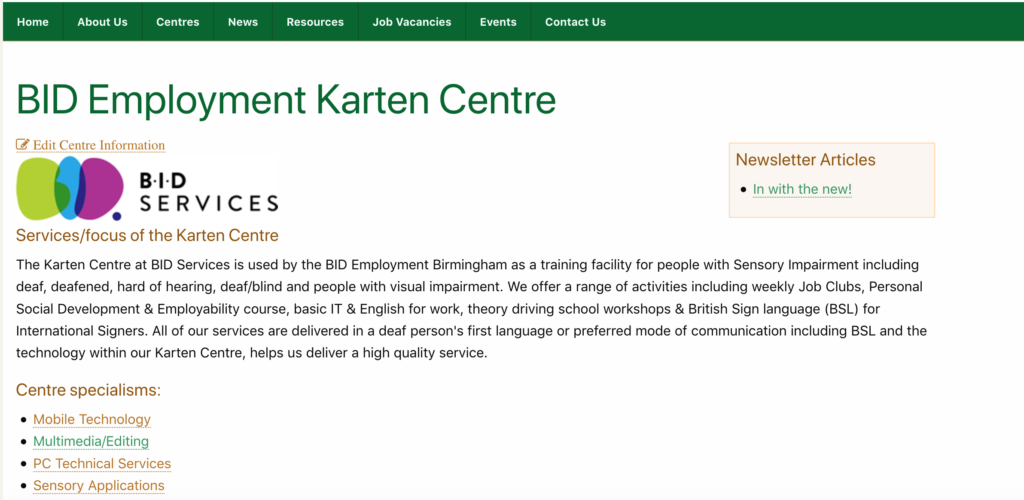
One of the strengths of the Karten Network, lies in the name – a network of people doing some incredible, innovative and inspiring work. Through this network we can collaborate, exchange knowledge and support each other. One way we try to facilitate this is through our website. I have recently invested a lot of time and effort into improving and upgrading the website. A lot of this work was focused behind the scenes. This work has resulted in an improved search facility – content previously omitted is now being included in the search index.
Additional
meta data has been added to the Karten Centre Pages. These include information
on technology specialisms, service provision, disability, age groups and centre
setting (e.g. education, social care, etc.) This was done in an effort make the information
already contained on the centre pages more useful. It is now possible to click
on one of the meta data items and get a list of Karten Centres with similar areas
of interest.
A new feature
has been added too, the “Karten Centre Search”. This allows you to create very
specific searches based on a host of easily selectable criteria, including only
showing centres within a certain number of miles of your or a specified location.
This means it would be possible to search for all centres doing printing within
a 30 mile radius of Manchester for example.
Centre pages now display the centres location on a map. While this feature existed elsewhere on the website it had, until now not been included on centre pages. Centres now also feature the option to upload your logo, with the option to upload photos to the page coming soon.
My hope
is that these improvements and upgrades (with more coming soon)
will make the website more useful to you. However, for all these features to truly
work, we need your help. If you are a Karten Centre manager, please logon to your
centre page and update the information.
To do this (once logged in), navigate to your centre page, and click on
the “Edit Centre
Information” link below the page title. This will take you to form where you
can update and add information.
Should you require any assistance, have questions or suggestions please feel to contact me.
Newsletter
As
some of you may have noticed we have changed the format of the newsletter – we hope
you like it. The changes however, go beyond mere formatting. Newsletter
articles are now available as individual items too, meaning they are not longer
confined to a newsletter. This makes it possible for a list of all news letter
articles to appear on your centre page. Currently, only articles from this and
the previous edition of the newsletter are in this format. However, I hope to
port some of the old articles to this format too soon.
WWDC 2019
Apple’s
annual Worldwide Developers Conference (WWDC) took place at the beginning of
June. WWDC gives thousands of developers from around the world a chance to meet
up with Apple engineers and attend workshops, it is also where traditionally
Apple makes major announces of what is new and what is to come. Some of these
were updated versions of iOS, macOS, watchOS, and tvOS. All of which gain new
features and capabilities. As well as the introduction of iPadOS, a separate version
of iOS specifically for the iPad.
iOS
13, expected later this year, is the next iteration of Apple’s mobile device
operating system. iOS13 has had a major overhaul making it faster and more
efficient. It is reported that these improvements make Face ID 30 percent, and apps
launches 50 percent faster. App update times have also been improved as well as
reducing app download sizes.
A new systemwide
Dark Mode option has been added. This changes the entire look of the
operating system from light to dark. You have the option to have Dark mode permanently
enabled or come on at sunset or on a custom schedule.
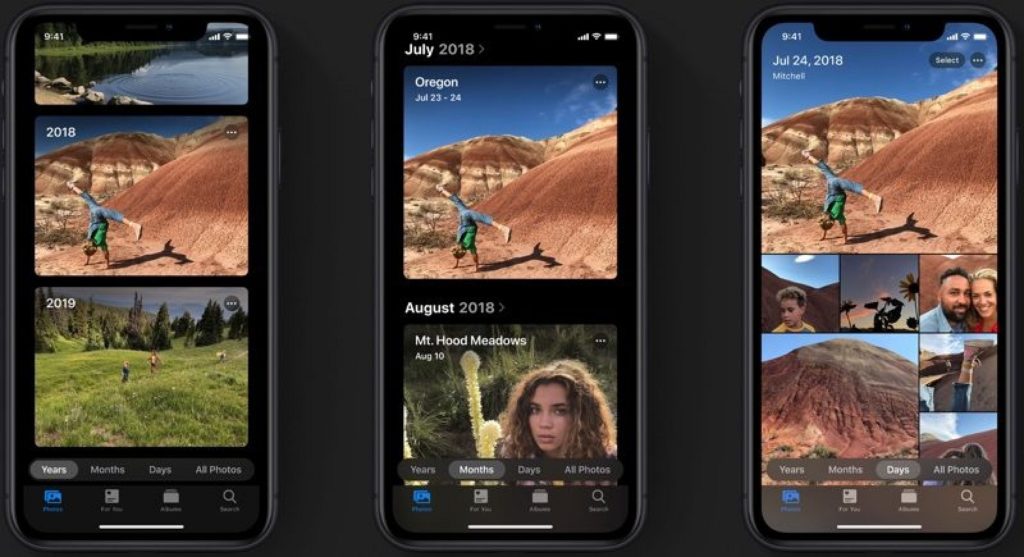
Apple’s Photos
app has been improved with a new photo library feature in an attempt to intelligently
organise your photos and videos. Editing tools have been revamped too.
A new “Sign In with Apple” feature has been added, allowing a convenient way to log into apps and websites. While this is a similar feature to those offered by Google, Microsoft, Facebook and Twitter it is reported that the enhanced privacy feature means that your logins won’t be tracked, unlike other services. Your Apple ID will be used to authenticate your account via Touch ID or Face ID, and developers will see a unique random ID rather than your real information. Apple are able to even generate single-use randomized email addresses, so you never have to use your real email address. Two-factor authentication has also built into this feature to give you even more security.
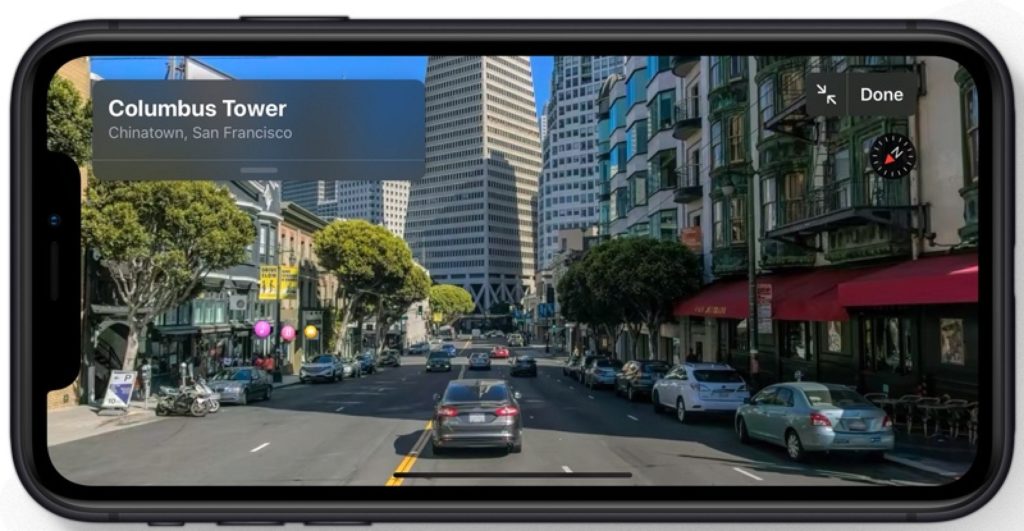
Apple’s Maps have received another upgrade and now also include
a “Look Around” feature similar to Google’s
Street View.
Siri has been given a new, more natual sounding voice. Siri Shortcuts have also been improved with the new “Suggested Automations” feature that suggests personalised shortcuts you might want to create.
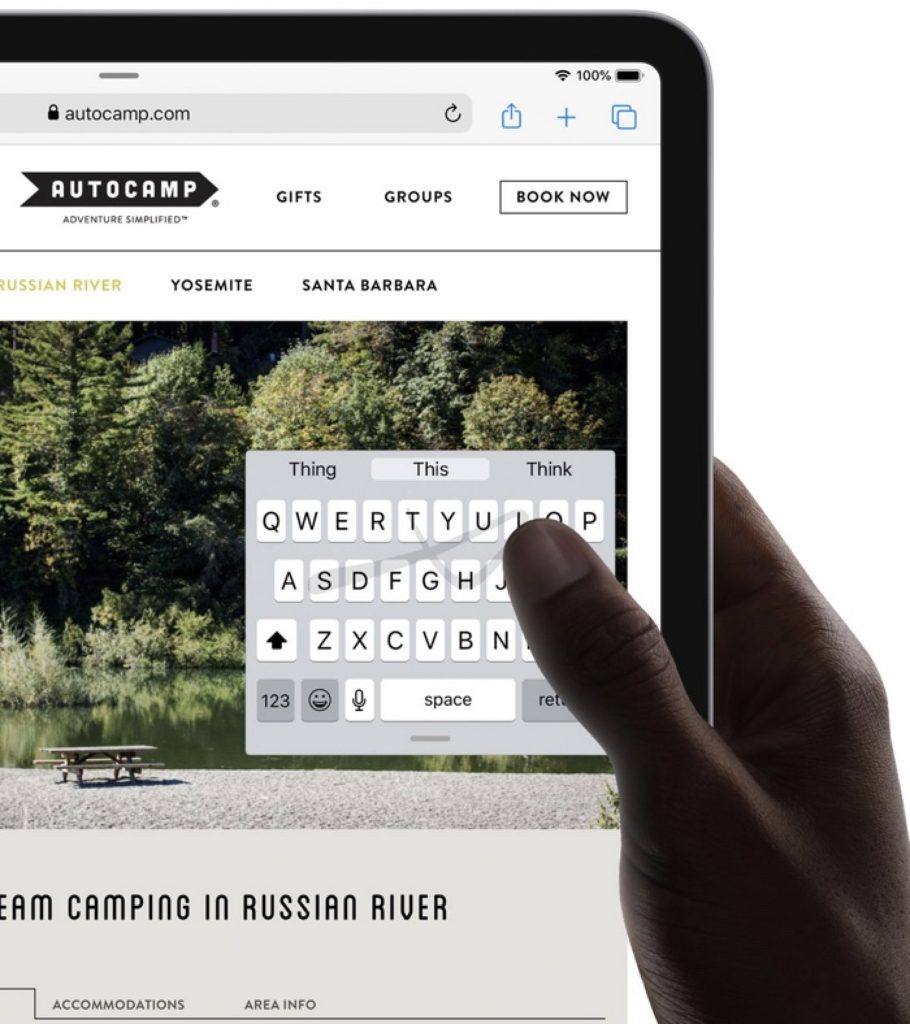
Accessibility has been improved and expanded with a new Voice Control option that enables you to operate your iPhone or iPad entirely with your voice. There is also a new swipe-based QuickPath keyboard option for quicker text entry.
I have only touched on some of the long list of
changes and new features and there are even more reported for the iOS 13 version
for iPad, iPadOS.
iPadOS has been primarily designed with extra features specifically for the iPad’s larger display. iPadOS will be supported by, All iPad Pros, iPad (5th & 6 generation), iPad mini (5th generation), iPad mini 4, iPad Air (3rd generation) and iPad Air 2.
Amongst a whole host of improvements and
new features, perhaps one of the more exciting additions is mouse support. For the first time you will be able to connect
a USB mouse to an iPad. This has the protentional to open up another set of
access options. Mouse support is currently considered an accessibility feature
and will need to be enabled within the Accessibility settings.
Google IO
Google’s
developer conference, Google IO which took place in May also feature a host of
announcemts, including the new version of Android, Android Q. As well as the
new Google Pixel phones and new Nest Hub Max; improvements to Google Search, Google
Lens, Google Duplex, Google Assistant and more.
Perhaps
the most intriguing was Project Euphoria. This project aims to use Google
technologies to give people with speech impairments their voice back. It is
reported that this new software suite and features, powered by machine learning
will coming to Android. It is not clear yet when, how or even if this will
happen, but it’s certainly going to be interesting to see what develops
As always, I am interested to hear about how you are using mobile and
other smart technology in your centre. I am also available to support and help
where I can.
Martin Pistorius Karten Network Mobile Technology Advisor
As the mobile technology advisor for the Karten Network, I strive to support and assist Karten Centres and members of the Karten Network with their mobile technology. Recently while providing support to one centre I became aware that a feature within iOS could reduce Apple devices to expensive paperweights.
In iOS 7 Apple introduced Activation Lock (sometimes referred to as “iCloud lock”). This was developed in response to the US Smartphone Theft Prevention Act of 2015. This legislation, in an attempt to discourage smartphone theft, requires device manufacturers to implement an aptly named “kill switch”; allowing device users to remotely wipe and lock devices. Further changes to California law resulted in Activation Lock being enabled by default in iOS 8 or later.
Activation
Lock forms part of a larger protection system typically referred to as Factory
Reset Protection (FRP), and most notably the native iOS app “Find my iPhone”
Find my iPad”, “Find my iPod”… in fact most Apple products can be included in
this system.
Activation
Lock, as well as being a deterrent by making stolen devices useless, aims to keep
your device secure, even if it’s lost or stolen, and Find my iDevice, can
improve your chances of recovering it. Even if you use the system to erase your
device remotely.
Activation
Lock works by registering your device on Apple’s activation servers and linking
it to your Apple ID when you turn on Find my iDevice (e.g. Find My iPhone).
From
this point on, the device is automatically protected and will require either the
device’s passcode or your Apple ID password to disable Activation Lock. Even if
the device is reset to its factory default using DFU (Device Firmware Update)
mode – this can be used to reset the passcode, the device still won’t be able
to be reactivated and used without first removing the Activation Lock.
Earlier
versions of Activation Lock had some vulnerabilities that could be exploited to
bypass Activation lock. However, these have been fixed by Apple making the system
very good at what it is designed to do – prevent someone else from ever using
your device. This within the context of a lot of Karten Centres creates a
potential problem, particularly where devices are set up by one member of staff
using their iTunes (Apple ID) account and then leaving the organisation. These
devices can’t then be added to a mobile device management system (MDM) as they
are locked to the person’s Apple ID. Typically what then happens is either to
update the device or remove a passcode the device is reset using DFU mode and
gets stuck in the Activate device loop.
While
there are online services that claim to be able to remove Activation Lock,
these can be unreliable and not recommended, not to mention expensive.
Currently, the only reliable way to remove Activation Lock is to use Apple Care
or take the device/s to an Apple store. You will however be required to prove
that you purchased the device from a reputable source and own the device.
Apple
have attempted to address this issue by introducing Managed Apple IDs with Apple
School Manager and Apple Business Manager programmes. These Apple
IDs are similar to your personal Apple ID however, they are associated with an organisation
rather than an individual. These IDs can also be customised and have
restrictions applied to them, for example preventing them from being used to make
purchases in the Apple App store.
Activation
Lock can be disabled in most MDM systems; or by “Supervising” the device
through Apple Configurator; or by turning off Find my iPad within settings.
While Activation Lock still has a place within the Karten Centre context, I strongly recommend that organisations have a policy and procedure to safely and securely store each iPads Apple ID, password and passcode as well as proof of purchase. Not only to avoid having devices reduced to expensive paperweights but that should the person responsible for the iDevices leave or become incapacitated that the next person charged with managing the iDevices has the necessary information to do so.
watchOS
5.2
Point
releases of software, in other words the version number after the period
typically contain bug fixes and performance enhancements, usually there nothing
to get excited about. However, watchOS 5.2 released at the end of March included
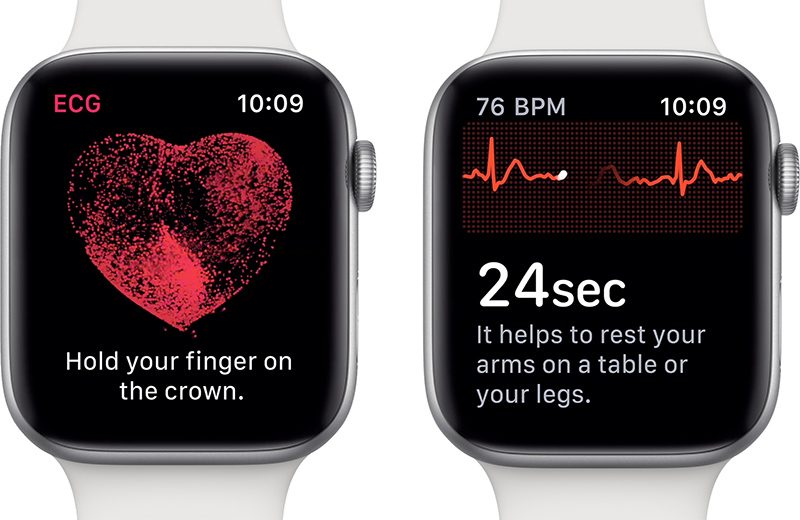
something to get the heart beating a bit quicker – the introduction of the ECG
app.
Only
available on Apple Watch Series 4, the ECG app enables you to take your own ECG
in just 30 seconds simply by opening the app and placing your finger on the
digital crown. The ECG data is then saved in the iPhone’s Health app and can be
exported as a PDF to share with your doctor.
A
clinical trail conducted by Apple with 600 participants reported that the ECG
app was able to detect Atrial fibrillation (quivering or irregular
heartbeat – that can lead to blood clots, stroke, heart failure and other
heart-related complications) with 98.3 percent accuracy and a sinus rhythm
(normal heartbeat with the upper and lower chamber of the heart beating in
sync) with 99.6 percent accuracy.
Also
included in watchOS 5.2 are Irregular heart rhythm notifications, this monitors
the heart rhythm in the background and notifies you if an irregular
heart rhythm is detected over 5 times in 65 minutes. This feature is
available on Apple Watch Series 1 and above. Apple concerned that Receiving the
right notification at the right time can be the difference between someone going
to a doctor or ignoring it tested the Irregular heart rhythm notifications
feature with over 400000 people.
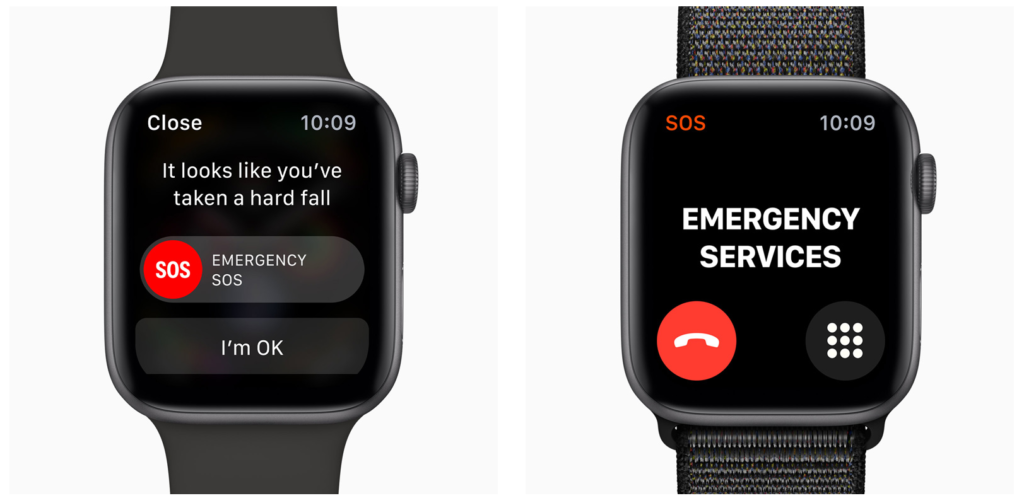
These newly enabled features along with the Fall Detection available in Apple Watch Series 4, and Emergency SOS make the Apple watch far more than merely a cool way to tell the time, particularly for people with disabilities.
As
always, I am interested to hear about how you are using mobile and other smart
technology in your centre. I am also available to support and help where I can.
Martin Pistorius Karten Network Mobile Technology Advisor
We use cookies on our website to give you the most relevant experience by remembering your preferences and repeat visits. By clicking “Accept All”, you consent to the use of ALL the cookies. However, you may visit "Cookie Settings" to provide a controlled consent.
This website uses cookies to improve your experience while you navigate through the website. Out of these, the cookies that are categorized as necessary are stored on your browser as they are essential for the working of basic functionalities of the website. We also use third-party cookies that help us analyze and understand how you use this website. These cookies will be stored in your browser only with your consent. You also have the option to opt-out of these cookies. But opting out of some of these cookies may affect your browsing experience.
Necessary cookies are absolutely essential for the website to function properly. These cookies ensure basic functionalities and security features of the website, anonymously.
Cookie
Duration
Description
cookielawinfo-checkbox-analytics
11 months
This cookie is set by GDPR Cookie Consent plugin. The cookie is used to store the user consent for the cookies in the category "Analytics".
cookielawinfo-checkbox-functional
11 months
The cookie is set by GDPR cookie consent to record the user consent for the cookies in the category "Functional".
cookielawinfo-checkbox-necessary
11 months
This cookie is set by GDPR Cookie Consent plugin. The cookies is used to store the user consent for the cookies in the category "Necessary".
cookielawinfo-checkbox-others
11 months
This cookie is set by GDPR Cookie Consent plugin. The cookie is used to store the user consent for the cookies in the category "Other.
cookielawinfo-checkbox-performance
11 months
This cookie is set by GDPR Cookie Consent plugin. The cookie is used to store the user consent for the cookies in the category "Performance".
viewed_cookie_policy
11 months
The cookie is set by the GDPR Cookie Consent plugin and is used to store whether or not user has consented to the use of cookies. It does not store any personal data.
Functional cookies help to perform certain functionalities like sharing the content of the website on social media platforms, collect feedbacks, and other third-party features.
Performance cookies are used to understand and analyze the key performance indexes of the website which helps in delivering a better user experience for the visitors.
Analytical cookies are used to understand how visitors interact with the website. These cookies help provide information on metrics the number of visitors, bounce rate, traffic source, etc.
Advertisement cookies are used to provide visitors with relevant ads and marketing campaigns. These cookies track visitors across websites and collect information to provide customized ads.