Nimbus Disability was created in 2006 by Martin Austin. Nimbus is a Social Enterprise with several areas of focus, from Training on Disability and the Social model of Disability to Access Audits, but its main area of business is running the Access Card. The organisation is run by and for disabled people, which is a very unique and outstanding model of operation.
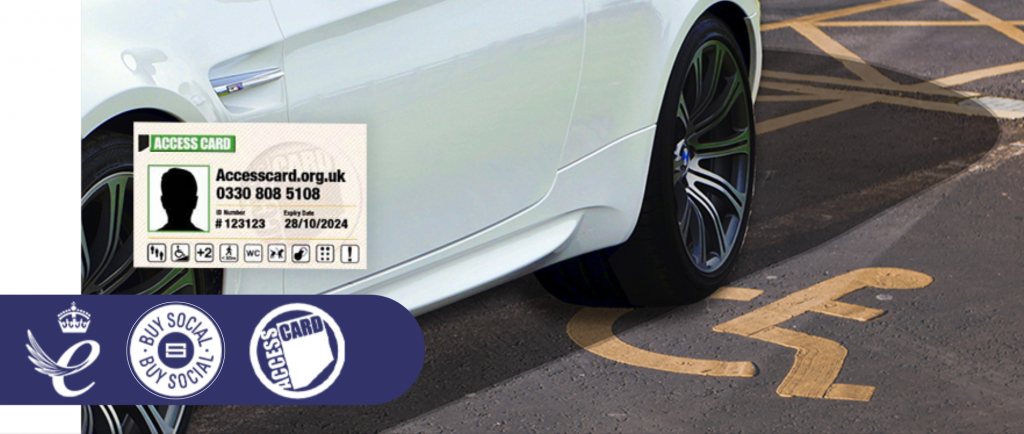
Martin describes ‘The Access Card’ as a card like no other; we translate your disability or impairment into symbols that highlight the barriers you face and the reasonable adjustments you might need.
He goes on to say it’s all based on your rights under the Equality Act and providers’ responsibilities to ensure that Disabled people are not put at a disadvantage in participating in such events as live music or sporting events. The card and our partners have expanded over the years to see it being used at Buckingham Palace to Alton Towers. Once you are a cardholder and your needs have been assessed based on your application, this informs providers quickly and discreetly about the support you need and may gain you access to things like concessionary ticket prices and complex reasonable adjustments without having to go into loads of personal detail.
Even more ground-breaking is the international reach of the Card, having been rolled out the other side of the world, in New Zealand. The locally operated Hapai Access Card, works in the exact same way and is led by a dedicated team in Auckland.
Accolades
In 2019, Martin was named in the New Year’s Honours list, receiving an MBE for Accessibility in the Tourism and Entertainment Sector. Martin describes the moment he found out about the award:
“There was the usual bundle of mail on my desk when I got into the office. After a little while of going through emails etc out of the corner of my eye I noticed a letter from the Cabinet Office. I couldn’t believe it when I opened the envelope.
“I had to read the letter a few times but couldn’t really take it in. Was it spam?! Eventually, it sank in and I was just… speechless!
Now in 2022 Nimbus discovered that the Access Card has received the extremely prestigious Queen’s Award for Enterprise in the Innovation category. Mark Briggs, Nimbus latest member of the team, working as Director of Partnerships, describes this as a true accolade to the determination of Martin and the team in getting the card to this place, and now we have the springboard to shout from the hilltops about how different and innovative thinking can be so impactful to Disabled people. The next few months are going to be very exciting as we unveil so many new projects and partners that will expand the Card and Nimbus’s reach. One of these in development is an ingenious way we will be able to use the concept of the Access Card and new digital technology to protect Disabled people’s parking. Much of the detail is still under wraps for the moment, but we are close to announcing our partnership with sector leaders in parking management and EV charging, that could be the answer to one of the most contentious issues for Disabled people, the misuse of accessible parking bays.
You can apply for the Access Card by visiting www.accesscard.org.uk. it’s £15 for 3 years and you can see all the benefits of the card on the website along with provider and access information.
Parkability
The ongoing misuse of Disabled peoples parking bays has been a topic on many news stories and governmental agendas.
To date, there is no universal way to mitigate this abuse other than on-site enforcement, and now with the introduction of ANPR car parking management, there is no on-site presence, resulting in an increased ‘allowance of abuse’, which puts Disabled people at an increased disadvantage. This misuse will only increase with the rollout of electric vehicles and their charging points, which will be instrumental in Disabled people having an equitable mobile future.
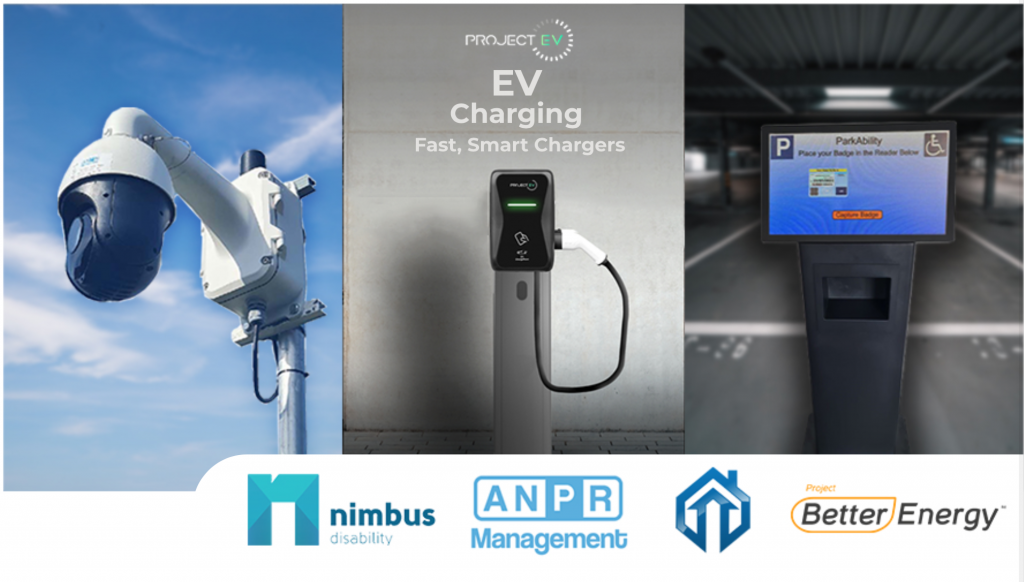
The ParkAbility partnership, Combines the Queens Award winning Access Card, cutting edge technology and accessible EV charging solutions, monitoring bay by bay vehicle interaction, validating registered Blue Badges. The one time registration is simple and easy via the Access Card, with Blue Badge kiosks in larger retail environments or by a simple phone app, that validates you in under a minute.
The Technology
The Patent Pending camera technology can monitor a number of individual bays within a car park including Disabled Parking bays and EV Charging bays. Each bay is individually cross referenced with the Nimbus Access Card database. You can register your Blue Badge and vehicles simply and easily either by the web app or buy using the onsite kiosks.
Any unregistered vehicles using the bays will automatically be issued with a parking notice charge (PNC), and or in the case of EV chargers, be unable to use to draw charge.
In late spring developers from around the world gathered to attend the two major developer conferences – Google I/O and Apple’s WWDC. These conferences typically serve as platforms for major announcements and glimpses into the near future, this year was no exception.
Google I/O
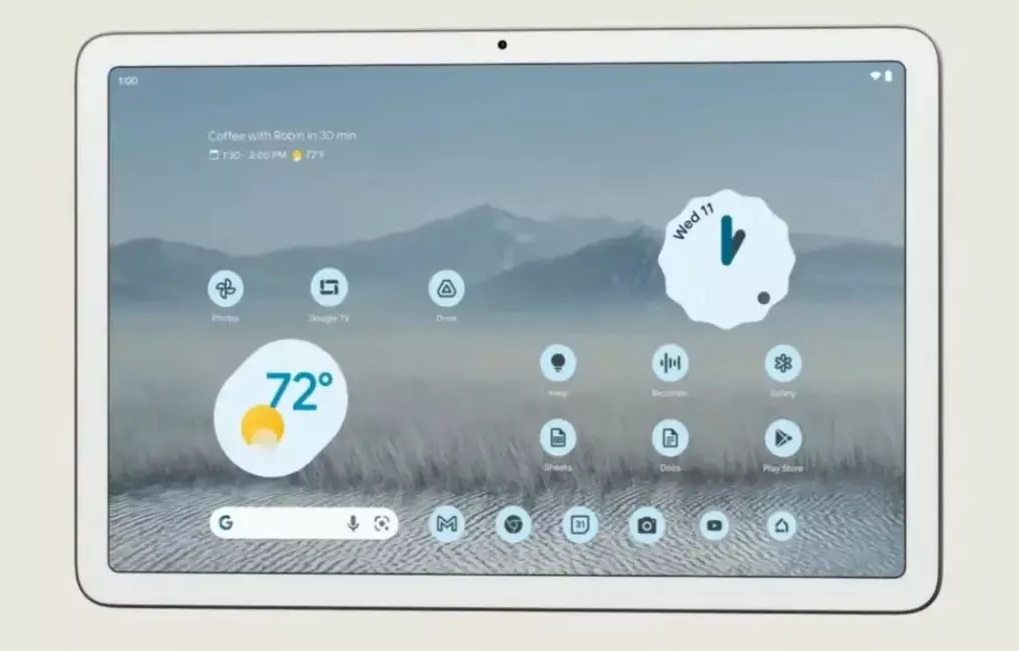
Google I/O held in early May incorporated many announcements, these included four new mobile devices (Google Pixel 6A, Pixel 7, Pixel Watch and Pixel Tablet), Android 13, and excitingly, the return of Google glass.
Android 13
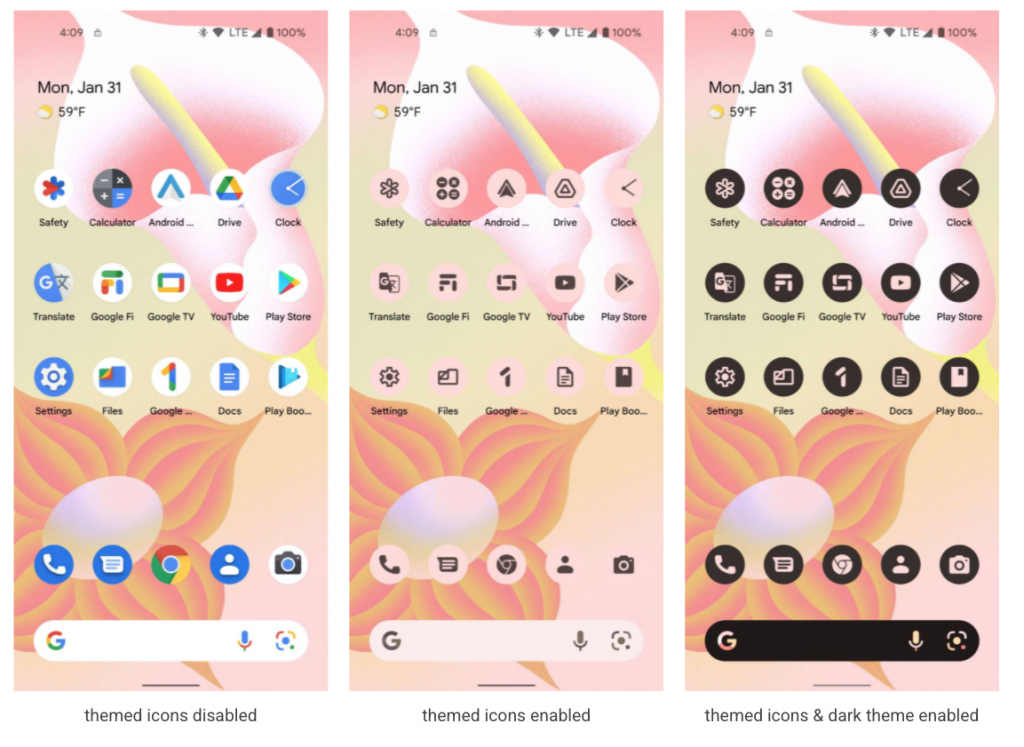
The latest iteration of the Android operating system, Android 13 will include a host of improvements and refinements. Most noteworthy improvements have been made to the user interface through Google’s “Material You” theme.
Google will also be relaunching Google Wallet. This is expected to go beyond just Google Pay and will now support a variety of digital ID – much like the features currently offered by Apple Wallet.
Android 13 could be considered more of a refinement of Android 12 than a significate jump forward. Android 13 is available as a public beta for those who wish to explore it, and is expected to be released later in the year.
Google Pixels
Google will be launching 3 new mobile phones. The Pixel 6A, a mid-range phone expected to be available at the end of July this year. Unlike previous models where the cost of the device was reduced by using a less powerful processor, the 6A will feature the same Pixel 6 Tensor chip and design but will only have a 12-megapixel camera compared to the 50 megapixel camera in the standard Pixel 6.
Google also provided a glimpse into their new flagship phones, the Pixel 7 and Pixel 7 Pro. These new devices will include a newer version of Google’s Tensor chip and improved cameras. However, the full specifications of the new devices will only be known when they become available in the autumn.
Pixel Watch
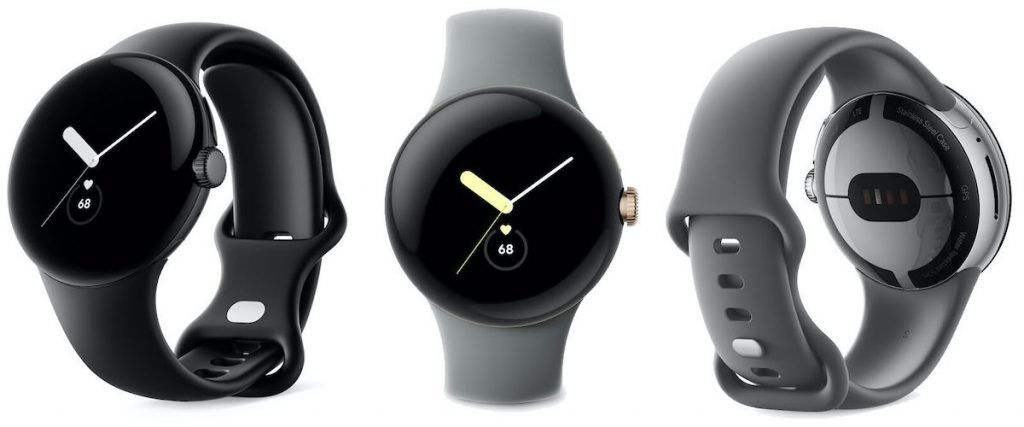
Similar to the Pixel 7 and Pixel 7 Pro not much detail was revealed other than Google will be releasing its own smart watch, the Pixel Watch. Google acquired Fitbit a little over two years ago for their health and wellness tracking technology. The Pixel Watch will be fully integrated with Fitbit system and run on Google’s Tensor chip. It is expected to include emergency SOS features as well as work with the Google Wallet, Google Maps, and Google Smart Home apps. The Pixel Watch is expected to be released in the autumn.
Pixel Tablet
While Google was very sketchy with the details of the new Pixel Tablet, they did confirm that it will run on Tensor, like Google’s other devices and will be released next year.
The return of Google Glass
Perhaps the most exciting announcement was Google’s next generation augmentative reality (AR) glass. Gone is the futuristic look of the first generation of Google Glass – appearing more like regular glasses. Despite Google not really providing any details, they are clearly keen to join the likes of Meta (i.e. Facebook/Instagram) Snap and Magic Leap in the augmentative reality space. In Google’s demonstration they showed Google’s glasses being used to project real-time translation of what someone was saying, this included being able to translate American sign language into text.
WWDC 2022
During the WWDC keynote Apple announced the new MacBook Air, and excitingly the next generation of Apple Silicon – the M2 Chip, a major advance on the M1 processor. In keeping with tradition Apple announced a plethora of new software updates for the iPhone, iPad, Apple Watch, and Mac. Here are just a few highlights of what will be coming to a supported device later in the year.
iOS16
As with every release of iOS there are a raft of improvements, refinements, and new features, many not even making the news headlines. Below and some of the changes coming in iOS 16.
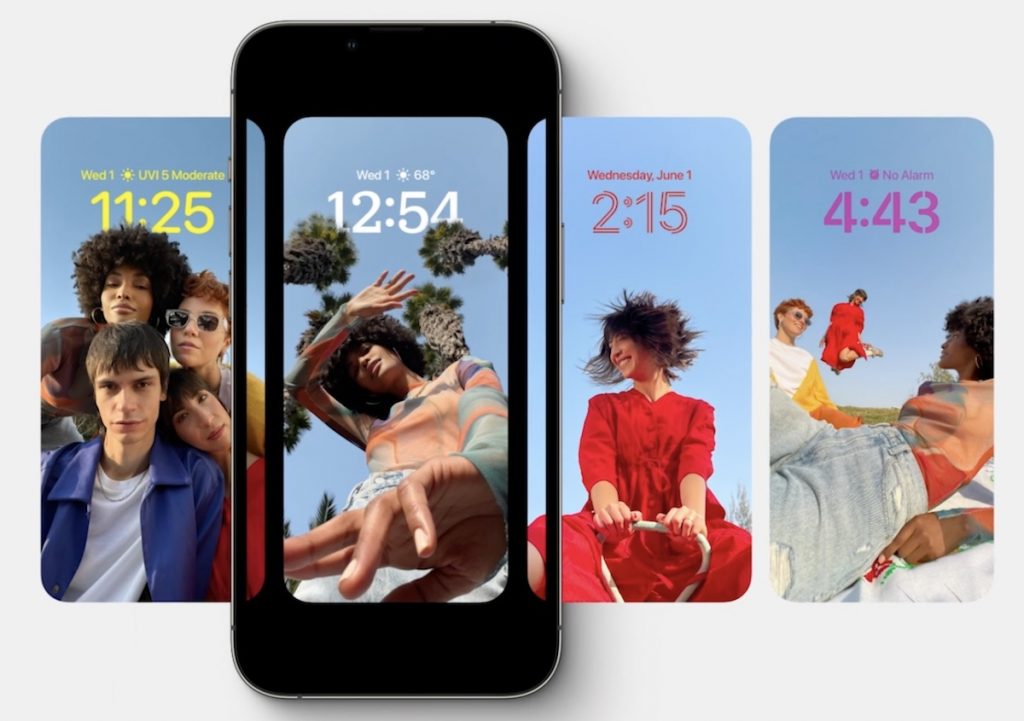
All-New Lock Screen
The new lock screen is now highly customizable with different styles, colour filters, and fonts. New widgets can now also be added to display information such as calendars, weather and even live updates from various sporting events. You can now also use photo shuffle to display different photos on the lock screen throughout the day.
Dictation
Major updates to dictation will now allow you to swap seamlessly between voice dictation and the touchscreen keyboard. Along with the improvements to Dictation itself it will automatically add updates to the text and can even include emoji dictation.
Live Text
Live Text, which enables text to be extract from either the camera or images has now been extended to video too. Now you can pause on any frame and interact or grab text from the video.
This technology has also been expanded to allow you to now extract images from a background and paste them into other apps.
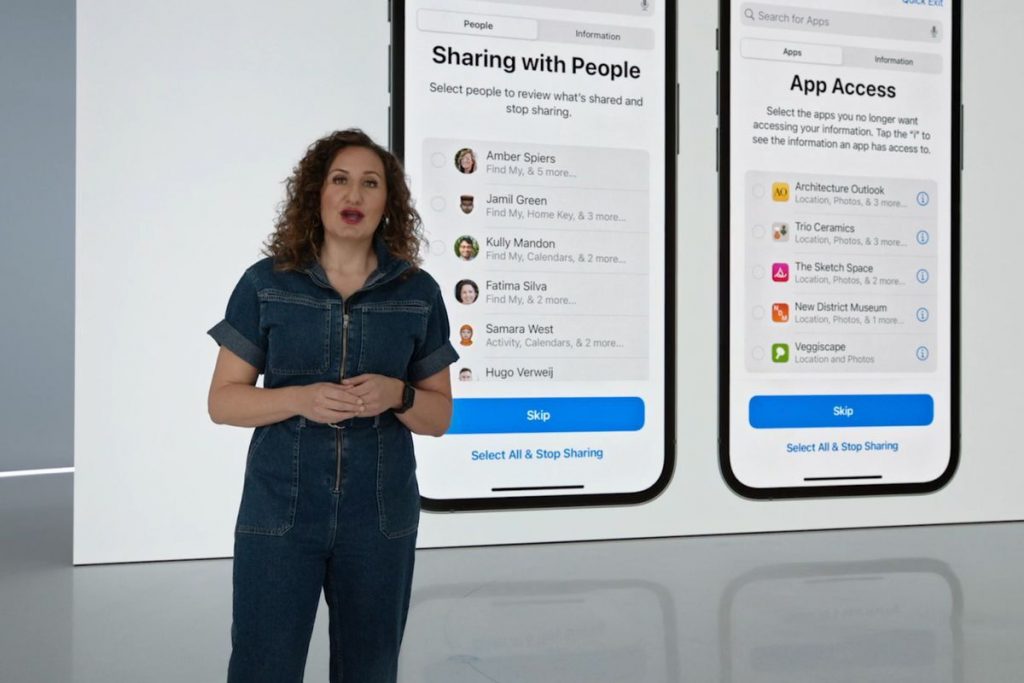
Safety Check Privacy Settings
Apple in recent years has put a lot of effort into improving your privacy when using their devices and announced Safety Check. This new privacy setting to review allows you to quickly revoke access, sign out of iCloud on all devices and limit Messages to a single device. This feature is aimed at supporting people who find themselves in an abusive relationship.
Security updates
Starting with iOS16 security updates will be able to be automatically installed as they become available and will no longer require a full new version of iOS. This will allow you to ensure that your devices are kept as secure as possible without you needing to think about it.
This new feature will be enabled by default. However, should you wish to turn it off. (not recommended) you can do so by with Settings app under “General > Software Update > automatic security updates”.
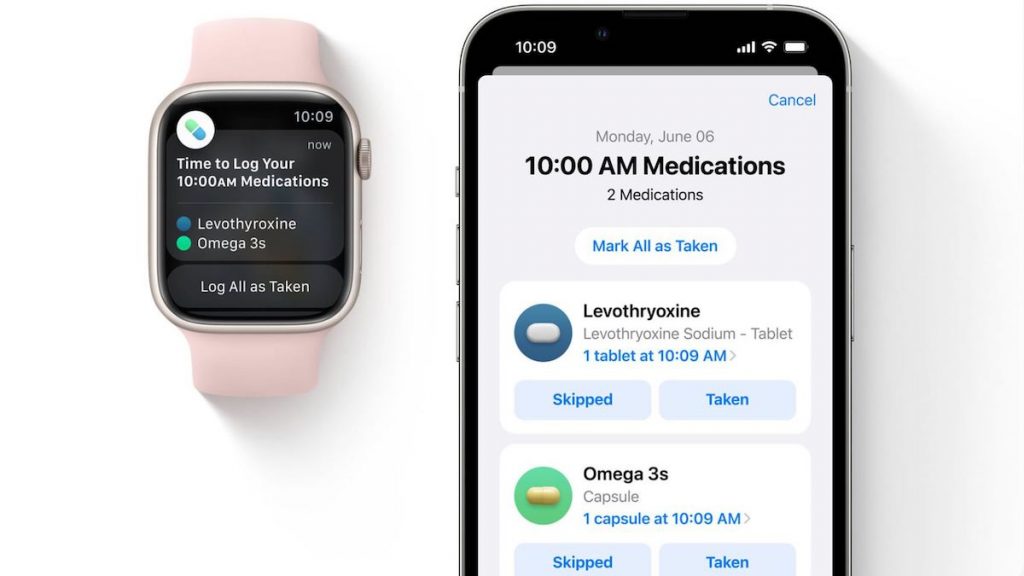
Medication tracking
While only available in the US for now, this new feature will enable reminders to be set and log when medication was taken. It will also notify you if there are any potential negative interactions of the medication, for example, if it’s not advisable to consume alcohol while taking a particular medication.
Matter Smart Home App
Apple have redeveloped there Home app incorporating the Matter standard. Matter is a connectivity standard that emerged from an industry lead (Amazon, Apple, Google, Samsung SmartThings, the Zigbee Alliance) working group started in 2019. Matter aims to allow smart home devices to seamlessly work together.
Apples new Smart Home app now allows better control and navigation of smart home devices. You can now get an overview of your smart home stats in a single image, and the app has new features such as lights and climate controls. You can now add a home widget to the lock screen too, making it possible to keep an eye on your smart home without needing to unlock your phone.
Fitness app
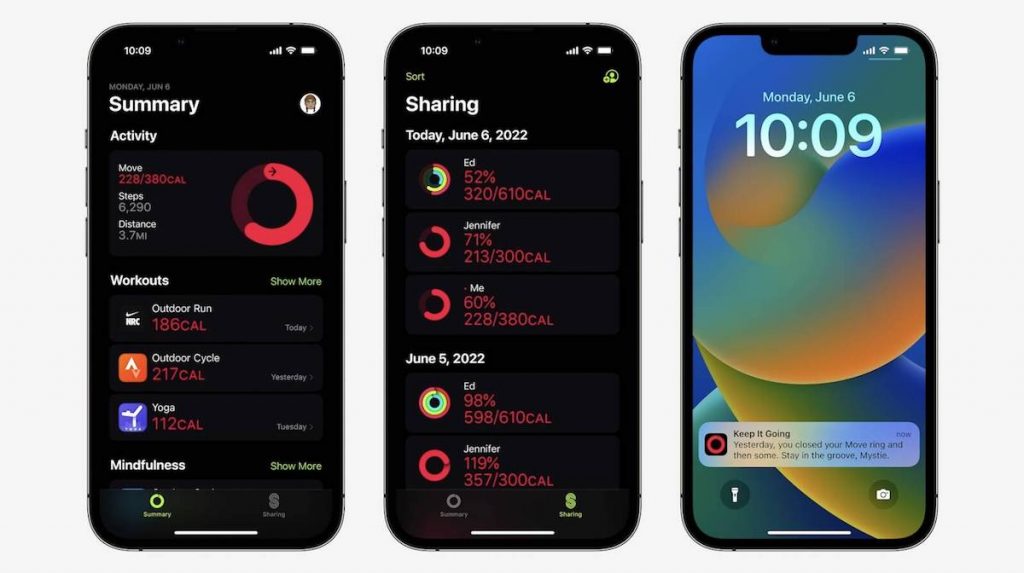
Until now Apple’s fitness app was only available to Apple Watch users. Starting from iOS16 the Fitness app will now be available to all iPhone users.
Accessibility improvements
Apple has often led the way by embedding accessibility into every aspect of their technology. With the advancements in hardware, machine learning and software, iOS16 will include even more accessibility features. These include:
Door Detection
This feature will assist someone with a visual impairment to navigate by identifying a door. Door Detection can then provide the person with information about how far they are from the door, if it is open or closed, whether it can be opened by pushing, turning a knob, or pulling a handle. Additionally, Door Detection can read signs, door number and symbols around the door.
Door Detection requires iPhone or iPad with the LiDAR Scanner, for instance either the iPhone 12 Pro and Pro Max, iPhone 13 Pro and Pro Max, or the iPad Pro.
Live Captions
Live Captions will now be available on iPhone, iPad, and Mac. Live Captions are generated in real time on the device ensuring they are provivate and secure. With Live Live Captions enabled any audio content will appear as text captions too. This could be a phone or FaceTime call, using a video conferencing or social media app, streaming media content, or having a conversation with someone next to you. You can adjust font size to suite your needs too. When using this feature with FaceTime on a Mac you have the option to type a response, and have it spoken aloud in real time to others who are part of the conversation.
Live Captions will be available on the Phone 11 and later, iPad models with A12 Bionic and later, and Macs with Apple silicon.
Buddy Controller
Buddy Controller combines any two game controllers into one, this means multiple controllers can drive the input for a single player. So now someone can ask a care provider or friend to help them play a game.
Siri Pause Time
For people with speech disabilities, you can now adjust how long Siri waits before responding to a request.
Sound Recognition
Allows you to effectively teach your device to recognise custom sounds for example a home’s unique alarm, doorbell, or appliances.
Apple Watch Mirroring
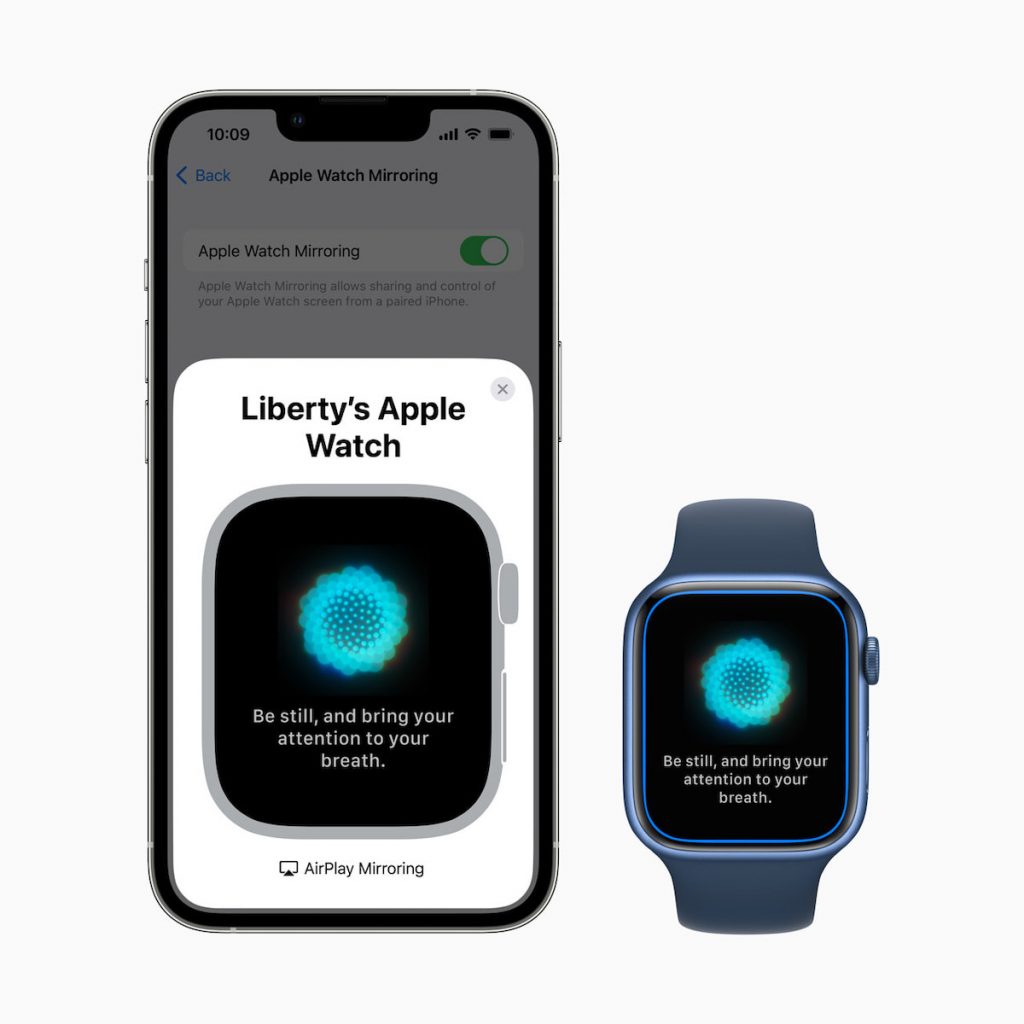
For people who have difficulty interacting with Apple Watch, Apple has introduced Apple Watch Mirroring allowing you to control a watch paired with your iPhone. This allows you to then use the iPhone’s assistive features such as Voice Control and Switch Control as alternatives to tapping the Apple Watch display.
iPadOS 16
Many of the new features included in iOS16 will also appear in iPadOS.
One new feature coming to iPad is Apple Stage Manager. This new feature automatically organises open apps and windows allowing you to focus on your task while still being able to see everything at a glance. Unfortunately, due to the memory requirements, Apple Stage Manager will only be available on iPads with an M1 or newer Chip.
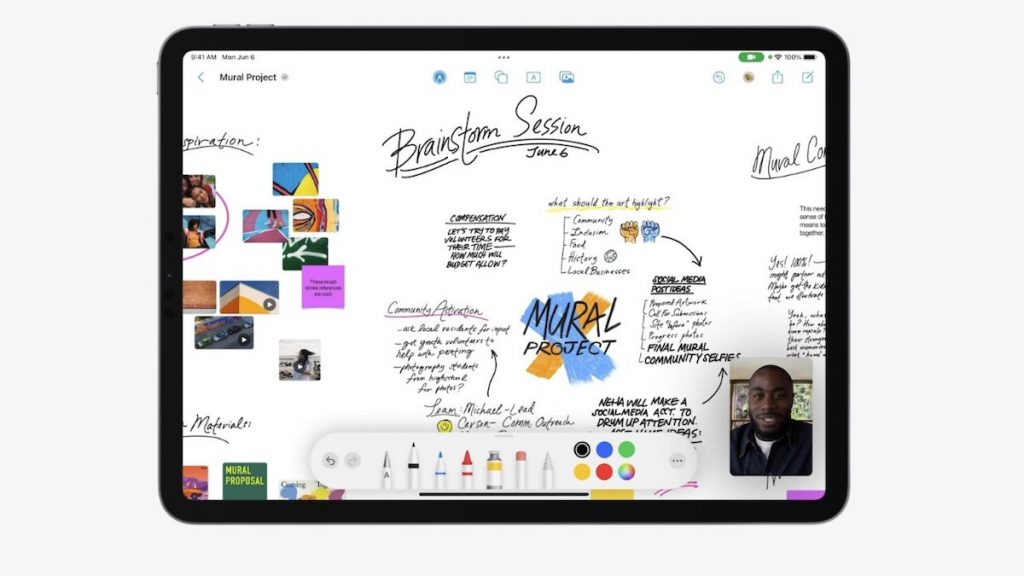
A new digital whiteboard app will also be introduced. The Freeform app, enables you to add notes, include photos, draw and even FaceTime someone directly from the app. Freeform supports collaboration so it is possible for you to work together with others on the digital whiteboard with changes happening in real-time.
Apple Passkeys
Currently a lot of effort is being put into creating a more secure way of logging into systems. Apple is working with industry partners such as Microsoft and Google, the FIDO alliance and developers to create a next-generation credential that’s more secure and easier to use. While there is still a long way to go, the aim is to create passwordless logins across mobile, desktop, apps, and browsers.
Passkeys which Apple announced during an WWDC presentation on updates to Safari (Apple’s web browser) aims to make this possible. In simple terms, Apple Passkeys uses the biometrics features built into Apple devices such as Touch ID or Face ID and “cryptographic techniques” to generate a unique and secure key. This is then stored on your Apple devices and shared through Apples iCloud Keychain which uses end-to-end encryption. This, in theory, means that your password can’t be stollen because it only securely exists on your device. In time, you will be able to sign into websites and apps on non-Apple devices using an iPhone or iPad by scanning a QR code and then use Touch ID or Face ID to authenticate.
This is really exciting, not only as it provides a more secure means to login but will make it easier for those who have difficulty logging into systems. Many more announcements covering other products were made during WWDC. It remains thrilling to see the ongoing advances in technology and its potential to improve people’s lives.
Here to help
As always, I am interested to hear about how you are using mobile and other smart technology. If you would like to have a particular topic covered in the next newsletter, please let me know. I am also available at any time to support and help where I can.
With the release of each new mobile device or operating system the line between a tablet, (or mobile phone) and a traditional laptop computer is increasingly becoming blurred. Similar to traditional computers it is possible to do many of the same things with files on mobile devices.
What are files anyway?
A computer file, like the traditional paper-based files where the name is derived from, is a collection of information, data. This data contains information about the file itself, as well as the content. File data is then deciphered by an application and displayed as an image, audio, video, text, or a combination thereof.
Working with files on Mobile devices
Most of us work with files without thinking about them, e.g., sending someone a photo. Many of the mobile apps make use of Cloud based storage making accessing files on multiple devices or transferring between devices easy.
However, it is possible to use external storage devices with mobile devices allowing you to move or copy files, either to free-up storage space on the mobile device, create a backup, or move files to another device.
External Storage devices
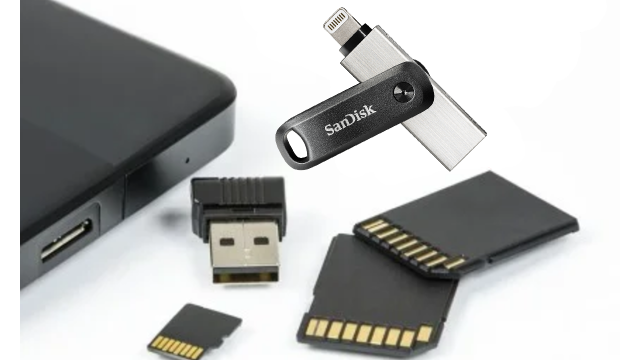
External storage devices are typically either a flash drive (a.k.a. memory stick, thumb drive) or external hard drive. These can be connected either directly to the mobile device or using an adapter. Not all external storage devices will work though as they may require more power than the mobile device is able to provide, or the file system may not be supported by the mobile device.
Tip: As you have a USB connection to the mobile device, a USB SD card reader could be used to download photos taken on a digital camera onto the mobile device.
Android devices
To use an external storage device, the mobile device must be running Android 7.0 (Nougat) or later.
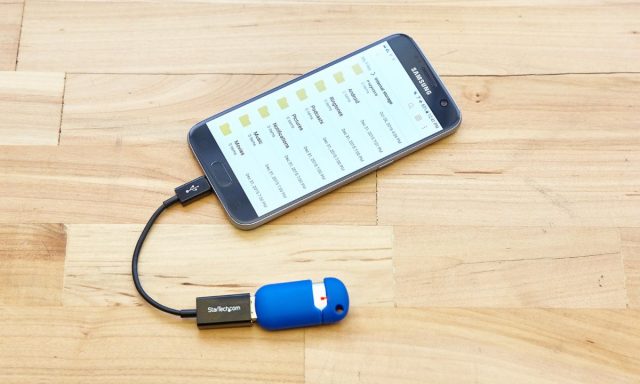
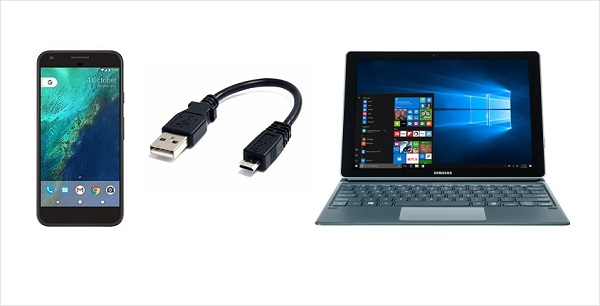
Most modern Android devices have a USB-C port and a USB-A to USB-C adapter is often included with the device. If you do not have an adapter, an OTG USB adapter (sometimes called an OTG cable, or OTG connector) are inexpensive and easily purchased online. This makes it relatively easy to connect a flash drive directly to the device. Some external hard drives may require too much power to work directly with the device – it is possible to power the hard drive separately though.
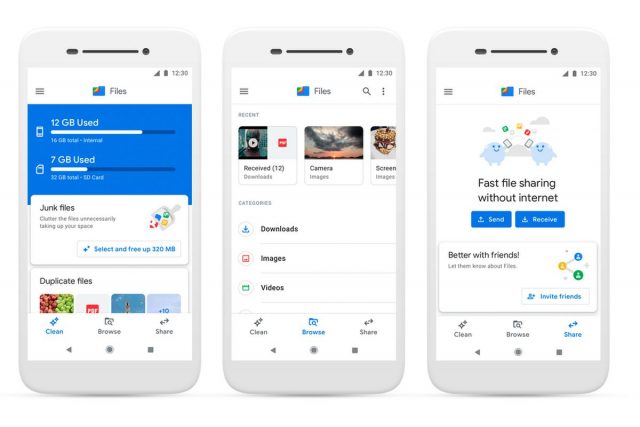
Once the external device is connected, locate the file explorer app (often called “My Files”) tapping on it will show you the storage options available, one of these should be the external storage device (other locations are likely to be “Internal storage” and “SD Card”). From here you can select to either move or copy files from various locations.
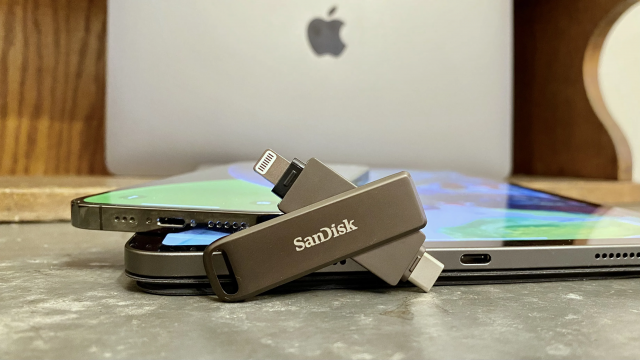
Despite Apple’s involvement in the development of USB-C, most iOS and iPadOS devices use Apple’s Lightning connector which means that you will either require a Lightning to USB adaptor or a device, for example the SanDisk® iXpand® Flash Drive that is fitted with a Lightning connector.
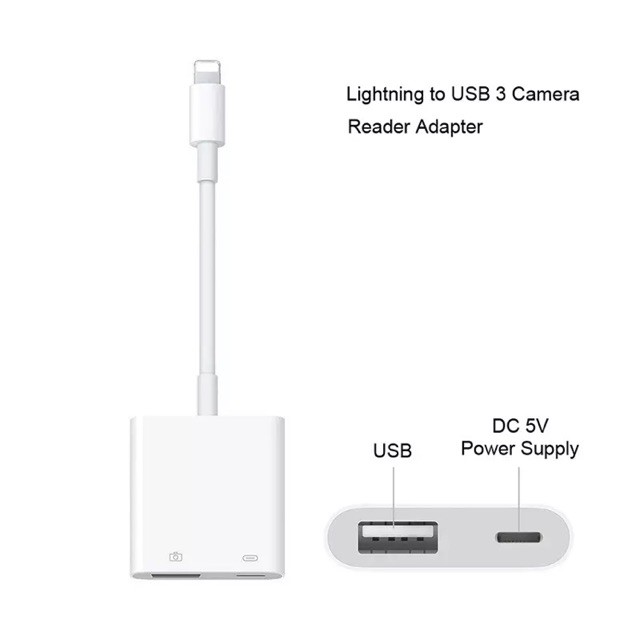
If you are going to use an adaptor, I do recommend opting for Apple’s Lightning to USB 3 Camera Adapter. While often more expensive than third party adapters it has more reliable power support enabling you to plug a Lightning cable into the adapter to supplement the power needs of some USB devices.
On a sidenote, in September 2021, the European Commission released a proposal that would require smartphone manufacturers to standardized USB-C as charging port on all devices. It remains to be seen what the outcome of this proposal will be for future devices.
To connect an external storage device to an iPhone or iPad the device will need to be running iOS 13 or iPadOS 13 or later. The external storage device will also need to use one of the following file systems, either macOS Extended journaled, FAT32, exFAT (FAT64) or APFS. Support for Windows default NTFS file system was only added to the current versions (version 15) of iOS and iPadOS. However, currently you can only read from devices formatted as NTFS. This means that if you want to copy or move files your external storage device will need to be using one of the other file systems.
Once the external storage device is connected you can import photos and videos to your iPad or iPhone directly through the Photo App. You can’t however view or watch video files directly from the external device through the Photo app. For detail instructions on how to import photos and videos please follow one of the links below:
Tip: Once photos and/or videos are imported you will be promoted to “keep or delete” the files from the external device, always select “keep” unless you are absolutely sure you want to permanently delete them from the external device.
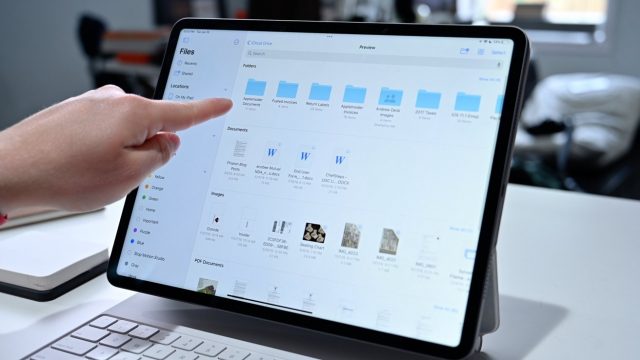
To view or watch video files directly from an external device you will either need a third-party app or you will need to use the Files app included in iOS/iPadOS. The File app will also enable you to access other files as well as move or copy files between you iPhone/iPad and the external device.
Other ways of moving files
Files can be moved or copied between devices in other ways too. mobile devices can be directly connected to a computer and accessed through the computer. However, depending on the security settings on the mobile device this may be limited.
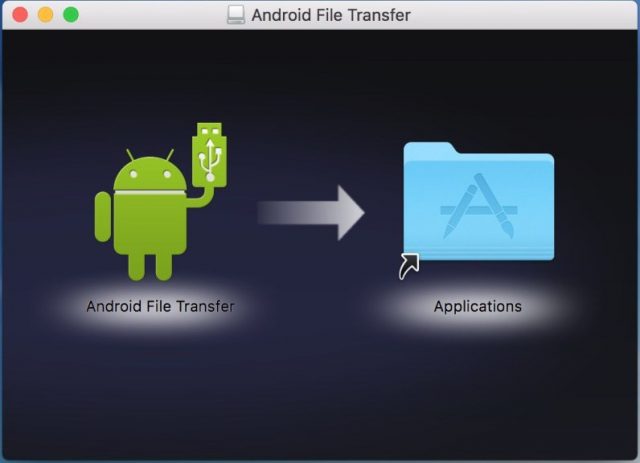
Apple Mac computers will require additional software though to be able to access the files on Android devices. Basic software (Android File Transfer) to enable you to this can be downloaded free or more advanced software (e.g. Dr.Fone) can be purchased – free trials are available.
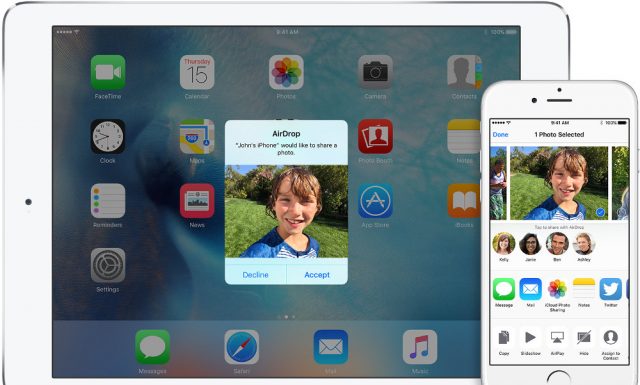
Apple devices also offer wireless transfer of files between Apple devices using AirDrop. AirDrop needs to be enabled and the devices need to be within Bluetooth and Wi-Fi range of each other. Please follow this link for more details on how to use AirDrop.
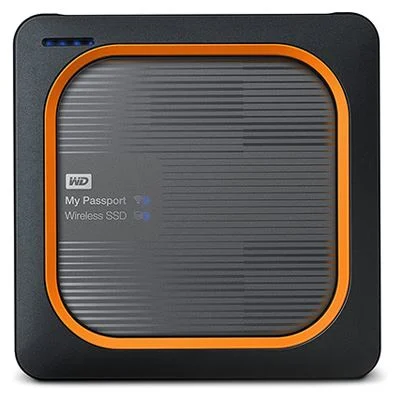
The Western Digital My Passport Wireless SSD is an external hard drive that allows wireless transfer of files between devices and the hard drive. This, (in theory) will work with all devices, eliminating the complexity of cable connections.
There are various cloud-based solutions too, however, this will not be covered in this article.
Due diligence
Transferring files between devices can offer a viable solution for creating backups, making more space on mobile devices and moving files for use on other devices. However, care needs to be taken to ensure that data protection and privacy policies are adhered to.
In this article I have highlighted some of the ways to work with files on mobile devices, should you have questions, or need support with anything mentioned please contact me. Please also let me know if there is a particular topic that you would like me to cover in a future newsletter.
As always, I am available to provide support, advice and help Karten Centres where I can.
Beverley and Colin Dean founded Special iApps (a non-profit social enterprise) in 2011 after they couldn’t find the apps needed to teach their youngest song William, who has Down syndrome, autism, hearing impairment and other medical needs. They found that most apps had too much going on in the background, weren’t configurable or easily personalised, and didn’t cater to William’s needs.
Over 10 years later, they are supporting children and young adults worldwide in over 100 countries and 27 languages through their apps. They have worked closely with parents, teachers, charities, educational and healthcare professionals over the years to develop the activities within their award-winning apps.
In response to the challenges children have faced in their education over the past few years due to the pandemic, Special iApps launched their brand new Membership in February 2022. The membership allows children, their families, school and support team around them to use the apps to support their education and development both at home, in the classroom and with speech and language specialists.
Available as an annual subscription, the Special iApps Membership offers access to both Special Words Plus and Special Stories Plus, with more apps coming throughout 2022. The Plus edition apps are based on Special Words and Special Stories, which were previously available on the app stores. They have new features to support accessibility and differentiating the curriculum, with more features coming soon.
There are over 500 educational resources to download from Special iApps, including Numicon Shapes. Membership provides the ability to use the apps on any device and platform, switching between desktops, laptops, tablets and phones, as well as between Apple, Android, Chromebook and Windows devices.
There is a free 14 day trial of the Special iApps Membership, which you can sign up for at www.specialiapps.org
In my previous newsletter article, I mentioned that Apple announced the latest versions of their mobile operating systems (iOS15 and iPadOS 15), highlighting some of the new features. With iOS15 and iPadOS 15 now available I thought it would be fitting to provide some tips on how to better use the mobile devices running this operating system.
Manage Home Screen Pages
It is possible to rearrange or delete entire home screens.
To rearrange your Home Screen:
Touch and hold an empty space on the Home Screen to enter edit (wiggle) mode.
Tap on the row of dots at the bottom of the screen indicating the pages of your Home Screen.
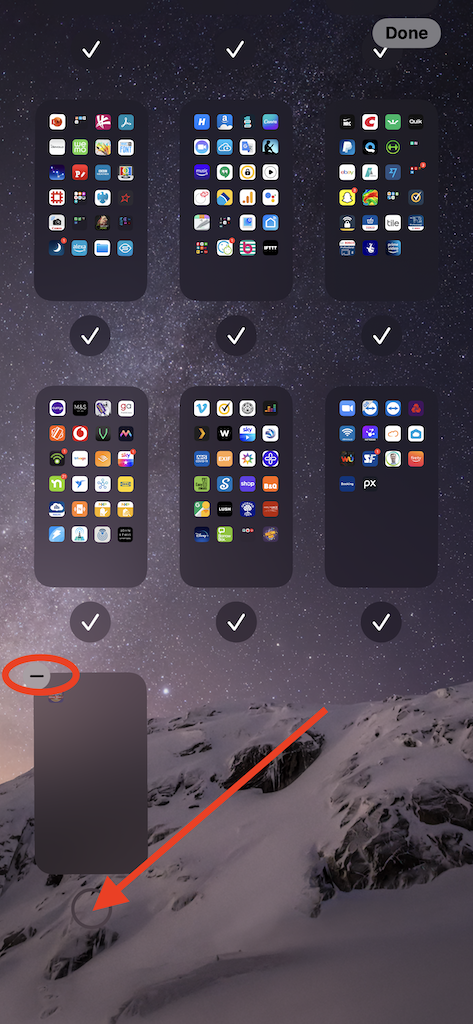
All the pages of your Home Screen appear in a grid. Touch and drag a page to rearrange it in relation to your other pages. The other pages will move in response to your drag action.
Tap “Done” in the top-right corner of the screen when you have finished editing.
To delete a Home Screen page:
Touch and hold an empty space on the Home Screen to enter edit (wiggle) mode.
Tap on the row of dots at the bottom of the screen indicating the pages of your Home Screen.
All the pages of your Home Screen appear in a grid. Tap on the tick under the page that you want to delete.
Tap the minus (-) icon in the top-left corner of the screen to delete it.
A message will be displayed asking you to confirm, tap “Remove”.
Tap “Done” in the top-right corner of the screen when you have finished editing.
When you delete a Home Screen page, the apps remain in the App Library. If you want to add an app back to a Home screen you will need to drag them from the App Library onto the Home Screen.
Use the camera to scan any text
This is a very useful feature; it can be accessed directly through the camera app or from with another app. For me personally, I find this very handy as I can scan text from within my AAC app (Proloquo4Text) and then “speak” the text.
I do find it can take a moment for the device to process the text though. The text recognition while not perfect, is extremely good!
To access this feature from the camera app:
Open the Camera app.
Point the camera at the text you would like to scan.
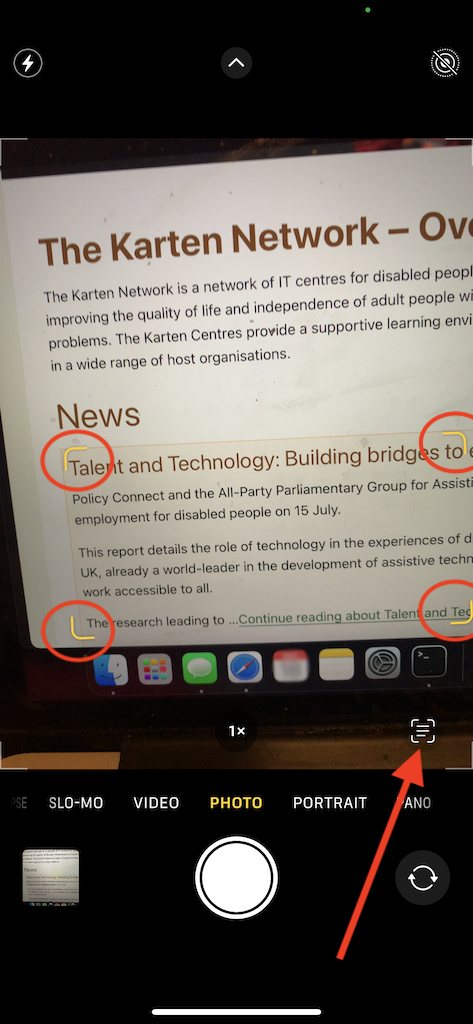
When the device is ready, an icon will appear on the right-hand-side of the display, and a yellow bounding box is shown around the text being scanned.
Tap on that icon.
Once the text has been scanned you can choose how you want to use that text.
To access the text scan feature from within an app:
Open your app, it will need to be an app that supports text input.
Double tap, to bring up the context menu.
Tap the scan text icon. A view of what is visible by the camera is displayed. A yellow bounding box is shown around the text being scanned with an “Insert” button.
When you are ready, tap the “Insert” button.
Scan/extract text from any photo
Using the same underlining technology, you can copy any text in a photo. Similar to the real-time text scanning, it takes a moment for the text to be analysed.
To extract text from a photo:
Open the photos app.
Open the photo containing text.
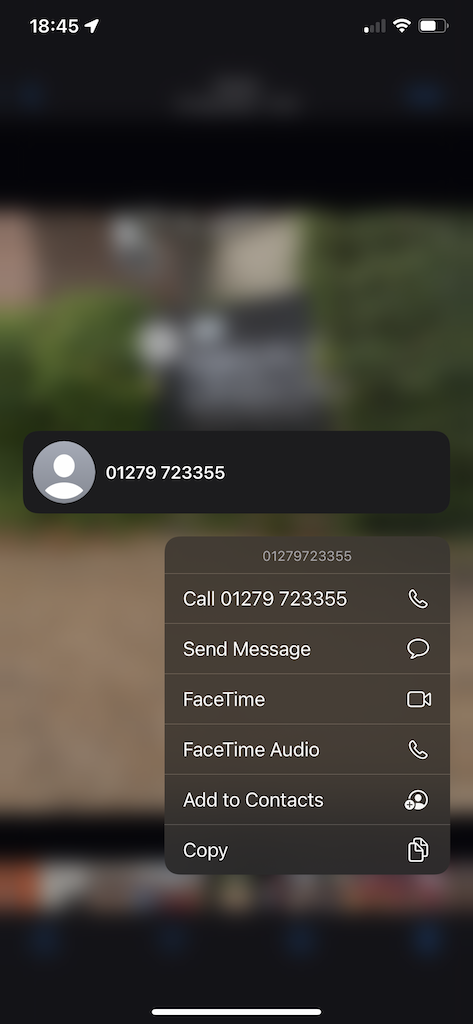
Tripple tap, or long press on the text to bring up a menu with options. From here you can use the text as you wish. If the photo contains a phone number, you will have the option to make a call to the number.
Safari tweaks
The Safari browser received a major update. For those who like using a lot of browser tabs (such as myself) it is now possible to create tab groups. This way your tabs can be organised into categories of your choosing.
To organise your tabs into groups:
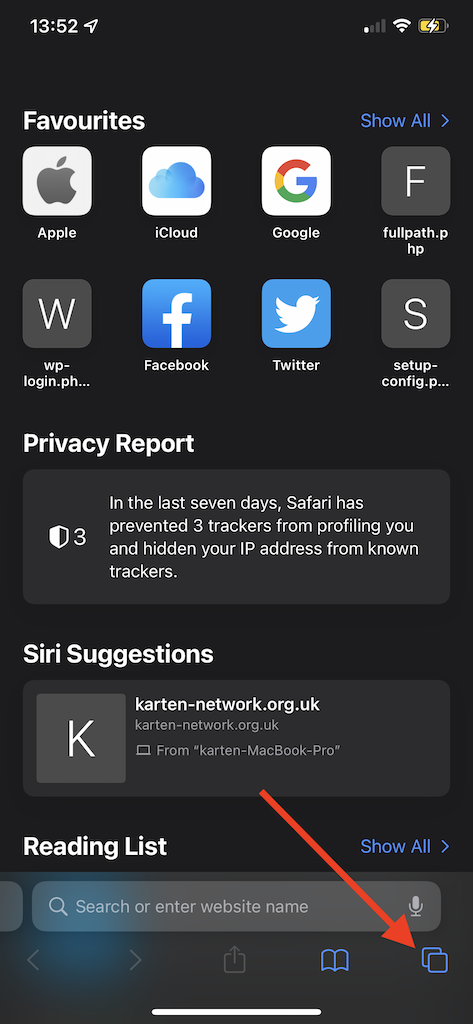
Tap the tab button at the bottom right of the screen.
A grid of tabs you already have open is displayed.
Hold down the tab number at the bottom of the screen to create a group with the current tabs, or you can create a completely new group of empty tabs to start browsing a particular topic.
Alternatively, long press on the URL/address bar. This will open a menu with an option to “Move to Tab Group” – this includes an option to create a new tab group.
In the new version of Safari the URL/address bar has been moved to the bottom of the screen. If you prefer having it at the top of the screen that can be changed.
To move the URL/address bar to top of the screen:
Tap on “Settings”.
Scroll down to locate and tap on “Safari”. Top tip, pulling down on the setting screen will display a “Search” box at the top of the setting. Typing in there will enable you to quickly find an app or setting you are looking for.
Scroll down to the “Tabs” section and tap “Single Tab”.
While you are in Safari’s settings you may enable “Hide IP Address” (although it is likely to be enabled by default). This is yet one more feature in Apple’s efforts to improve your privacy.
To enable “Hide IP Address” :
Tap on “Settings”.
Scroll down to locate and tap on “Safari”.
Scroll down to the “Privacy & Security” section and tap “Hide IP Address”.
Tap “From Trackers”.
iCloud Private Relay
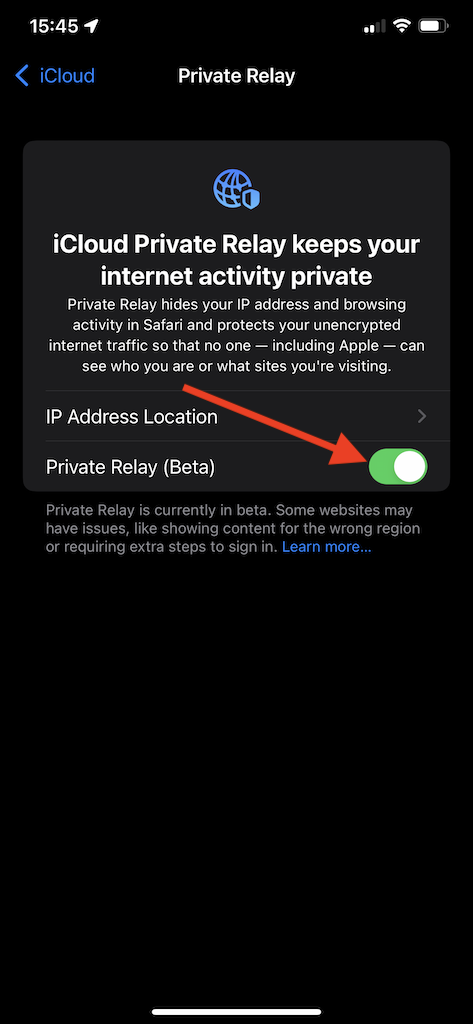
For those concerned about privacy, Apple now offers a Private Relay option to paid iCloud subscribers – soon to be called iCloud+. Private Relay is a stripped-down virtual private network (VPN) – in effect this means your IP address and browsing activity is hidden from other parties, including Apple.
To enable iCloud Private Relay:
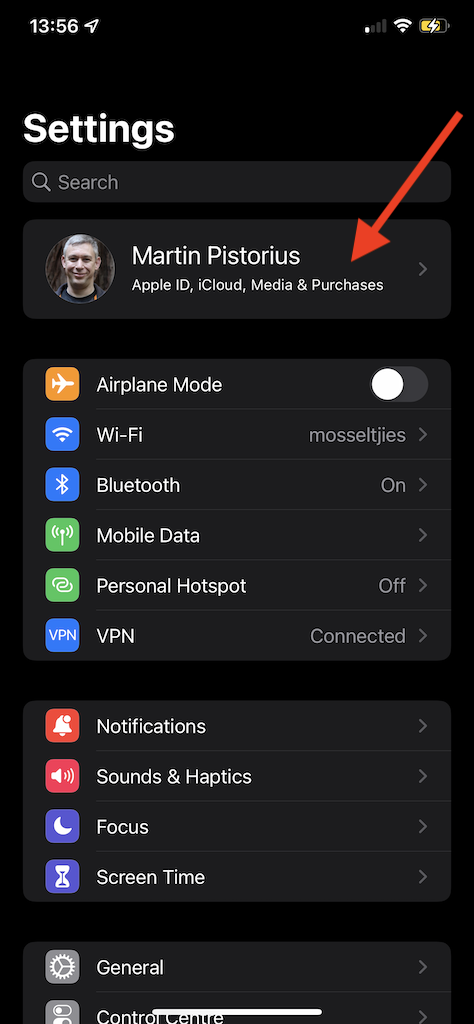
Tap on “Settings”.
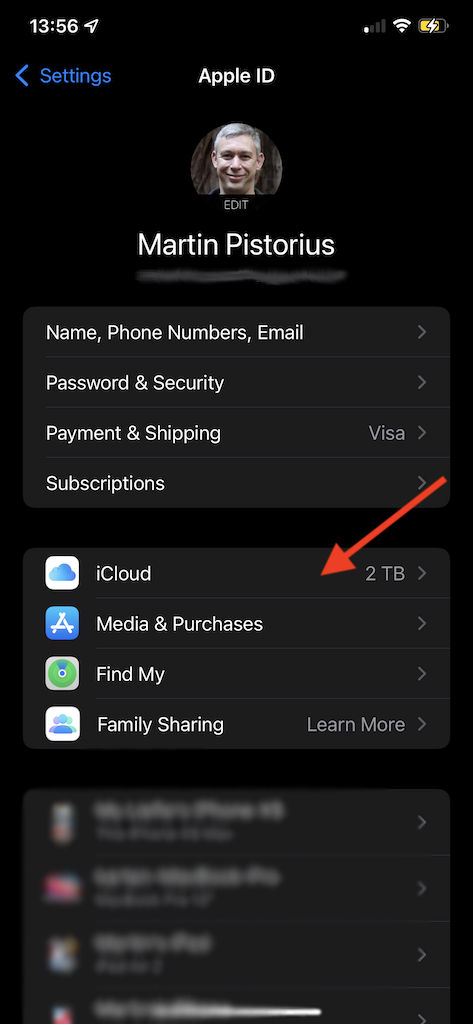
Tap on your account name.
Tap on “iCloud”.
Tap on “Private Reply”.
Tap on the Private Replay switch to enable.
Recovery contacts
Were you to lose or be locked out of your device, Recovery Contacts may prove to be a great help. A Recovery contact enables you to select a person you trust as your “phone a friend for help”. They will then be able to provide you with a recovery key to access your and recover your data. They will not be able to access your data, merely verify your identity. They will need a device running iOS15 or iPadOS 15 or later. Apple also requires the person to be 13 years or older.
To enable Recovery Contacts:
Tap on “Settings”.
Tap on your account name.
Tap on “Password & Security”.
Tap on “Account Recovery”.
Tap on “Add Recovery Contact”.
Tap “Add Recovery Contact” you will be asked to authenticate with Face ID or Touch ID.
If you’re using “Family Sharing” one of these group members is recommended. Alternatively, you can choose one of your contacts. A message will be sent to your contact asking them to accept or decline your request. Note, if a family member is selected, they’re added automatically. After they’ve accepted your request, you will see a message that they have been added as your account recovery contact. Should they decline or remove themselves as your recovery contact you will receive a notification.
Now, should you ever be unable to access your Apple account/device for whatever reason, your recovery contact will be able to provide you with a 6-digit code that you enter on your device to log back in.
Set Background Sounds
Amongst the raft of accessibility features you will find background sounds. The six sounds to choose from are similar to third-party noise generating apps, and are aimed at masking unwanted environmental noise.
To enable Background Sounds:
Tap on “Settings”.
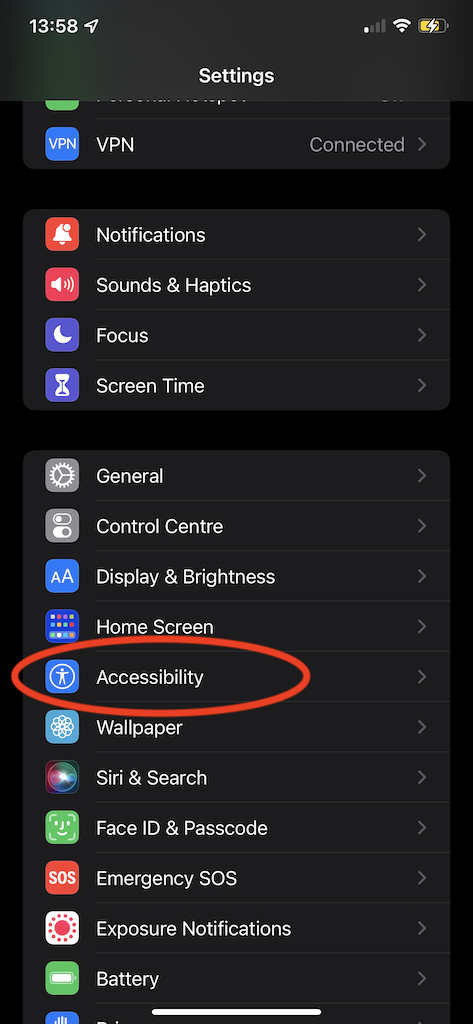
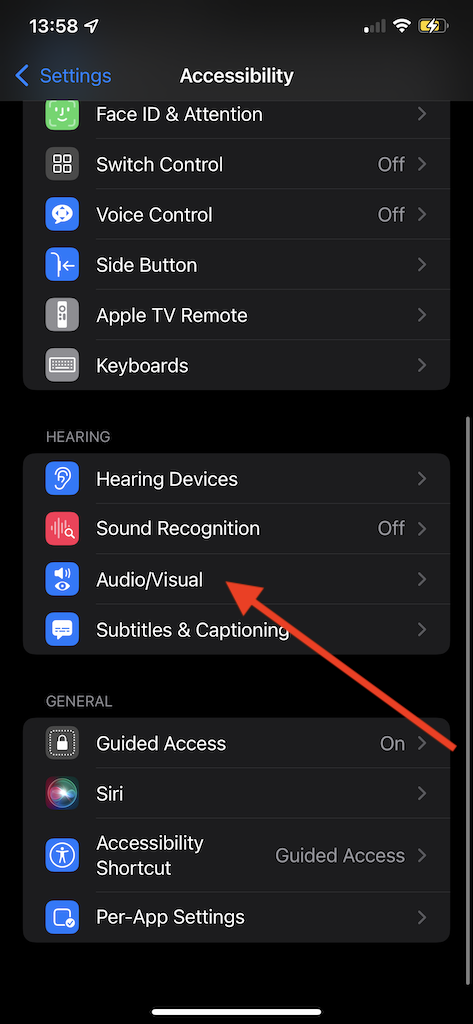
Scroll down and tap on “Accessibility”.
Scroll down and tap on “Audio/Visual”.
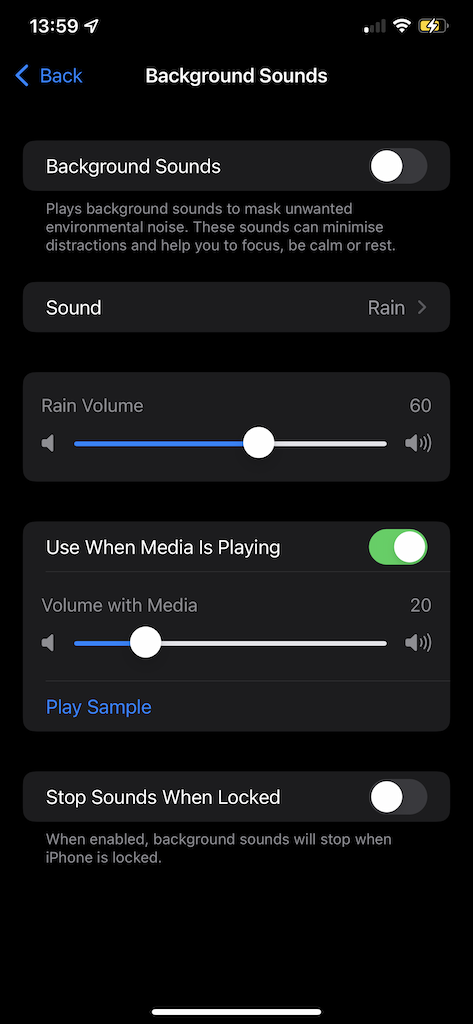
Tap on “Background Sounds”.
Tap the Background Sounds switch to enable and set your preferences.
Customise accessibility settings per app
iOS15 and iPadOS 15 also introduced the ability to customise the accessibility setting to individual apps. This means if there is one particular app that needs some adjustments, these can be applied on to that app, rather than the entire system.
To set per app accessibility settings:
Tap on “Settings”.
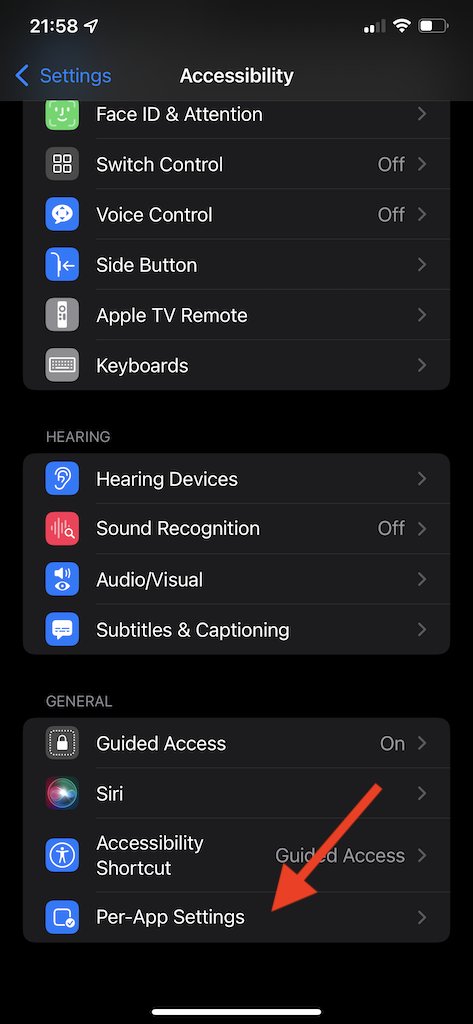
Scroll down and tap on “Accessibility”.
Scroll down and tap on “Per-App Settings”.
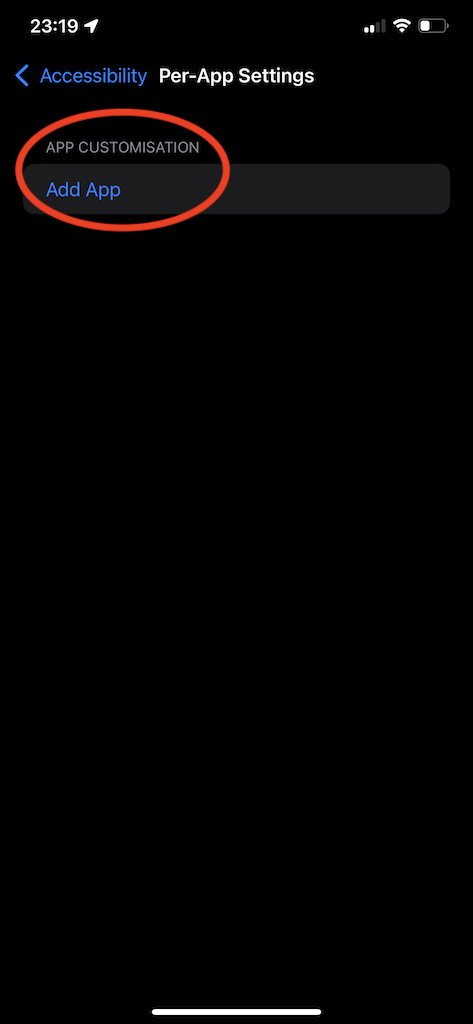
Tap “Add App”.
Browse through the list of apps and select the app you wish to apply the settings too.
From the list of added app, tap the app, and apply the required settings.
There are many more features and tips to enable you to use your iPhone or iPad more effectively. Should you require support or have a question please feel free to contact me.
Lastly, if you would like to have a particular topic covered in the next newsletter, please let me know.
Google and Apple, the two major mobile technology competitors held their annual development conferences in May and June respectively. While aimed at developers, Google I/O and WWDC are often the platform for major announcements and this year was no exception.
Google I/O
With Google cancelling Google I/O last year it was good to see the event back. Some of the noteworthy announcements were:
Project Starline
Project Starline provides a glimpse into the future of video calling. The system builds on three research areas – depth sensors and cameras; compression and streaming algorithms; and Light field display. These are combined to produce an extremely detailed 3D image that is rendered in real-time, without the need for 3D glasses to be worn.
Google is quoted as saying that it’s applying its research in machine learning, computer vision, spatial audio, and real-time compression to build the futuristic system. The result creates the effect of a person sitting across from you.
Currently, the system is only being used internally at Google and there are no plans to release the system commercially. However, access to the technology has been given to some of Google’s enterprise partners.
LaMDA
LaMDA (Language Model for Dialogue Applications) is the next generation of artificial intelligence (AI) conversational bots. LaMDA is based on Google’s transformer architecture which analyses how words relate to each other in order to predict what to say. However, unlike previous systems LaMDA can manage the open-ended nature of human conversations.
Natural conversations are derived by connecting topics, often in unexpected ways. LaMDA makes a major step towards being able to cope with this. This would mean that conversational bots could engage in natural conversations with people.
In simple terms, LaMDA makes it possible for computers to better understand natural language. This means in time the technology will make its way into search and voice assistants creating a better and more “human” interaction.
Google Wear.
Google have failed to really capture the smart watch market – with Apple Watch proving more popular. Google will attempt to change this by their acquisition of Fitbit and the merger of Samsung’s Tizen operating system with Google’s Wear OS. This new operating system will now simply be called Wear. This promises to deliver a wider range of smart watches with better capabilities. It is reported that the next Samsung Galaxy Watch will run this new software.
Android 12
Perhaps the main announcement at Google I/O was Android 12. Reported to be the biggest change to Android since the implementation of Google’s “Material Design” in 2014. The new “Material You” transforms the device interface. Creating a personalised and clearer interface with new widgets, simpler settings menu, larger and bolder quick settings tiles. A 22% reduction in processing time the new interface is more responsive with smoother animations.
Notifications have been revamped to present a clearer at-a-glance view. There is also a new snooze feature which allows you to snooze specific notifications for a set amount of time.
There is a new lock screen featuring a large digital clock that adapts, reducing in size to show any notifications.
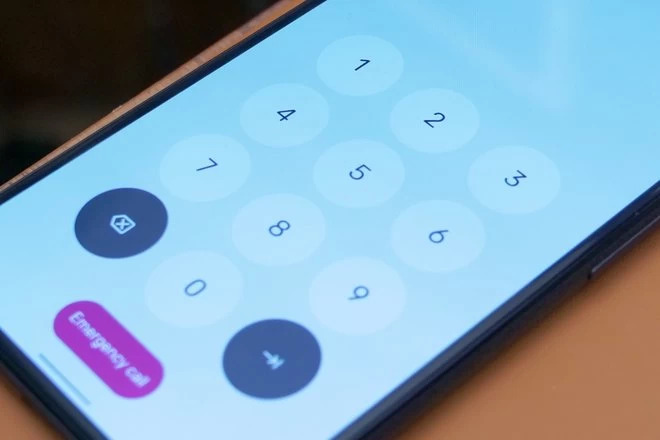
A new fresh look to the PIN code keypad has been included with large round buttons.
The new one-handed mode, as the name suggests, when enabled makes it easier to use the phone, particularly those with larger screens using just one hand.
While picture-in-picture is not new, new controls will make it possible to enlarge the window without going full-screen.
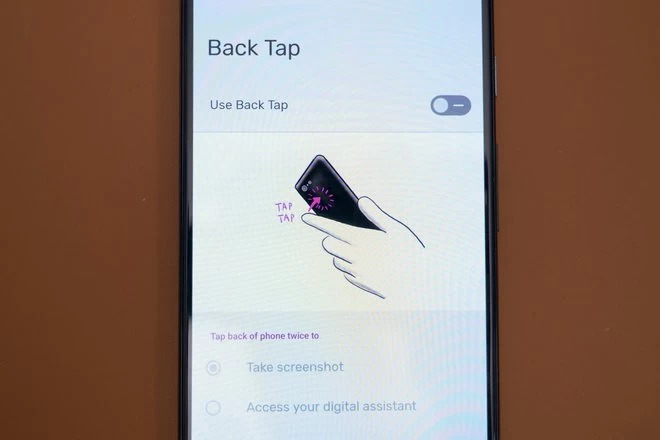
Specifically for Google Pixel phones, Android 12 will enable you to double-tap the back of the phone to perform a programmed action like, take a screenshot, launch Google Assistant, open the recent apps, pause or resume media playback.
Privacy is a hot topic amongst mobile devices at the moment with the somewhat controversial release of iOS 14.5. Google has joined the party with their new “Privacy Dashboard” in Android 12. The dashboard will allow you to see what apps have accessed certain permissions. It also includes the option to quickly disable all app access to your camera and microphone.
When an app is first launched and requests access to your location you can now decide to have it only get access to an approximate rather than precise location.
Behind the scenes the Private Compute Core ensures that all audio and language processing are done on the device and can’t be shared over the network.
A new built-in app will also soon be available that will enable android phones to be used as a remote to control any television running Android TV.
More improvements and features that have not been mentioned above will be included in Android 12. Currently the Android 12 public beta is available for download with an official release expected in September this year.
WWDC
iOS 14.5
While most major announcements typically happen at WWDC, Apple released iOS 14.5 in April. This caused some controversy notably with Facebook because of Apple’s App Tracking Transparency privacy feature. App Tracking Transparency allows you control which apps are able to track your activity across other companies’ apps and websites. This data is typically used to display personalised advertisements or shared with data brokers.
Other mentionable changes in iOS14 include support for Apple’s new AirTag. This £2 sized tracker can be attached to objects like your keys, wallet, bag, etc. You can then use the Find My app to locate the object using visual, audible, and haptic feedback to guide you directly to the AirTag.
iOS 15
At WWDC 2021 Apple announced the coming release of iOS 15. As with every new version of the operating system this includes a host of improvements and new features. Some of these are:
FaceTime
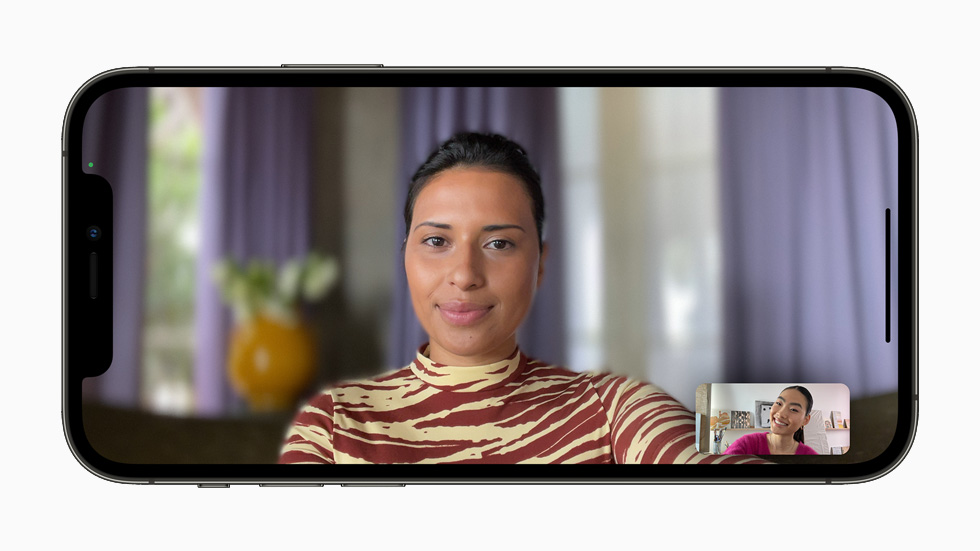
A significant update to FaceTime. For the first time, FaceTime is now supported across platforms making it possible to use FaceTime on Windows and Android through a browser. Similar to Zoom, it is now possible to schedule individual FaceTime calls and send a link to join the call. FaceTime now also supports portrait mode to blur backgrounds, and a grid view to speak to multiple people at the same time. The new spatial audio feature creates a 3D audio experience allowing you to get a sense of where the person is on the screen during group calls.
ShareTime, enables users to now share music or their screen during a FaceTime call.
iMessage
iMessage has been redesigned and now includes features that photos received in iMessage are grouped into galleries. Links that are sent to you get automatically saved in “shared with you” so they are in one place and can be access later. This works with Apple Music, Safari, Apple Podcasts, Apple TV and Apple News.
While notifications continue to be displayed on the lock screen, a new feature now collects the notifications and displays them in a custom summary, ordered by priority.
If “do not disturb” or a new “focus” mode are enabled this status will now be shared with other users, like an away message.
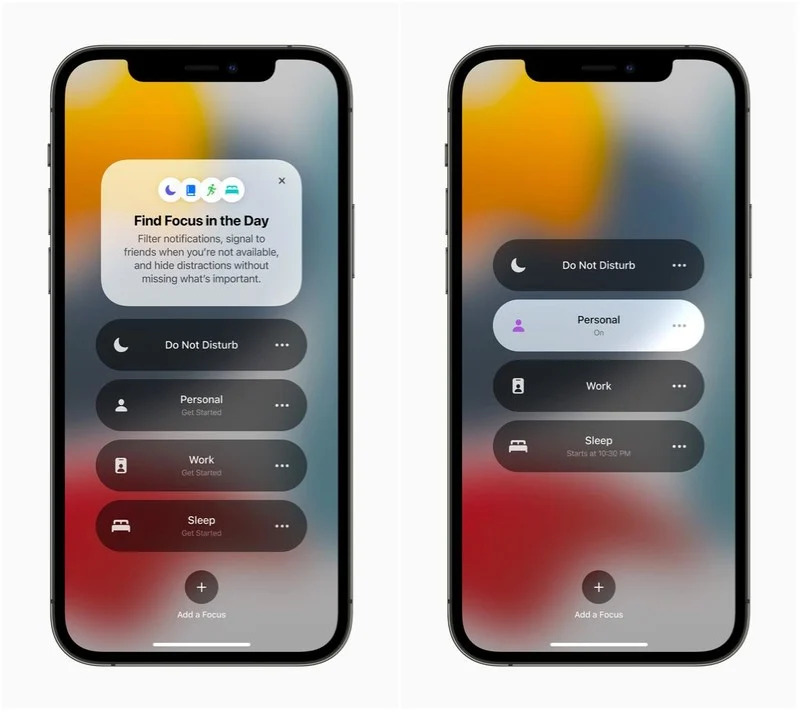
Focus mode
The new Focus mode filters and hides notifications and apps based on specific user preferences. Focus, also uses on-device intelligence to suggest which people and apps are allowed to notify them. These suggestions factor in the person’s context, for example work hours or when winding down for bed. Once Focus is set on one Apple device, it gets automatically applied to any other Apple devices the person may have.
Live Text
A new feature in the Camera app, called Live Text can automatically identify and scan text in photographs. This text can then be copied and extracted to use in other apps.
Wallet
The Wallet has been updated to now support the inclusion of corporate ID badges, keys to get into hotels and houses with smart homes.
Safari
Apple’s Safari browser on the iPhone has received a major update with a redesigned tab interface and support for the same extensions used in the desktop version.
iPadOS 15
Similar to iOS 15 for iPhone, the iPad operating system will also be updated to iPadOS 15. Included in the new version are new ways to rearrange iPad apps, put widgets on the home screen and the App Library feature – something that until now was only available on iPhone.
A new multitasking interface that makes it easier to place two apps side by side on the iPad screen.
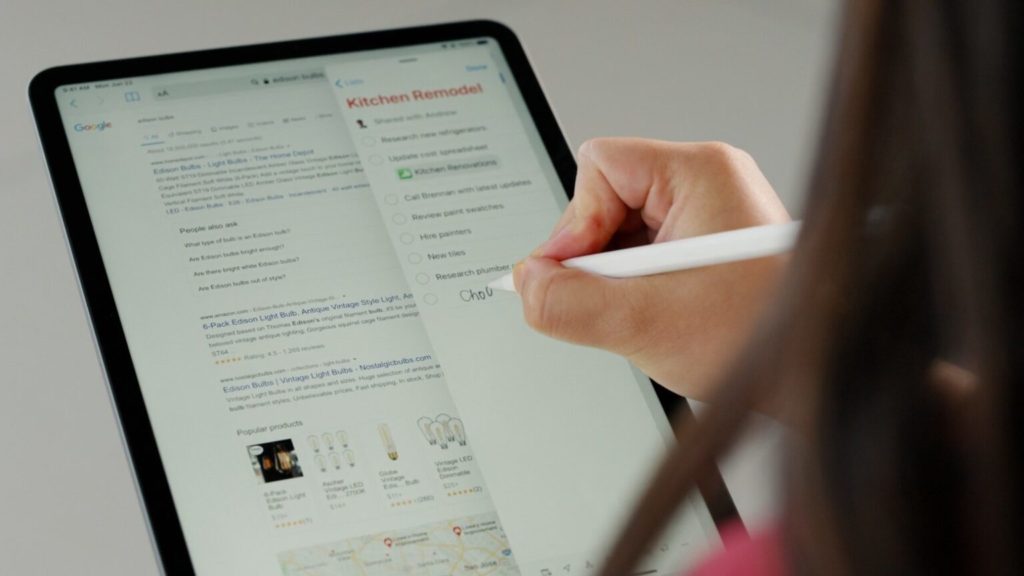
The Apple notes app is now able to better interface with other apps. Swiping up from the bottom corner of the iPad will now launch the “Quick Notes” feature. This enables you to quickly make notes using the Apple Pencil.
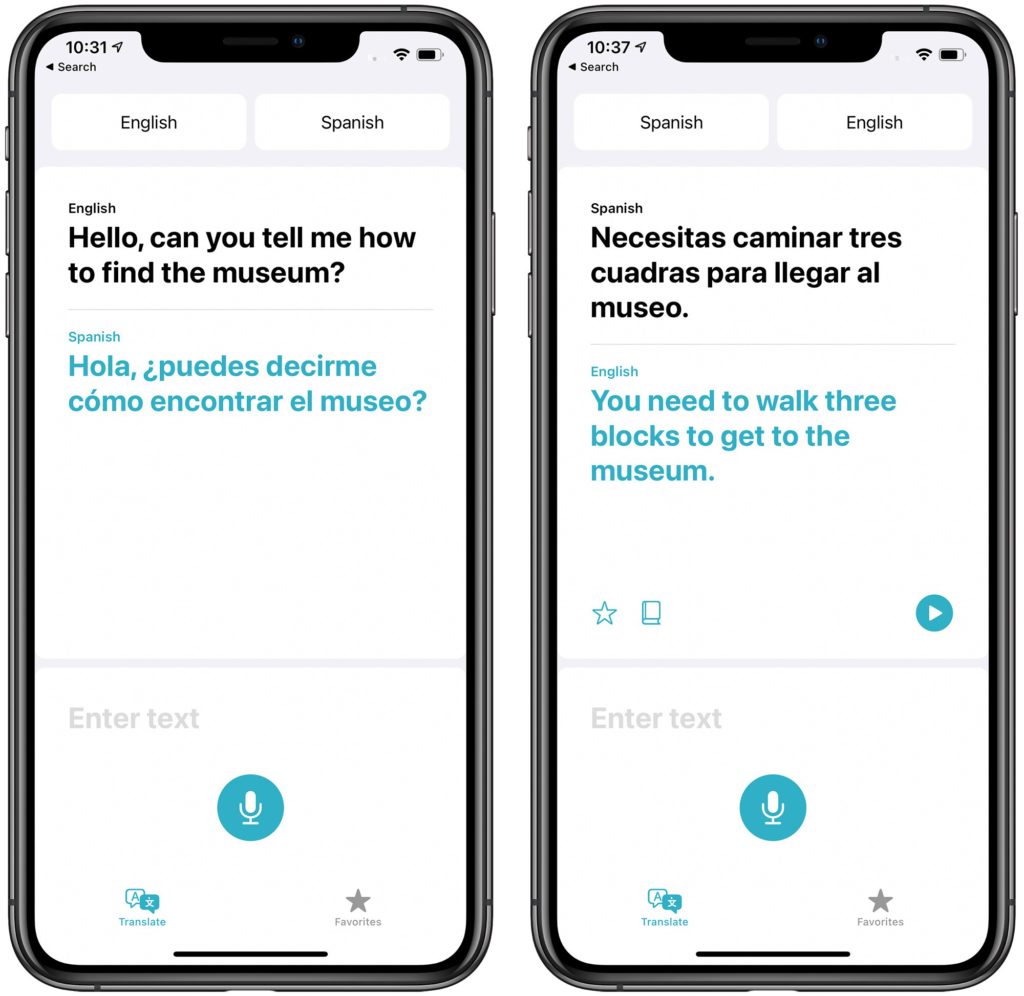
A new version of the Translate app has been added to iPadOS 15. This app enables people to have a conversation and have it translated on-screen in real time.
Apple’s Swift Playgrounds app which is designed to help people learn how to code (program) has been updated and it is now possible to create full apps, that can be submitted to the App Store.
Both iOS 15 and iPadOS 15 are expected to be released in September this year.
Many more announcements covering other products were made during WWDC. It remains exciting to see the ongoing advances in technology and its potential to improve people’s lives.
As always, I am interested to hear about how you are using mobile and other smart technology. If you would like to have a particular topic covered in the next newsletter, please let me know. I am also available at any time to support and help where I can.
“You’re on mute”…a phrase that has become familiar to many of us over the past year. A sign of how the digital age has transformed how we live, work and interact with each other. Mobile devices have put a computer in our hands, one that is able to capture images and video, contributing to the zettabytes of data that is created and generated each year. In this data era, how valuable is your data to you, to your organisation?
The 31st of March is world Backup Day! (http://www.worldbackupday.com/en/) A day to emphasise and remind you of how important it is to backup your data.
Despite the increased reliability of modern devices, hardware can, and does fail, devices get damaged, stolen, or infected by viruses and ransomware. Hardware can be relatively easily repaired or replaced (at a cost) however, data loss, can be priceless – irreplaceable. The simple rm -rf * command executed on the wrong directory at Pixar deleted 90% of Toy story 2! Fortunately, that data or a copy thereof, was able to be recovered. That incident also transformed Pixar’s backup policy.
Simply put, a backup is copy of all your important files which is stored on another device in a safe place.
Typically, backups are done either to an external device (e.g. external hard drive, NAS, etc) or an internet based service, or both. Each option has its advantages, external devices in most cases don’t have any on-going-costs and data transfer rates are higher, meaning backups (and crucially restores) take less time to complete. Internet base services offer off-site backups and greater data integrity as services providers have their own backup procedures to keep your data safe. They also may be included in a service that you are already paying for e.g. Microsoft 365.
The exact backup solution will depend on your requirements. However some key aspects to consider when determining a backup procedure/policy:
What data should be included in the backup?
How often should backups be done?
How many copies will be made?
Where is the backup data stored? If this is internet base, where are the servers located.
Who has access to the backup data?
How long is backup data retained?
While having a backup procedure is good practice, if it includes personal data, backups are a General Data Protection Regulation (GDPR) requirement. The GDPR states that: “…must have the ability to restore the availability and access to personal data in the event of a physical or technical incident in a ‘timely manner’.”
For personal data included in backups, the GDPR could also influence where backups are stored, who has access to them, and how long they are retained for. Trickier aspects include the anonymisation of data, and the individual’s “right to be forgotten”. The GDPR does not make any exceptions for personal data contained in backups i.e. personal data should be deleted from backups too. The guidance from the Information Commissioner’s Office (ICO) is that the steps need to remove an individual’s personal data be dependent “…on your particular circumstances, your retention schedule (particularly in the context of its backups), and the technical mechanisms that are available”. The ICO stresses that “You must be absolutely clear with individuals as to what will happen to their data when their erasure request is fulfilled, including in respect of backup systems.”.
While it is context specific, the guidance acknowledges that due to technical reasons it would be difficult to erase an individual’s data from a backup. If this is the case the backup data be marked as ‘beyond use’. The ICO states “You must ensure that you do not use the data within the backup for any other purpose, ie that the backup is simply held on your systems until it is replaced in line with an established schedule.” For more information on the ICO website.
Most, mobile devices by default will automatically backup to cloud based storage – Google Drive for android devices (Samsung devices can also be backed-up to a Samsung account); iCloud for Apple devices. This is dependent on the available storage space and usually only happens when the device is connected to Wi-Fi and is charging. These backups may not include all the data on the device. Some app e.g. WhatsApp offer their own backup service specific to that app’s data.
Depending on the context in which these devices are being used, these backup options may need to be reviewed and disabled.
Whatever your backup procedure is, backups should be checked for integrity – most backup software allows for this. After all, a backup that can’t be used to restore your data is not much use.
Whether you choose to take the backup pledge or not, on the 31st of March please give some thought to backing-up your data. To quote the World backup day website “Don’t be an April Fool. Backup your data.”
Finally, as always, I am interested to hear about how you are using mobile and other smart technology. I am also available to support and help where I can.
Communicare247 is a health and social care service provider which delivers connected care solutions built by the community, for the community.
Using effective Internet of things and mobile technologies, including voice-activated speakers, smart phones, smart wearables, sensors and location technologies, Communicare247 enables the UK’s most vulnerable people to live safely and independently in their own homes and communities for longer.
These technologies, coupled with a fully featured online care platform, brings reassurance to citizens and their families, whilst providing valuable health and activity data to care providers which can be used to manage health and enhance care delivery.
Case Study – Communicare247 helps Sanderson High travel independently
Communicare247 partnered with Sanderson High School, an additional support needs (ASN) school to create a service which would help their pupils build confidence whilst travelling independently.
Using the Freedom Device with location-enabled alerting, the pupils were able to travel independently, using public transport, between home and the classroom. Reassurance that direct support from their teacher was only a button press away, increased the pupils, parents, and teachers confidence in their ability to travel alone.
With Communicare247’s support, the school has achieved a 50% increase in the number of alumni who are now able to travel using public transport, instead of private transport methods.
Karten Centres have been invited to be involved in an exciting project assessing the inclusive design and functionality of Westfield’s Connected Autonomous Vehicles. Four of our Centres are currently involved in the project. Due to the lockdown, activity is limited to remote activity and virtual reality, but once restrictions are eased Westfield will be dropping vehicles off at Karten Centres and participants will have the opportunity to experience the vehicles first-hand. This is a fabulous opportunity for people with disabilities to input into the design process. Take a look at the Westfield’s Connected Autonomous Vehicles website and the YouTube clip.
Our Summer 2020 newsletter featured Derwen College Industry Champion, Neil Bevan, and the work his company had been doing with Derwen College in the development of their award-winning ‘Support Work’ mobile apps.
The lessons learned, the success of the project and the collaboration with the college, which includes the ‘Working in a Printshop’ app used in Derwen’s Karten Printshop, prompted Neil to separate out the app development side of his design and marketing business to form a new company – Starfish Labs Ltd.
Starfish Labs has recently launched the first of a suite of apps to support people with special educational needs and disabilities to understand the changes in society and regulations due to the ongoing Coronavirus pandemic.
The app, ‘COVID-19: Staying Safe’, has been part funded by the Welsh Government rapid response Covid-19 RD&I scheme, and is unique in allowing carers, parents or teachers to customise the content using their own photographs, video and spoken word, and simple steps to make the wearing of masks, lockdown restrictions and hand washing etc. familiar and relevant to the user’s own environment and to the changing regional and local lockdown rules. Generic content is available in English and Welsh. You can find out more about how the apps can be customised and a link to download at: https://starfishlabs.co.uk/products/
A further two apps, ‘COVID-19: Social Space’ covering social distancing and the concept of support bubbles etc., and ‘COVID-19: Happy&Healthy’, covering general health and wellbeing are due for launch during February.
The first app is available now for iPhone and iPad from the App Store, and will shortly be available for Android on Google Play. The additional apps will be available on both platforms as soon as they are published. The cost of the app is £3.99 and proceeds will be re-invested in further projects to support vulnerable people.
The apps were created in collaboration with Derwen College, working with their tutors on content, and feature Derwen clients (many of whom are former students) demonstrating the correct use of face masks, how to wash your hands, the use of hand sanitiser and other aspects of Covid-safe support through videos and photographs, along with cartoon images and Makaton symbols.
Teaming up with two additional directors, Neil and Kirsten Bevan established the new tech startup at Aberystwyth University Innovation & Enterprise Centre, to take advantage of the R&D collaboration opportunities with the University. The company is specifically focussed on developing apps for the SEND sector, to support people with training apps to improve their lives, and to developing relationships which will also be financially beneficial or will provide enhanced learning and enrichment opportunities to the people and organisations with whom they work.
The company has already created employment for two graduates and is about to employ a further developer, having recently won a significant export project in the SEND sector in the UAE.
Starfish Labs Director, Neil Bevan, says, “As the Covid-19 pandemic is still very much with us, the ongoing changes in lockdown rules and guidance in different parts of the UK are confusing for many people, and especially for those with learning difficulties.”
“So much of the existing guidance doesn’t really mean very much to someone who has Autism or who doesn’t recognise that generic images of hand washing, or face coverings have any meaning to their own life. We recognised that a suite of apps could help to simplify the guidance – breaking instructions down into understandable short sequences – and the ability for people to use their own photos or videos of their own masks, their own washbasin, and their own local environment would make the rules much more relevant.”
Neil continues, “We are grateful to Welsh Government for supporting Starfish Labs in funding the development of the apps, and we’re proud to be developing them in Welsh, as well as English, to support vulnerable people in Wales who may have Welsh as their first language. We’re also really pleased to be working with Derwen College again on this project.”
Starfish Labs is also looking to develop versions of the apps in other languages, such as Urdu and Punjabi.
The Karten Network has continued working on the Nuvoic Project our collaboration with specialist app developer Voiceitt, aiming to improve access to speech recognition technology for people who have speech difficulties. Voiceitt’s app supports people who want to communicate using their own voice but have difficulty being understood by unfamiliar people, or who want to use their voice for smart home control but can’t access mainstream technologies. The Karten Network is leading on user involvement and testing in the UK.
Updates
Since our last newsletter, we’ve been working with several of our partner organisations to recruit individuals to take part in the project, and we’re delighted that we now have participants from Beaumont College in Lancaster, Cedar Foundation in Northern Ireland, Enable Ireland, Hill House care home in Sandbach (Leonard Cheshire), Homefield College in Leicestershire, National Star in Cheltenham, The Grange Centre and Young Epilepsy in Surrey, as well as some individuals who’ve contacted us directly. We’d like to say a huge thank you to all of our participants and partner organisations for your contribution so far, especially in such challenging circumstances!
In December, Voiceitt announced their collaboration with Amazon to make Alexa accessible for users with impaired speech, and in January were awarded a ‘Best of Innovation’ award in the Accessibility category by the Consumer Technology Association. Congratulations Voiceitt!
We’ve also recently published our new Nuvoic project web pages, check these out for information and updates about the project.
Get involved!
We’re still recruiting participants to test the Voiceitt app, especially the new Smart Home mode which gives integrated control of an Amazon Echo smart speaker. We’re also looking to recruit people with impaired speech who are willing to donate voice recordings to help develop Voiceitt’s technology.
We’re keen to work with new partner organisations who support people with impaired speech, and we have funding available to reimburse organisations for time spent supporting the project. We can also work directly with individuals, family members and carers to support participation, and we offer vouchers, as well as free use of Voiceitt during participation and for six months afterwards, to thank participants for their contribution. Please see our project web pages for details of what’s involved.
Get in touch!
We would love to hear from you if you, your organisation or someone you know may be interested in taking part, or if you’d like more information. Please email our project co-ordinator: liz@karten-network.org.uk, or you can find more information and get in touch via our project web pages.
Every Thursday at 4.15pm the EdTech Demonstrator Programme will be delivering short webinars (between 20 to 40 mins) focusing on the best ways to integrate accessible technology into your classrooms – enabling you to improve the outcomes for all of your learners.
Accessible technology means technology that allows full access to digital content, whatever your needs. As a result, these webinars are for all educators, as we all know that mainstream classes include a range of students with needs, diagnosed or not. An accessible classroom makes learning easier for everyone.
What’s more, is the last Thursday of the month we will open up the end of the webinar as a “surgery” where you can get help with student issues around accessible tech. The first theme is access, where we cover the main tools learners can use to break through accessibility barriers.
Introduction
Meet the team of specialists, find out how best to access the programme and get some tips on getting September started right. Watch on YouTube.
Text-to-Speech
An introduction to one of the most useful tools to help learners access written text. We will cover options on different platforms and cover those extra features that can make all the difference. Watch on YouTube below.
Early Switch Skills
Taking a look at alternative access to computers/communication aids using switches. It will provide a step-by-step guide from the assessment process, to early switch skills such as awareness of cause and effect. It will explore a range of switch accessible software, websites, and activities. Watch on YouTube.
Dictation
Using your voice to write can be transformative for learners and is a useful life-skill for everyone! We will cover the main options and give options for the classroom, mobile devices, and exams. Watch on YouTube below.
Vision
Changing visual options can make resources accessible. We will go through the main software and features that can help your learners see the work in the best possible way. Watch on YouTube below.
Physical Equipment
How do we work out what equipment learners need? What is out there and where do we buy it from? We can help you with these questions and more. Stay on at the end for our “Drop-in surgery”Register for the drop-in surgery.
More webinars to follow.
Video Calls. Thursday 8 Oct 2020 at 4.15pm
Never before have we spent so long in video calls! But do we know how to make these accessible and do we know which platform to choose to suit our students’ needs? We will look at how to make your calls on Zoom, Teams and Hangouts more accessible with captions, transcripts, accessible resources, shared folders and more. Register for the Video Calls webinar on Zoom.
Remote Therapy. Thursday 15 Oct 2020 at 4.15pm
There are some excellent resources and tips on delivering remote therapy, we’ll review these and help you to feel comfortable delivering therapy in this manner. Designed with Speech and Language Therapists in mind, but with guidance that should help all therapists. Register for the Remote Therapy webinar on Zoom.
Blended / Flipped Learning. Thursday 22 Oct 2020 at 4.15pm
Blended learning is an approach to education that combines online educational materials and opportunities for interaction online with traditional place-based classroom methods. Flipped learning has been described as “school work at home and home work at school.” They are both effective when done correctly and can improve the differentiation, accessibility and engagement of learners. Register for the Blended / Flipped Learning webinar on Zoom.
Visual Learning. Thursday 5 Nov 2020 at 4.15pm
Mind-mapping, social stories, essay planning, symbols and timetables. We will discuss the merits of each, provide you with solutions (PC and mobile) and give you some new tools to deliver your sessions more inclusively. Register for the Visual Learning webinar on Zoom.
It wasn’t that long ago when the idea of talking to and interacting with a computer by speaking was the stuff of science fiction. Now we “Hey Google…”, “Siri…”, and “Alexa…” without giving a second thought to it.
While Intelligent virtual assistants (IVA) are still maturing, they already offer an interface to many who would otherwise find traditional computer interfaces difficult to use. However, for some, accessing virtual assistants is still challenging. Thankfully, built in accessibility features may make this easier. As of iOS 11 you are able to type rather than speak to Siri.
Google Home accessibility features are largely dependent on the device. On mobile devices, the app relies on Android’s accessibility features. On Google Nest smart speakers and displays accessibility features are controlled through the Google Home app. To access these features, ensure you mobile device is connected to the same Wi-Fi network as your smart speaker or display. Open the Google Home app. Tap your speaker or Smart Display. Tap on “Device settings, then “Accessibility”. Currently the options are limited. They mainly include additional audio feedback and cues. For smart displays in addition to auditory options, including closed captioning, it is possible to adjust the colours and the amount of contrast, as well as magnify the screen.
Amazon’s Alexa has a large number of accessibility features. Similar to Google Home, some of which are device specific. These accessibility features can be accessed either through the Alexa app or directly through the device. The features include audio instructions for configuration of Amazon Alexa devices; customisable sound cues; text size and contrast; screen reader support for the Alexa app; support for keyboard navigation in the app and on some Alexa devices; screen magnification; and the rate at which Alexa speaks can also be adjusted.
The “wake word” can be changed, although this is currently limited to four options – “Alexa,” “Amazon,” “Echo,” and “Computer.”
On supported devices (e.g. Amazon echo show) you can interact with Alexa without speaking. This includes using a keyboard during video calls made using the supported device. The Real Time Text (RTT) feature adds a live, real-time chat feed during calls and “Drop Ins”. When RTT is enabled, a keyboard pops up on the screen (external Bluetooth keyboards are also supported), enabling you to type text which appears in real time on both parties’ screens.
Ongoing efforts promise to expand access to virtual assistants for people with disabilities. Google recently announced a partnership with Tobii Dynavox to integrate Google’s virtual assistant into Tobii Dynavox augmentative and alternative communication devices.
The Karten Network is excited to be a partner in the European Union funded Nuvoic Project, led by specialist app developer Voiceitt to further develop the Voiceitt app. The app is designed to translate impaired or unclear (‘dysarthric’) speech into intelligible speech as well as control other voice-driven technologies such as virtual assistants. (see the Nuvoic project article for more information).
While privacy and data protection concerns exists, intelligent virtual assistants are hear to stay and possess the potential to make all our lives, particularly those with disabilities a little easier.
As always, I am interested to hear about how you are using mobile and other smart technology. I am also available to support and help where I can.
Martin Pistorius Karten Network Mobile Technology Advisor
by Derwen College ‘industry champion’ and project manager Neil Bevan, owner of design and app development business Hunter Bevan Ltd
Hunter Bevan Ltd is working in partnership with Derwen College on a three-year project to support young people with special educational needs and disabilities (SEND) to gain supported work placements as part of their learning journey. For some students this may ultimately lead to paid employment, the added independence and sense of achievement that brings. Our involvement in the project is in the development of a suite of iOS and Android-compatible apps to support training through an accessible, understandable platform.
As Project Manager, it is interesting to interface between the needs of the educational sector and the technical delivery of desired outcomes from the apps. The challenges include how we deliver those outcomes through the use of technology and mobile devices for training which are understandable, easy to use and accessible to students, using simple design and specific content such as Makaton symbols, which will be of benefit to staff and students as a teaching and learning aid.
In ‘mainstream’ commercial training apps we might take a totally different approach to that of working in a specialist college setting. Some of the things we are learning through working with the college are shaping the future development of apps in this sector – such as the example of fingerprint recognition patterns being different in students with Down syndrome to those of the wider community, meaning that using that method of recognising an individual may be difficult using current technology. These subtle differences are informing future accessibility to the apps we are developing in relation to security and safeguarding issues. We are also exploring the use of different learning methods – using video and spoken word, Makaton and written words, and a series of pictures and written words, to learn which approach different types of students prefer for their own personal learning. One thing that is definite is that the use of technology is being welcomed by the students and they enjoy using the apps in their learning. This is demonstrated by students requesting to continue to use the apps on their personal devices after leaving the college!
We have worked with the college to systemise the approach to determining the desired learning outcomes, producing easy-to-understand flowcharts of how the apps will work so that the specification can be agreed at an early stage. User interface designs are then created and presented to college staff so that we can discuss accessibility and user-friendliness appropriate to the students’ needs, learning from their specialist knowledge, before coding begins. We then share beta test versions of the apps with the college during the build process for evaluation, and continue to improve the ‘user journey’ through staff and student feedback. This ensures ongoing quality control and agility in being able to modify functionality and usability as we proceed to build the apps. The software behind the apps is the Laravel Nova admin panel, Cordova and React Native. We are partnering with Amazon Web Servers (AWS) to deliver server-side functionality where required, and the college is in the process of accessing grant funding from Amazon to support development on AWS. These state-of-the art development tools will enable further development of the apps in the future.
Current apps include:
Housekeeping training developed in conjunction with Premier Inn – working with Derwen College to convert Premier Inn’s training manual into a pictorial, Makaton and simple sentence version on paper – and then into a fully functioning app with the choice of using video and spoken word, Makaton and written words, and a series of pictures and written words.
‘Working in a Café’ – a step-by-step guide to common tasks when working in a café, using pictures, Makaton and words, which can be customised to an individual café’s own processes and ways of undertaking different tasks (e.g. multiple ways of making a cup of coffee using different equipment.
Digital CV builder, which enables a student to select descriptive words about themselves, upload pictures and personal data, and to incorporate videos and documents as evidence of their skills and work experience. As well as choosing from options, students can further personalise their CV using text, or voice recognition. The app also allows for schools and colleges attended, qualifications, work experience, references and a mock interview to be uploaded. An online or pdf CV is then generated which can be accessed by a potential employer who has been granted a secure access code.
Early-stage development of a ‘Getting ready for work’ calendar-based app to support being ‘work-ready’ and the use of public transport to travel to work.
As the apps are currently for internal use within the college and a limited user-base outside the college, they are distributed to users as .apk files for Android and via TestFlight for iOS. Hunter Bevan Ltd are approved Apple Developers for iOS.
We are delighted to be working on this project as it presents us with design and development challenges in building effective tools to benefit people with learning difficulties and disabilities which are really making a difference to the students’ lives and employment opportunities. The project has forged stronger links with Hunter Bevan and Derwen College and I have taken on a voluntary role as an Industry Champion for the Retail Pathway with the College – promoting their work, and supporting the staff and students with ‘real life’ business experience. The project has also proven to be an effective platform to introduce and present the work of the college to the wider business community.
The Karten Network is very pleased to begin work this Summer on the Nuvoic project, which aims to improve access to voice recognition technologies for people who have dysarthric or unclear speech. Our project partner Voiceitt produces a specialist voice recognition app, designed to be used by people who have dysarthric speech and who are unable to use mainstream voice-controlled systems.
We want to recruit participants who would be willing to provide voice samples to extend Voiceitt’s database of English-accented dysarthric speech, which will help improve the performance of their recognition systems. Voiceitt are also working to develop new and existing functions for their apps. Potential uses include voice output, to help users to communicate more easily with people who are unfamiliar with their speech, and control of other voice-driven technologies such as the Amazon Alexa and other smart-home and environmental control systems. There are also plans to develop a voice-controlled online shopping app.
We are looking for participants aged 16 or over to join this exciting project, to test these apps and provide feedback to Voiceitt on how they could be improved. The apps give written instructions to the user, so some literacy is needed. If you would like to get involved with this project or would like to find out more, please contact Liz Howarth who is the project co-ordinator for the Karten Network: liz@karten-network.org.uk.
We would be very grateful for any help from colleagues in our Karten Centres to help us to publicise this project and make contact with any potential participants. The Voiceitt apps currently run on Apple devices but Android versions are planned for the future. Participants using their own iPhone or iPad will benefit most easily but some funding is available to provide testing kit where needed.
Apple’s annual Worldwide Developers Conference (WWDC) took place last month. Unlike the previous 30 conferences, it was held virtually and free for anyone to attend.
The WWDC keynote, streamed directly from Apple Park included, the introduction of iOS and iPadOS 14, watchOS 7, tvOS 14, and more. The full keynote is available on YouTube.
iOS and iPadOS 14
Version 14 of iOS and iPadOS, expected to be released in September, brings the first major change to the user interface since iOS was first released with the introduction of widgets. A concept that Apple have used successfully on their Apple watch. These widgets, available in different shapes and sizes can be placed on the home screen, creating a more data-rich home screen. A variety of widgets that can be added through the Widget Gallery.
Widget Stacks
To optimise the use of space you can create Widget Stacks, allowing you to stack up to 10 widgets on top of each other. Swapping between them with a swipe.
A Smart Stack can be added. This folder uses on device intelligence to automatically display the best widget option based on time, location, and activity. For example, if you stack up the weather widget, the calendar widget, and the maps widget, you might see the weather when you wake up, the calendar as events as they come up and maps when you are out.
Siri is also ever present, providing a Siri Suggested widget based on your device usage. If you read the news every morning on the bus or train, you may see the BBC or Apple News app. If you order coffee each day around lunch time the Costa or Starbucks app will appear around that time.
App Library
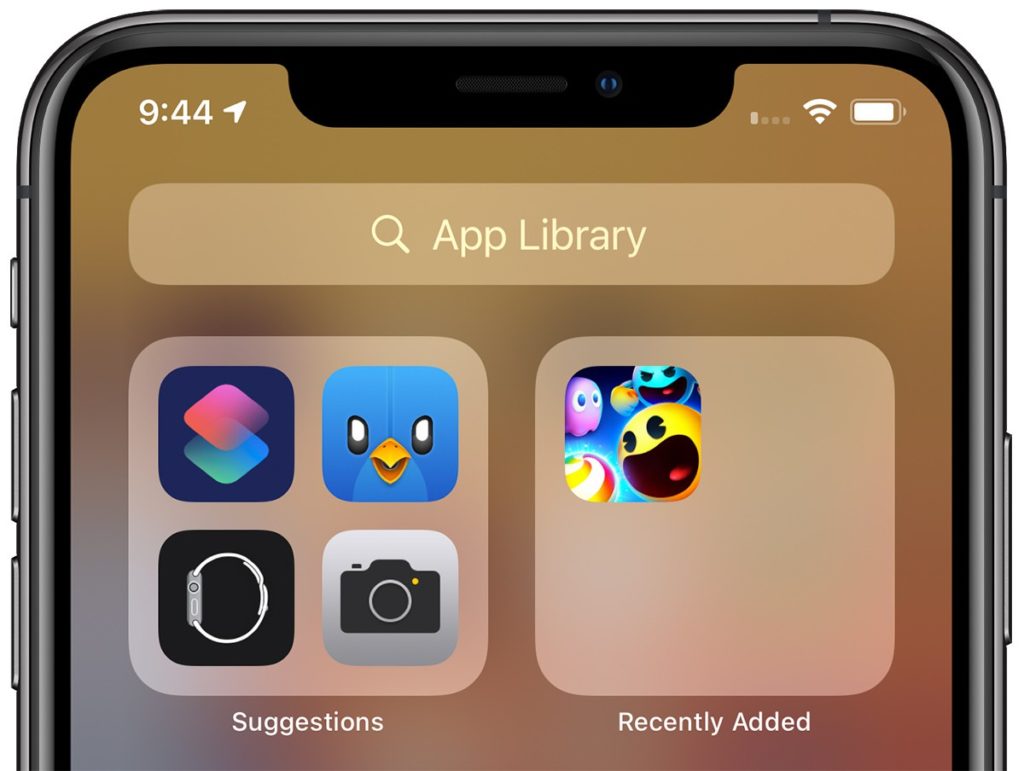
To compliment widgets, a new App Library feature has been added. Similar to Apple Watch’s app list view, App Library automatically organises every app you have installed into category folders.
Swipe right to get past the Home Screen pages and onto App Library view. This seems a great to quickly access apps that normally reside beyond the first or second page.
App Library includes an intelligent “Suggestions” folder where four recommended apps are shown based on factors like, usage, the time of day, location, and activity.
It is now possible to hide individual pages or apps, limiting apps to the App Library. This will allow for much tidier screens.
Other screen-space saving changes include a new compact incoming call and Siri interfaces. Siri is not only now more compact but has received a significant update, making Siri “smarter”.
Improved Accessibility
As with every new iteration of iOS, the accessibility has been improved and expanded. Voice Control, introduced last year gets a new British English voice and expanded capabilities, support for Braille has been enhanced and expanded, and more. Some of the new features worth mentioning are:
Sound recognition
While this is not a new concept, it is the first-time sound recognition has specifically been used for accessibility purposes. Amazon, Google, and others have used AI-based sound recognition for personal safety applications. For example, Google Pixel phones are able to listen for a car crash and Amazon’s Alexa can listen for the sound of broken glass. Once enabled in the accessibility section of iOS 14 the phone will listen for 14 different sounds, including a knock at the door, a doorbell, sirens, smoke detector alarm, dog barking, a crying baby, and more. If one of these sounds is heard you are alerted.
Headphone enhancements
This new feature allows people to adjust the frequency response and boost softer sounds to make it easier to hear. While this requires one of the compatible headphone sets (e.g. AirPods Pro, AirPods, Powerbeats, Powerbeats Pro and Beats Solo Pro, EarPods) it is a great enabler for anyone who has trouble hearing.
Back Tap
Back Tap this new simple feature lets you assign an action to a tap on the rear of your iPhone and it even works when the phone is in a case. Currently, Back Tap only supports two movements, a double and a triple tap. However, there are large number of actions that can be assigned to the taps.
FaceTime Sign Language
The update to FaceTime now includes artificial intelligence that will recognise if someone is using sign language during group FaceTime call. The system will then make the person on the call who is signing appear more prominent.
VoiceOver
VoiceOver has been upgraded. Most notably is VoiceOver utilises on-device machine learning and Apple’s Neural Engine to recognise and audibly describe what’s happening on screen. VoiceOver can now identify key display elements, especially on websites and apps that don’t have their own accessibility functionality. This can include text within images as well as interface controls that can all now be read out.
Apple Magnifier
Apple Magnifier has been upgraded too. It now magnifies more of the area you are pointing at, as well as capture multi-shot freeze frames. You can now filter or brighten images for better clarity as well as capture multiple images at once – making it simpler to review multipage documents or longer content.
Other new features and changes in iOS
With more than the reported 250 changes and enhancements from iOS 13 here are some of the changes and new features:
Picture-in-Picture (PiP). While not a new concept Apple has added it’s “Apple touch” to it. If you swipe away while watching a full-screened video, the window will now float on your home screen, allowing you to move and resize it. The video can also be minimise into a small button on the side of the screen. All this means that you can continue to play a video while doing something else.
App Clips – similar to Android’s Instant Apps, App Clips allow you to use an app without needing to download the full version. App Clips will also support Apple Pay. This feature could be useful for those times when you need quick access or only need an app temporarily.
A significant update to Apple Maps and includes new cycling-specific navigation, among other things. This can alert you to increases in elevation as well as a notification if there are stairs along your route. This could be very useful for wheelchair users too.
Unfortunately, for now, is US and China focused and will be first available for New York City, Los Angeles, San Francisco, Shanghai, and Beijing. Although more cities will be added once iOS 14 is released.
Third-Party Default Apps – for the first time since iOS was released Apple allows you to set third-party browser and e-mail apps as the default. This means Google Chrome users and those who prefer other e-mail apps can use them more easily.
Privacy Protections – A significant amount of work has gone into improving and expanding the privacy protections. It is now even clearer what information apps collect, requiring more user permission. It is now possible to use location dependant features without providing your specific location data.
Changes have been made to the Apple app store to make is clearer what the privacy impact of each app is before you download it. Apple now require developers to self-report their privacy practices, including any data they collect and used to track people.
Developers must now also obtain express permission from the user to access or use any tracking data.
The Apple Clipboard now provides a notification, so you know what app is accessing text copied to it.
Apps that need to discover and access devices on your local network now need to gain your permission to do so first. Fine-grain control to your photos has been added. Any app that requests access to the Photo Library, no longer needs to have access to all your photos. You can choose to block access, select specific photos that the app can view, or allow full access.
If an app uses either the camera or microphone for recording purposes an indicator light will now appear next to the mobile signal bar. This will happen whether an app is being used or running in the background. This will ensure that apps are not secretly recording without your knowledge.
To prevent operators tracking your device Wi-Fi now includes the option to “Use Private Address”; and Bluetooth devices can be renamed.
Translate App – Siri’s translation capabilities added in iOS 13 have been expanded into a dedicated translation app.The underling translation engine has also been integrated into the new version of Safari. This makes it possible for websites to be translated too.
Memoji will be expanded, including more age options, and accessories for Memoji, such as face masks – I sign of the extraordinary times we are living in.
iPadOS 14
Most of the changes and new features of iOS 14 will also be included in iPadOS 14. Apple also introduced a new “Scribble” feature for Apple Pencil. This can automatically convert handwriting into text. Built in intelligence makes Scribble context aware. This means it is able to for example recognise a phone number or address and offer you an appropriate app to use the data.
watchOS 7
Apple has finally added sleep tracking to Apple watch. While more in-depth data will be gathered if you use an Apple watch, the companion app for iPhone doesn’t require you to use an Apple Watch.
With the coronavirus pandemic hand hygiene has become even more important. watchOS 7 now includes a Handwashing app. This new app not only can detect the motion of you washing your hands but uses the watch’s microphones listen for the sound of splashing water to confirm that you’re actually washing your hands. The app then displays a countdown to ensure you wash your hands for an adequate amount of time.
Google I/O
Google took the decision to cancel their annual developer conference entirely. Google did however announce some accessibility improvements.
An Accessible Places feature has been added to Google Maps. Available on both Android and iOS, Accessible Places is designed to display wheelchair accessibility information about a location or business. You can enable Accessible Places by open the latest version of the Google Maps app. Navigate to “Settings”, then choose Accessibility and turn on Accessible Places.
Once turned on, it’ll show a wheelchair icon for places with an accessible entrance. More detailed information is also available, including Blue Badge parking, accessible seating, and toilets. Accessible Places will be released in the UK, US, Japan and Australia, with more countries being added later.
Action blocks, mentioned in the Autumn 2019 newsletter has now been released. The app enables you to create customisable home screen buttons. Creating a string of tasks or actions that can be trigged by a single tap
Live Transcribe, Google’s real-time, speech-to-text transcriptions for conversations has been updated. You can add custom words or names for the system to recognize and spell. You can use search to search through past conversations. To enable this feature though you need to enable “Saving Transcriptions”. This will then save transcriptions to the device for three days.
It is now also possible to set Live Transcribe to listen for your name. Your phone will then vibrate whenever someone nearby says your name.
The following article was produced in collaboration with our Karten Centre and is provided courtesy of Jewish Care Interact. For more information please visit: https://www.jewishcareinteract.org
While you may be eager to embrace technology, it’s important to protect yourself in the digital world.
Top tips
Here are the top 10 best practices for you to follow:
Passwords. Use hard-to-guess, unique passwords. Secure your accounts with your phone number.
Logins. Store your login information by using a passphrase or password manager.
Social media. Be a savvy social media user by selecting higher privacy settings and thinking twice before sharing personal information.
Devices. Protect your devices by setting a PIN or password and making sure your devices aren’t left unattended.
Banking. Keep your online banking information private.
Emails. Delete emails requesting personal information or urgent money transfers.
Locations. Only login to your accounts on computers you trust. Use your own devices when you can.
Privacy. When using shared computers, browse privately and log out of your accounts.
Virus protection. Restart your browser or computer if you’re told it has a virus, and don’t click on any virus alert messages.
Ad blocking. Use ad blocking tools for safer Internet browsing.
Each strategy is explained below.
Passwords: make them strong
Having a strong password is probably the most important thing you can do to reduce your risk online. These basic dos and don’ts can go a long way.
Password dos:
Do log out of your accounts when you’re finished using them—ALWAYS.
Do consider using a password manager or app and two-factor authentication.
Do use long passwords with symbols, since they are more secure.
Do have a different password for each account.
If you do write your passwords down (although this is not advisable), keep them in a safe space that’s far away from your computer/device.
Password don’ts:
Don’t use obvious passwords, like password, 123456, qwerty, letmein, dragon, shadow, abc123, master, sinatra, etc.
Don’t use passwords that someone who knows you can easily guess: birthdays, home towns, pets, relatives, etc.
Don’t share your passwords with anyone, and don’t let anyone see you type them in.
Don’t carry your devices and passwords in the same bag.
Don’t log in to your accounts on computers you aren’t sure are secure.
When deciding on your password, keep in mind that it shouldn’t be so difficult to remember that you need to write it down or tell someone about it. Age UK says a strong password should not be too short and should include a combination of letters, numbers and punctuation marks. The ideal password would be some obscure nonsense word that only has meaning to you.
If memorising a password is too difficult, you may want to try using a passphrase. A different sequence of words (like “Fido is a good dog”) for each account can be written down and stored somewhere safe. Passphrases are especially helpful if you have the option for a longer password.
Another helpful option is a password manager. This tool stores encrypted and protected versions of all of your passwords in one place. Ideally, the password you use for your password manager will be the only one you need to remember!
Social media: be selective
A breach of privacy can sometimes cause more damage than a financial loss. You might feel like you have nothing to hide, but at the same time, you might not want all your affairs to be public knowledge.
To protect yourself from identity theft, here are some good habits for Facebook, Twitter and Instagram:
Don’t share things on social media that you don’t want associated with you. Your posts might live forever on the Internet.
Be careful about photos you share, particularly those that relationship scammers might use to trick you into revealing private information or sending money.
Adjust your privacy settings to restrict who can view your posts.
Don’t share everything online. Information such as your birthday, address history, likes and dislikes can easily be used to impersonate you.
If you do store photos, videos and important documents online through social media, you may want to plan what will eventually happen to this information when you pass away. The Digital Legacy Association suggests that you download a copy of all of your photos and videos from social media accounts and share them with a person you trust. You may also want to assign administrative access of your social media accounts to someone trustworthy. You can download a template Social Media Will from the Digital Legacy Association.
Devices: protect them with PINs
Preventing others from hacking into your electronic devices is an important part of staying safe online. You can safeguard your devices (and your information) by taking the following steps:
Turn on the screen lock from your security settings.
Don’t use a pattern lock (PINs and passwords are safer).
Don’t leave your device unattended in public spaces.
Don’t write your access codes on the case of the device or keep them written down anywhere near the device.
Use anti-malware software if possible.
Banking: take care with financial information
The most common online banking scams typically happen when criminals trick you into proving information that opens the door to your account. Money transfers through job adverts, prepayment requests, false charitable donations, medication scams and other fraudulent actions can be avoided if you investigate before you send money or provide credit or debit card details for payment. And remember this: your bank will never email you or send you messages through the Internet.
Online banking and shopping can be used safely if you:
Discontinue any online transaction if your browser warns you that a website is not legitimate.
Be wary whenever someone requests money from you online; ask for advice from someone you trust if the request seems even the slightest bit questionable.
When checking out from an online store, be sure you are purchasing the things you really want (and not something that has ended up in your cart unintentionally).
Look up reviews, especially if you’re planning to buy from a business you are unfamiliar with (a good source is uk.trustpilot.com for British businesses).
Never give others access to your bank account, PIN or banking apps. Protecting your identity is an essential part of staying safe online. (For more advice on this subject, visit the Protect your identity page from NI Direct.)
Your bank’s fraud helpline is a good place to start if you have any questions about online banking.
Emails: be cautious about requests for money
Citizen’s Advice offers these helpful tips on spotting signs of an email scam. They warn you to be careful if:
Something comes out of the blue or from someone you don’t know.
Something sounds out of the ordinary, like you’ve won the lottery, or you’ve been invited to invest in an ‘amazing’ scheme but asked to keep it a secret.
You receive an email message urging you to phone an expensive number (these start with 070, 084, 087, 090, 091 or 098) or make a quick purchasing decision (a trustworthy company will be happy to wait).
Since scammers may mimic familiar email addresses by changing a letter or two, always check to make sure the source is accurate. The email could look very official—it might claim to be from HM Revenue and Customs or come in the form of an invoice from someone you do know—but if it’s unexpected, it’s probably a scam. If in doubt, give the sender a call, but be sure use the phone number you have in your records (not the phone number included with the questionable email).
If you do receive an email that’s suspicious or includes a request for your financial information, just delete it. Don’t bother to respond. Even if you just request to be deleted from the email list, this signals to the scammer that your email address is legitimate. This can ultimately lead to a continued flood of unwanted emails in your inbox.
While it may be tempting to log in to your online accounts from an unfamiliar device or location, it’s very important to avoid devices that are set up in places you don’t trust. A computer in a public location like a library or store could be saving and storing your personal data without your knowledge.
Privacy: keep your details top secret
If you do decide to log on to a public device, try to follow these three tips:
Use a private browsing mode (like Incognito) to keep your information safe.
Make sure you don’t save login information on a shared computer, and
Fully log off when you are finished.
Virus protection: use software to stay safe
Antivirus tools and firewalls that come with your machine can protect you from computer viruses and other unwanted cyber intruders (like spyware, malware, worms and more). But even if you have virus protection on your machine, make it a habit not to open attachments or click on links in emails that come from suspicious sources.
Keeping your operating system, firewalls and antivirus tools up to date is good practice and should be part of your regular online routine.
Ad blockers: avoid pop up ads the easy way
By installing ad blocker software on your machine, you can avoid clicking on messages designed to trick you into sharing information or making your machine vulnerable. Even if a message looks legitimate or seems urgent, it’s more than likely some sort of scam.
If you’re an advanced computer user, you may want to look into VPNs (or virtual private networks) for even more protection. These tools can block annoying ads, but they can also block scripts that track your online behaviour, prevent distracting banners and even speed up your web browsing.
Other ways to protect yourself online
Roughly half of all fraud crimes that happen each year take place online. Very often, these crimes go unreported.
Being aware of the most common scams will help you avoid them. Here are a few examples of scams that happen frequently:
Money transfer scams. These may be disguised as a transaction where you could be asked to provide information, such as your bank details, so that transfers can be made through a UK bank account and you will be paid generously for your trouble. This technique is used by fraudsters to launder money and could get you into serious trouble.
Medication scams. You can be encouraged to buy some sort of wonder medication online that turns out to be fake or sometimes isn’t delivered at all.
Relationship scams. This happens when someone finds your details online, pretends to be interested in you and then tries to manipulate you into sending them money.
Stranded traveller schemes. Scammers might pose as a friend or family member or pose as an authority figure and will then tell you that your friend or relative is in hospital or prison abroad. Using this information, the scammer will try to convince you to transfer money as soon as possible.
For more information on common scams, visit the following pages:
If you do suspect a scam, it’s a good idea to report it to an authority. That way you will help fight online crime and prevent others from being targeted by the same scammers. The following websites will give you more information on how to report a scam:
Amidst the Covid-19 pandemic many organisations are making their products available either for free or at a reduced rate. There is an ever-growing collection of resources being developed to support people who are staying at home. For an extensive list of these and other resources please see the Karten Network website: https://karten-network.org.uk/home-learning-support/
For a bit of fun, invite a horse into your house, a
lion into your Livingroom and while you are at it, have a tiger round for tea!
You will require a mobile device that supports
Augmented Reality (AR). This will need to be, either an Android device running Android 7.0 or later
or an Apple device running iOS 11.0 or later.
Open your web browser and do a Google search for an
animal e.g. “tiger”. If an AR animal is
available, it’ll show up in a small box with some information and an invitation
to “Meet a life-sized tiger up close.” In that box will be an option to “View
in 3D”, tap that and the website (Wikipedia) will place an animated 3D model on
your screen. Tap on “View in your space,”. You may be asked to allow access to
your camera, if so tap “allow”.
Point your device at the
floor and the view will switch to an AR mode. You will be asked to move your
phone around – this step may take a couple of minutes. Typically, you also need
a room with fairly good light and a flat-ish surface. Then almost by magic the
animal will pop up in your space. You can now move your device around to view
the animal.
The current list of
available animals is:
Alligator
Angler fish
Brown bear
Cat
Cheetah
Dog
Duck
Eagle
Emperor penguin
Goat
Hedgehog
Horse
Lion
Macaw
Octopus
Pug
Giant panda
Rottweiler
Shark
Shetland pony
Snake
Tiger
Turtle
Wolf
As always, I am interested to hear about how you are using mobile and
other smart technology. I am also available to support and help where I
can, even more so during these
exceptional times.
Martin Pistorius, Karten Network Mobile Technology Advisor
The power of the Karten Network is its ability to share its wealth of knowledge and expertise. A few years ago, Matt Harrison, then at Portland College, now at Beacon Centre, shared his use of QR codes during the Karten Network Events. More recently TechAbility and National Star’s Neil Beck showed me a project he had done using both QR codes and RIFD tags. This inspired me to write this tutorial on how to use QR codes and RFID tags.
How to use QR codes and RFID tags
QR Codes
A QR (Quick Response) code is a two-dimensional
barcode that enables you to quickly access the data associated with a QR code.
Most of the time this is a URL (a website address).
As the name suggests, QR
codes are ideal for quickly and easily accessing a network linked
resource, like a video, photos or other information. An example could be to
allow a learner to access a video on how to perform a task. The learner would
then simply need to point their device at the QR code and link through to the
resource. Or QR codes could be placed on the packaging of a product or printing
job, making it easier to tell customers more
about your Karten Centre or enable them to place
another order. What and how you use QR codes for is really only limited
by your imagination.
There are a number of online services, most of them
free that allow you to generate QR codes. I would suggest simply doing a Google
search for “qr code generator”. Fill in your information e.g. the URL and
generate the code. You will typically get an image file
containing the QR code to download.
This can then be printed and placed wherever needed.
To read (scan) a QR code used to require an app
however any iOS device running iOS 11 or later has a QR reader built into the
native camera app. Android 9 and later also have
the feature included with the camera app courtesy of Google Lens.
To scan a code, open your camera app, and point it
at the code. Typically, a window will pop up asking you if you want to open the
link. Tapping OK/Allow will take you to
wherever the QR code is set to go.
If your device doesn’t support reading QR codes through the camera, then you will need to download and install an app such as QR Reader for iPhone and QR Droid for Android.
RFID tags
RFID (Radio-frequency identification) tags are tiny
radio devices that can store data. A lot of us use them all the time as they
are what make contactless payments and hotel card keys possible.
There are generally speaking two kinds of RIFD tags
– passive and active. The main difference is passive tags get their power from
the reader and active tags have their own power source.
You may have also either heard of or seen NFC on
your device. NFC (Near-Field communication) is technically a sub-set of RFID and is based on the RFID protocols. The main difference
between RFID is that an NFC device can also emulate a tag. It is also possible
to use NFC in a peer-to-peer mode, to transfer information between two NFC
devices.
While I have provided this
basic overview of the technology, in reality you don’t really need to worry
about the underlying details to use the RFID/NFC tags. For the sake of
simplicity, I will use the term “NFC tags” for the rest of this tutorial.
NFC tags usually come
either embedded in a plastic card or fob, or as a sticker. They are cheap. For
the purposes of this tutorial, I purchased 10 blank cards for £3.57 and 10
blank stickers for £2.93 including postage on eBay.
Similar to QR codes blank
NFC tags allow you to store data on them. In most cases more than you could
using a QR code. However, the major advantage to NFC tags is you don’t need to
open an app and simply need to be close enough for your device to read the tag.
Dedicated NFC tags writers and readers are available, however, for the purpose of this tutorial I have only used a mobile phone and an App.
You will need:
An Android or iOS device (Please see the “devices” section for details on supported iPhone models)
A NFC app – for this tutorial I used the NFC Tools app, available for both Android and iOS. Another good option are the, NFC TagInfo and NFC TagWriter apps by NXP. These are available for both Android and iOS. (See the links section for more details)
Blank NFC tags. I recommend tags with the NTAG213 chip. These can be purchased online. I used eBay but they are available elsewhere. If you prefer a reputable UK supplier, try Seritag
Devices
While both Android and iOS
can read and write Apple have, until recently been far more restrictive. In
fact, creating (writing) NFC tags is easier to do on an Android phone.
Android
Most Android phones can
read NFC tags without the need for an app. You may however need to enable the
NFC on the device. To do so go to settings, or swipe down from the top of the
screen and tap the NFC icon to toggle it to “on/enabled”.
You will however need an
app to write to NFC tags.
iOS
Apple devices have NFC
enabled natively within iOS, so you don’t need to turn it on. However, until
the iPhone 7 Apple didn’t allow the use of NFC other than for payments.
To read a NFC tag you will
need an iPhone 7, 8 or X running iOS 11
or later as well as an NFC reader app. The app doesn’t need to be open but must
be installed on the phone.
The newer iPhone XR, XS, XS
Max, 11, 11 Pro and 11 Pro models can all read NFC tags natively without
requiring an additional app.
iPhone will also not read
blank tags. The tag must be encoded with NDEF data otherwise it is ignored.
To write/encode an NFC tag
you will need an iPhone 7 or newer and be running iOS13 or later.
Writing/Encoding NFC Tags
There is no real difference between Android and iOS
when it comes to encoding NFC tags using the NFC Tools app. Although the apps
interface is slightly different between Android and iOS.
While either an Android or iOS device can be used, I would recommend using an Android device to create the NFC tags.
Select the type of record you want to add. In most cases this will be a URL
Enter the data e.g. the URL
Tap “OK”
You can add additional records by repeating the
steps above.
Once you are happy with the record. Tap “write”.
You will now be prompted to touch the NFC tag to the device.
Your NFC tag should now be ready to be used.
Please note that the records you have entered
remain “loaded” in the app allowing you to encode multiple tags with the same
data. To write new data first remove the existing records by:
Tap the NFC Tools app
Tap “write”
Tap “More options”
Tap “Clear record list”
Tap “Yes” when asked if you are sure
Reading NFC tags.
As mentioned above Android devices read NFC tags
without the need for any additional apps, provided NFC is turned on. Simply either tap your
device to the tag or bring the tag to the device.
Only iPhone 7 or newer running iOS11 or later will read NFC tags. If you have an iPhone 7, 8 or X you will need to install an NFC reader app such as TagInfo or NFC Launch apps by NXP (See the links section). The TagInfo app has more features whereas NFC Launch is a lightweight app designed for reading a URL from an NFC tag.
Using NFC tags
Now that you have the tags, where and how you use
them is limited only by your imagination.
If you have an iPhone running iOS 13, using Apple’s
short cuts app you can do all sorts of fun things, e.g. turn off smart lights,
take a photo, play music etc. From my testing this also
appears to. be an exception where iOS
will read a blank NFC tag.
To do this:
Tap the Shortcuts app
At the bottom of the app, tap “Automation”
Tap the + in the top right corner
Tap “Create Personal Automation”
Scroll down to “NFC”
Tap NFC
Tap scan and scan the NFC tag
Scan the tag
You will be prompted to “Name This Tag” – Enter a name, and tap “OK”
Tap “Add Action”. From here you have a vast number of options such as playing music for example:
Continuing on from the instructions above, tap “Apps”, then “Music” then “Play Music”
This will now add on the text “Music” text, this will take you into the music library where you can select what exactly gets played.
Finally, you have the option to be prompted to confirm before running the action, or to simply run the action.
Now whenever you tap on that tag, the automation
will be performed.
While both QR codes and RFID/NFC tags are reasonably safe, please excise a degree of caution and common sense when scanning unknown codes and tags.
As always, I am interested to hear about how you are using mobile and
other smart technology. I am also available to support and help where I
can, even more so during these
exceptional times.
Martin Pistorius, Karten Network Mobile Technology Advisor
Technology for people with disabilities can be truly liberating and empowering. It enhances, enriches and potentially transforms lives. From my personal perspective as a person with a disability I am heavily reliant on technology to function in my everyday life. However, one key aspect to the use of technology by people with disabilities is that it is accessible.
By accessible, in this context, I mean digitally accessible. Digital accessibility is a practice to ensure that websites, mobile apps and other digital resources e.g. eBooks can be accessed and used by people with impairments, either directly or through the use of assistive technology.
Legislation within the USA, EU and UK require developers to ensure that website and apps are accessibly. However, in reality, compliance with this is mixed – this is why we find that some apps don’t support switch access.
In the UK the Equality Act (2010) (and the Disability Discrimination Act 1995 in Northern Ireland) requires organisations not to discriminate against people with disabilities and provide reasonable adjustments where needed. On the 23rd of September 2018 new regulations on the accessibility of websites and mobile applications of public sector bodies were introduced.
23 September 2019 – Public sector websites published on or after 23 September 2018 must be compliant.
23 September 2020 – Websites published before 23 September 2018 must be compliant.
23 June 2021 – Apps must be compliant.
In simple terms, to comply with the Public Sector Bodies (Websites and Mobile Applications) Accessibility Regulations two main requirements must be met:
Meet accessibility standards, either the international accessibility standard, WCAG 2.1 AA or the European equivalent, EN301 549
These guidelines are extensive, and while much effort has gone into improving the readability, the documentation still tends to be quite technical and can be tedious to read. I will therefore attempt to provide to some high-level guidelines. Current web accessibility (which is applicable to apps and other digital accessibility) is structured around four principles: Perceivable, Operable, Understandable, and Robust (POUR).
POUR
Note, I use “website” in this article, but it is applicable to apps too.
Perceivable:
Website users must be able to process information presented on/through the website. In broad terms, this means that a website and the content contained within it must be presented in a way that people of all abilities are able to process it. For example, text support for any audio content for people with a hearing impairment; audio for people with a visual impairment – this does not necessarily mean creating audio for all text but that screen readers and other assistive technologies can access the content of the website.
Simply put: Is there anything on the website that someone who has a visual impairment (including colour blind), or who is deaf would not be able to perceive?
Operable:
Website users must be able to operate the website with a variety of tools. Many people with a disability either have difficulty or cannot operate a mouse at all. It is therefore imperative that the website supports keyboard-based interaction.
To support users with cognitive impairments to operate a website, animations and media should be controllable. Any time limits for completing an action should be generous or configurable. All people, not just those with disabilities, make mistakes so users should be supported by providing appropriate instructions, cancellation options, and warnings.
Simply put: Can all functions of the website be performed with a keyboard? Can users control interactive elements of the website? Does the website make completing tasks easy?
Understandable:
If the website users can perceive and operate the website, can they understand it? Support users by using clear, concise language and offering functionality that is easy to comprehend. If a user takes an action, the connection between the action and the result should be obvious. Navigation should be consistent throughout the website. Forms should follow a logical flow, be clearly labelled and provide adequate guidance.
Simply put: Is all of the text on the website clearly written? Are all of the interactions easy to understand?
Robust:
Website users use their own preferred technologies. Within reasonable limits, a website should work well across platforms, browsers, and devices i.e. websites should not dictate the technology users can use. Ensuring that a website conforms to standards and conventions is one of the best ways to meet the principle of robustness. Clean well written code is generally more robust and accessible across platforms.
Simply put: Does the website only support specific browsers or operating systems, or devices? Is the website developed in accordance with standards and best practices?
Specific technical guidelines
Within these principles there are specific technical guidelines on how to create accessible websites. The General ones are:
Navigation and website structure
Make use of well-structured mark up. i.e. heading should be marked with the appropriate heading tags and in a logical order H1 > H2 > H3….etc. Ensure all parts of the website are able to be accessed without a mouse and that the reading and navigation order is logical and intuitive including multiple ways of finding information. Provide a means for users to skip repetitive elements on the page e.g. providing a “Skip to Main Content,” or “Skip Navigation” link at the top of the page which jumps to the main content of the page.
Colours
Ensure there is high contrast between the text presented and the background colour. Ensure that colour is not only used to convey information or as a prompt e.g. do not say “click the red button to continue”.
Images
Ensure all images have alternative (alt) text unless they are purely for decoration. Ideally decorative images should be called from the style sheet, not embedded in the page. For images that are purely decorative, such as a bullet point or border, the alt text should be empty or null. Alt texts should be appropriately descriptive – think of describing what the image is about.
Audio and video
Ensure you have subtitles, captions or at the very least written transcripts available with video and audio content. If there is audio that plays automatically on a website, ensure that these sounds can be paused or stopped by the users. Check your audio and video has open captions (captions that are available all the time) or written transcripts and that there is a pause or stop on automatic audio on your pages.
Text
Ensure the text can be made larger without affecting the content or function of the page or website. Don’t use images of text purely for decorative purposes.
Tables
The use of tables for layout should be avoided and only used for tabular data. Tables should be marked up with tags (table heading) to aid screen reader users to make sense of the content.
Links
Ensure that links describe where the link is going, what the link is or the purpose of the link. Links should make sense when read out of context.
Forms
Ensure there are labels immediately next to fields you want people to type in or click on. Check fields that prompt for an input (e.g. name, email, comments) have a label next to them which explains what data is to be entered.
Page time limits and flashing
Ensure pages with a time limit can have the time limit adjusted or turned off. Moving, blinking or scrolling can be used to highlight content so long as it lasts less than three seconds. However, do not put anything in your pages that flashes more than three times in any one second.
Resources and further reading:
The primary resource for web accessibility best practice guidelines is the W3C’s Web Accessibility Initiative (WAI) who set the standards. The standard that is most relevant to the new regulations is the Web Content Accessibility Guidelines (WCAG) 2.1. You may have seen that some websites state that they have an “A”, “AA”, or “AAA” rating this is based on their compliance to the WCAG.
Having a conversation with family, friends and colleagues is something
most of us take for granted, but one that can be denied to people with motor
neurone disease (MND) – a neurological disease which attacks the nerves that
control movement, leaving people unable to move, talk and eventually breathe. As the disease progresses, over 80% of people with MND will have
communication difficulties as their vocal muscles cease to work.
With thanks to the Ian Karten Charitable Trust, we were able to expand our communication aids service for people with MND. Part of this service is to support people with MND who wish to voice or message bank, and the Karten-funded equipment is helping us to do this.
Specialist
communication aids make a huge difference to daily life for people living with
MND by providing people with a voice through the conversion of text to speech
using an in-built synthesised voice, however many people wish to create a
personalised synthetic version of their own voice (more commonly referred to as
voice banking).
Voice banking has existed for over ten years, but over the last six years technology and services have improved to such an extent that more and more people are able to realise the benefits.
“I’ve now got a digital model of my voice which sounds really like me, it is quite impressive. So if my voice goes completely then I will be able to use my model voice on a little gadget. Luckily things have moved on since Stephen Hawking first got his synthetic voice.”
Michael who is living with MND.
Although technology is
improving, the process of voice banking remains ostensibly the same as it
always has. The user records a set of phrases, using a laptop or computer and a
headset microphone, that are then used to form the basis of the synthetic
version of the voice. The number of phrases needed depends on the service used
but can be anywhere between 215 and 3,500.
With the technology
improving, the time taken to make the recordings has reduced from an average of
90 days in 2018, to 6 days in 2019 which has made a big difference to people
with MND undertaking the process.
The quality of the voice
produced is also rising. Until recently the services would use the recordings
to capture enough phonemes to create the voice, whereas now the process
captures the algorithms within the recordings, allowing for clearer and faster
voice creation.
Message banking is another
option. Message banking allows you to
add emotion to your recordings, but as it is simply recording messages it means
you are limited to what you record. However, it can be useful for recording particular
catchphrases, place names, or a distinctive laugh.
One example of how message
banking can benefit is a lady who had voice banked, but her dog did not
recognise the synthetic voice due to the lack of emotion – however when using
her message banked phrase, her dog instantly recognised the opportunity to go
for a walk!
Through our communication aids service, we loan laptops and headset microphones to enable people with MND to voice and message bank. We also provide financial support towards the cost of creating a voice. To help promote message and voice banking to people with MND, we have created a short video, which you can view below.
What is voice and message banking?
“The equipment provision via the Karten Trust has been very important as it has ensured very quick access to the correct items needed, minimising delays, which really matter when someone’s voice is already changing.”
Louise Rickenbach, Regional Care Development Adviser, MND Association.
We use cookies on our website to give you the most relevant experience by remembering your preferences and repeat visits. By clicking “Accept All”, you consent to the use of ALL the cookies. However, you may visit "Cookie Settings" to provide a controlled consent.
This website uses cookies to improve your experience while you navigate through the website. Out of these, the cookies that are categorized as necessary are stored on your browser as they are essential for the working of basic functionalities of the website. We also use third-party cookies that help us analyze and understand how you use this website. These cookies will be stored in your browser only with your consent. You also have the option to opt-out of these cookies. But opting out of some of these cookies may affect your browsing experience.
Necessary cookies are absolutely essential for the website to function properly. These cookies ensure basic functionalities and security features of the website, anonymously.
Cookie
Duration
Description
cookielawinfo-checkbox-analytics
11 months
This cookie is set by GDPR Cookie Consent plugin. The cookie is used to store the user consent for the cookies in the category "Analytics".
cookielawinfo-checkbox-functional
11 months
The cookie is set by GDPR cookie consent to record the user consent for the cookies in the category "Functional".
cookielawinfo-checkbox-necessary
11 months
This cookie is set by GDPR Cookie Consent plugin. The cookies is used to store the user consent for the cookies in the category "Necessary".
cookielawinfo-checkbox-others
11 months
This cookie is set by GDPR Cookie Consent plugin. The cookie is used to store the user consent for the cookies in the category "Other.
cookielawinfo-checkbox-performance
11 months
This cookie is set by GDPR Cookie Consent plugin. The cookie is used to store the user consent for the cookies in the category "Performance".
viewed_cookie_policy
11 months
The cookie is set by the GDPR Cookie Consent plugin and is used to store whether or not user has consented to the use of cookies. It does not store any personal data.
Functional cookies help to perform certain functionalities like sharing the content of the website on social media platforms, collect feedbacks, and other third-party features.
Performance cookies are used to understand and analyze the key performance indexes of the website which helps in delivering a better user experience for the visitors.
Analytical cookies are used to understand how visitors interact with the website. These cookies help provide information on metrics the number of visitors, bounce rate, traffic source, etc.
Advertisement cookies are used to provide visitors with relevant ads and marketing campaigns. These cookies track visitors across websites and collect information to provide customized ads.